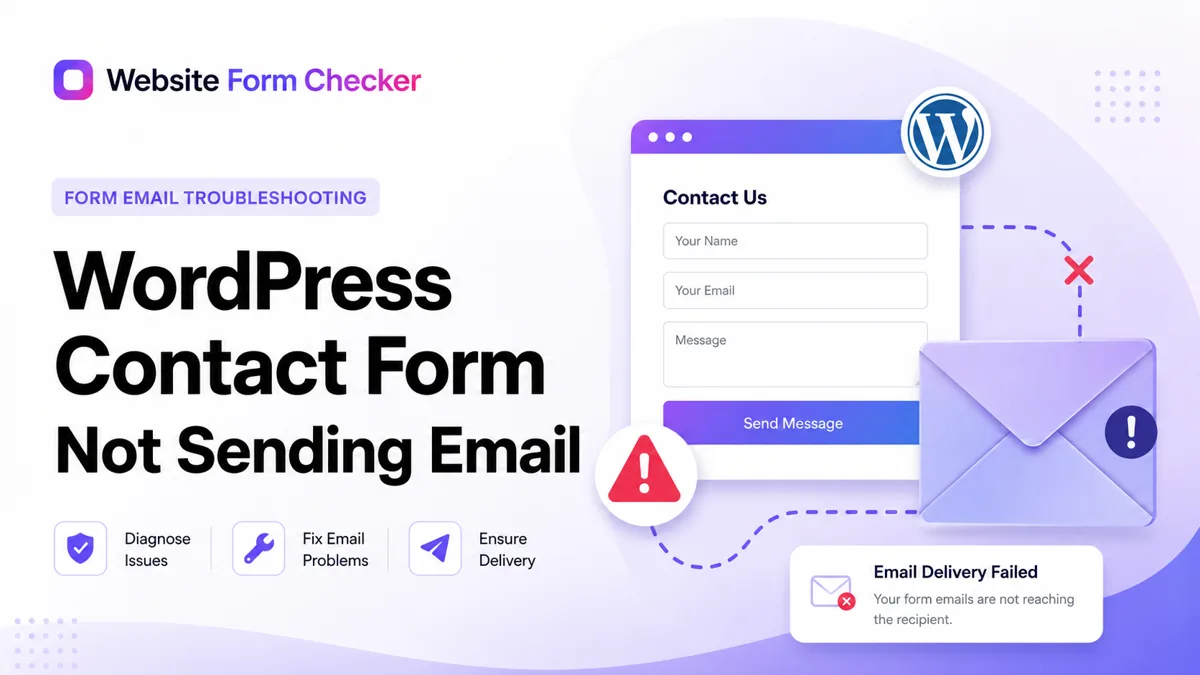
Before you change anything, send one real test submission through the live form from a private browser window. Use an email address you control, write a clear test message, and wait a few minutes. If the message does not land in your inbox or spam folder, work through the checks below in order. You can also paste your form URL into our free form checker first to see how the form is structured before you start digging.
First, run a real contact form test
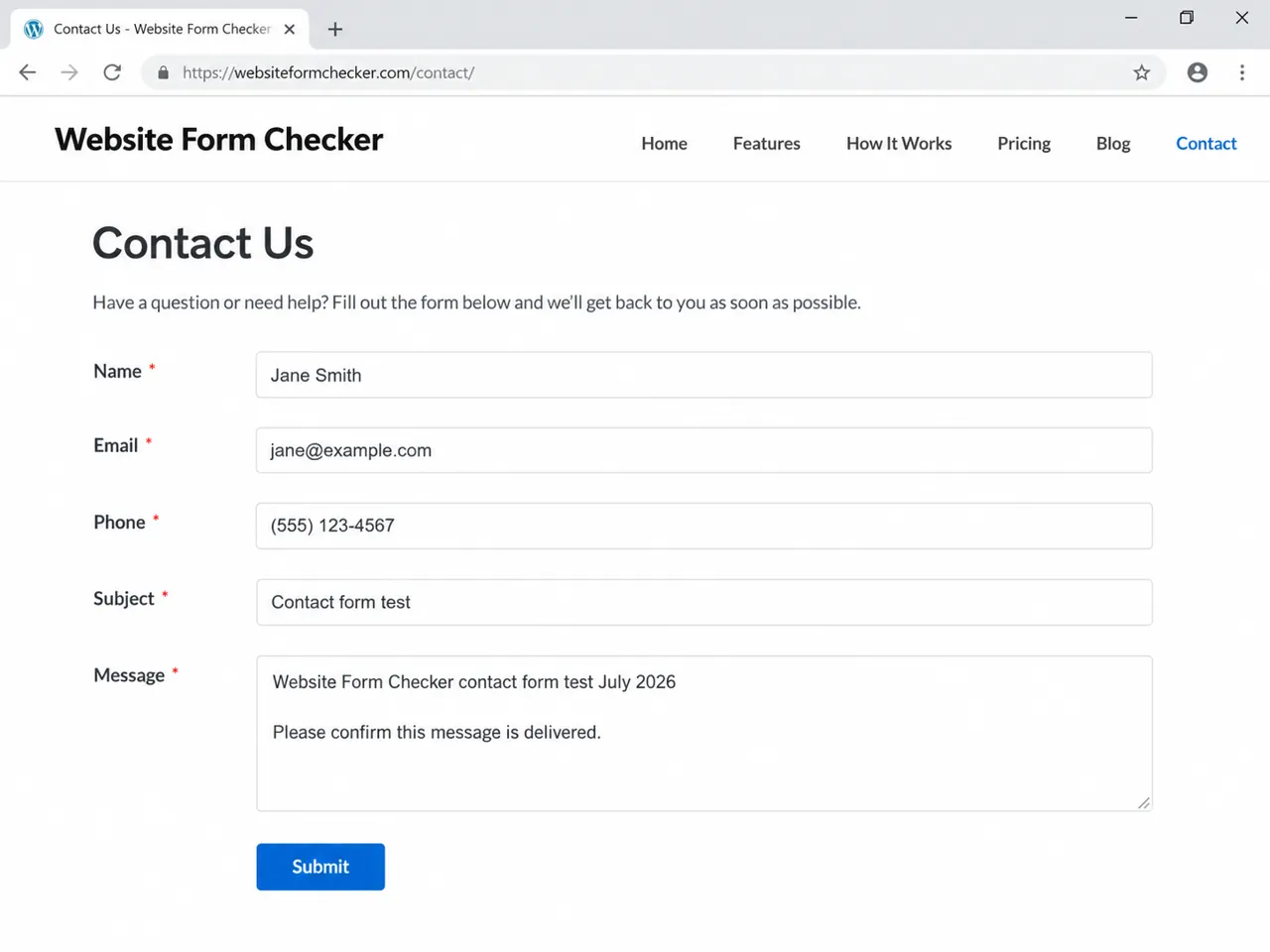
Start from the live page, not only from inside WordPress. Open the contact page in a private browser window and submit the form like a real visitor would.
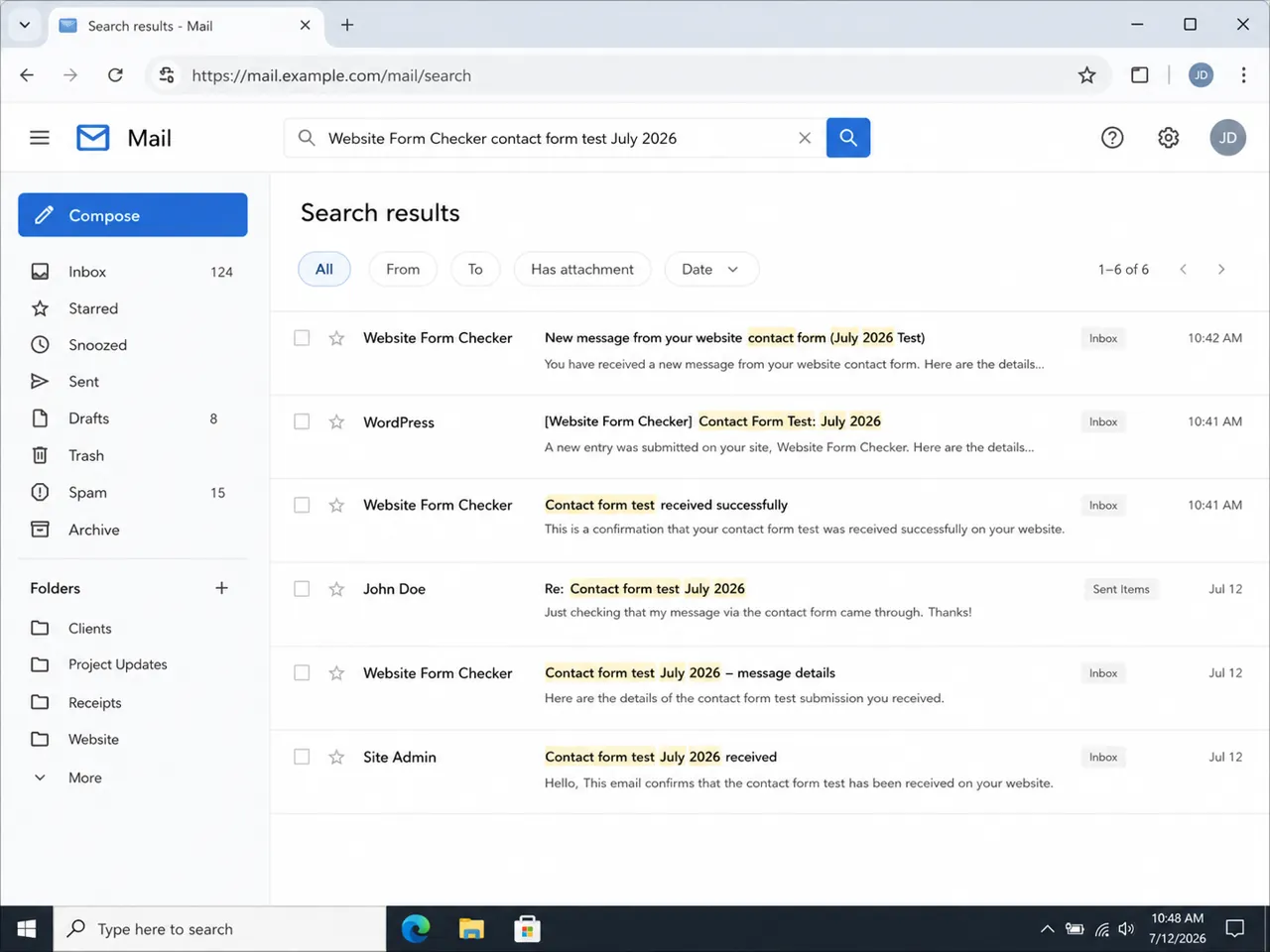
Use a unique phrase you can search for later, such as Website Form Checker contact form test July 2026. Put it in the message field. Use a real email address you control, not a fake address, so you can also test Reply-To later.
Do not trust the success message by itself
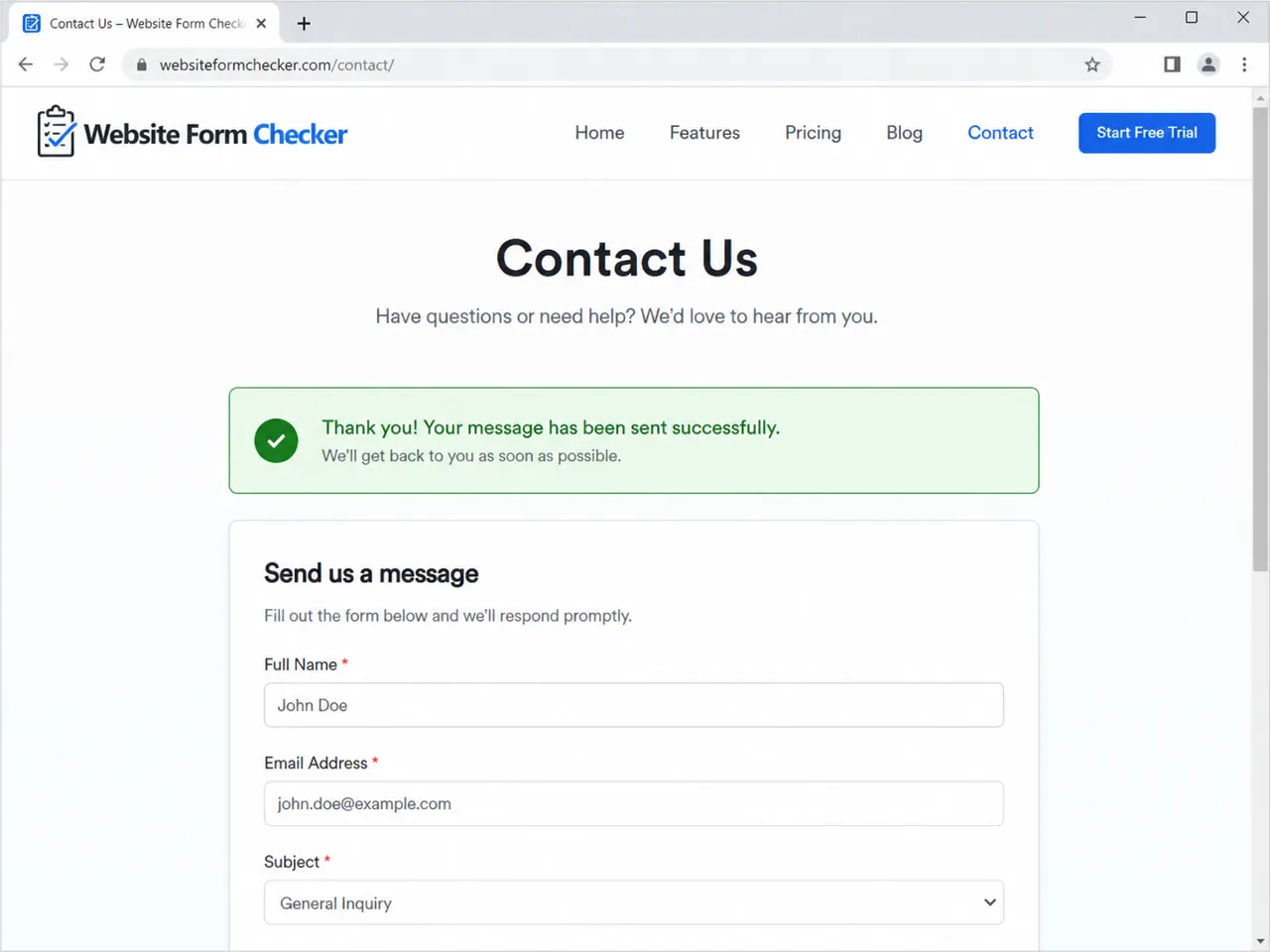
After you submit the form, note exactly what happens on the page. A green success message means the form likely responded, but it does not prove the business received the lead.
If the page reloads, shows an error, spins forever, or never confirms the submission, you may have a front-end form problem before you have an email problem. Check required fields, reCAPTCHA, JavaScript errors, caching, and security plugins before moving deeper into email delivery.
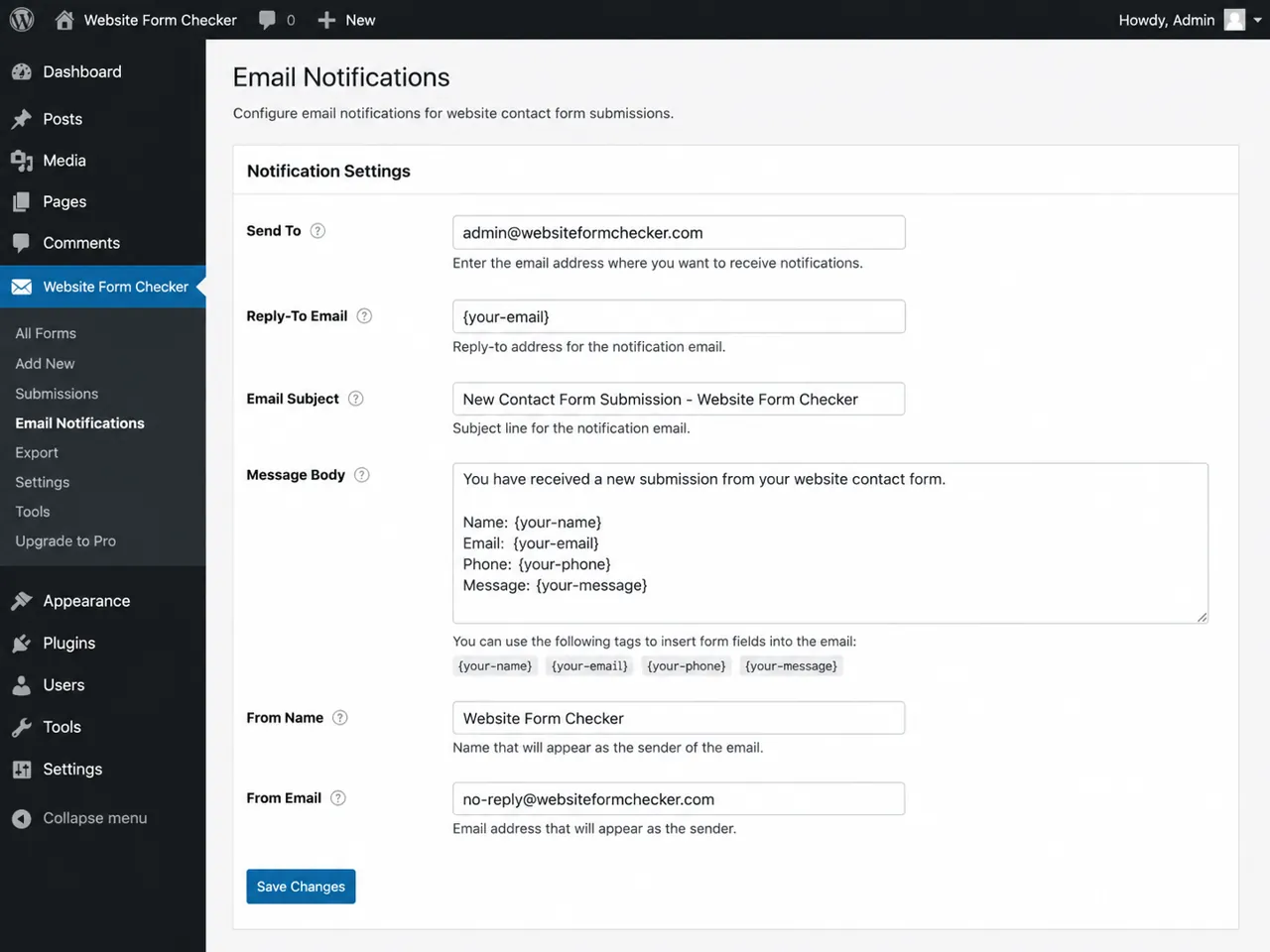
Check the contact form notification settings
If the form confirms successfully but no email arrives, open the form plugin settings. Most WordPress form plugins have a notification or email settings area for each form.
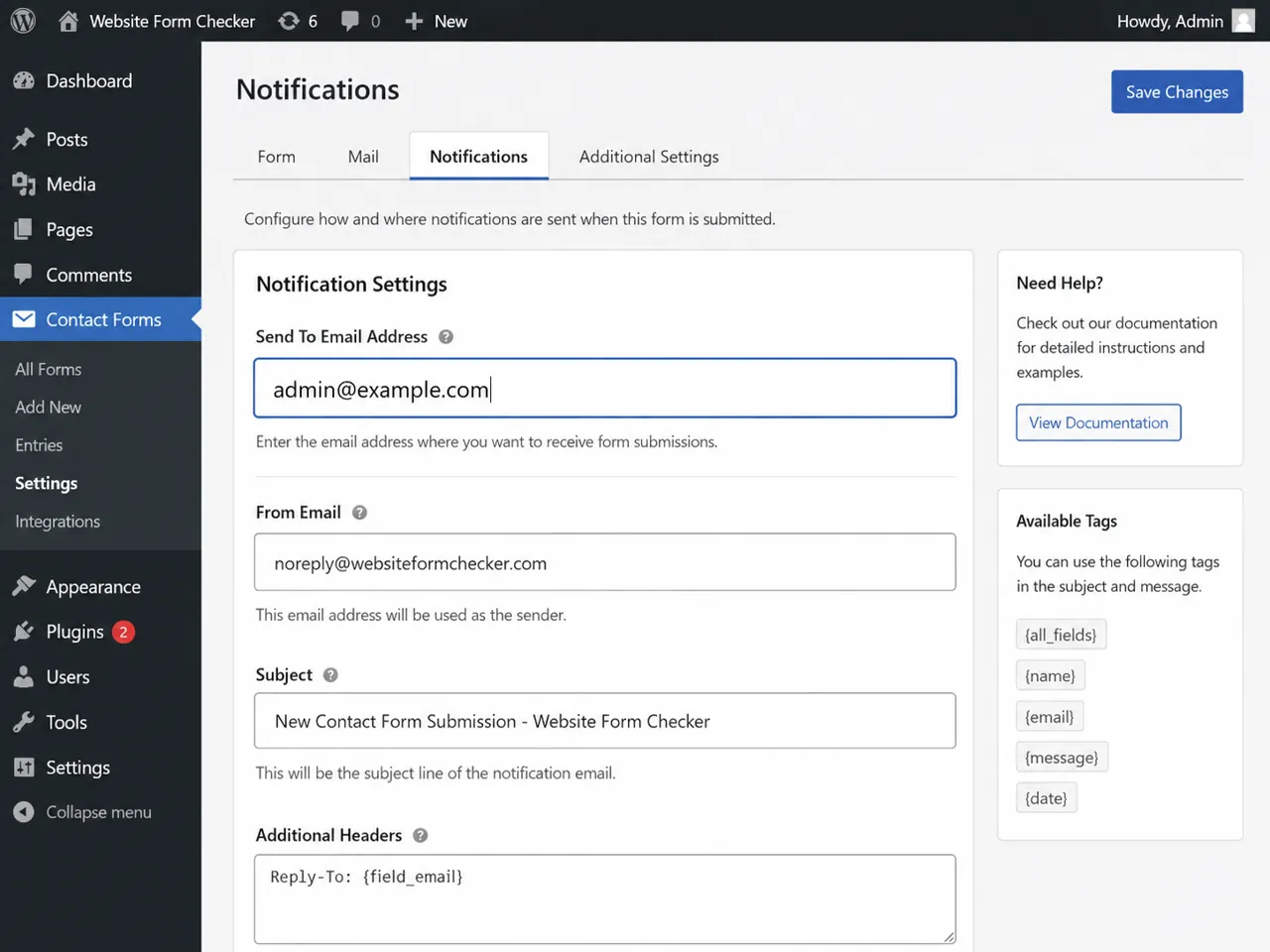
Look for the active notification tied to the form. Make sure it is enabled. Then check the recipient, sender, reply-to, subject, and message body.
Check the Send To Email field
The Send To Email field should be the inbox that receives leads, such as [email protected] or [email protected]. Watch for typos, extra spaces, old employee addresses, or multiple recipients separated incorrectly.
If the site has several forms, confirm you are editing the right form. It is common to fix the notification on one form while the live page uses another.
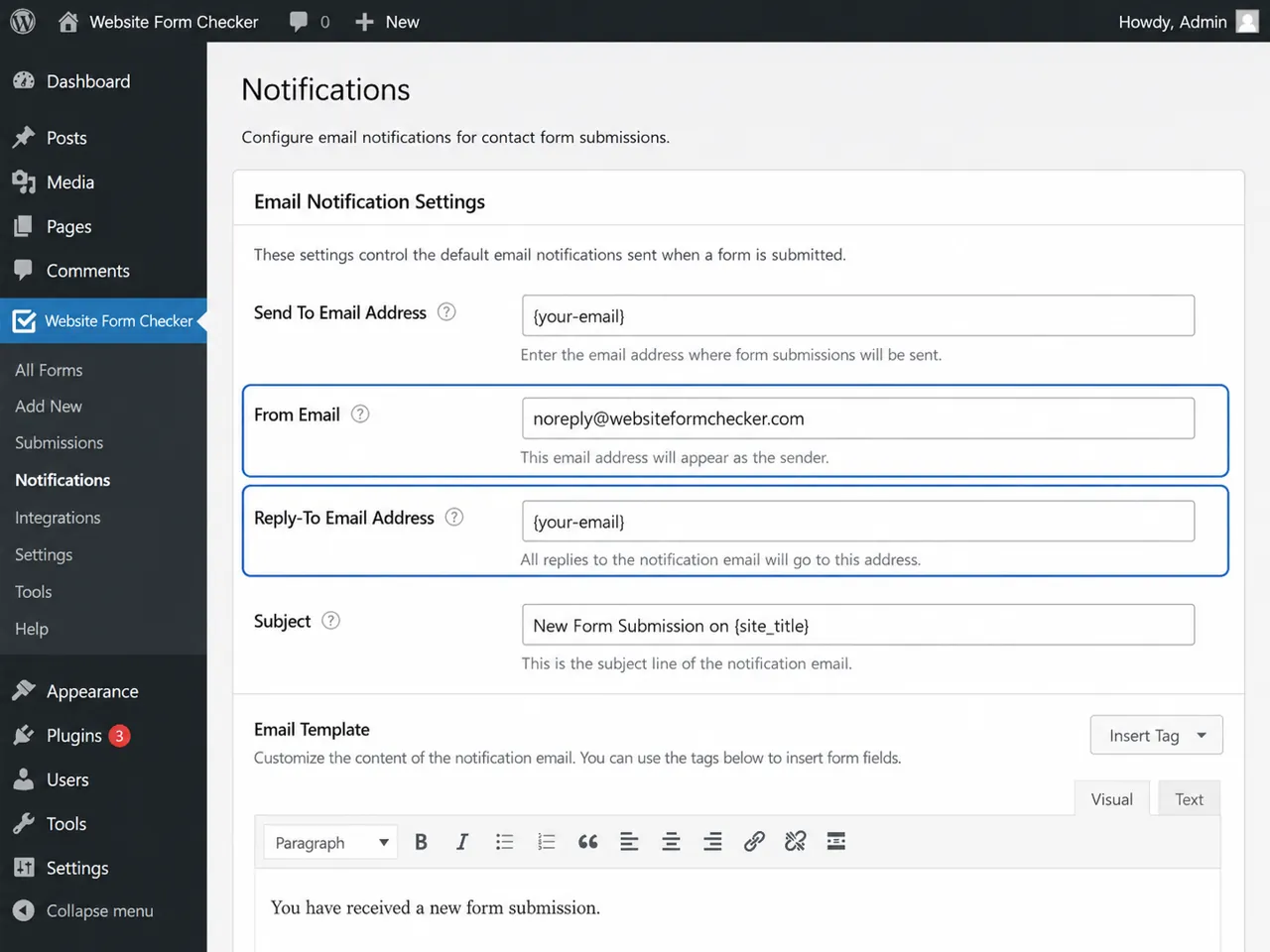
Check From Email and Reply-To
The From Email should usually use your website domain, such as [email protected] or [email protected]. Avoid using the visitor email as the From Email. Many inbox providers treat that as suspicious because your website is not authorized to send from the visitor's domain.
Use the visitor email field in Reply-To instead. That way the notification is sent from your authenticated domain, but when you click reply, the response goes to the lead.
Make sure the email includes the form fields
Open the message body or email template. Make sure the notification includes the fields the business needs, such as name, email, phone, subject, message, and page source if useful.
If the message body is empty or uses the wrong field tags, the email may arrive without the lead details. That can look like a delivery problem when the real issue is a broken notification template.
Check whether the contact form entry was saved
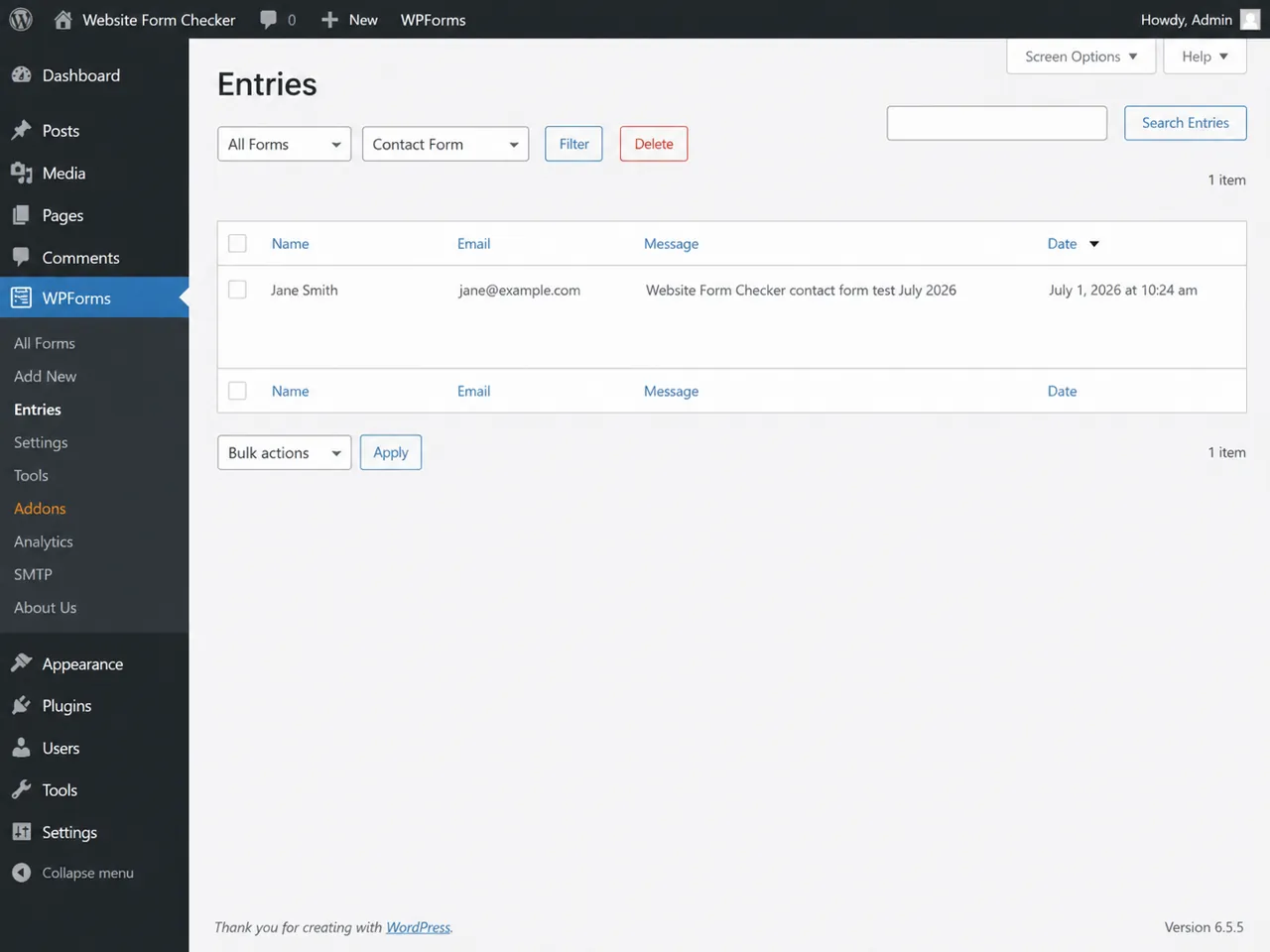
Now separate the form submission from the email notification. If your form plugin stores entries, open the entries or submissions screen and search for your unique test phrase.
If the entry exists, the form accepted the submission. The problem is probably notification settings, WordPress email, SMTP, spam filtering, inbox rules, or authentication.
If the entry does not exist, the form itself may not be submitting. Check required fields, validation errors, anti-spam rules, reCAPTCHA, caching, JavaScript errors, and plugin conflicts. Some plugins or free plans do not store entries, so confirm whether your plugin supports entry storage before assuming the form failed.
Check whether WordPress can send email through SMTP
WordPress often sends email through the default server mail function. That can work, but it is also a common reason a contact form does not send email reliably. The site may hand off a message, but that does not guarantee the inbox accepts it.
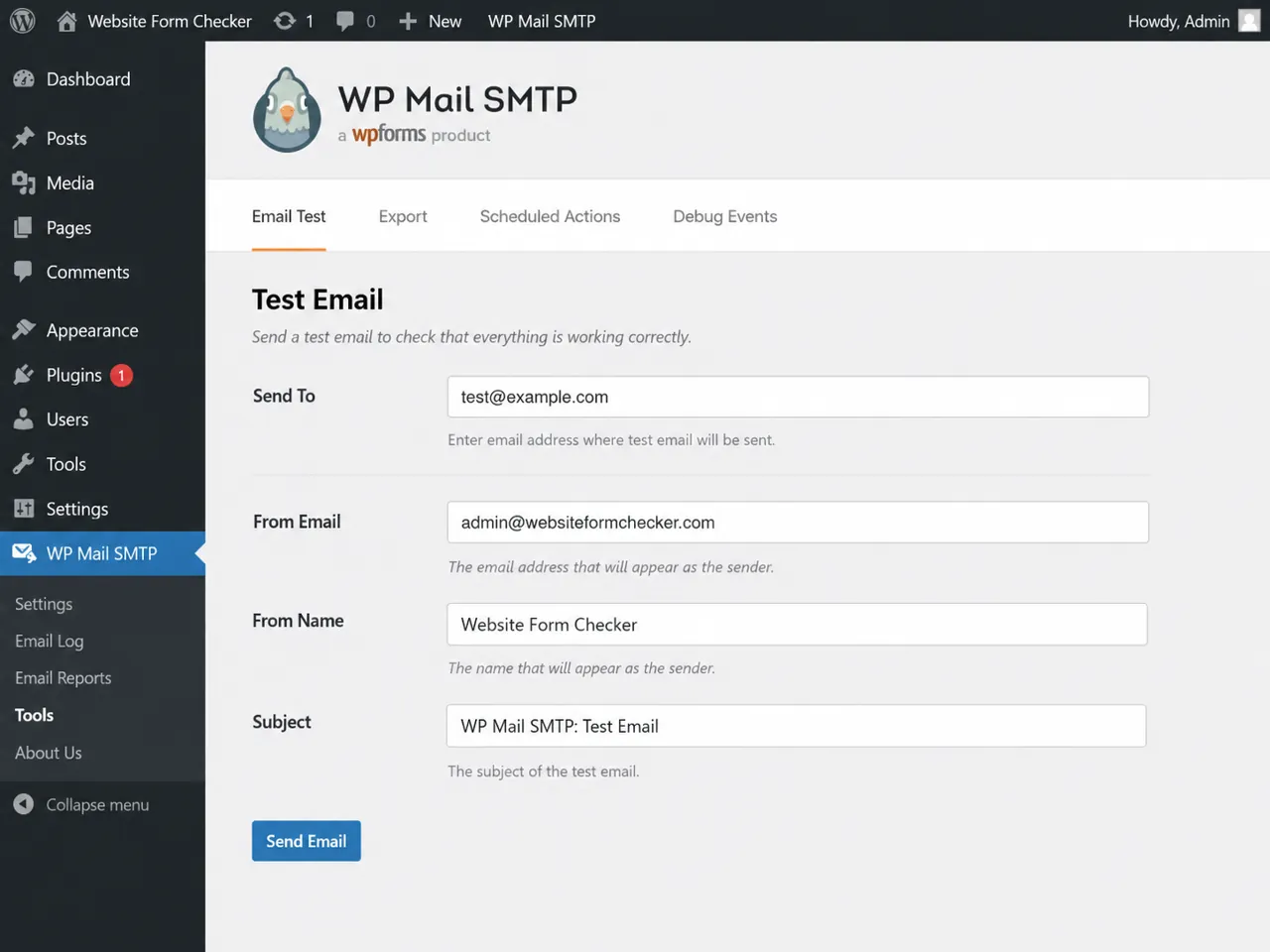
An SMTP plugin connects WordPress to a real mailer, such as your domain email provider, host SMTP account, or transactional email service. If you already use SMTP, run a test from the SMTP plugin before changing form settings again.
In WP Mail SMTP, for example, go to WP Mail SMTP > Tools > Email Test and send a test message to an inbox you control. If the SMTP test fails, fix the mailer setup first. Check the API key or login, mailer selection, sender email, port, encryption, and any blocked outbound mail warnings from the host.
Search the inbox, spam folder, and filters
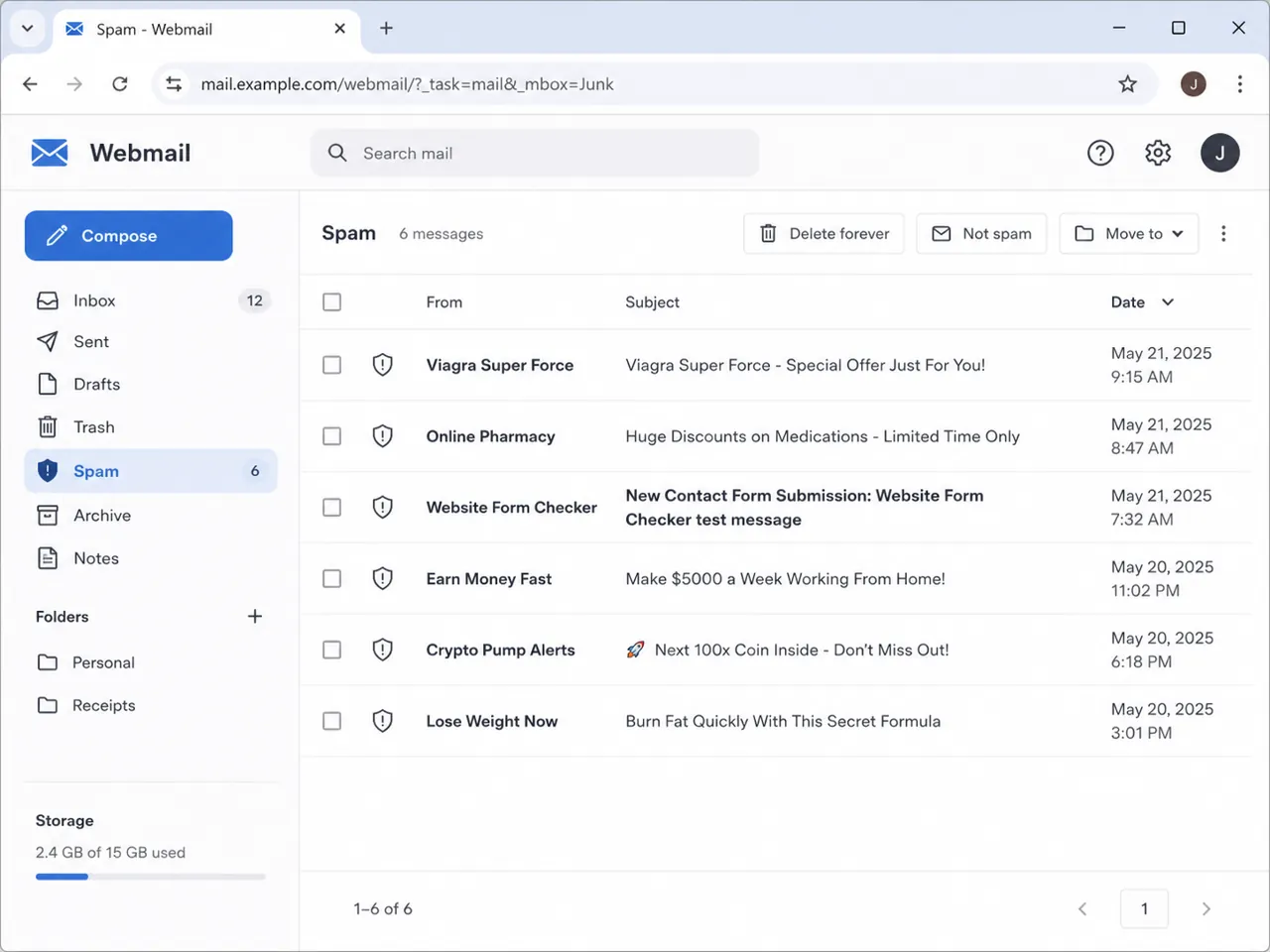
If the form entry exists and SMTP works, search the mailbox next. Search for your exact test phrase in the inbox, spam, junk, promotions, all mail, deleted items, and quarantine.
Also check forwarding rules and inbox filters. A rule may be moving form notifications to a folder, marking them as read, forwarding them to an old employee, or deleting them before anyone sees them.
If the message is in spam, the form may be working but the sender reputation or message format is weak. Check the From Email, subject line, links, and whether your domain has SPF, DKIM, and DMARC records set up for the mailer you use. These authentication problems are one of the most common silent failures, covered in more depth in 10 reasons your contact form is silently broken.
Do not mark one test as the final fix until a new test reaches the normal inbox without manual rescue.
Check anti-spam, caching, and plugin conflicts
If the contact form works sometimes but not always, look at anything that touches form submission. reCAPTCHA, honeypot fields, anti-spam plugins, firewalls, optimization plugins, and page caching can all interrupt a form before the notification is created.
Test in a private window and on the live page. If you have a staging site, temporarily disable non-essential plugins there and test again. Change one thing at a time so you know what actually fixed the issue.
Also check recent updates. A plugin, theme, SMTP, or security update can break the form path while the form still looks normal on the front end.
Run one final end-to-end test
Before you call the issue fixed, test the full live path from start to finish. Submit the real contact form from the public page. Confirm the success message appears. Check the entry or submission log if available. Then confirm the notification arrives in the correct inbox.
Open the email and make sure it contains the lead details the business needs. Then click reply. The reply should go to the visitor email address, not to your own sender address.
A passing test means the live form submits, the entry is saved if available, the notification reaches the inbox, the message body is complete, and Reply-To works.
How to catch this next time before leads go missing
Once the form is fixed, the next problem is knowing when it breaks again. Plugin updates, SMTP password changes, DNS changes, spam rules, and email provider changes can all break form notifications later without changing how the form looks on the page.
That is the gap Website Form Checker is built to watch. It sends real test submissions through your form on a schedule and alerts you if they stop arriving, so you catch the issue before a real customer gets ignored. Use monitoring after the fix, not instead of the fix. First make the form, notification, SMTP, entries, and inbox work. Then monitor the live form so a silent failure does not sit unnoticed.
Quick checklist
- The live contact form was tested in a private browser window.
- A unique test phrase was used in the message field.
- The form showed a clear success message after submission.
- The correct form notification is enabled.
- The Send To Email field uses the right business inbox.
- The From Email uses an address on the website domain when possible.
- Reply-To uses the visitor email field.
- The message body includes name, email, phone, and message fields.
- Entries or submissions were checked if available.
- SMTP was tested from WordPress.
- Inbox, spam, quarantine, filters, and forwarding rules were checked.
- Anti-spam, reCAPTCHA, caching, and plugin conflicts were tested if needed.
- A final live test reached the correct inbox with complete lead details.
Test your form right now, free
Paste your contact form URL. We'll open it in a real browser, find the form, detect spam protection, and tell you whether it's structured to actually deliver submissions. Takes about 20 seconds.
Run a free audit →