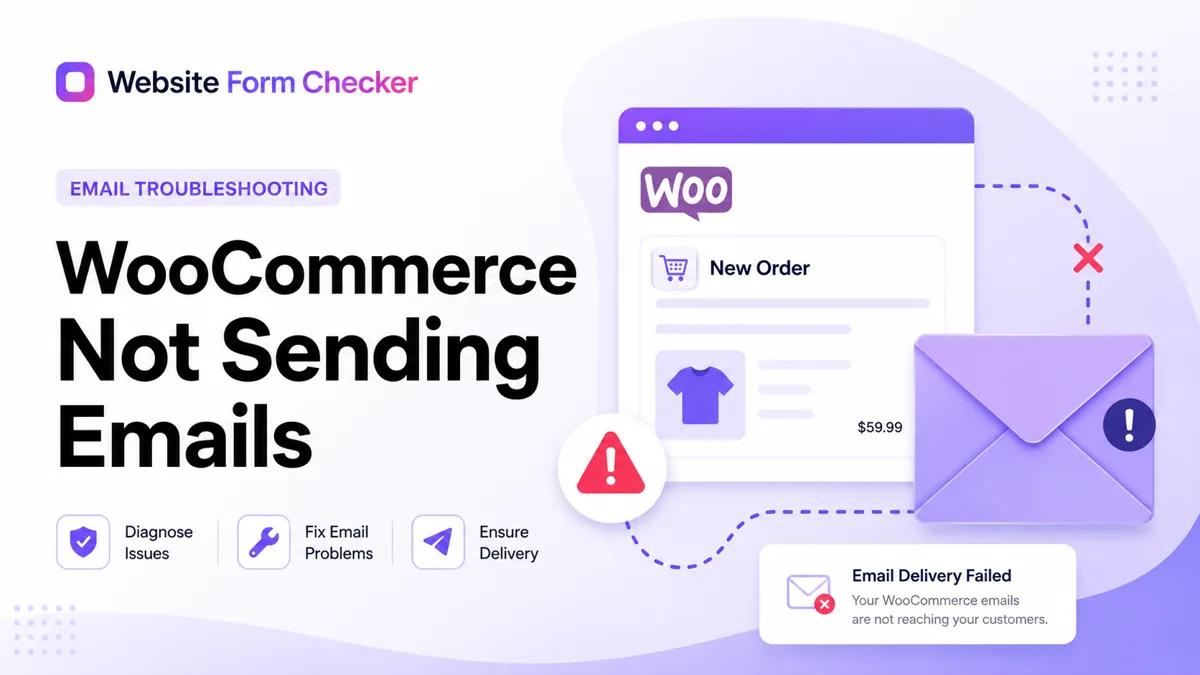
Work through the checks below in order so you can find where the email path is breaking instead of changing random settings. Start with a real checkout test using an email address you control, then trace the exact path through WooCommerce, WordPress mail, and your inbox. You can also paste your form or checkout URL into our free form checker first to see how the page is structured before you start digging.
First, name the email that is missing
Before opening settings, decide which email failed. WooCommerce sends several order-related emails, and each one has its own trigger and settings. The fix for a missing admin new order email may not be the same as the fix for a missing customer processing order email.
Common cases to identify
The store owner is not receiving new order notifications. The customer is not receiving order confirmation or processing order emails. Completed order emails only fail after an order is marked completed. Or emails work for some orders but not for orders from a specific payment method, status, or customer address. Once you know which email is missing, place a controlled test order so you can trace the exact path.
Place a controlled WooCommerce test order
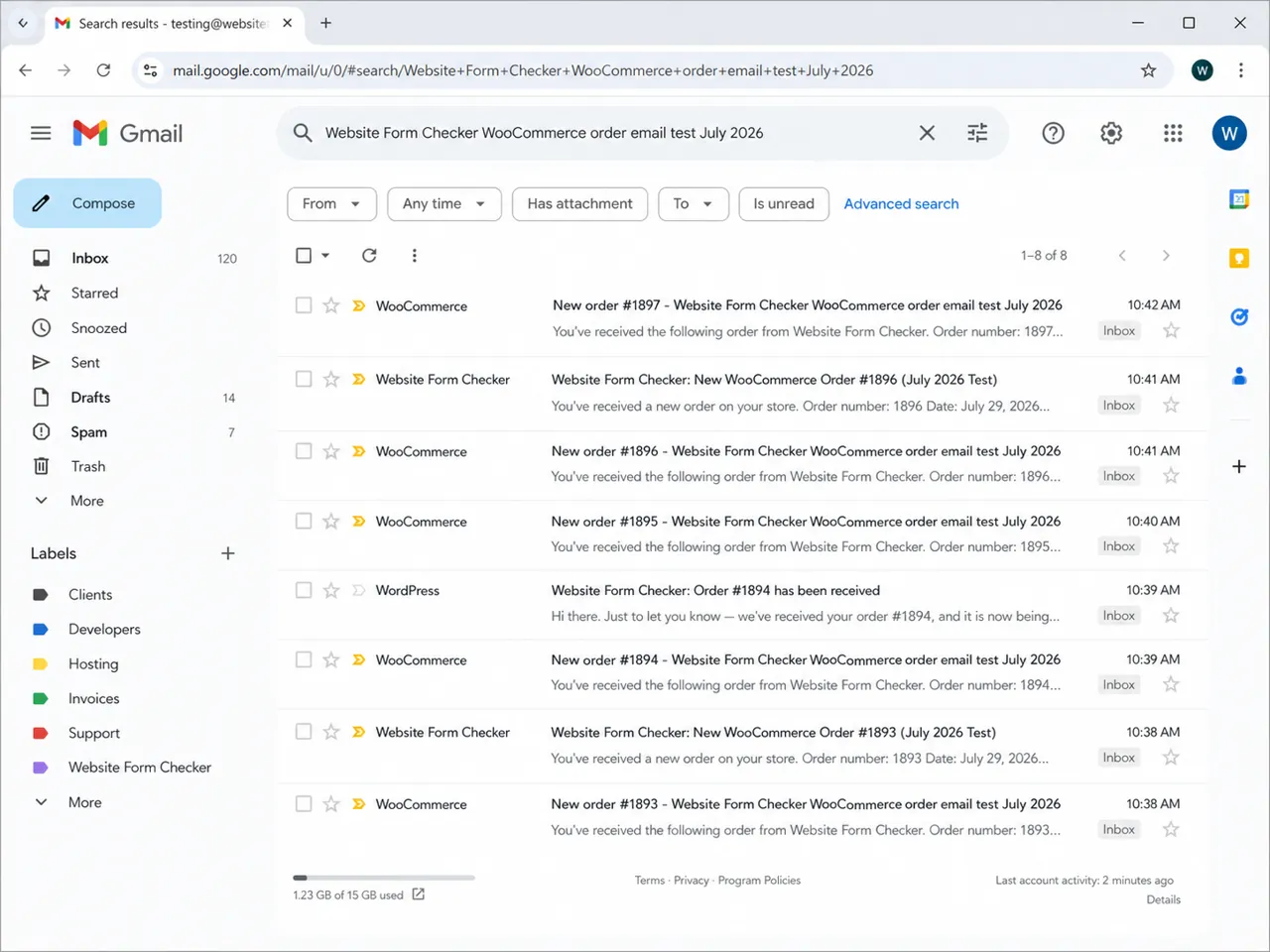
Start with a real checkout test. Use a test payment method, sandbox gateway, or low-value test product. Enter a customer email address you can access, and use a searchable phrase in the order notes or product name, such as Website Form Checker WooCommerce order email test July 2026.
Why a fresh order beats an old one
This gives you one order number, one customer email address, and one phrase to search for later. Avoid relying on old orders because they may have different statuses, old plugin behavior, or manual admin changes.
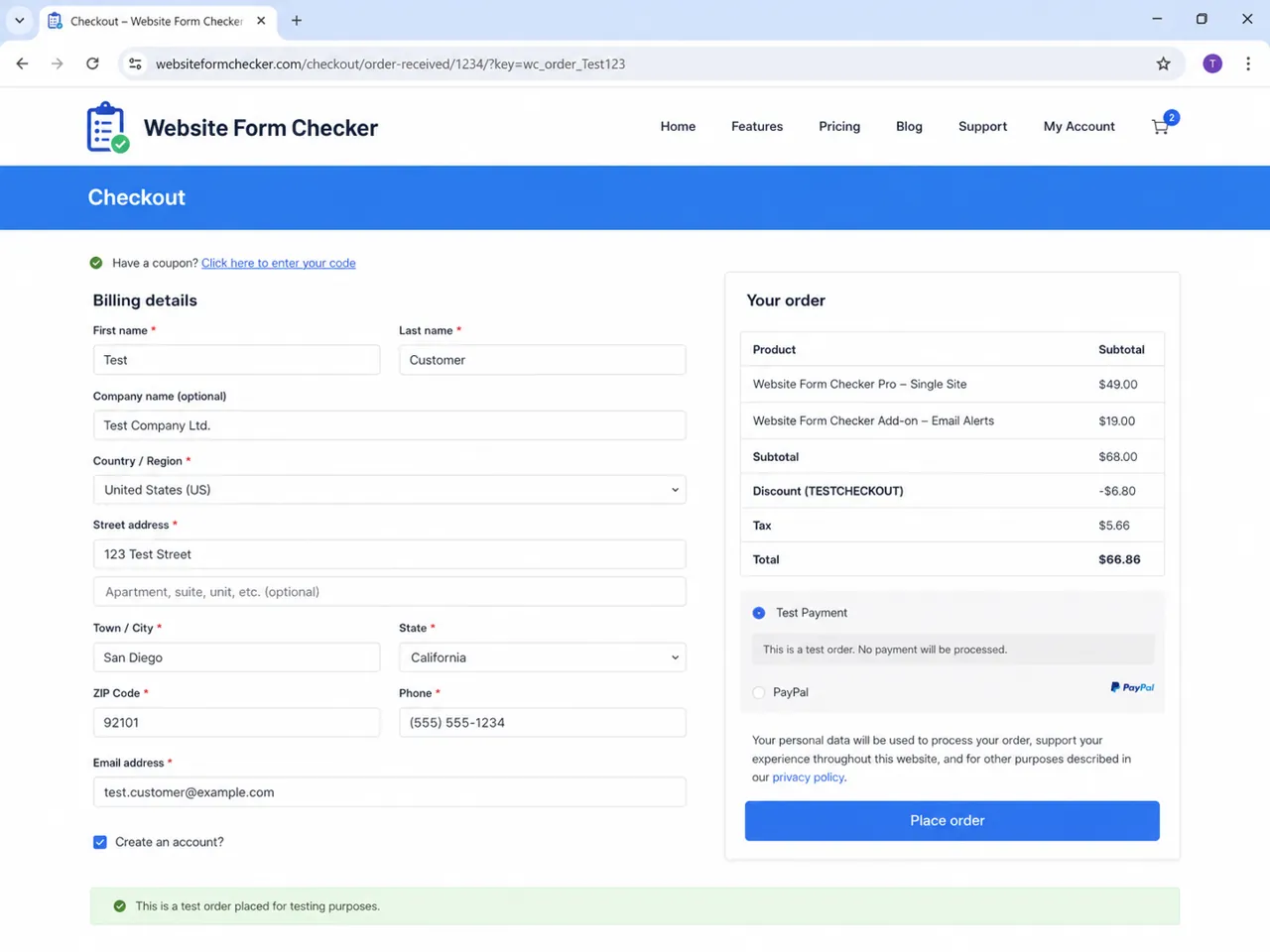
Do not stop at the order received page
The order received page only proves that checkout reached a confirmation screen. It does not prove that WooCommerce generated the email, WordPress sent it, SMTP accepted it, or the inbox delivered it.
Capture the details, then keep going
Use the confirmation page to capture the order number, customer email, payment method, and total. Then continue the test inside WordPress and the mailbox.
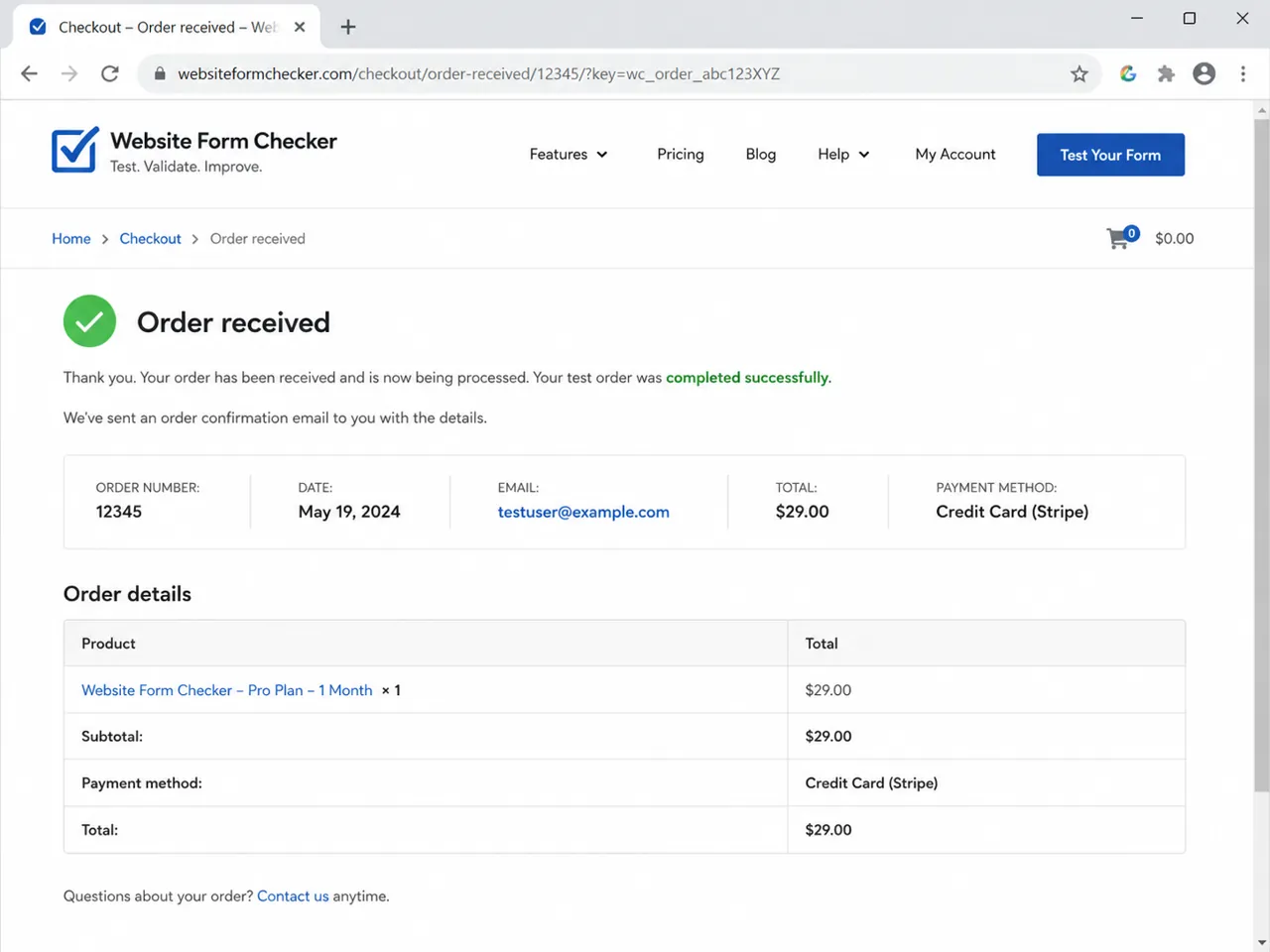
Review the WooCommerce Emails screen
In WordPress, go to WooCommerce > Settings > Emails. This screen shows the store emails WooCommerce can send, including admin emails and customer emails. Look for disabled notifications, unexpected recipients, or templates that were edited by another plugin or theme.
Tell admin and customer emails apart
New order emails usually go to the store owner or staff inbox. Customer processing order emails go to the customer after payment is received and the order is processing. Completed order emails depend on the order being moved to Completed.
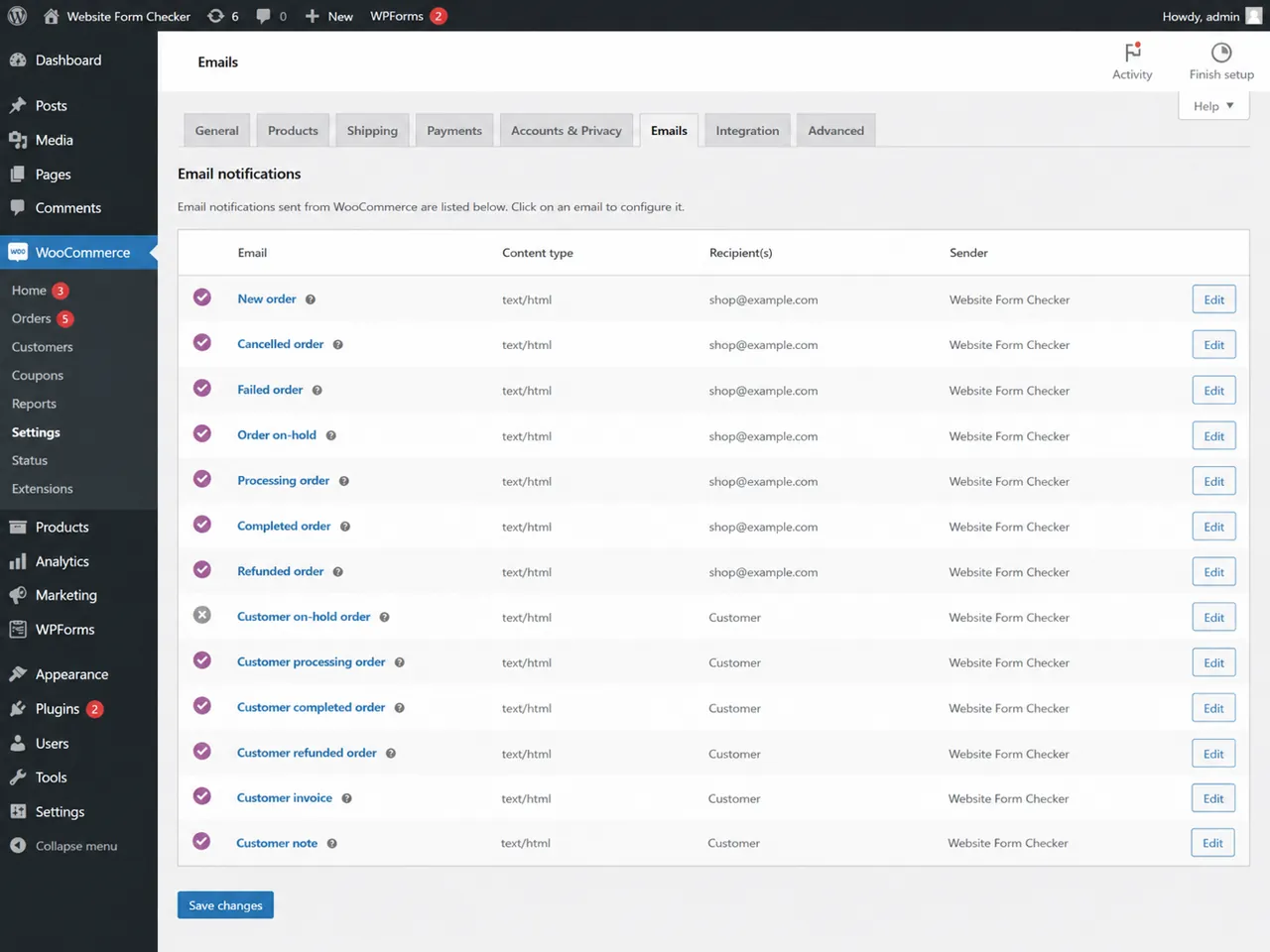
Check the New Order email settings
If the store team is not receiving order alerts, open the New Order email. Confirm that Enable this email notification is checked and that the Recipient(s) field contains the right inbox.
Small mistakes that are easy to miss
Watch for a typo in the admin email address, an old employee address still listed as the recipient, multiple recipients separated incorrectly, or a forwarding inbox that no longer exists. Any one of these sends the alert somewhere you will never look.
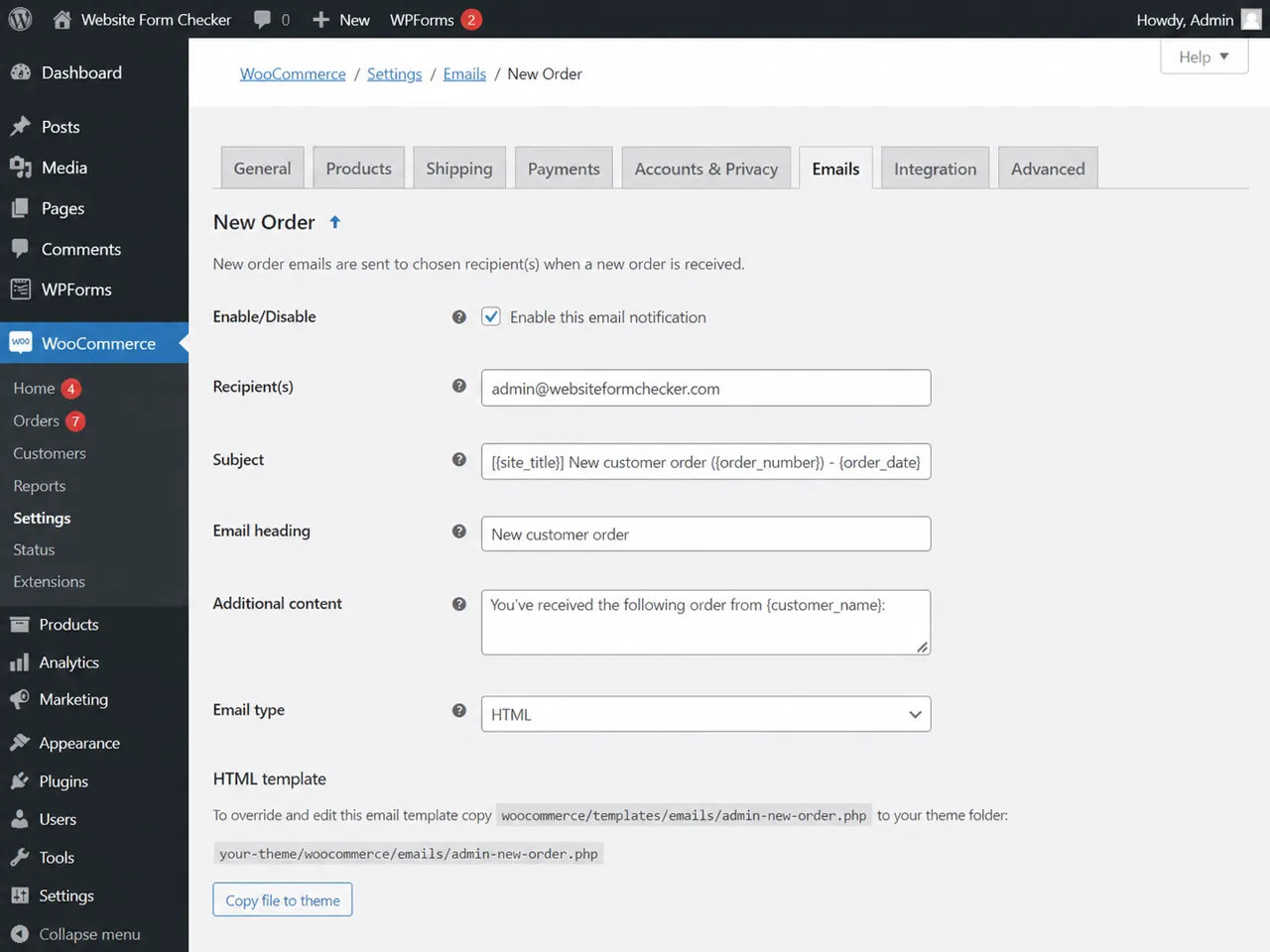
Check the customer order email
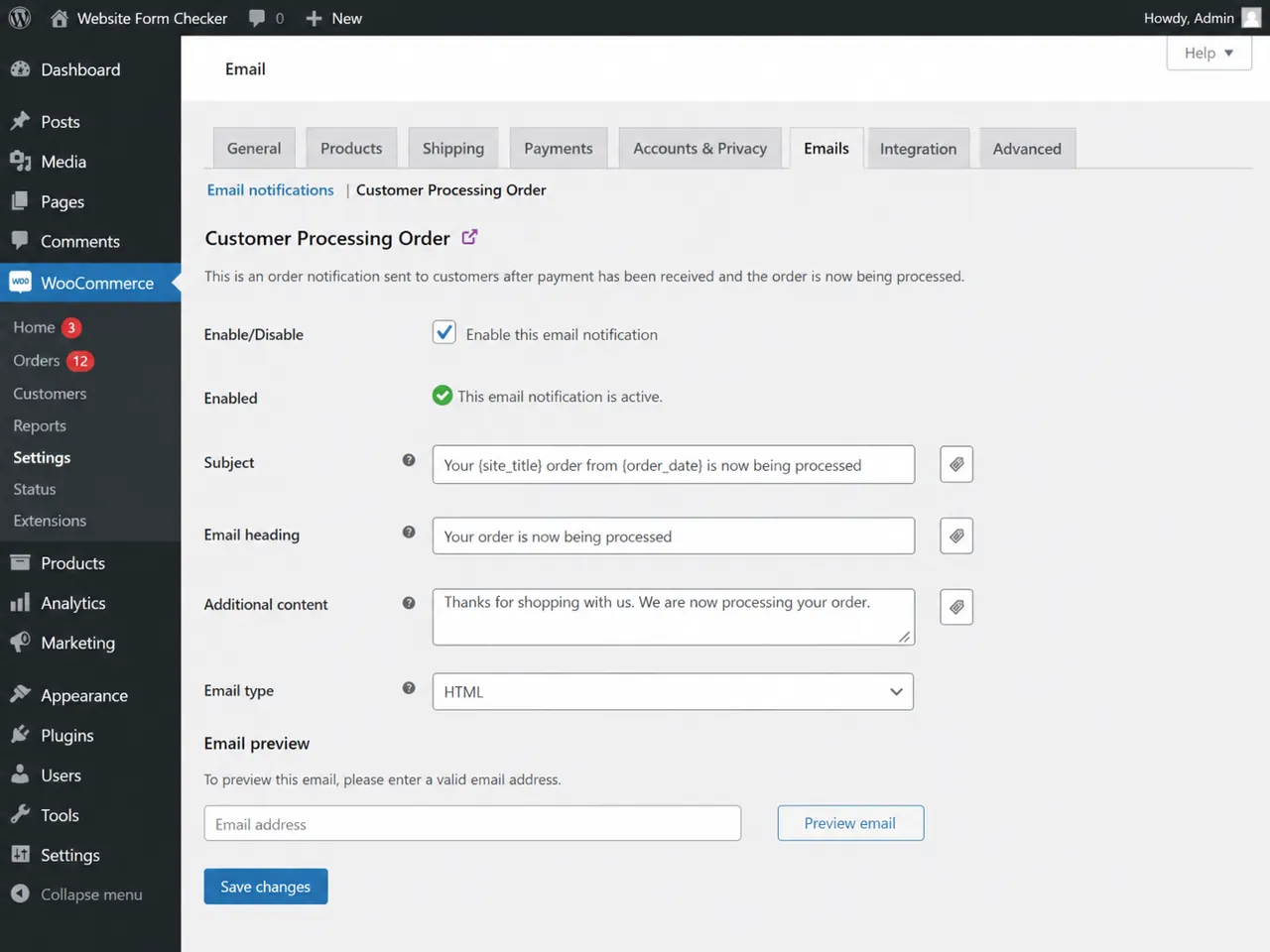
If customers are not receiving order confirmations, open Customer Processing Order or the specific customer email that should have been sent. Make sure the notification is enabled and that the email type, subject, and heading are still valid.
Order status controls the trigger
Customer emails also depend on the order status. If a payment gateway leaves an order as Pending payment, Failed, or On hold, the expected customer email may not fire until the order reaches the right status. That is why the order record matters as much as the email template.
Open the test order and check status details
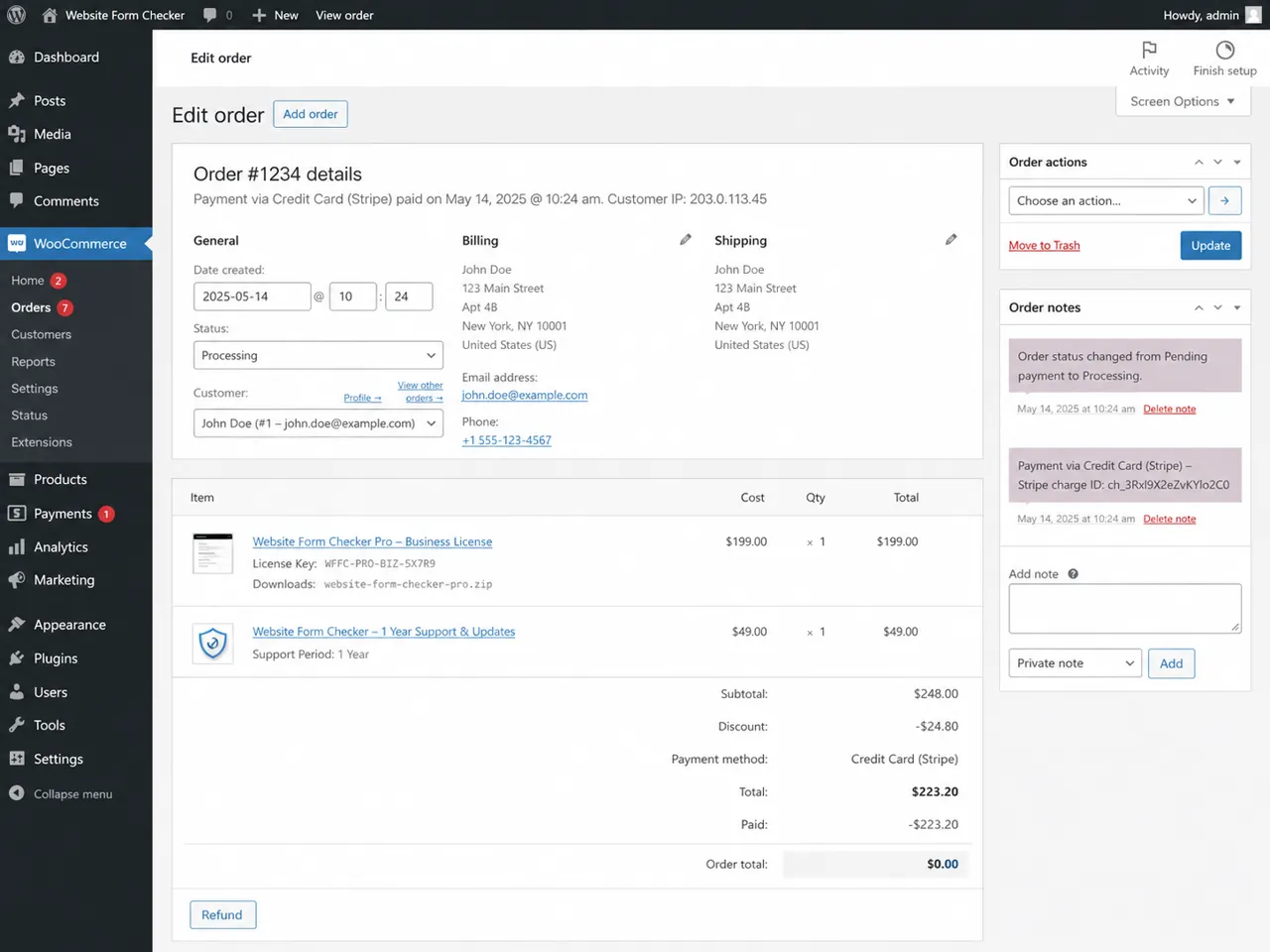
Go to WooCommerce > Orders and open the test order. Confirm the order status, customer email address, billing details, payment method, and order total. If the customer email is wrong on the order, WooCommerce may be sending correctly to the wrong address.
The details that matter most
For order confirmation issues, focus on the order status (Processing, Completed, On hold, Failed, or Pending payment), the exact customer email address used during checkout, the payment method that may influence status changes and triggers, and the order notes that can show what happened after checkout.
Use order notes as your timeline
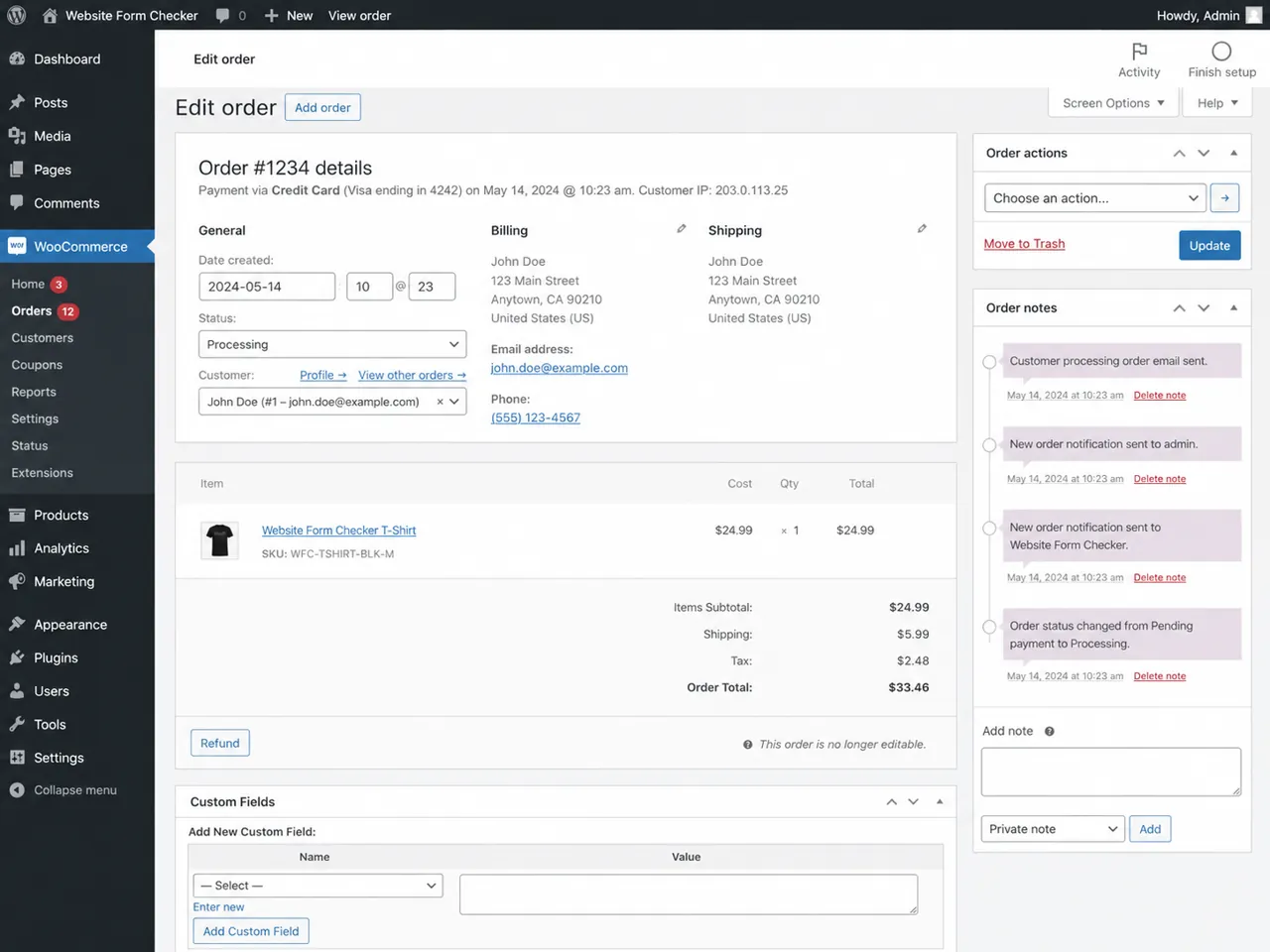
WooCommerce order notes can help you understand whether the order moved through the expected states. Look for notes about payment completion, status changes, and emails sent. If order notes show the status changed but no email note appears, the issue may be with the email notification or a plugin that changed the trigger.
When the notes say the email sent
If notes show that an email was sent, move your attention to SMTP, email logs, spam filtering, inbox rules, and domain authentication.
Check the WooCommerce sender identity
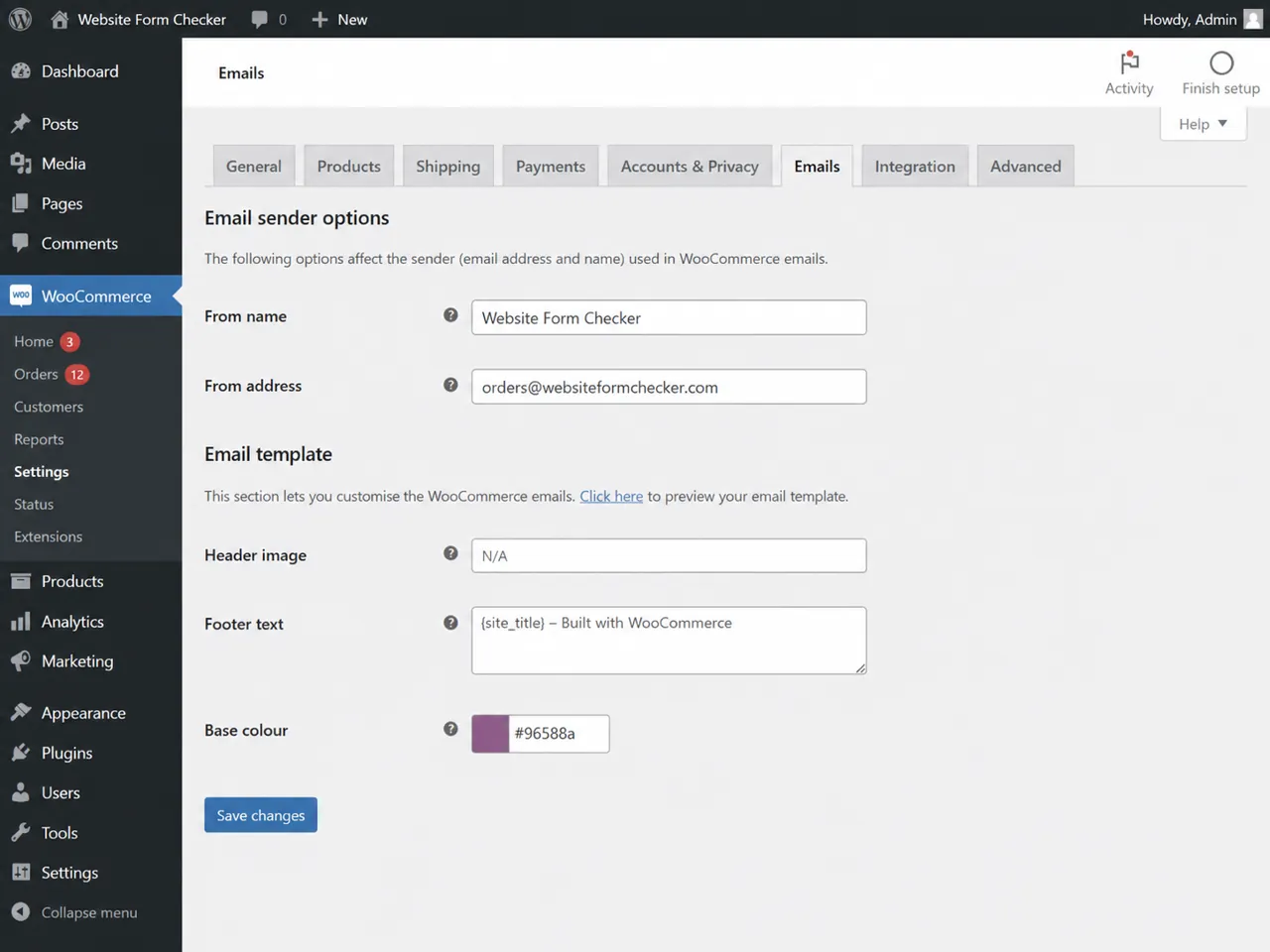
Next, review the Email sender options near the bottom of WooCommerce > Settings > Emails. The From name should be recognizable, and the From address should usually use your own domain, such as [email protected].
Why a weak sender fails silently
Avoid sending store emails from a free mailbox or from a domain your site cannot authenticate. A weak sender setup can make WooCommerce emails look suspicious to mailbox providers, especially when order emails include prices, links, shipping details, and customer data.
Test WordPress email with SMTP
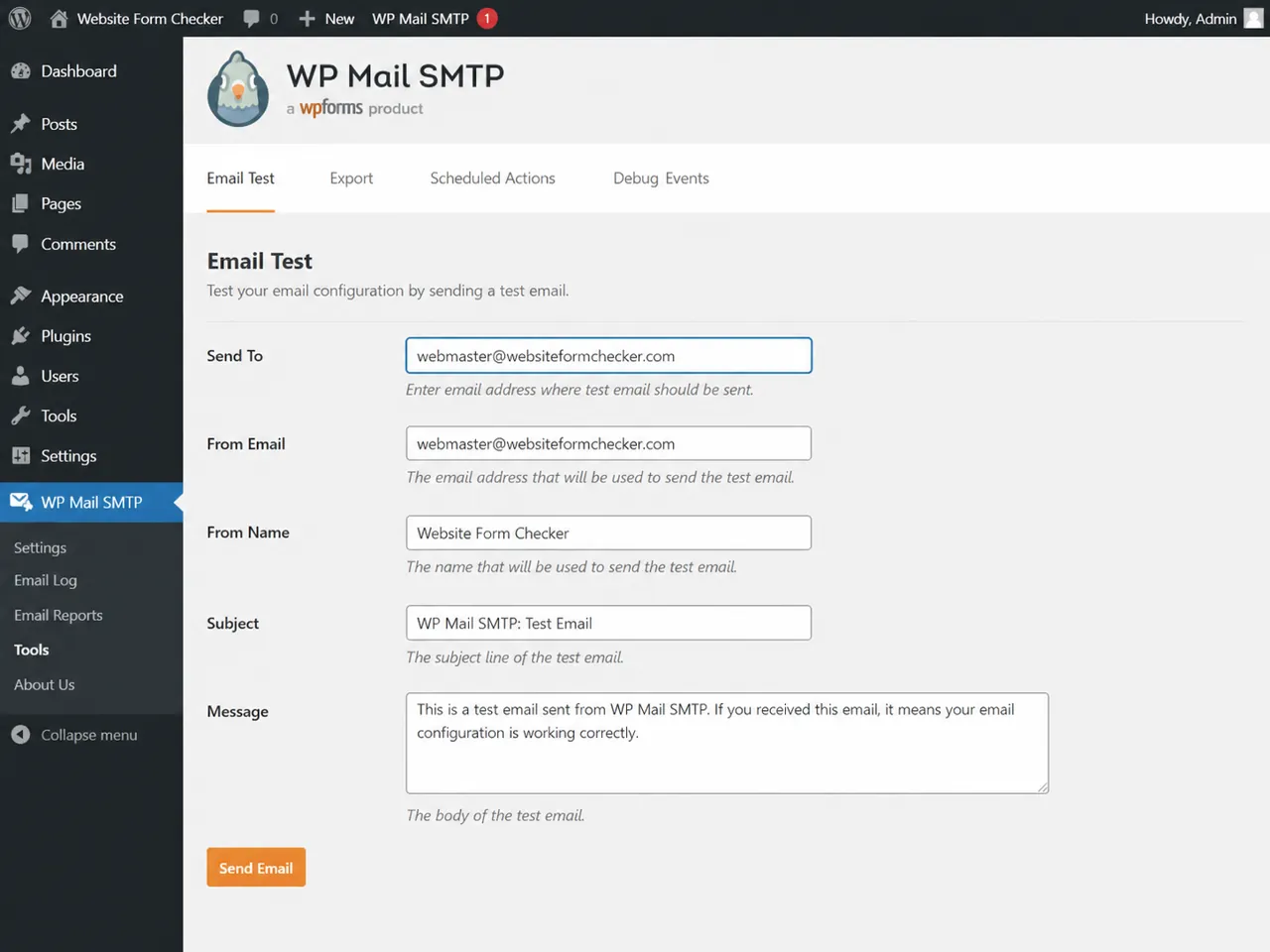
If WooCommerce settings look correct, test WordPress email outside of WooCommerce. Use your SMTP plugin to send a test email to an inbox you control. In WP Mail SMTP, the test path is WP Mail SMTP > Tools > Email Test.
Fix SMTP before touching WooCommerce again
If the SMTP test fails, fix that first. Check the selected mailer, API key or login, From Email, DNS records, and any hosting restrictions on outbound mail. If SMTP cannot send a basic test message, WooCommerce order emails will not be reliable either.
Search the mailbox with the test phrase
When the order exists and the SMTP test works, search the recipient mailbox. Use the exact test phrase, order number, customer email address, and sender address. Search Inbox, All Mail, Spam, Trash, Promotions, Quarantine, and any shared mailbox folders.
The email may be arriving and hiding
Also check inbox rules and forwarding. The email may be arriving and then being archived, labeled, marked as read, moved to another folder, forwarded to another address, or deleted automatically.
Look for custom email interference
If everything above looks correct and WooCommerce emails are still inconsistent, check for customizations. WooCommerce email behavior can be changed by email customizer plugins, automation plugins, order status plugins, code snippets, theme template overrides, payment gateway settings, or membership and subscription extensions.
Test one variable at a time
A practical way to test this is to repeat the same order flow on a staging site with non-essential plugins disabled. Change one variable at a time. Do not disable payment, email, or order plugins on a live store without a rollback plan.
Run one final store-to-inbox test
After making changes, place one more controlled test order. Confirm the order received screen appears, the order is saved in WooCommerce, the status is what you expect, the order notes make sense, and the correct emails arrive in the correct inboxes.
Verify the details in every email
Open each email and confirm the customer email arrives at the customer address, the admin new order email arrives at the store inbox, the order number, product, total, billing email, and links are correct, and the From name and From address look trustworthy.
How to catch WooCommerce email failures earlier
WooCommerce email failures are dangerous because checkout can keep working while notifications silently disappear. A customer may complete an order, the payment may be accepted, and the team may still miss the admin email that tells them to fulfill it.
After you fix the issue, use monitoring to catch future failures. Website Form Checker can run scheduled test submissions and alert you if expected messages stop arriving. For stores, that kind of monitoring is useful after updates, DNS changes, SMTP password changes, payment gateway changes, or mailbox rule changes. Treat monitoring as the final safety net. First make the WooCommerce email settings, order status flow, SMTP mailer, and inbox routing work. Then monitor the live path so the same problem does not sit unnoticed again.
Quick checklist
- A controlled WooCommerce test order was placed.
- The order received page was confirmed but not treated as proof of email delivery.
- WooCommerce > Settings > Emails was reviewed.
- The New Order email is enabled and uses the correct recipient.
- The customer order email is enabled and tied to the right order status.
- The order status and customer email address were checked on the order edit screen.
- Order notes were reviewed for status changes and email activity.
- WooCommerce From name and From address use a trustworthy sender.
- SMTP was tested from WordPress.
- Inbox, spam, quarantine, filters, and forwarding rules were searched.
- Custom email plugins, templates, snippets, and payment gateway behavior were checked if needed.
- A final live checkout test reached the correct inboxes with complete order details.
Test your form right now, free
Paste your contact form URL. We'll open it in a real browser, find the form, detect spam protection, and tell you whether it's structured to actually deliver submissions. Takes about 20 seconds.
Run a free audit →