Use a unique phrase in every test submission, something like Website Form Checker Formidable Forms email test July 2026. A unique phrase makes it easier to search entries, logs, inboxes, spam folders, and email clients without mixing the test with older messages. You can also paste your form URL into our free form checker first to see how the form is structured before you start digging.
Start with the full delivery path
When Formidable Forms not sending email becomes the problem, it is tempting to jump straight into SMTP settings. Sometimes that is the right fix, but not always. A form notification can fail at several points before it ever reaches the inbox.
The form may not submit correctly, the entry may not be saved, the email action may be disabled, the recipient may be wrong, WordPress may fail to hand the message to the mailer, or the mailbox may silently filter the message into spam.
The cleanest way to troubleshoot it is to follow the submission path from the front-end form to the final inbox. That approach prevents guesswork. Instead of changing five settings at once, you test one link in the chain, confirm what happened, and move to the next link.
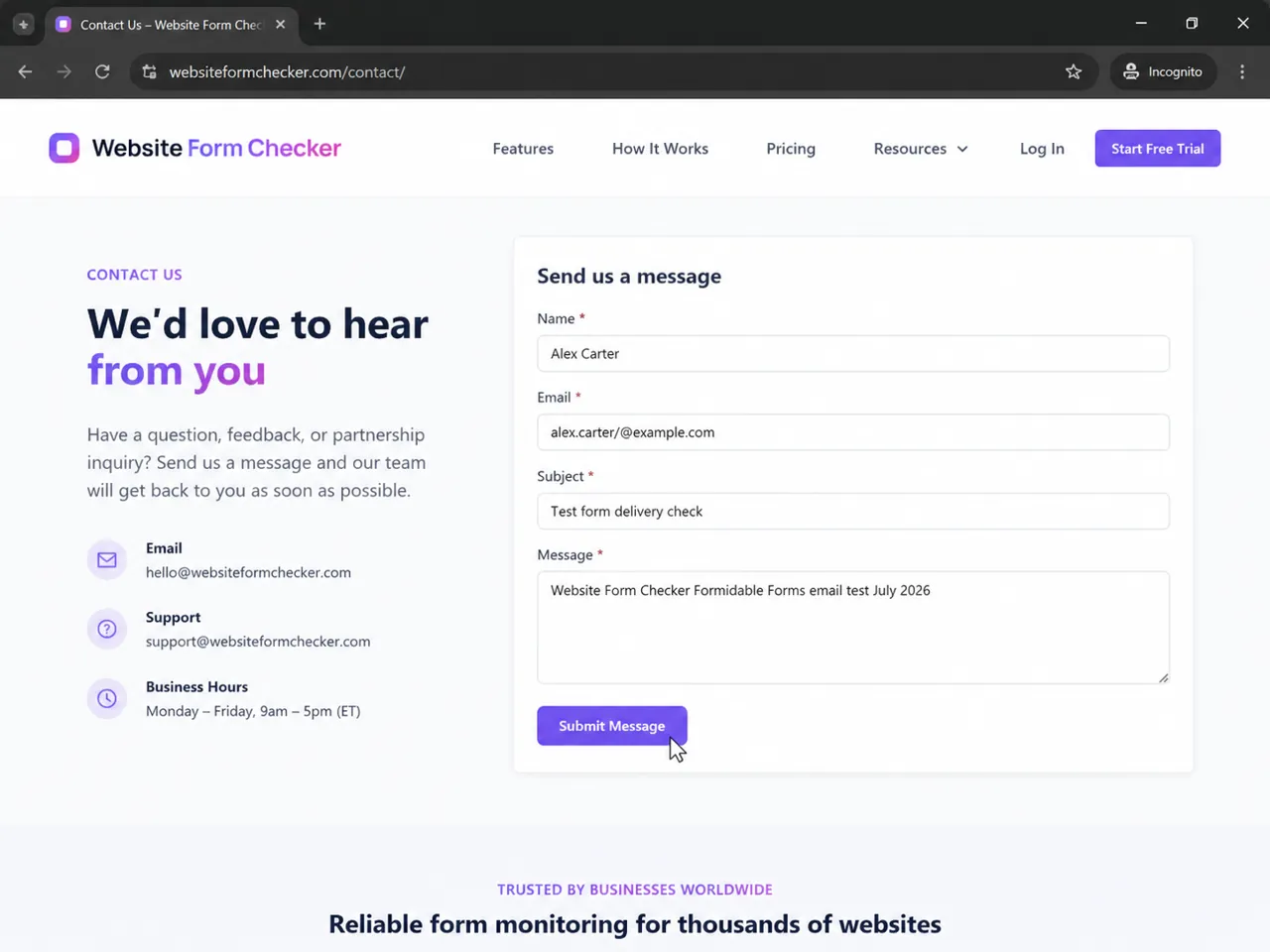
Use a unique phrase in every test submission. In this example, the phrase is "Website Form Checker Formidable Forms email test July 2026." A unique phrase makes it easier to search entries, logs, inboxes, spam folders, and email clients without mixing the test with older messages.
Confirm the published form actually submits
Begin on the published page, not only inside the WordPress editor. A form can look correct in the builder and still behave differently on the live page because of caching, theme scripts, optimization plugins, JavaScript errors, or page-builder conflicts. Open the public contact page in a private browser window and submit the form like a real visitor.
A successful front-end confirmation is your first sign that the form was accepted by the site. It does not prove that the notification email was delivered, but it does prove the visitor-facing form is not immediately failing.
- Use a test name and email address that are easy to recognize later.
- Put the unique phrase in the subject or message field.
- Take note of the exact time you submitted the form.
- Do not reuse an old test phrase, because that makes inbox and log searches less reliable.
Check the form structure before blaming email delivery
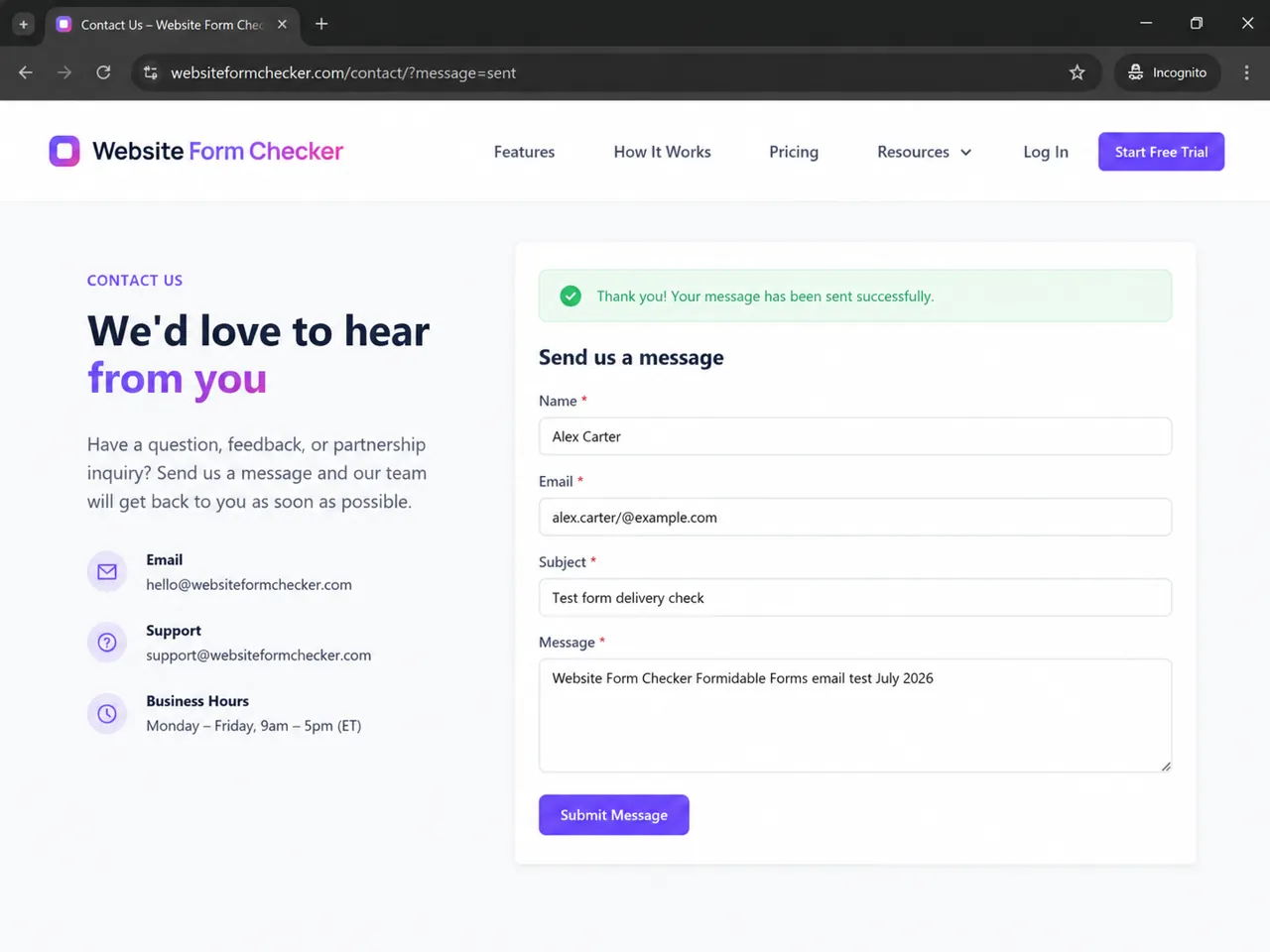
If the live form submits, open the Formidable Forms builder and confirm the expected fields are still present. This step matters because notification templates often depend on field IDs, keys, or merge tags. If a field was renamed, duplicated, deleted, or replaced, the email action may still send, but the message body or reply-to value can be incomplete.
For a basic contact form, the builder should clearly include fields such as Name, Email, Subject, and Message. The Email field is especially important because it is commonly used as the Reply-To value in notification settings. If that field is missing or not mapped correctly, replies may go to the wrong place even when the notification itself arrives.
Make sure the Email Notification action is enabled
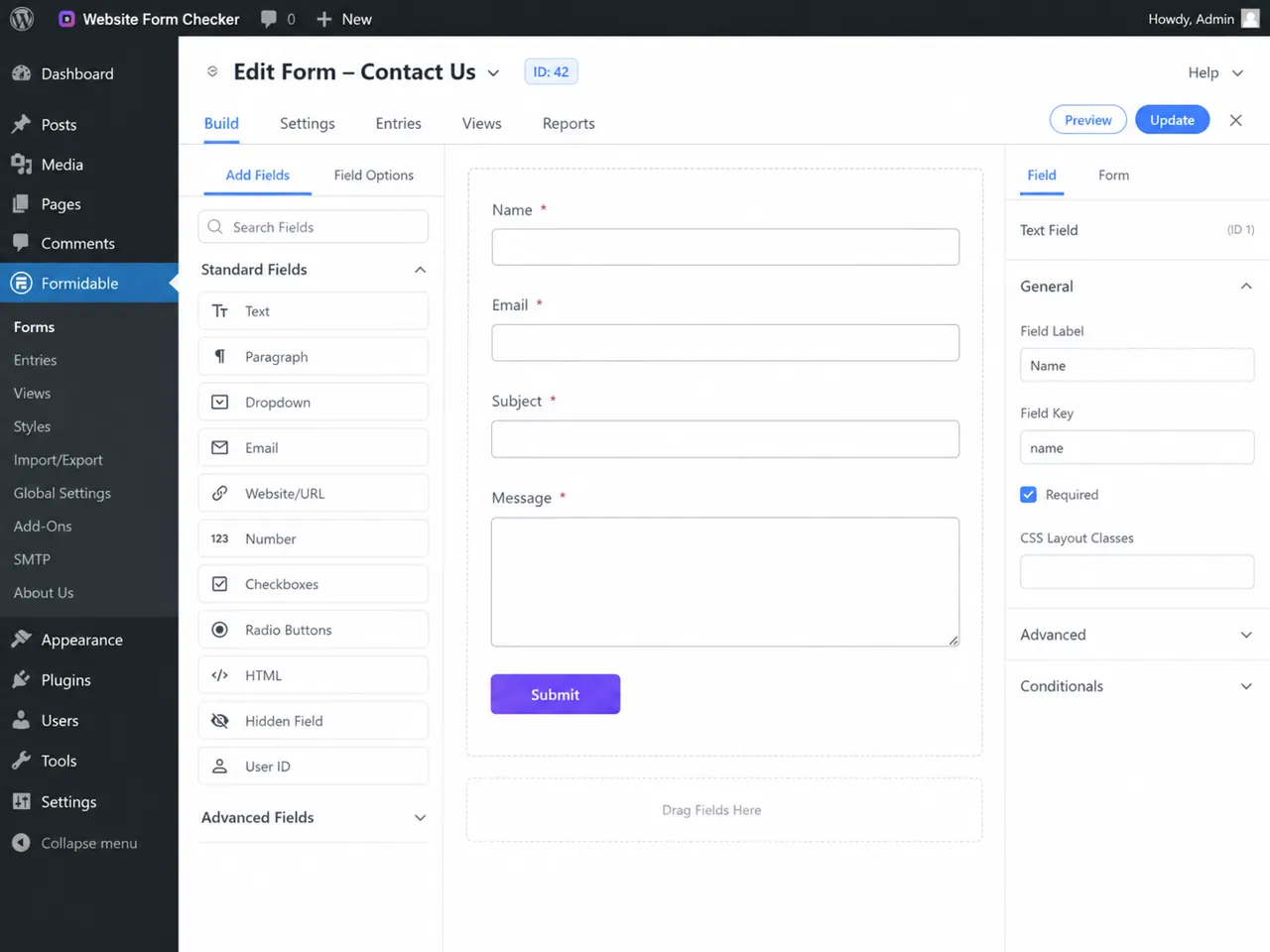
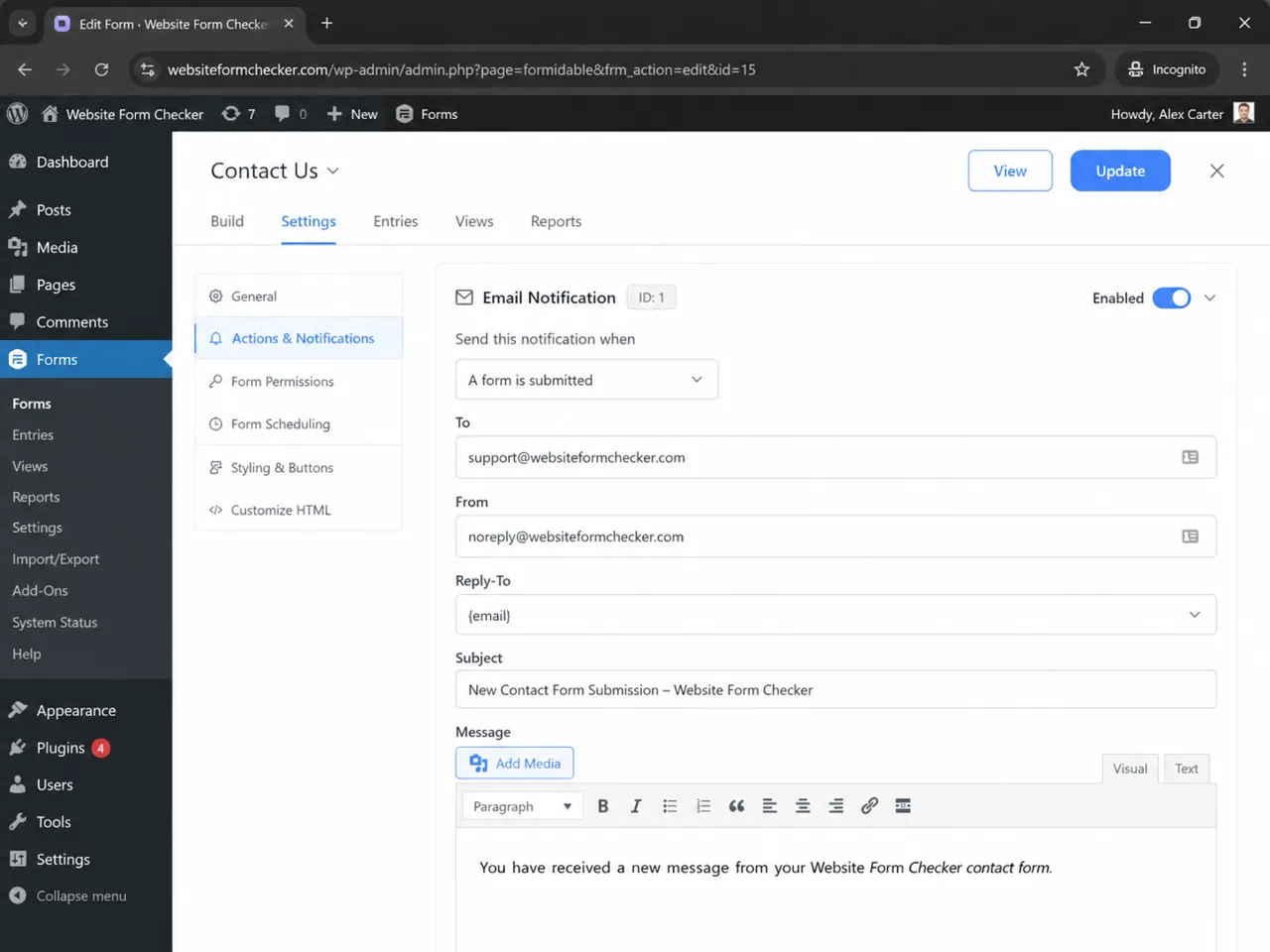
Next, open the form settings and go to Actions & Notifications. Formidable Forms can save entries even when an email notification action is disabled, deleted, or configured for the wrong condition. That is why an entry appearing in the dashboard does not automatically mean an email was sent.
Look for an Email Notification action and confirm it is enabled. If you have multiple actions, check the one tied to the contact form notification, not a confirmation email or another form action. Also review any conditional logic on the notification. A condition that worked during setup may block notifications later if a field value changes.
Audit the To, From, Reply-To, and Subject fields
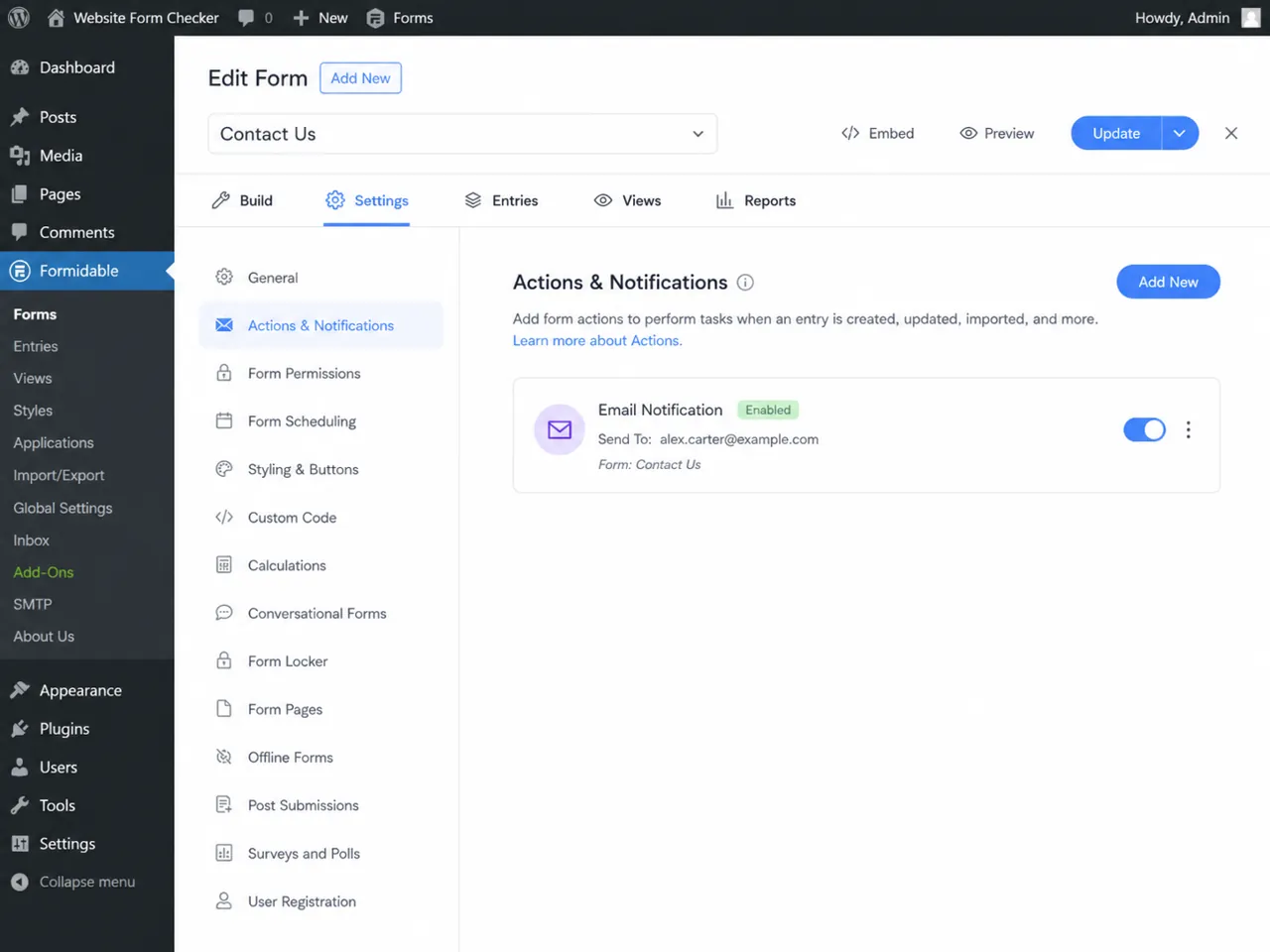
Many cases of Formidable Forms emails not sending are actually misrouted emails. The message may be sent, but it goes to an old address, a typo, a disabled mailbox, or a group address that rejects unauthenticated mail. Review the core notification fields carefully.
To: Use the real inbox or team mailbox that should receive submissions. Avoid testing with an address that forwards through several systems.From: Use an address on your own domain, such as[email protected]or[email protected]. Do not use the visitor email as the From address.Reply-To: Use the visitor email field or email merge tag so your team can reply to the person who submitted the form.Subject: Add a clear phrase such as New Contact Form Submission so the message is easy to identify in search results.- Message body: Include the key fields your team needs: name, email, subject, message, and any tracking context.
The From field deserves extra attention. A visitor-provided From address can trigger authentication failures because your website is not authorized to send mail as Gmail, Outlook, Yahoo, or another external domain. Keep the From address on your site domain, then use Reply-To for the visitor address.
Verify that Formidable Forms saved the entry
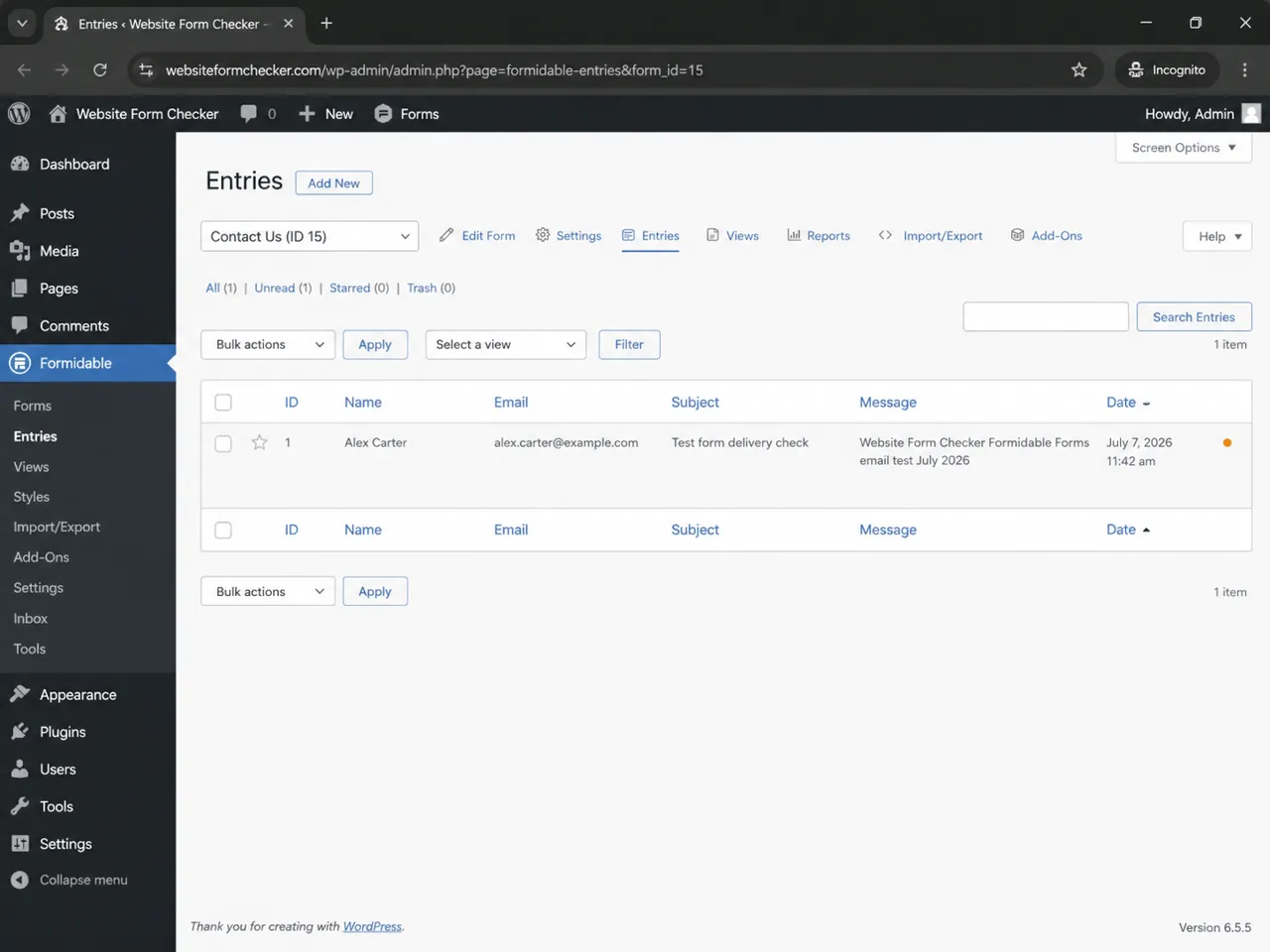
After the notification settings look correct, go to the Entries screen for the same form. This is the point where you separate form-submission issues from email-delivery issues. If the entry is missing, the email problem is secondary because the form did not complete the expected save process. If the entry exists, Formidable Forms received the submission and you can focus on notification and delivery.
Open the newest entry and compare the name, email, subject, message, and timestamp with your live test. The message should include the unique phrase you entered. If the entry saves with empty fields, go back to the form builder and notification merge tags. If the entry saves correctly but no notification arrives, move to the email log or SMTP layer.
Use an email log to see whether WordPress tried to send it
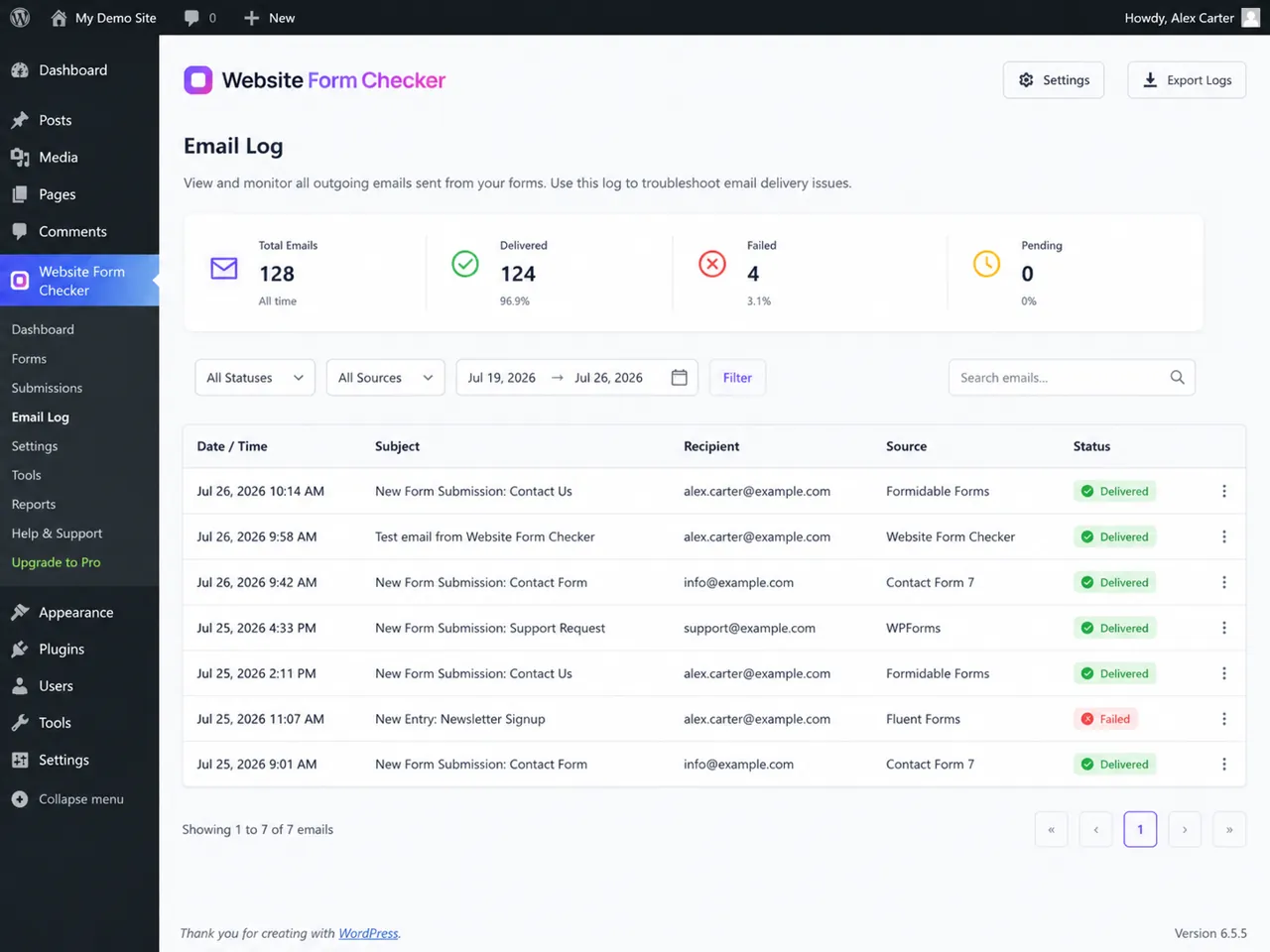
An email log is one of the fastest ways to diagnose a Formidable Forms email notification not sending. The log can show whether WordPress generated the email, which recipient it used, what subject line it used, and whether the mailer reported the message as delivered, failed, or pending.
The important distinction is this: a front-end success message tells you the visitor submitted the form, and an entry tells you Formidable Forms saved the data. An email log tells you whether the site attempted to send the notification. Without a log, you are relying on mailbox behavior alone, which can be misleading.
- If there is no log entry, the notification action may be disabled, blocked by conditional logic, or attached to the wrong form.
- If the log shows failed, review the SMTP or mailer error and fix the connection, authentication, or sender settings.
- If the log shows delivered or sent, search the recipient inbox and spam folder before changing the form settings again.
- If the log shows the wrong recipient, return to the
Tofield in the notification action.
Search the inbox using the exact test phrase
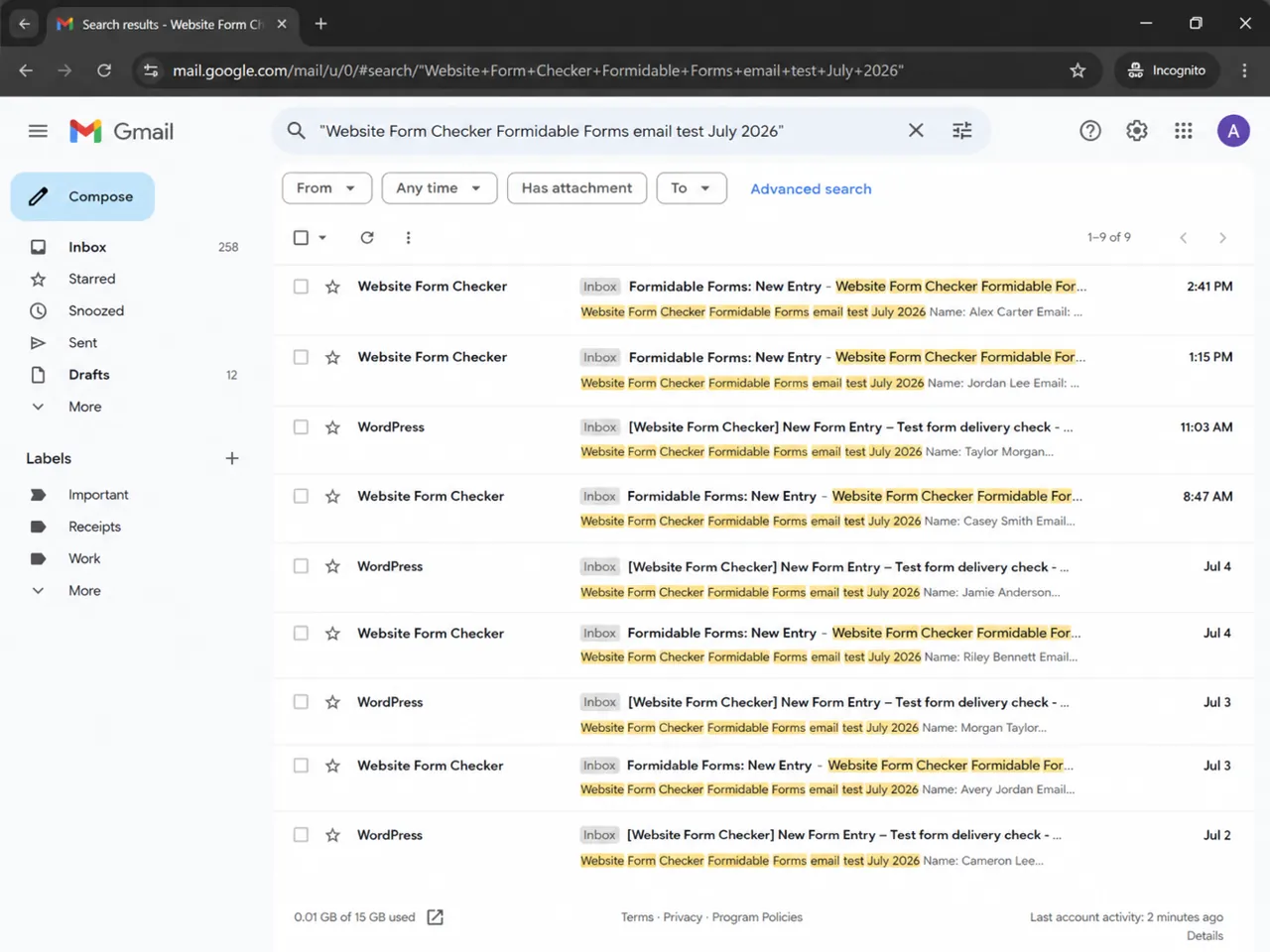
Do not rely only on the visible inbox. Search the mailbox for the exact phrase used in the test submission. Email clients can group messages into threads, hide them under tabs, apply filters, or display a sender name that does not match what you expected. Searching for the exact phrase cuts through those variables.
Search the recipient inbox, all mail, and any shared mailbox connected to the notification. Try the subject phrase, the unique message phrase, the Formidable Forms sender name, and the site domain.
If you find the message, the issue is not that Formidable Forms cannot send email. The problem may be folder placement, filters, labels, forwarding rules, or expectations around the sender name and subject.
Check spam and train the mailbox
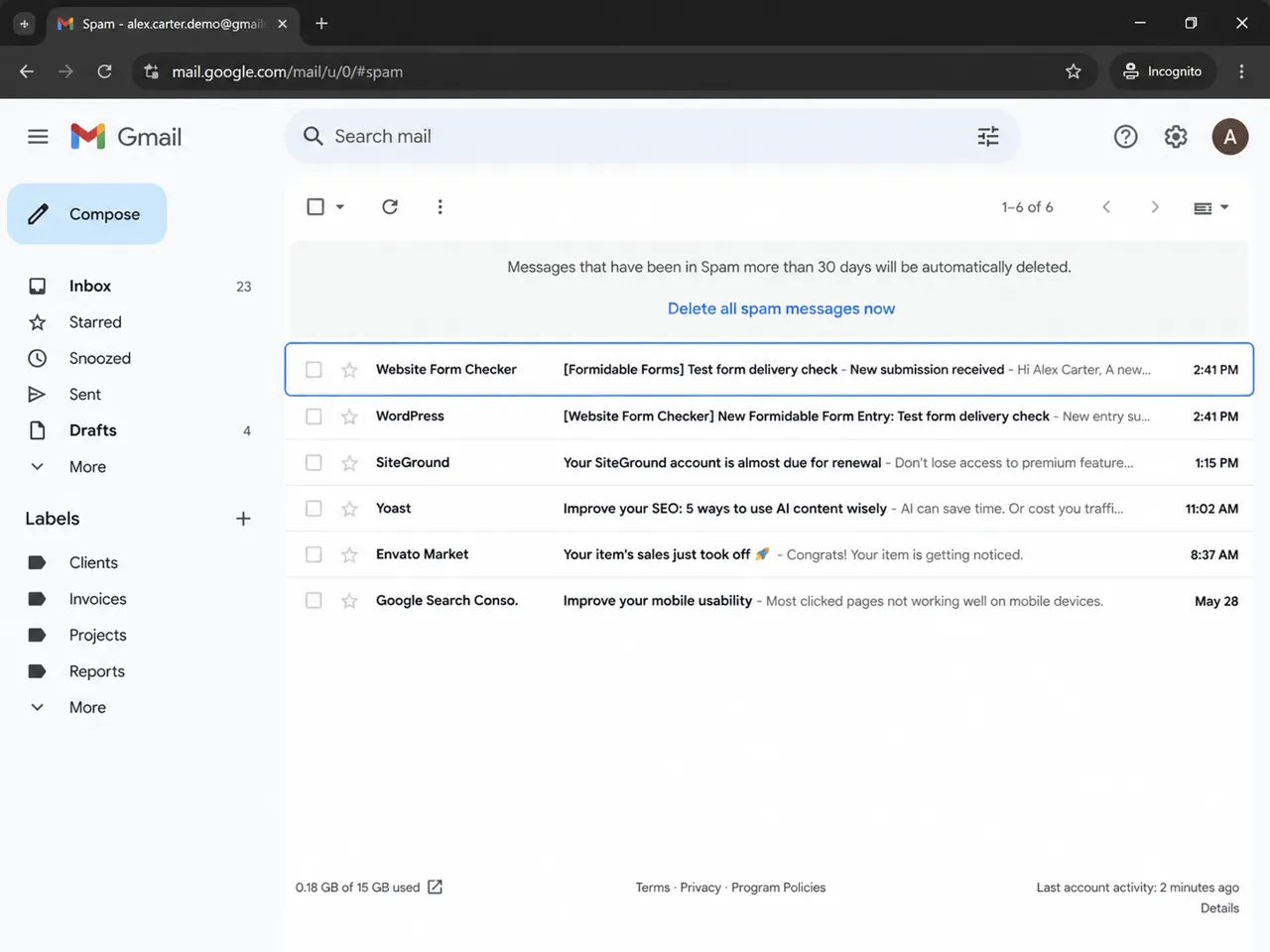
If Formidable Forms notifications are not working in the main inbox but the email log shows the message was sent, spam filtering is a likely cause. A message can be technically delivered and still never appear in the primary inbox. This is especially common when the From address, domain authentication, and SMTP sender do not align.
Open the spam or junk folder and search for the same unique phrase. If the notification is there, mark it as not spam and add the sender address to contacts or the approved senders list. Then run another live form test. This helps determine whether the mailbox can learn the sender or whether the site still needs stronger deliverability settings.
For production sites, also review sender authentication for the domain. SPF, DKIM, and DMARC are DNS records that help mailbox providers decide whether your site is allowed to send mail for your domain. If you are using an SMTP service, follow that provider's DNS instructions and make sure the From address matches the authenticated domain.
Compare the saved entry with the received email
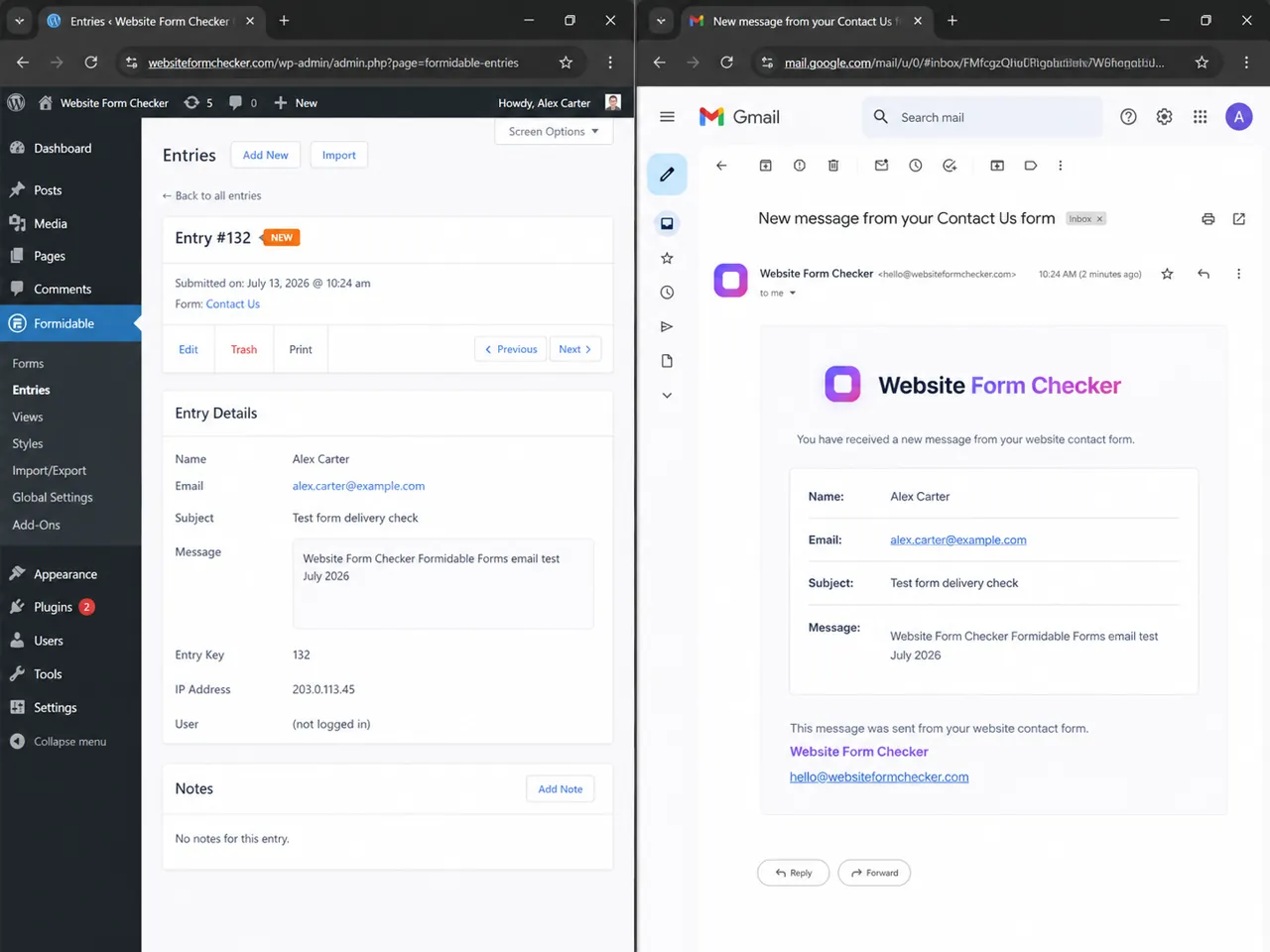
The final proof is a side-by-side comparison. Open the Formidable Forms entry details and the received email at the same time. The name, email, subject, message, and timestamp should match. This confirms the full path: the visitor submitted the form, Formidable Forms saved the entry, WordPress generated the notification, the mailer sent it, and the mailbox received it.
If the entry and email do not match, you may be looking at the wrong form, the wrong notification action, a stale test, or an old message thread. That is why the unique phrase is so useful. It gives you one traceable thread through every system involved.
What to fix based on where the chain breaks
Once you know where the process fails, the fix becomes much clearer. Use the results of your tests to choose the next action instead of changing settings at random.
| What you see | Likely problem | Best next step |
|---|---|---|
| No success message on the live page | The front-end form is not submitting correctly | Check required fields, JavaScript errors, caching, security rules, and page-builder conflicts. |
| Success message appears but no entry is saved | The form submission process is incomplete | Check Formidable settings, database issues, spam protection, and whether the correct form is embedded. |
| Entry is saved but no email log exists | The notification action may not run | Enable the Email Notification action, review conditional logic, and confirm the action belongs to this form. |
| Email log shows failed | WordPress or SMTP could not send the message | Fix SMTP credentials, sender domain, mailer connection, or provider restrictions. |
| Email log shows sent but inbox is empty | Mailbox filtering or routing is hiding the email | Search all mail, spam, filters, labels, forwarding rules, and shared mailbox settings. |
| Email is in spam | Deliverability or sender trust issue | Use a domain From address, configure DNS authentication, and mark the sender as safe. |
Common settings that cause silent notification failures
If the basic path checks out but the problem returns, review the surrounding WordPress and server environment. Form plugins depend on more than their own settings. A change in caching, security, DNS, hosting, or SMTP credentials can make a working notification stop without changing the form itself.
- Wrong recipient address: A single typo in the
Tofield can make the notification appear to vanish. - External From address: Using the submitter email as the sender can cause authentication and spam problems.
- Disabled notification action: The form can still save entries while the email action is off.
- Conditional logic: A notification may only send when a field value matches a condition.
- Expired SMTP credentials: Password changes, revoked API keys, or provider limits can stop mail delivery.
- Aggressive security rules: Firewall or anti-spam tools may block submissions before the notification runs.
- Caching or script optimization: Front-end scripts can break form submission or confirmation behavior.
- Mailbox filters: The recipient mailbox may archive, label, forward, or delete messages automatically.
Final thoughts, and how to catch this next time
Formidable Forms not sending email is rarely solved by one blind setting change. The better method is to trace the notification from submission to entry, from entry to email action, from email action to SMTP or mail log, and from the mail log to the final inbox. That process shows you exactly where the failure happens. If the form does not submit, fix the page or form embed first. If the entry is missing, fix the submission process. If the entry exists but the email action does not run, fix the notification settings. If the log shows a send attempt but the inbox is empty, focus on spam filtering, mailbox rules, and sender authentication.
Once the form is fixed, the next problem is knowing when it breaks again. Plugin updates, SMTP password changes, DNS changes, and spam filters can all break delivery later without changing how the form looks on the page. That is the gap Website Form Checker is built to watch. It sends real test submissions through your form on a schedule and alerts you if they stop arriving, so you catch the failure before more leads disappear.
Quick checklist
- Submit one live test from the published form after major plugin, theme, or SMTP changes.
- Use a unique test phrase that includes the date or month.
- Confirm the front-end success message appears.
- Confirm the Formidable Forms entry is saved.
- Confirm the email log shows the notification event.
- Search the recipient inbox for the exact phrase.
- Check spam or junk if the inbox search fails.
- Compare the entry and email details before closing the test.
Test your form right now, free
Paste your contact form URL. We'll open it in a real browser, find the form, detect spam protection, and tell you whether it's structured to actually deliver submissions. Takes about 20 seconds.
Run a free audit →