The fastest way to solve this is to test the full process in order. First confirm the form submits correctly. Then review the notification settings inside the form plugin, verify the message is sent from a valid address, confirm the entry was saved, run an SMTP test, and search both the inbox and spam folder. If everything still looks fine, check whether another plugin is interfering with mail delivery. You can also paste your form URL into our free form checker first to see how the form is structured before you start digging.
Start with a real submission test
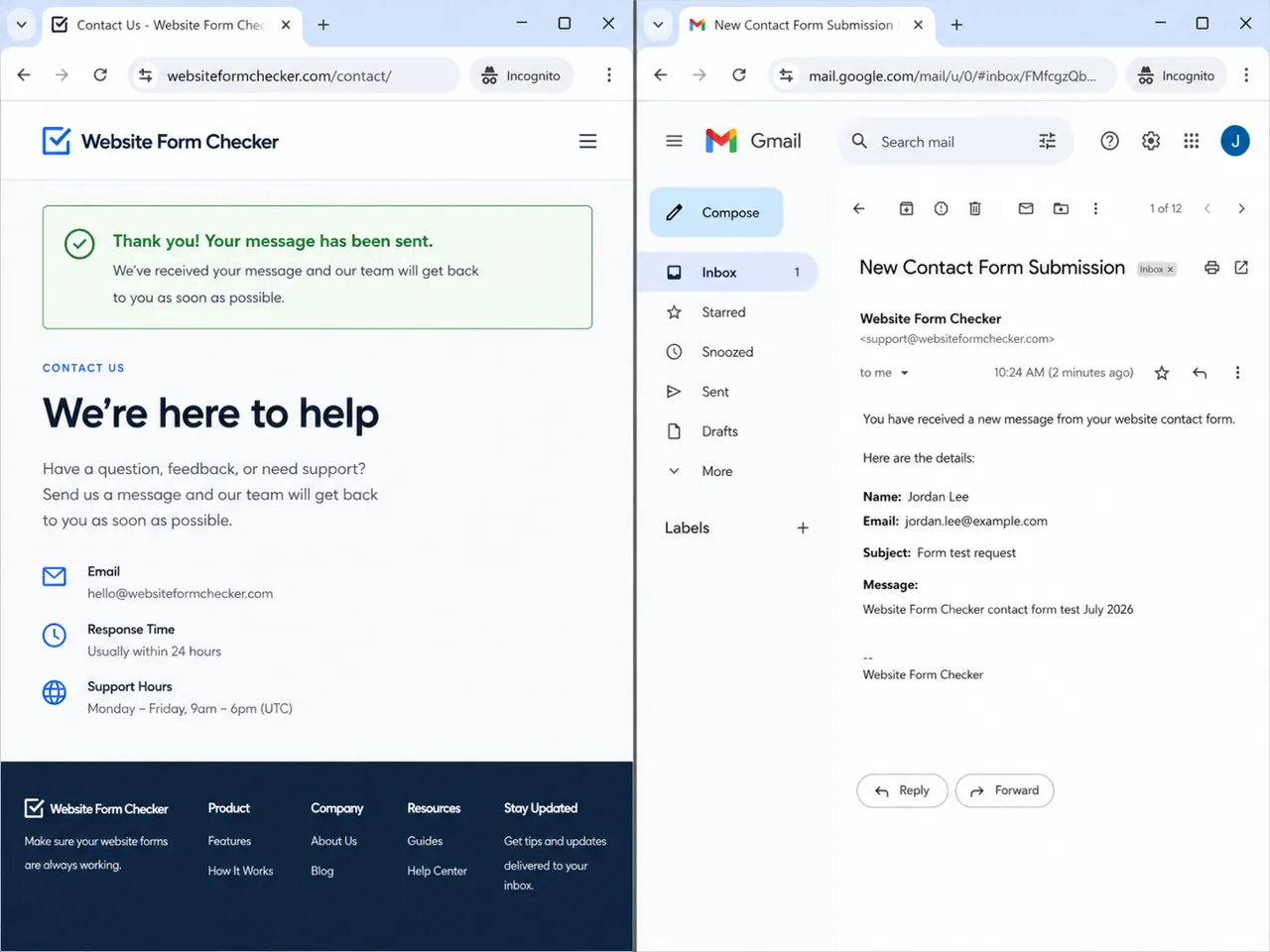
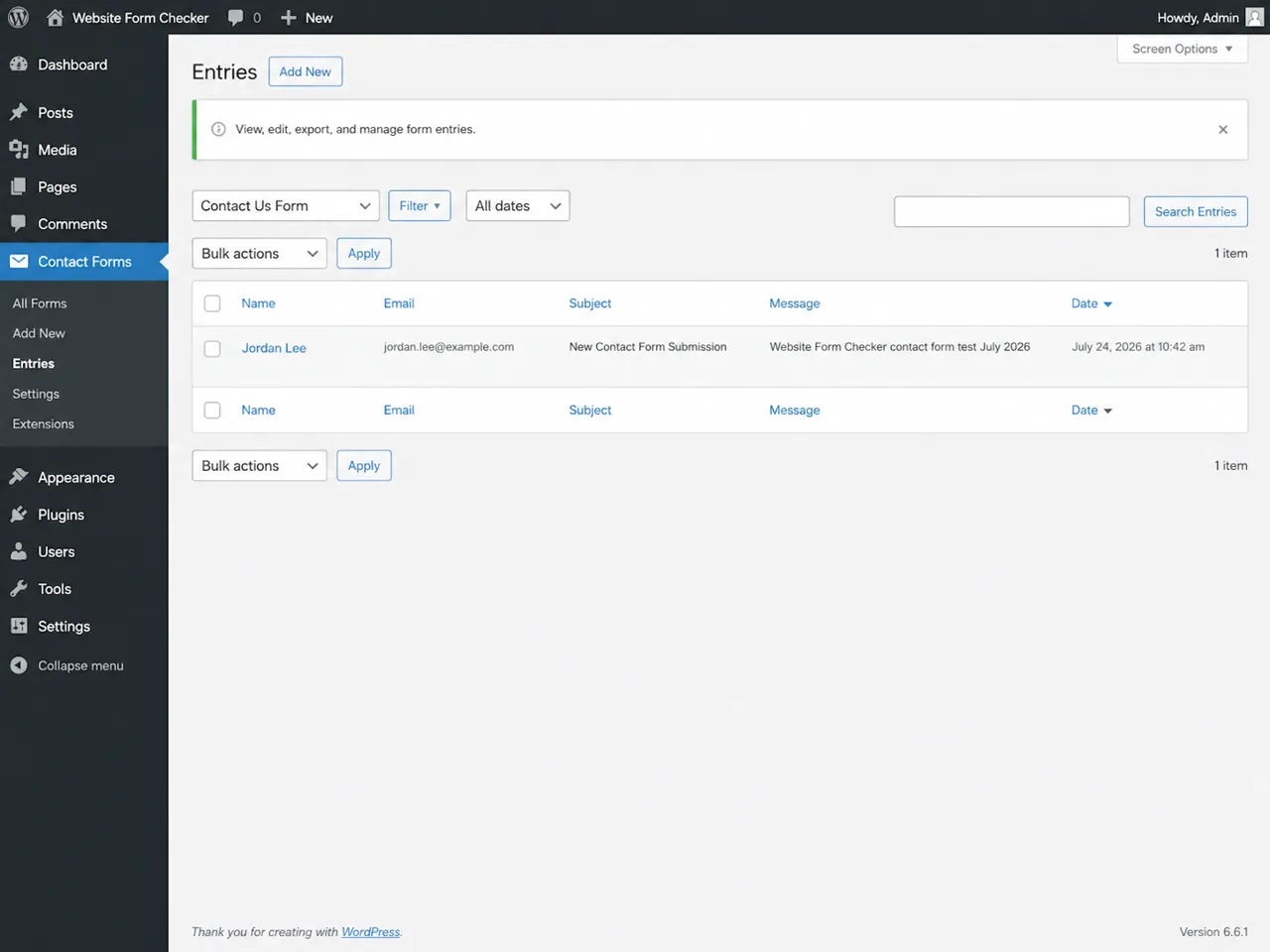
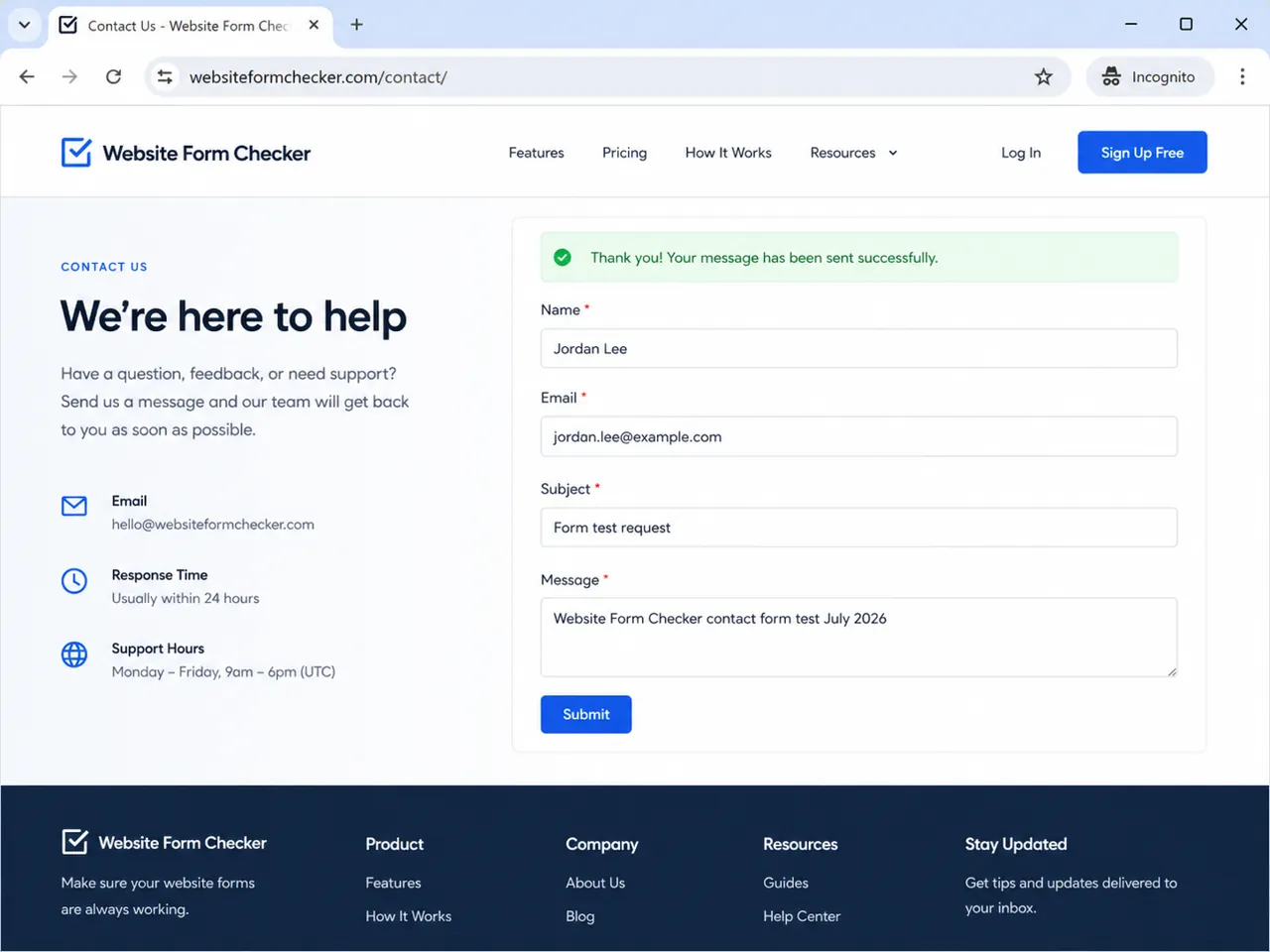
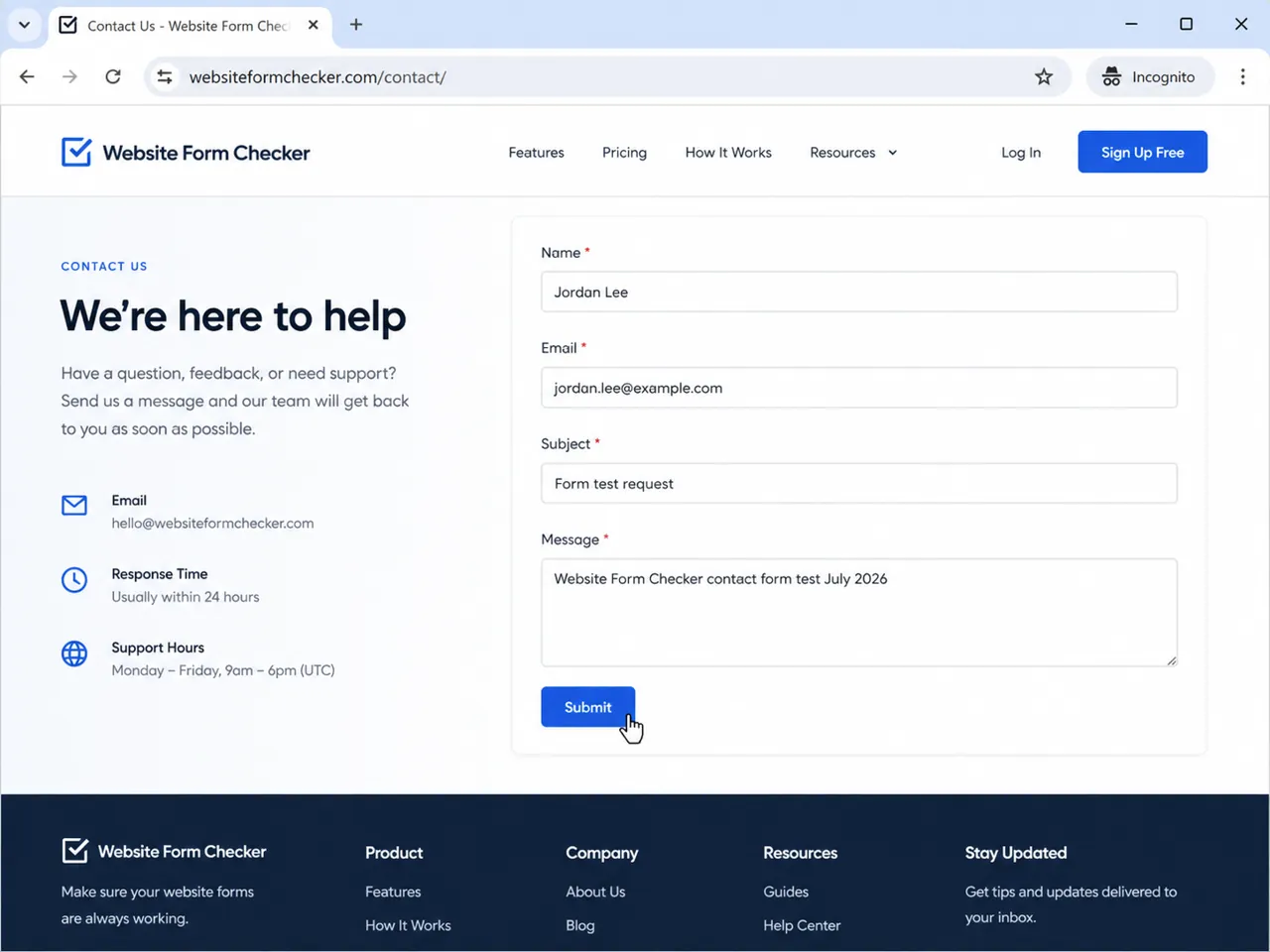
Before changing settings, run a clean test from the live form on the front end of the site. Open a private or incognito browser window so you are not affected by your own logged-in session, cached content, or auto-filled form behavior. Fill in every required field and use a test phrase that is easy to search later, such as Website Form Checker contact form test July 2026.
Using a unique phrase matters because it lets you search the inbox, spam folder, and entries screen later without guessing which email belongs to your test. It also helps you confirm that the exact message you submitted is the same message that was stored or delivered.
If the form does not submit at all, or the submit button spins forever, the issue may be JavaScript, spam protection, or server-side validation rather than email delivery. But if the form submits and shows a confirmation, the form itself is probably functioning well enough to move to the next check.
Verify the notification recipient is correct
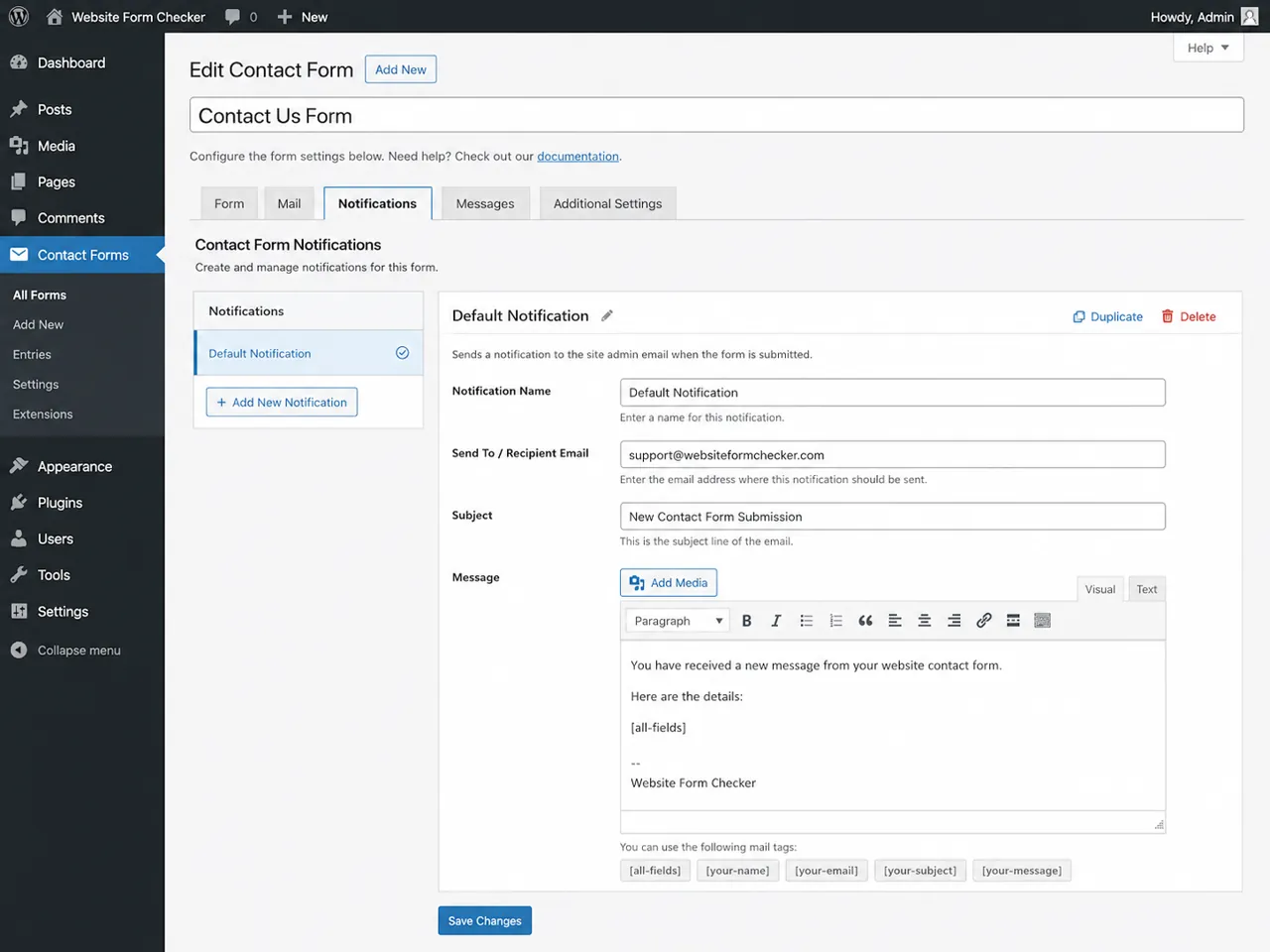
Once you know the form is submitting, open the form plugin inside WordPress and review the notification settings. Every major form plugin has a notification or email section that controls who receives the submission. If the recipient email address is wrong, misspelled, outdated, or pointing to an unmonitored inbox, the form may be working while the notifications still go to the wrong place.
Check the recipient field carefully. Look for simple mistakes such as missing characters, extra spaces, or an email alias that is no longer active. If the field uses a dynamic merge tag, confirm it is appropriate for the notification you are editing. An admin notification should usually go to a fixed email address, while an autoresponder may use the visitor's submitted email address.
This is also a good time to confirm that the correct notification action is enabled. Some sites have multiple notification rules, and only one may be active. If the wrong rule is enabled, the form might save entries without ever sending the message you expect.
Review the From Email and Reply-To settings
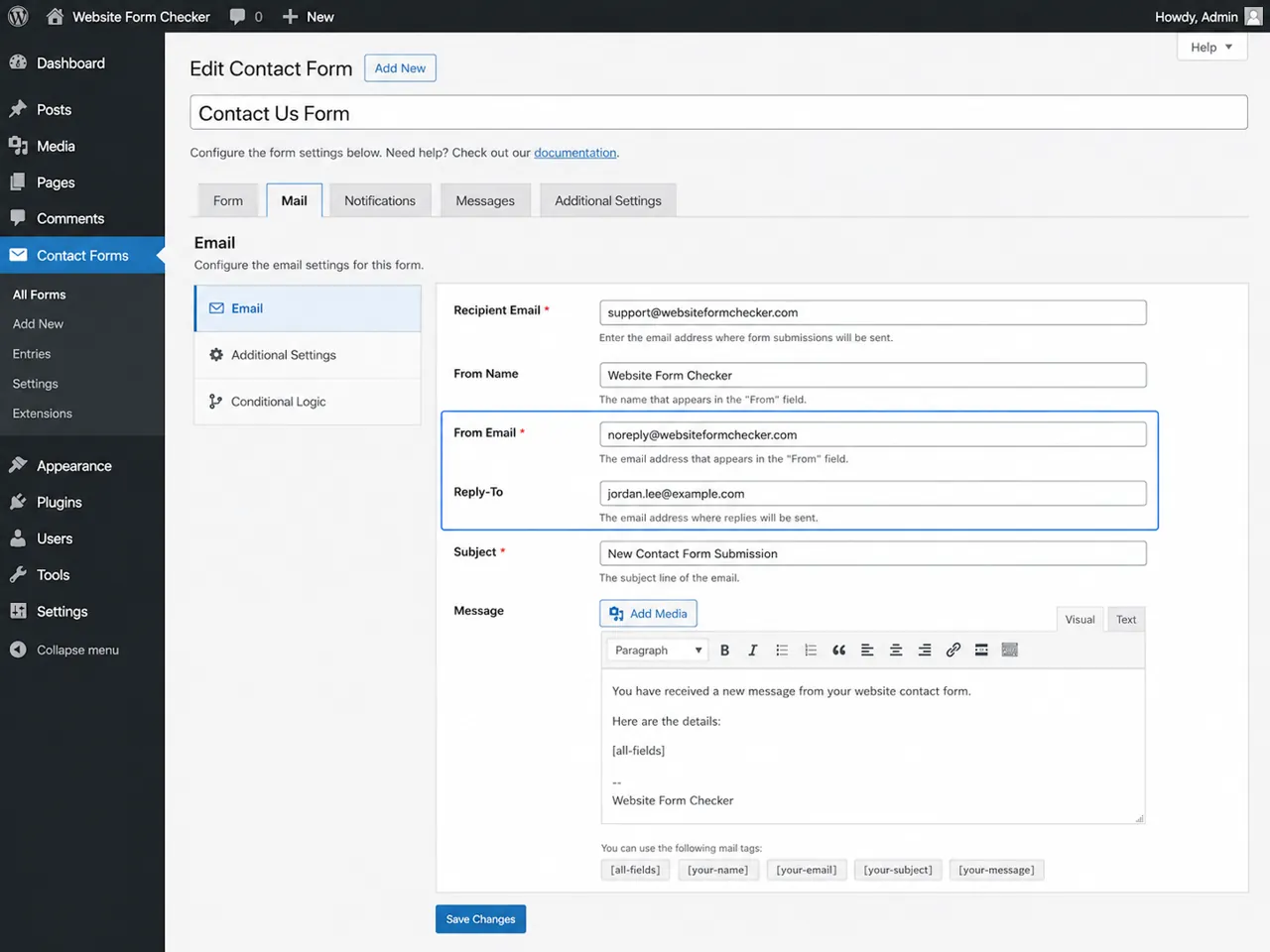
A large number of WordPress email problems come from the From Email setting. Many form plugins let you customize both the From Email and the Reply-To address, and the two should not be treated the same way.
The From Email should usually be an address that belongs to your domain, such as [email protected] or [email protected]. This reduces the chance of delivery issues caused by mail authentication rules like SPF, DKIM, and DMARC. Using a visitor's submitted email address as the From Email can cause messages to be rejected or marked as suspicious because your server is not authorized to send on behalf of that outside domain.
The Reply-To field is where you should place the visitor's email address if you want to reply directly to the person who filled out the form. That setup gives you the best of both worlds: a trusted sender address for deliverability and a convenient reply address for communication.
If your form settings currently use a personal Gmail, Yahoo, or Outlook address as the sender, change that first and test again.
Confirm the form entry was actually recorded
Next, open the form entries or submissions screen and look for the test message you just sent. If the entry is saved in WordPress, you know the front-end form submission reached the site successfully. That means your issue is even more likely to be on the outgoing email side rather than the form itself.
Look for the exact test phrase you entered, along with the sender name, email address, and submission time. If the entry is missing, the form may have failed before it completed processing, or the plugin may not be saving entries by default. In that case, revisit spam protection, JavaScript errors, or plugin-specific entry settings.
If the entry exists but no email arrived, you have narrowed the problem significantly: WordPress received the form, but the notification was not delivered where you expected.
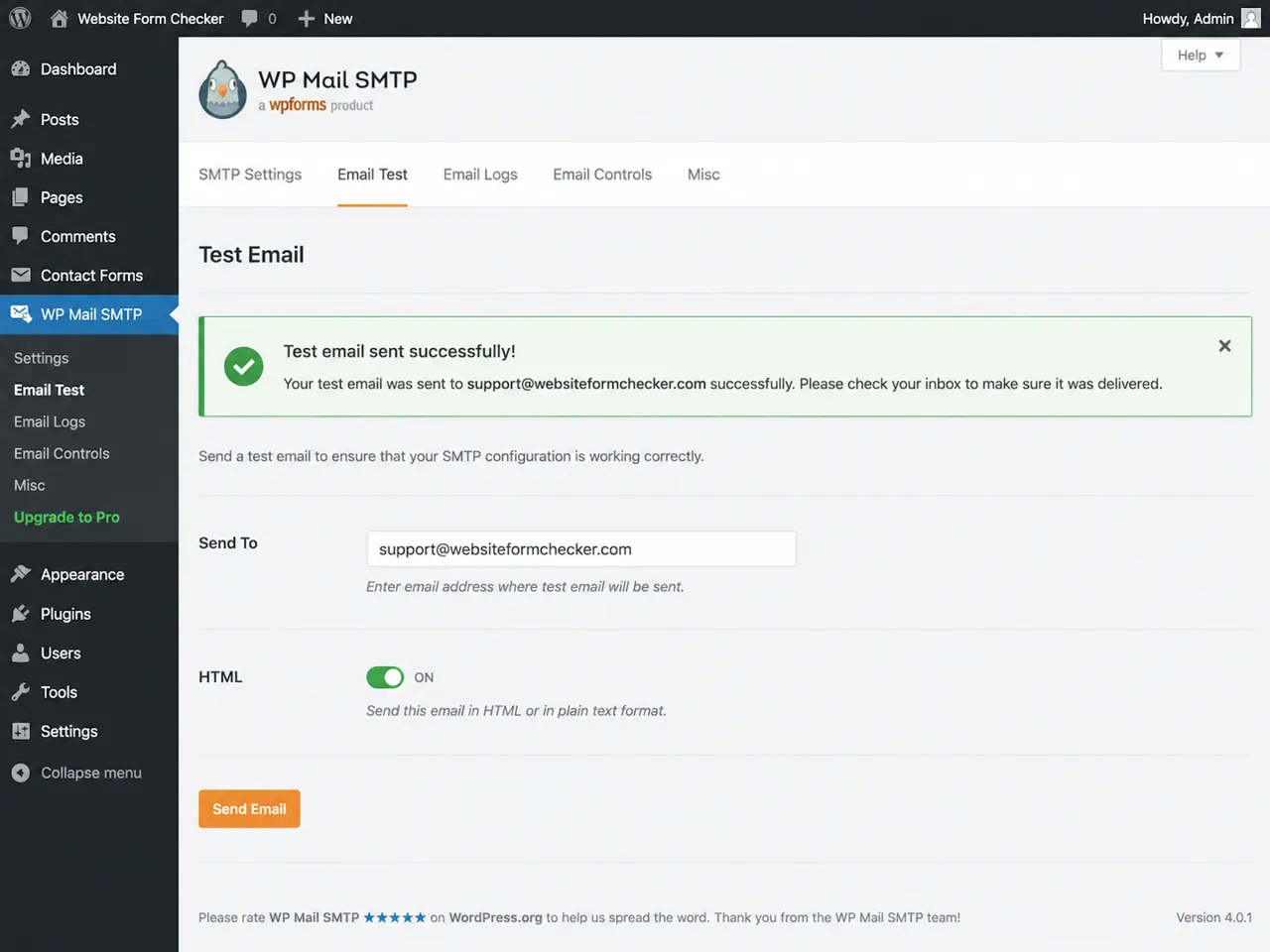
Test WordPress email delivery through SMTP
If the form entry was saved but the notification did not arrive, the next step is to test WordPress email delivery outside the form plugin. An SMTP plugin such as WP Mail SMTP is one of the most useful tools for this because it lets you send a test message using your configured mailer.
Go to the plugin's email test tool and send a message to the same inbox that should receive your form notifications. If the test email fails, the issue is broader than your form. Your WordPress site is having trouble sending email in general, which usually points to mailer configuration, DNS records, web hosting restrictions, or a disconnected SMTP service.
If the SMTP test succeeds, that is good news. It tells you that WordPress can send mail and that the receiving inbox can accept at least some messages from your site. At that point, compare the SMTP sender settings with the form notification settings to make sure both are aligned.
Search the inbox before assuming the email never arrived
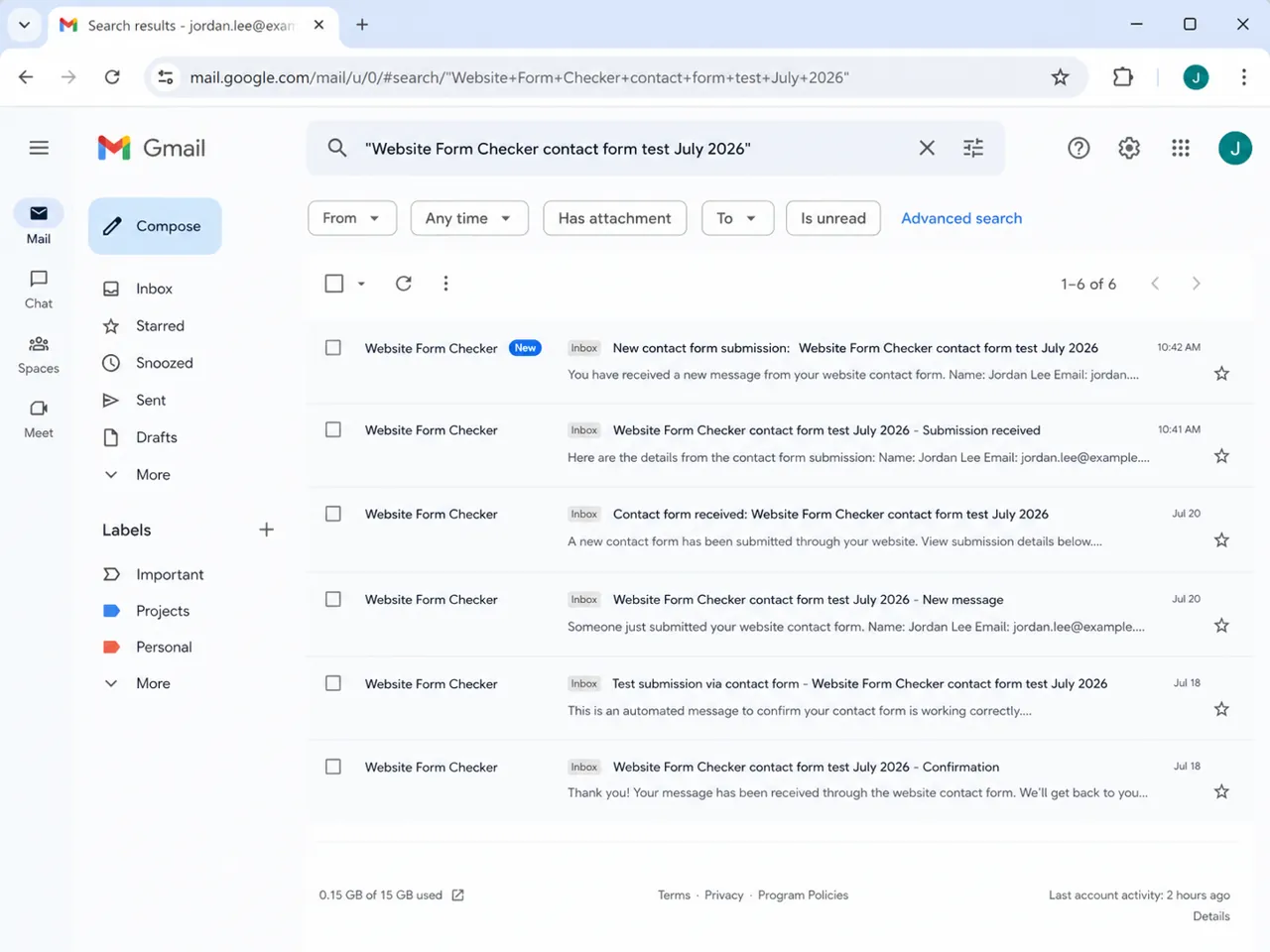
Sometimes the email is delivered, but not where you expected to find it. Use the unique test phrase from your submission and search the inbox directly. Search by the exact phrase, the form subject line, or the sender address. Also check any tabs, labels, folders, or filtering rules that might move the message automatically.
This step is especially important on larger mail systems where messages may skip the main inbox and land in Updates, Promotions, a shared support mailbox, or a filtered folder. Searching the exact phrase from your message body is often faster than guessing the subject line.
If you find the email in search results, the problem may not be delivery at all. It may simply be inbox organization, a filter rule, or an expectations issue about where the message should land.
Check the spam or junk folder carefully
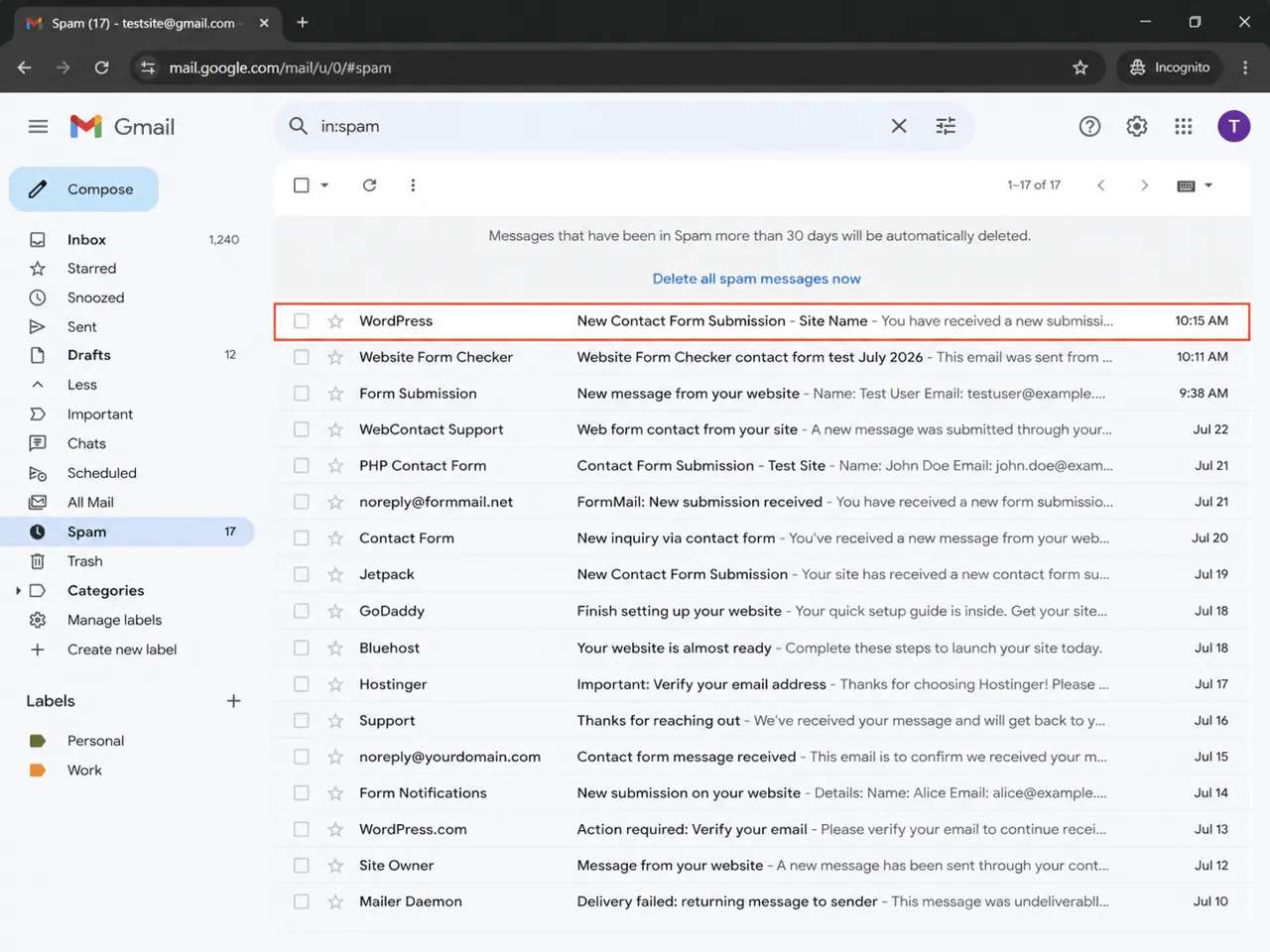
If the inbox search comes up empty, check spam or junk next. Form notifications are common targets for filtering when the sender identity is weak, the mail content is repetitive, or the receiving mailbox does not fully trust the sending domain. This is especially common when the form uses a generic sender address, a mismatched From Email, or a server with poor mail reputation.
Search the spam folder using the same phrase you used in the form submission. Look at the subject line, sender address, and any warning banners provided by the email client. If your messages are reaching spam consistently, focus on improving deliverability rather than changing the form itself.
Common spam-related improvements include using an authenticated SMTP mailer, sending from your own domain, verifying SPF and DKIM, and avoiding misleading sender names or subject lines.
Review other plugins that can affect form behavior
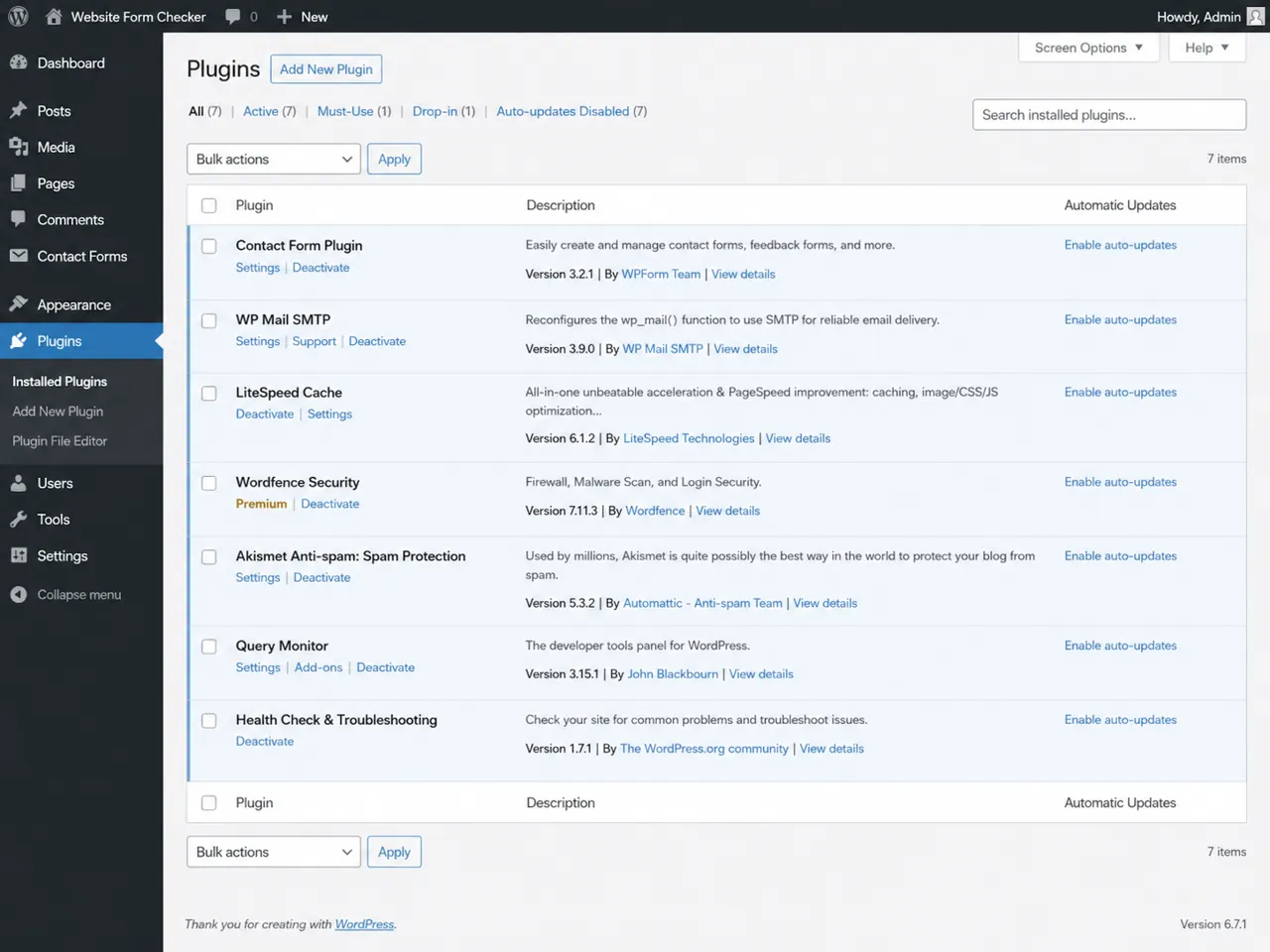
When the basic settings look correct, inspect the plugin environment. A WordPress site often runs several plugins that can influence form submission or mail handling, including caching plugins, security suites, anti-spam tools, SMTP plugins, optimization plugins, and the form plugin itself.
This does not mean the plugin list is automatically the problem, but it does mean conflicts are possible. For example:
- A caching or optimization plugin may delay or break front-end scripts used by the form.
- A security plugin may block requests or silently interfere with outgoing mail functions.
- An anti-spam plugin may discard certain submissions before they are processed fully.
- Multiple SMTP or email-related plugins may overlap or compete for control of mail delivery.
- A recently updated plugin may have changed how notifications are triggered.
If you suspect a conflict, test with nonessential plugins temporarily disabled one by one on a staging site if possible. Then repeat the submission test. A conflict is much easier to confirm when you change only one variable at a time.
Run one final end-to-end confirmation test
Once you have adjusted the settings, do not stop at a partial check. Run a full end-to-end test from start to finish. Submit the form again with a new unique test phrase, confirm the success message appears, verify the entry is saved, and check the recipient inbox for the message.
This final test proves whether your fix worked in the real workflow a visitor will use. It also helps document the result for your team or client. If the form submission and the received email match, you can be much more confident that the issue is resolved.
If you still do not receive the email after all of these checks, the next layer to investigate is your mail infrastructure: SMTP connection details, DNS records, domain reputation, and hosting-level mail restrictions.
Common mistakes that cause WordPress form emails to fail
- Using the visitor's email address in the
From Emailfield instead ofReply-To. - Sending notifications to an outdated admin mailbox or shared inbox no one monitors.
- Assuming no email arrived without searching inbox filters and the spam folder.
- Testing only the form and not the site's overall email delivery through SMTP.
- Ignoring plugin conflicts after installing caching, security, or anti-spam tools.
- Stopping after a settings change without performing a fresh end-to-end test.
How to catch this next time before you lose leads
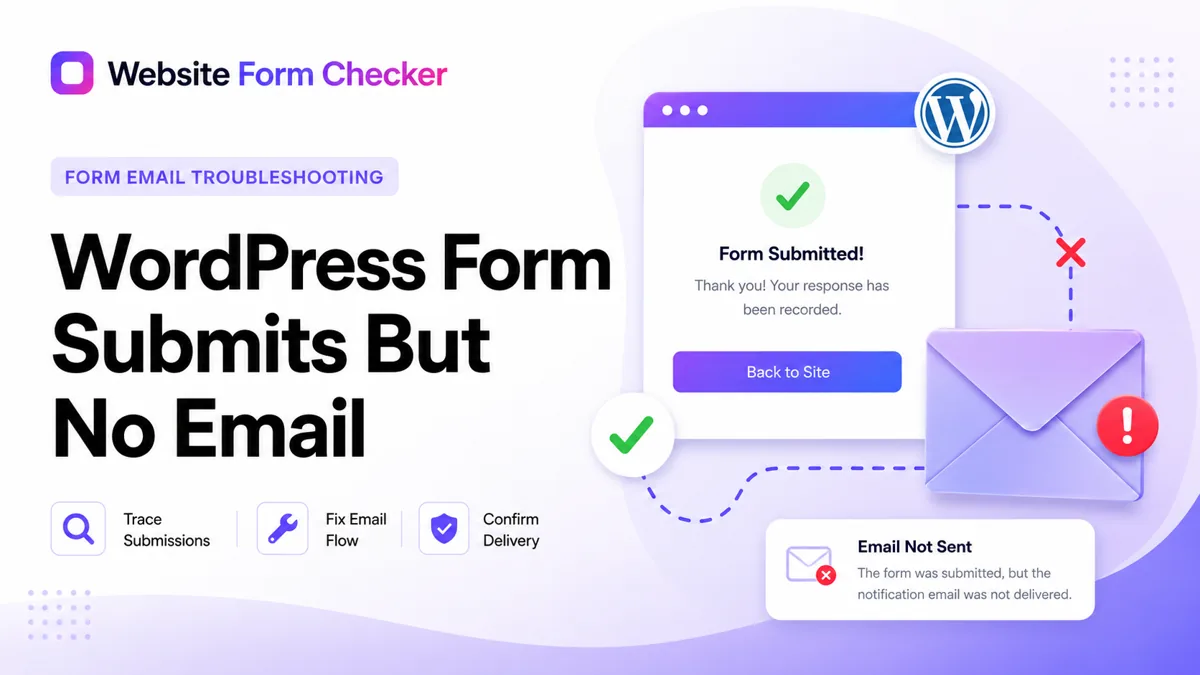
When a WordPress contact form submits successfully but the notification email never reaches the inbox, the key is to separate submission problems from delivery problems. A successful confirmation message and a saved entry tell you the form is collecting data. From there, your job is to align the sender identity, test SMTP delivery, search the mailbox thoroughly, and rule out plugin conflicts.
The harder problem is knowing when delivery breaks again. Plugin updates, SMTP password changes, DNS changes, and hosting changes can all break notifications later without changing how the form looks on the page. That is the gap Website Form Checker is built to watch. It sends real test submissions through your form on a schedule and alerts you if they stop arriving, so you catch the failure before more leads disappear.
Quick checklist
- Submit a real test message from the live form using a unique phrase in the body.
- Confirm the form shows a success message after submission.
- Review the recipient email,
From Email, andReply-Tosettings in the form plugin. - Check whether the submission appears in the form entries or submissions screen.
- Send a separate test email through
WP Mail SMTPor another SMTP plugin. - Search the inbox and spam folder for the exact phrase used in your test.
- Review caching, security, and anti-spam plugins for mail interference.
- Finish with an end-to-end test so you know the issue is actually resolved.
Test your form right now, free
Paste your contact form URL. We'll open it in a real browser, find the form, detect spam protection, and tell you whether it's structured to actually deliver submissions. Takes about 20 seconds.
Run a free audit →