Before changing anything, send one real test submission through the live form from a private browser window. Use an email address you control, write a clear test message, and wait a few minutes. If the message does not land in your inbox or spam folder, work through the checks below in order. You can also paste your form URL into our free form checker first to see how the form is structured before you start digging.
First, confirm the problem with a real test
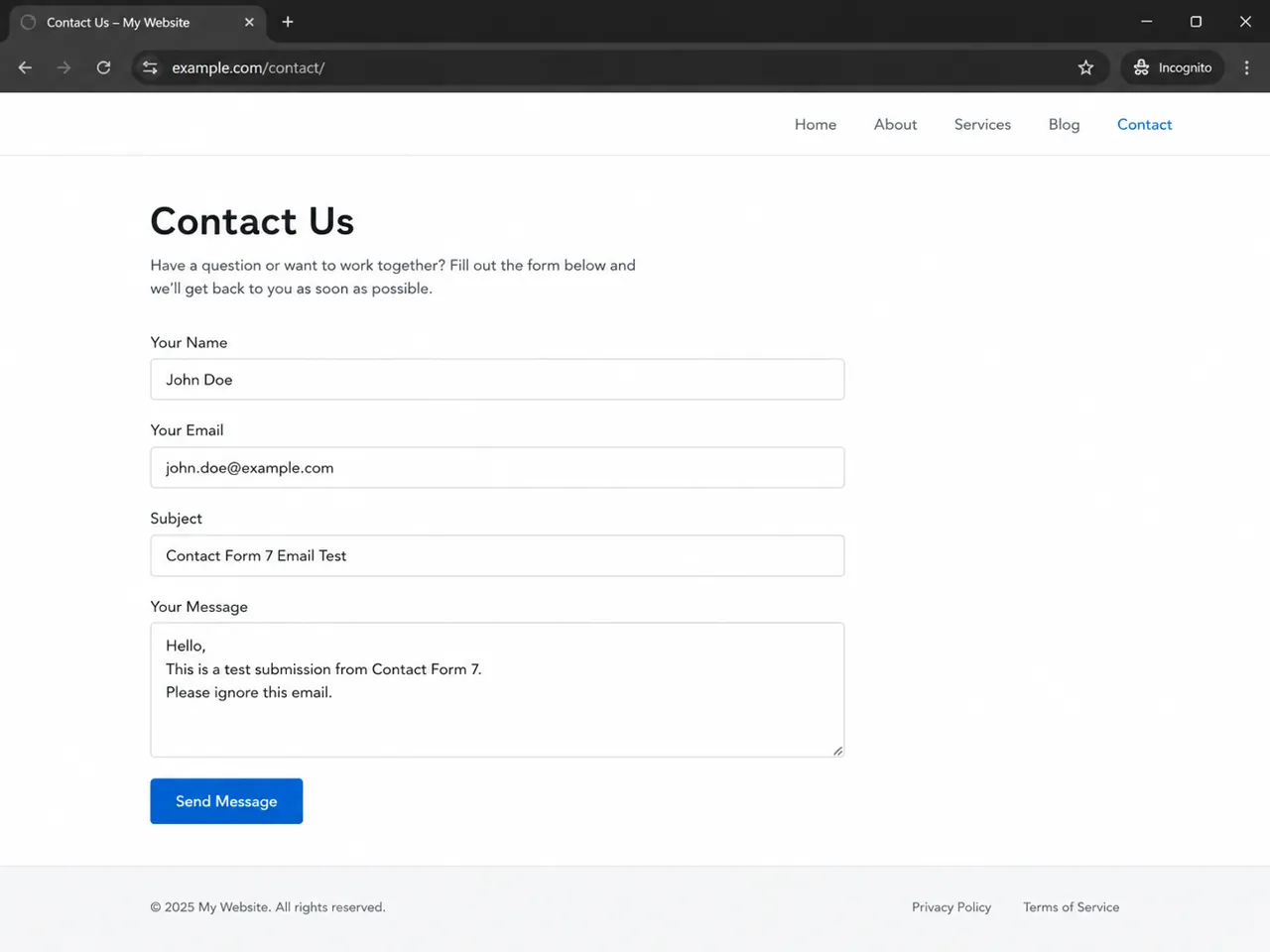
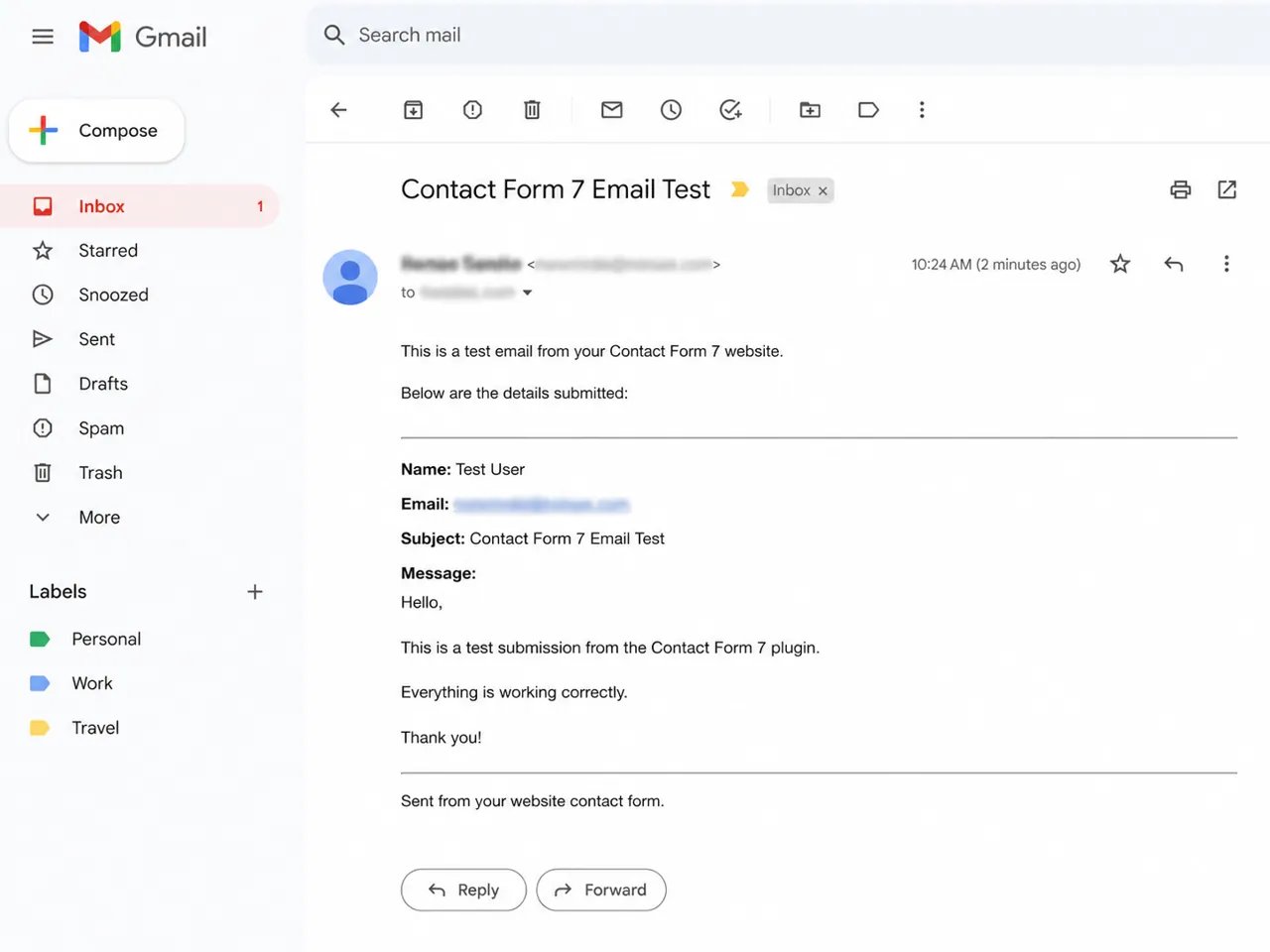
Do not troubleshoot from memory. Test the exact form a customer would use. Open the page in an incognito or private window, fill out every required field, and submit the form. If the page shows a success message but no email arrives, you know the front end is accepting the submission but the notification is failing somewhere after that.
What to include in the test message
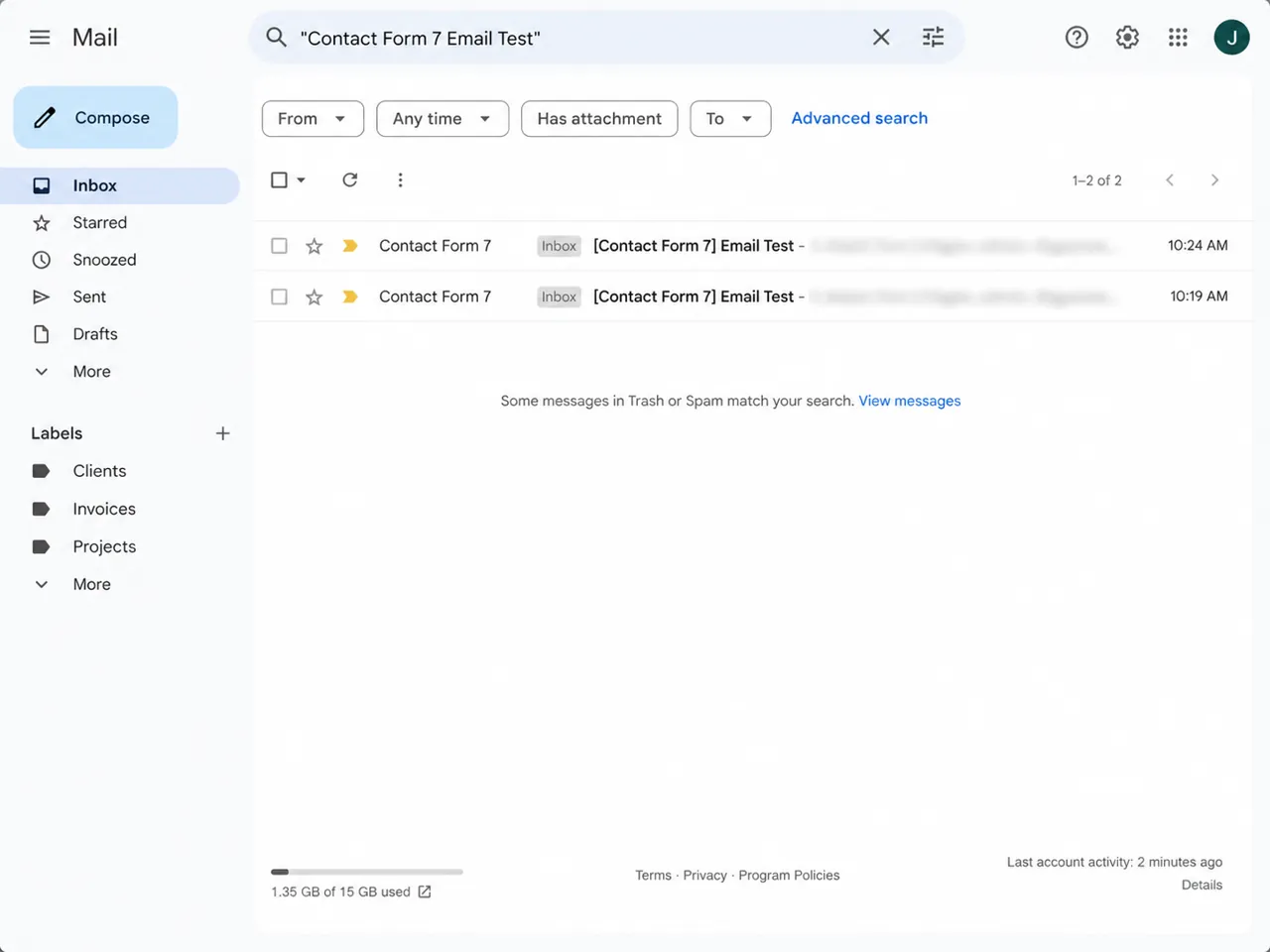
Use something easy to search for, like Contact Form 7 email test from [your name]. Then check the inbox, spam folder, promotions tab, and any shared inbox rules. If you use Flamingo or another entry storage plugin, check whether the submission was saved there too. That tells you whether the form accepted the entry even though the email never sent.
Check the Contact Form 7 Mail tab
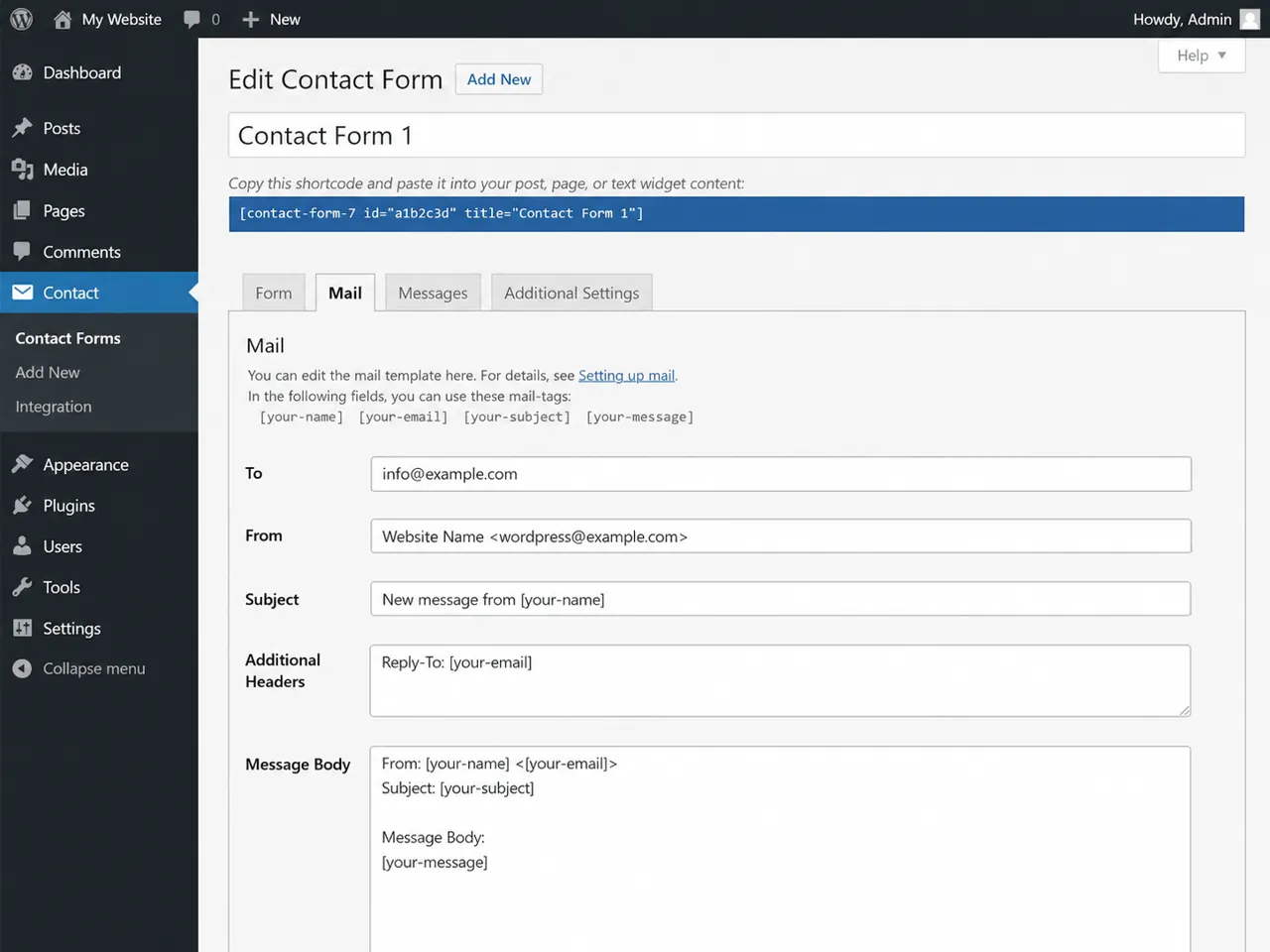
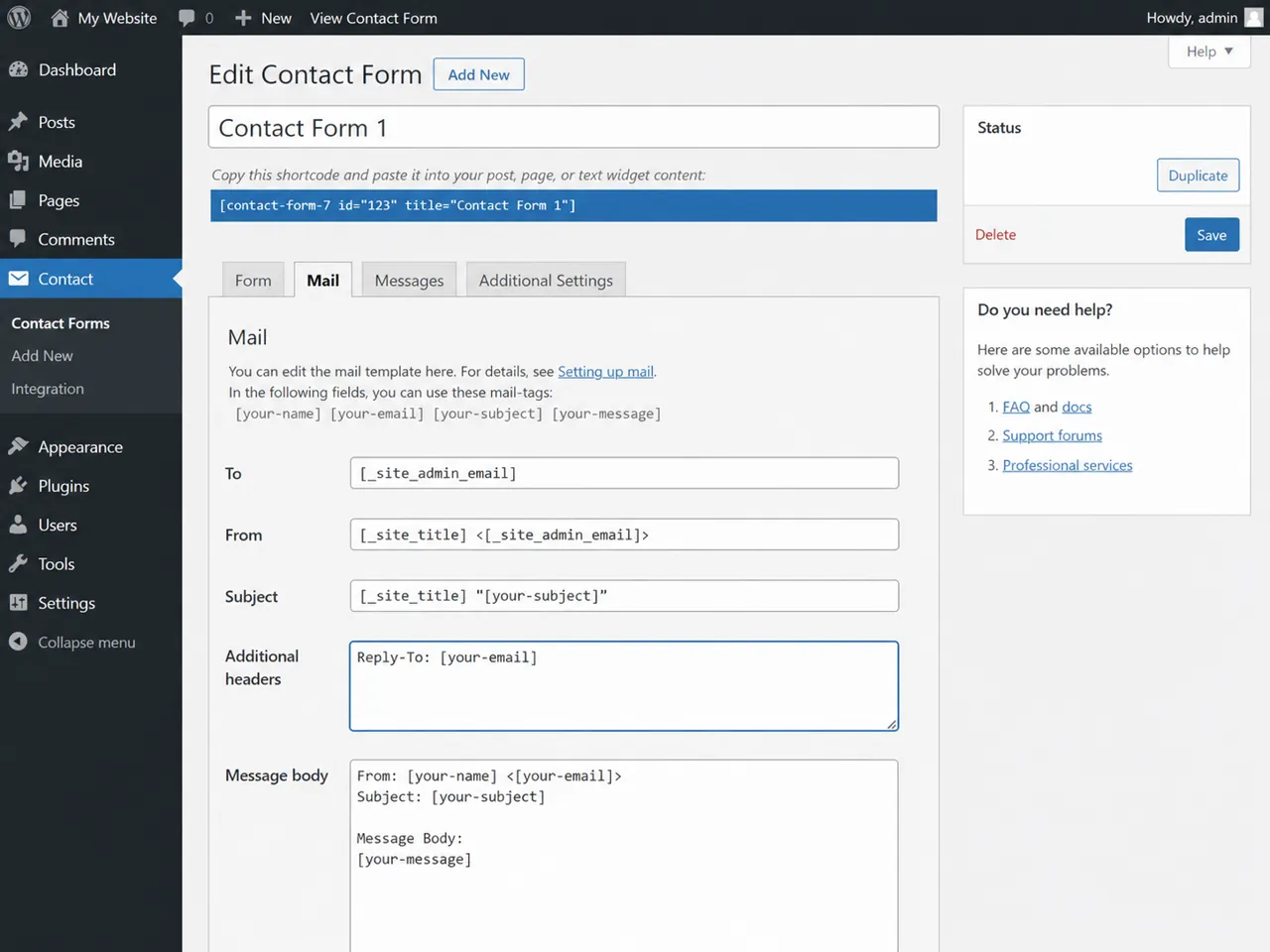
Most Contact Form 7 email issues start in the Mail tab. In WordPress, go to Contact > Contact Forms, choose the form, then open Mail. This is where Contact Form 7 decides who receives the message, who it appears to come from, what the subject says, and what gets included in the email body.
Make sure the To field is correct
The To field should send to the real inbox that handles leads. Look for typos, old employee addresses, staging addresses, or placeholder emails left over from setup. If the form sends to the wrong inbox, the visitor still sees a normal success message. You just never see the lead.
Fix the From field
The From field should usually use an address on the same domain as the website. For example, if the site is example.com, use something like [email protected] or [email protected]. Avoid using the visitor's Gmail, Yahoo, or Outlook address as the sender. That can make the message look spoofed and cause delivery problems.
Use Reply-To instead of making the visitor the sender
A common mistake is putting the visitor's email directly in the From field. It feels logical, but it can hurt deliverability. A cleaner setup is to send from your website domain, then put the visitor's email in Reply-To.
Example setup. From: Website Name <[email protected]>. Additional headers: Reply-To: [your-email]. That way, the email looks like it came from your own site, but when you hit reply, your response still goes to the person who submitted the form.
Check for Contact Form 7 configuration warnings
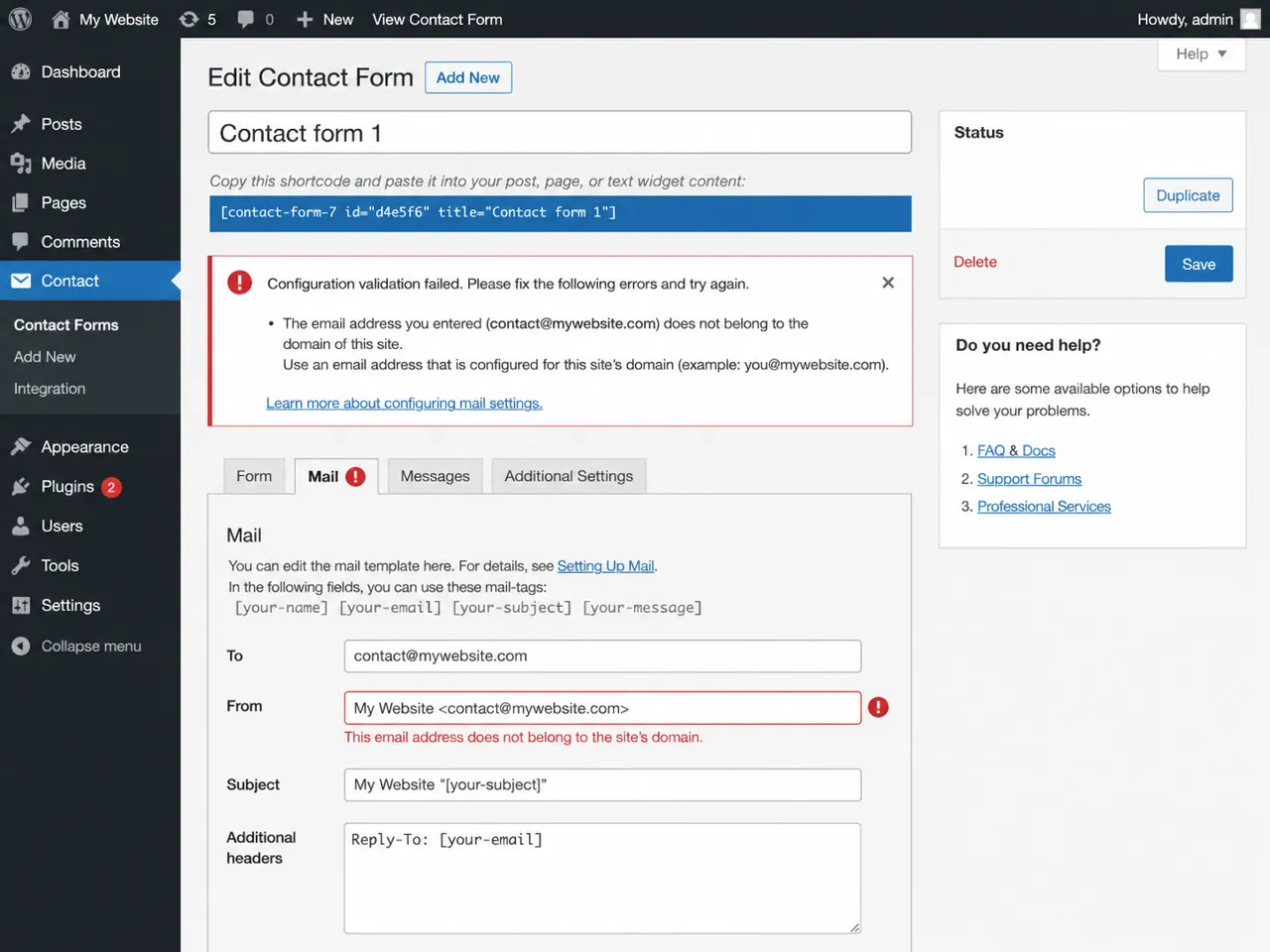
Contact Form 7 can flag problems inside the form editor. Do not ignore those warnings. They often point to the exact reason mail is not being sent or is being treated as suspicious. Look for warnings about invalid mailbox syntax, a sender email not matching the site domain, empty fields, broken headers, or mail tags that might return blank values. If the warning is in the Mail tab, fix it before moving on to SMTP or spam testing.
Check the subject and message body too
If your subject line or message body depends only on an optional field, it can become empty when a visitor leaves that field blank. Add fixed text around mail tags so the email still has a proper subject and body even when some fields are empty.
Make sure WordPress can actually send email
Contact Form 7 does not deliver email by itself. It passes the message to WordPress, then WordPress tries to send it through the server or configured mail service. If that step fails, Contact Form 7 may still show the visitor a normal response while the notification never reaches you.
Set up SMTP
If you are relying on default WordPress mail, switch to SMTP. An SMTP plugin connects WordPress to a real email provider, which makes delivery easier to test and more reliable than hoping the host server sends mail correctly.
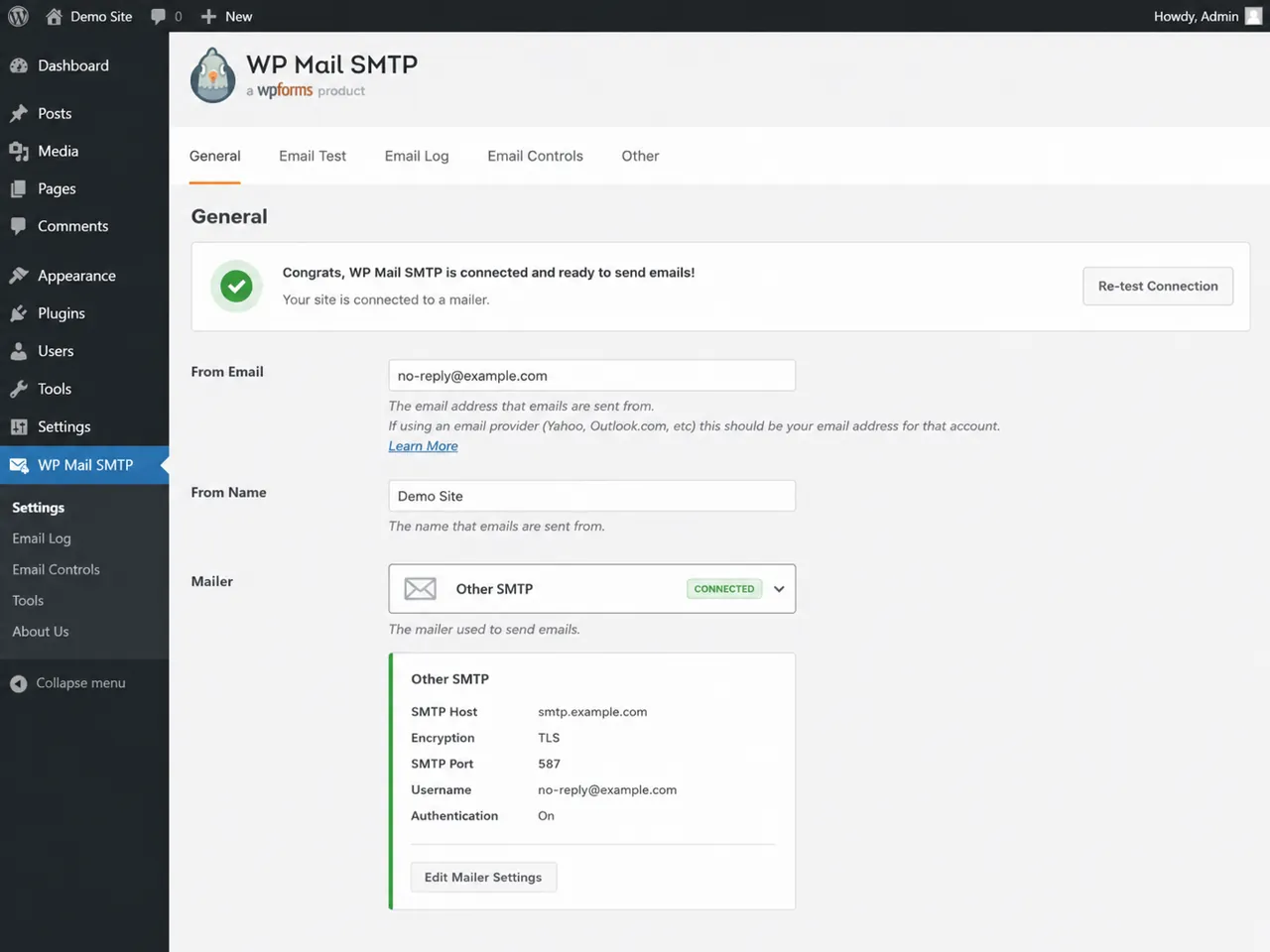
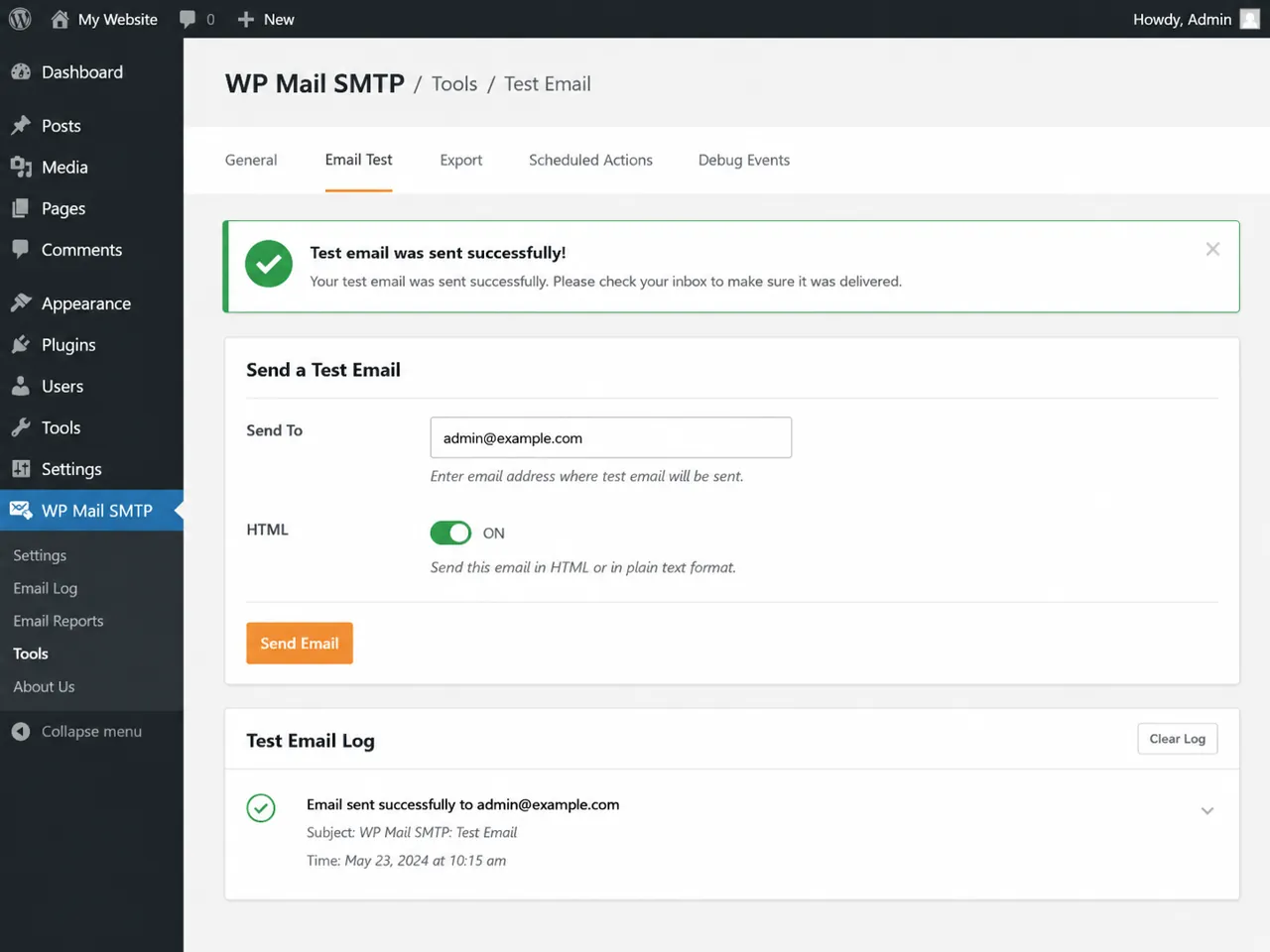
Send a test email from the SMTP plugin
After SMTP is connected, use the plugin's test email tool. If the SMTP test fails, the issue is not Contact Form 7 yet. Fix the SMTP connection, authentication, sender address, or mailer setup first. Then send another Contact Form 7 submission through the live form.
Check spam, filters, and email routing
Sometimes Contact Form 7 is sending the email, but your inbox is hiding it. Search for the exact test phrase instead of just scanning the inbox. Check spam, promotions, quarantine folders, forwarding rules, blocked senders, and shared inbox routing.
If the message lands in spam, check your sender domain, SPF, DKIM, and SMTP setup. The form may be working, but the email does not look trusted enough to your email provider. These authentication problems are one of the most common silent failures, covered in more depth in 10 reasons your contact form is silently broken.
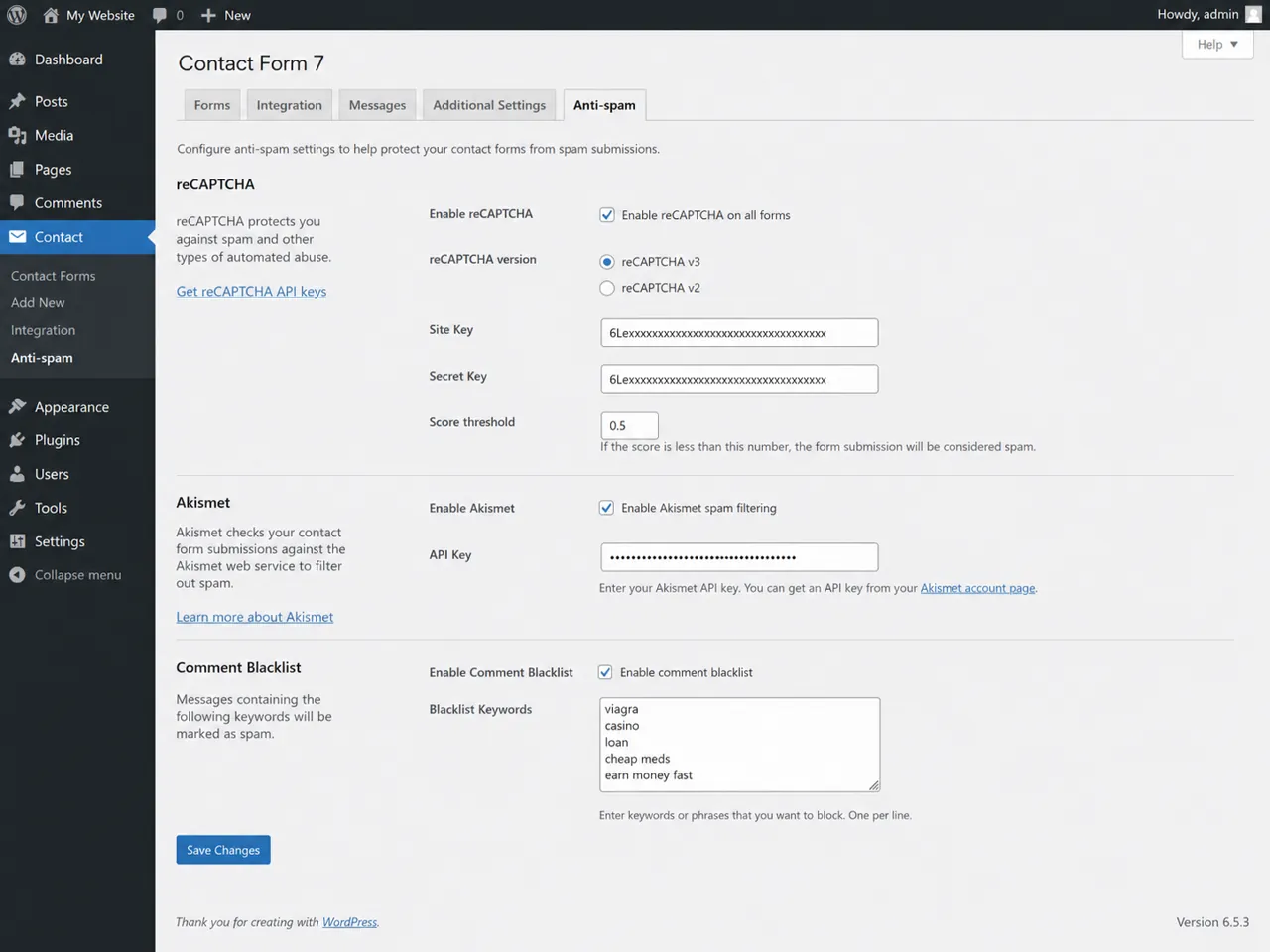
Check reCAPTCHA and anti-spam plugins
Anti-spam tools can block real submissions. reCAPTCHA, Akismet, honeypot plugins, firewall rules, and security plugins can all reject a form submission before the email step happens. The tricky part is that the user may not always see a useful error.
Test carefully with anti-spam disabled
If you can, test this on staging first. Temporarily disable the anti-spam layer, submit the form again, and see whether the email arrives. If it does, the form is not the main problem. The anti-spam check is too strict, misconfigured, or connected to the wrong keys.
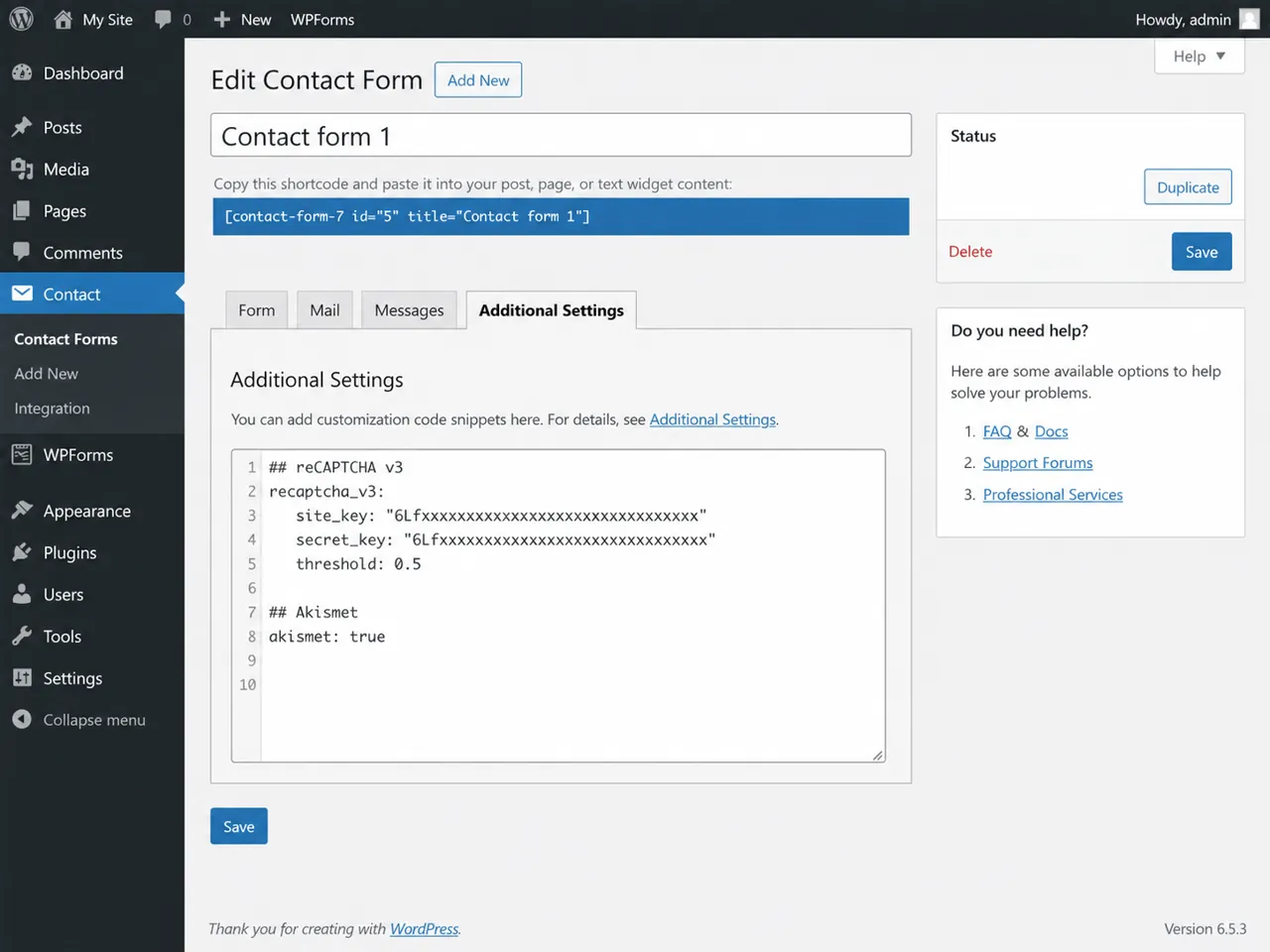
Check the Additional Settings tab
There is one setting that can make this problem look especially confusing: skip_mail. If skip_mail is turned on, Contact Form 7 skips sending email. The form can still appear to complete, which makes it easy to miss if someone added the setting during testing and forgot to remove it.
Open the Additional Settings tab and look for anything that tells the form to skip mail or behave like a demo. If this is a live lead form, remove those testing settings and run another end-to-end test.
Run one final end-to-end test
After you change a setting, test the whole path again. Submit the live form. Confirm the success message appears. Confirm the email arrives in the correct inbox. Check the sender, reply-to address, subject line, and message body. Make sure all form fields are included and readable.
A passing test is not just a green success message on the website. A passing test means the lead actually lands where someone will see it and can reply to it.
How to catch this next time before you lose leads
Once the form is fixed, the next problem is knowing when it breaks again. Plugin updates, SMTP password changes, DNS changes, spam filters, and hosting changes can all break delivery later without changing how the form looks on the page.
That is the gap Website Form Checker is built to watch. It sends real test submissions through your form on a schedule and alerts you if they stop arriving. So instead of finding out after a customer says "I filled out your form last week," you catch the failure before more leads disappear.
Quick checklist
- The To field sends to the right inbox.
- The From field uses your website domain.
- Reply-To uses the visitor email field.
- Contact Form 7 shows no mail configuration warnings.
- SMTP is connected and the test email works.
- Spam, filters, and forwarding rules are checked.
- reCAPTCHA and anti-spam tools are tested.
- Additional Settings does not include
skip_mailon the live form. - A final live test submission lands in the correct inbox.
Test your form right now, free
Paste your contact form URL. We'll open it in a real browser, find the form, detect spam protection, and tell you whether it's structured to actually deliver submissions. Takes about 20 seconds.
Run a free audit →