That is why the success message is not enough. It only tells you the visitor got through the form. It does not prove the lead reached the business. Before changing settings, run one real test submission through the live form, then work through the checks below in order. You can also paste your form URL into our free form checker to see how it's structured first.
First, run a real WPForms test submission
Open the live form in a private browser window and submit it like a real visitor would. Use an email address you control. Fill out every required field. If the form has a subject or message field, include a phrase you can search for later, like WPForms email notification test.
Then check the inbox that should receive the notification. Do not only look at the main inbox. Check spam, promotions, quarantine, forwarding rules, and any shared inbox routing. If the confirmation appears but the email never lands, the front end is probably fine. The notification path is the part to investigate.
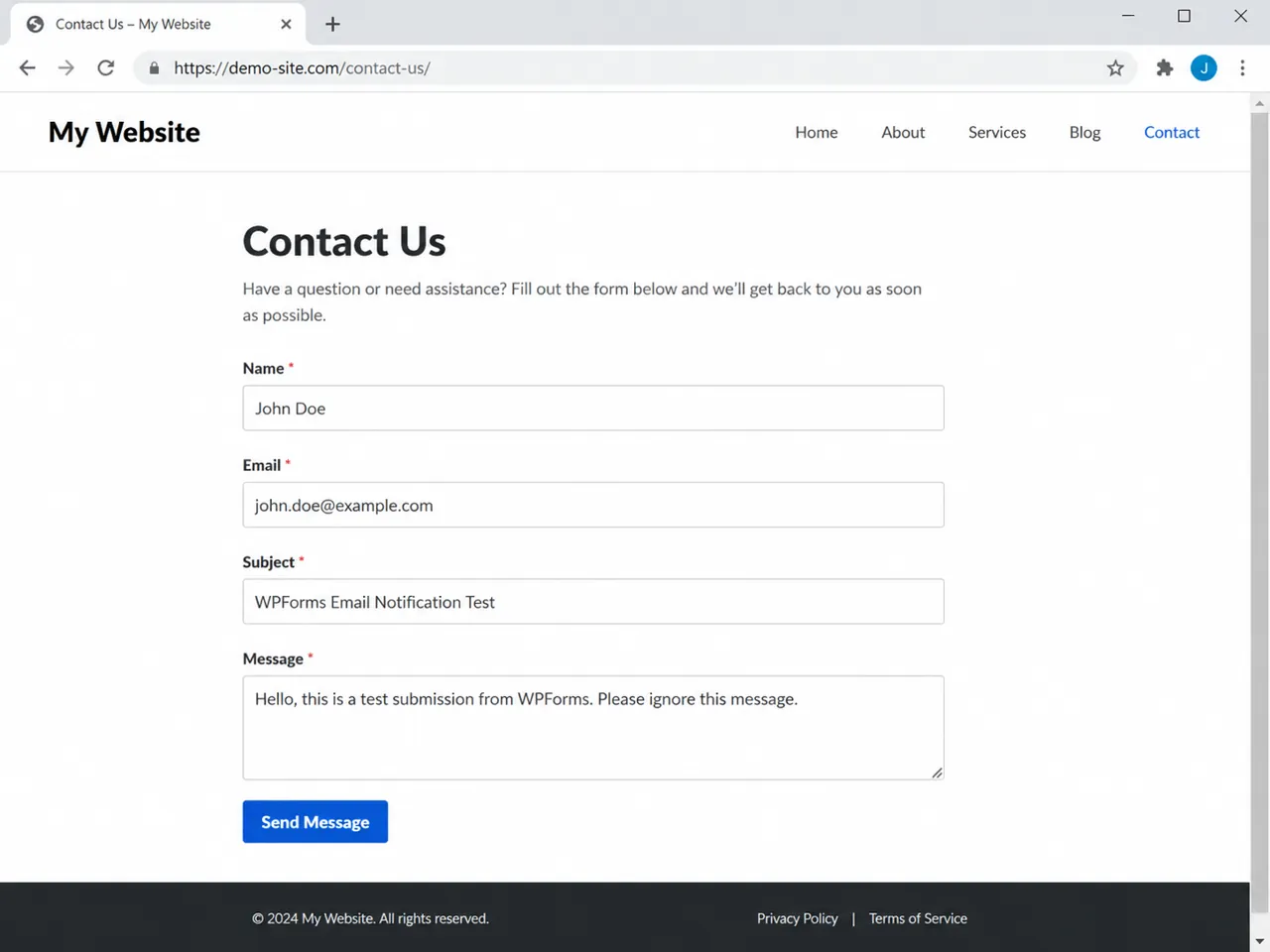
Use a test message you can search for
Use the same phrase in the subject and message body. That makes it much easier to search the inbox and prove whether the message arrived, got filtered, or never sent at all.
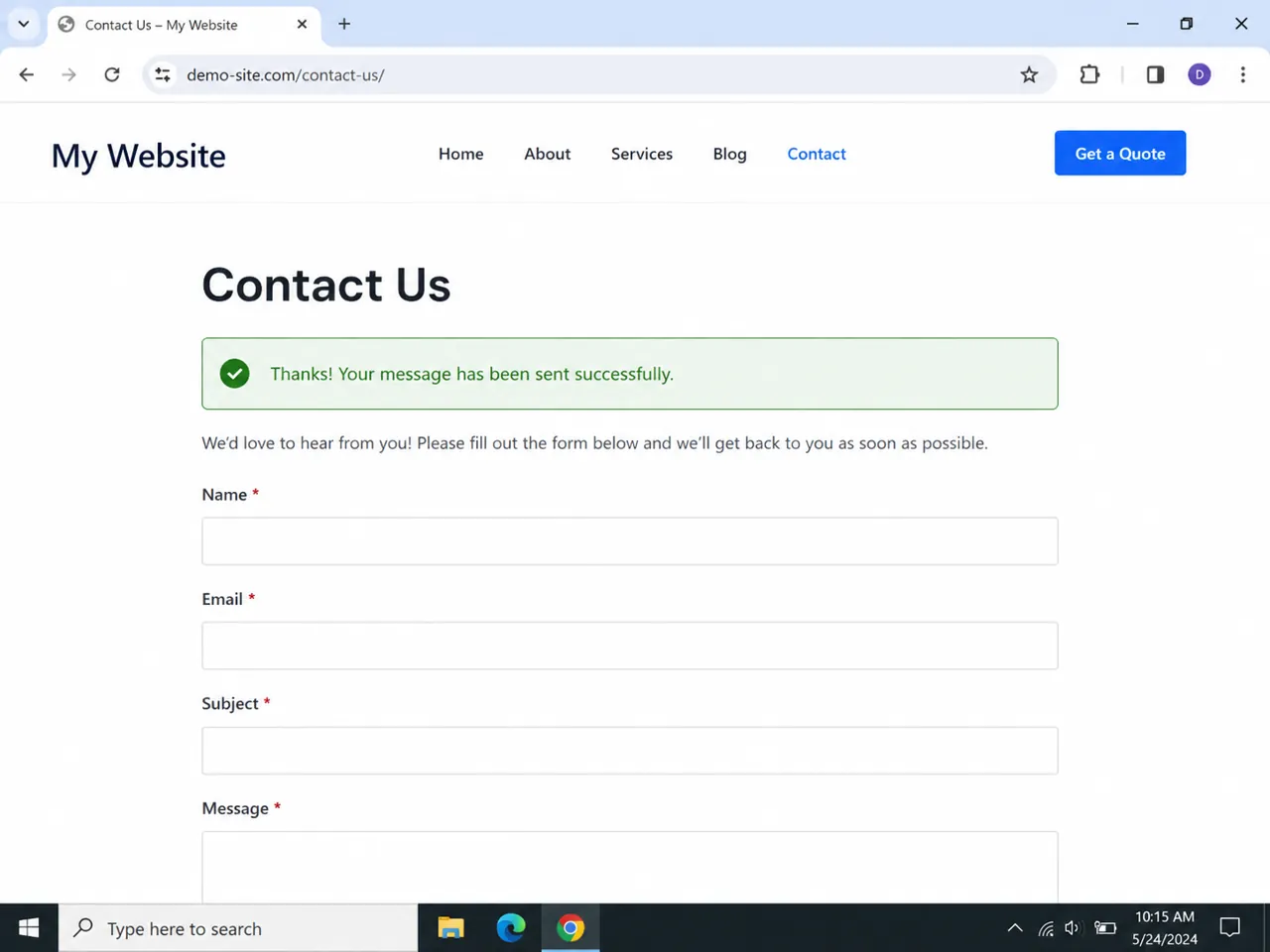
Check that WPForms notifications are turned on
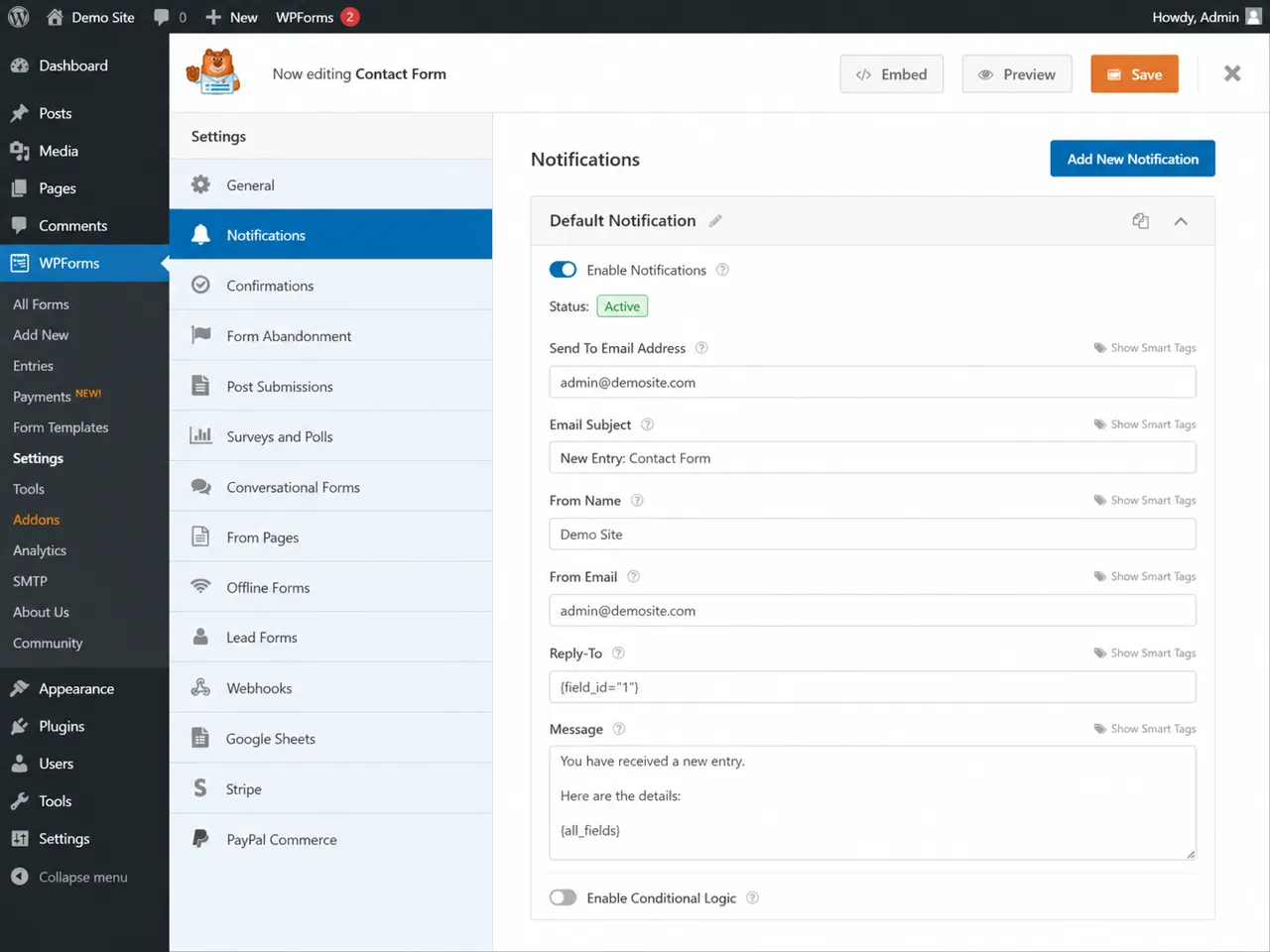
In WordPress, go to WPForms > All Forms, edit the form, then open Settings > Notifications. This is where WPForms controls who gets emailed when someone submits the form.
Start with the simple thing: make sure notifications are enabled. If a notification was turned off during testing, the form can still accept submissions and show the visitor a confirmation message. It just will not email anyone after that.
Make sure the notification is active
If the form has more than one notification, check each one. A main admin notification might be active while a sales, support, or department notification is disabled. Do not assume one working notification means all of them work.
Check the Send To email address
The Send To Email Address is the inbox WPForms sends the notification to. If this field is wrong, old, misspelled, or pointed at an admin email nobody checks, the submission can disappear from the right person even though WPForms did its job. Look for staging emails, former employee addresses, placeholder emails, or default site admin emails. If the business wants leads sent to a sales inbox, put that exact inbox here.
Replace the admin email if needed
WPForms often uses the site admin email by default. That is fine only if the site admin inbox is active and monitored. If not, replace it with the real lead inbox and send another test submission.
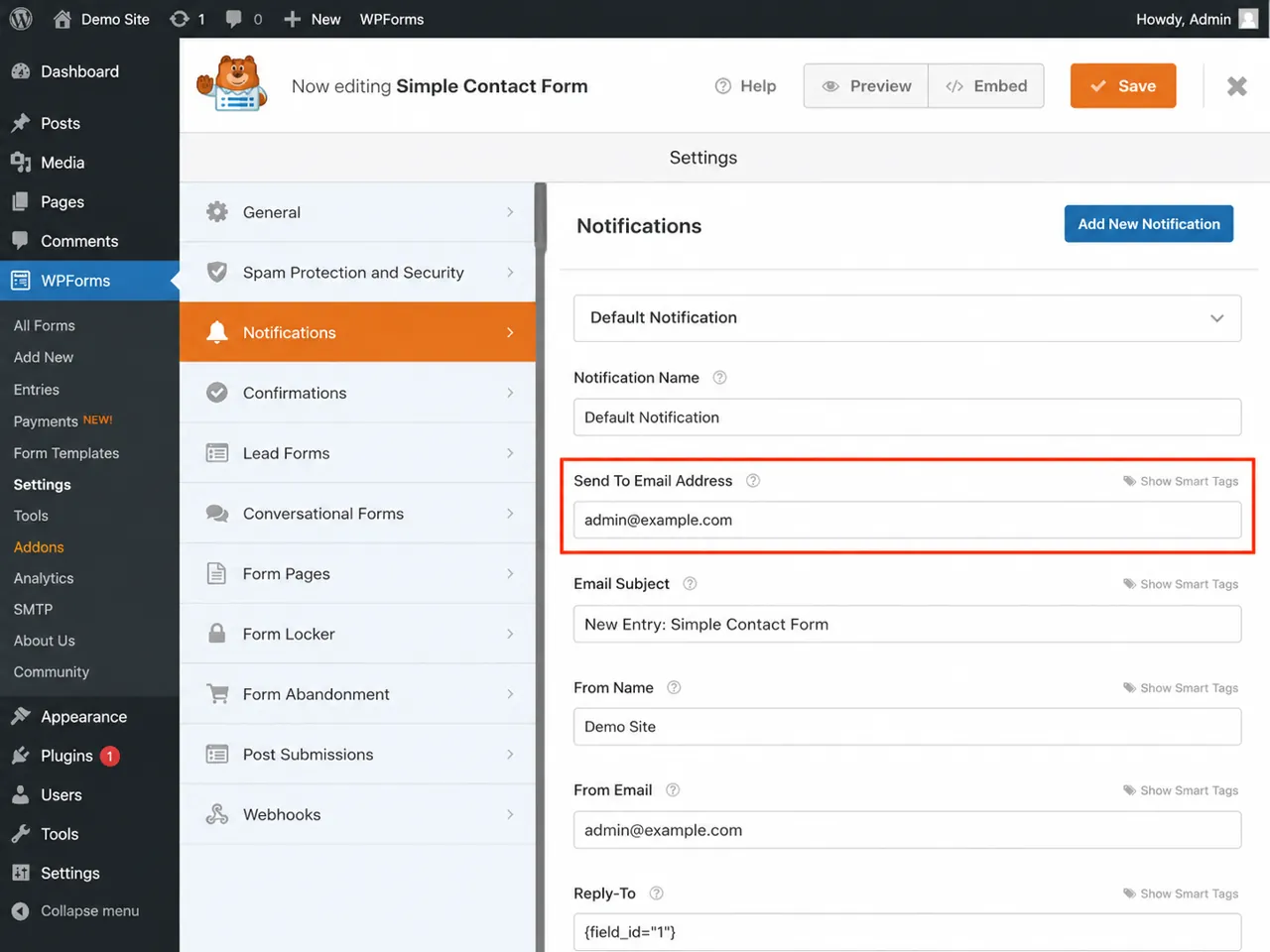
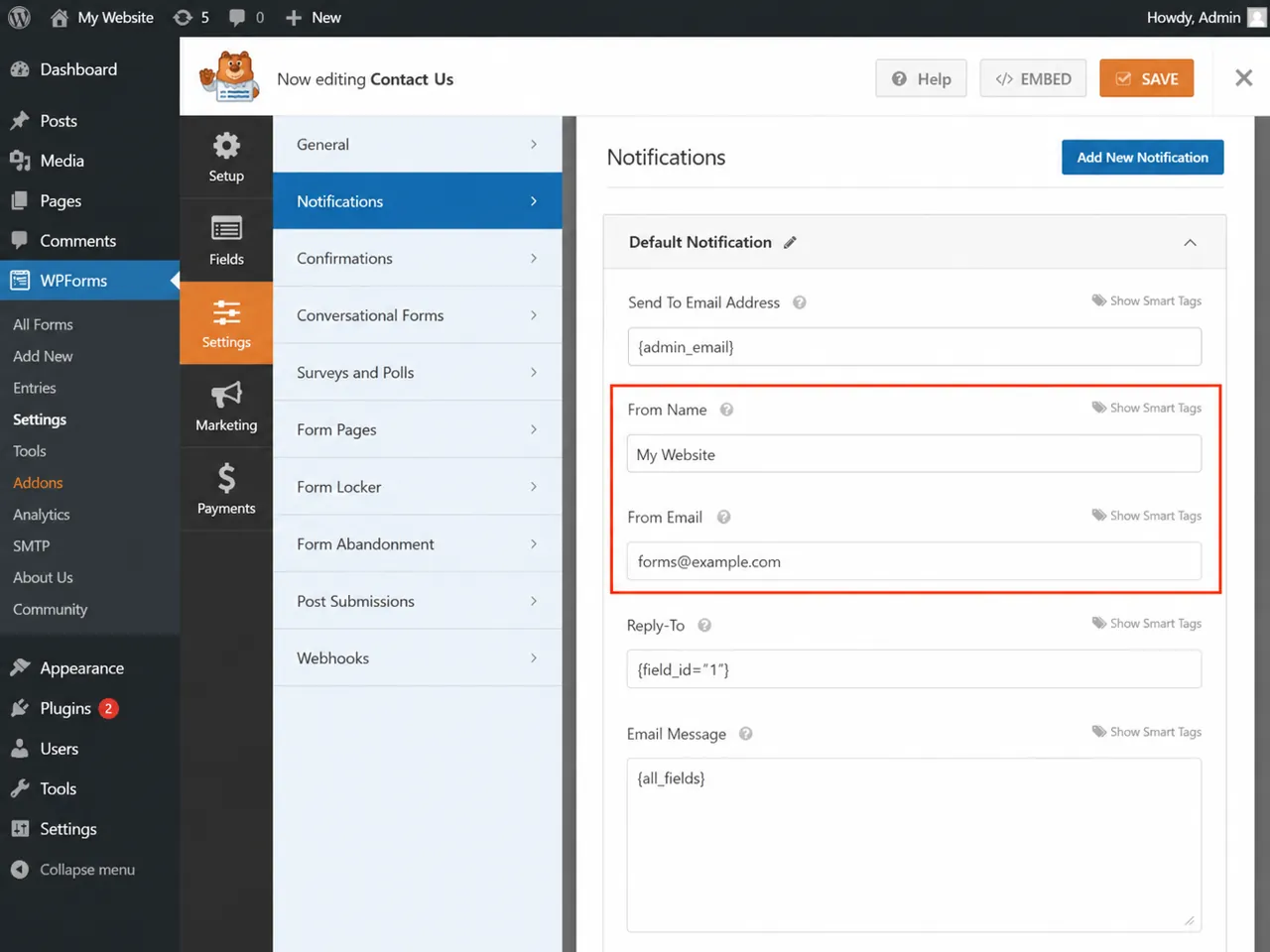
Fix the From Name and From Email
The From Email is not just a label. It affects whether inboxes trust the message. A common mistake is using the visitor's email as the sender. That can make the message look spoofed, especially when the email is sent from your website but claims to come from Gmail, Yahoo, or Outlook. Use an email address on the same domain as the website when possible. If the site is example.com, something like [email protected] or [email protected] is usually safer than a visitor email address.
Use Reply-To for the visitor email
The cleaner setup is simple. From Email uses your site domain, and Reply-To uses the visitor's email field. The message looks like it came from the website, but when the site owner replies, the reply still goes to the person who filled out the form.
Check the email message body
Sometimes the notification sends, but the email is missing the details the business needs. This usually happens when someone edits the notification template and removes a field, smart tag, phone number, or message body by accident. Open the Email Message area and make sure the notification includes the important form fields: name, email, phone, subject, message, and any hidden fields the team uses for tracking.
Make sure the lead is usable
A notification that only says "new form entry" is not enough if the team cannot see who submitted it or what they asked for. The email should include everything needed to respond without logging into WordPress first.
Check conditional logic and multiple notifications
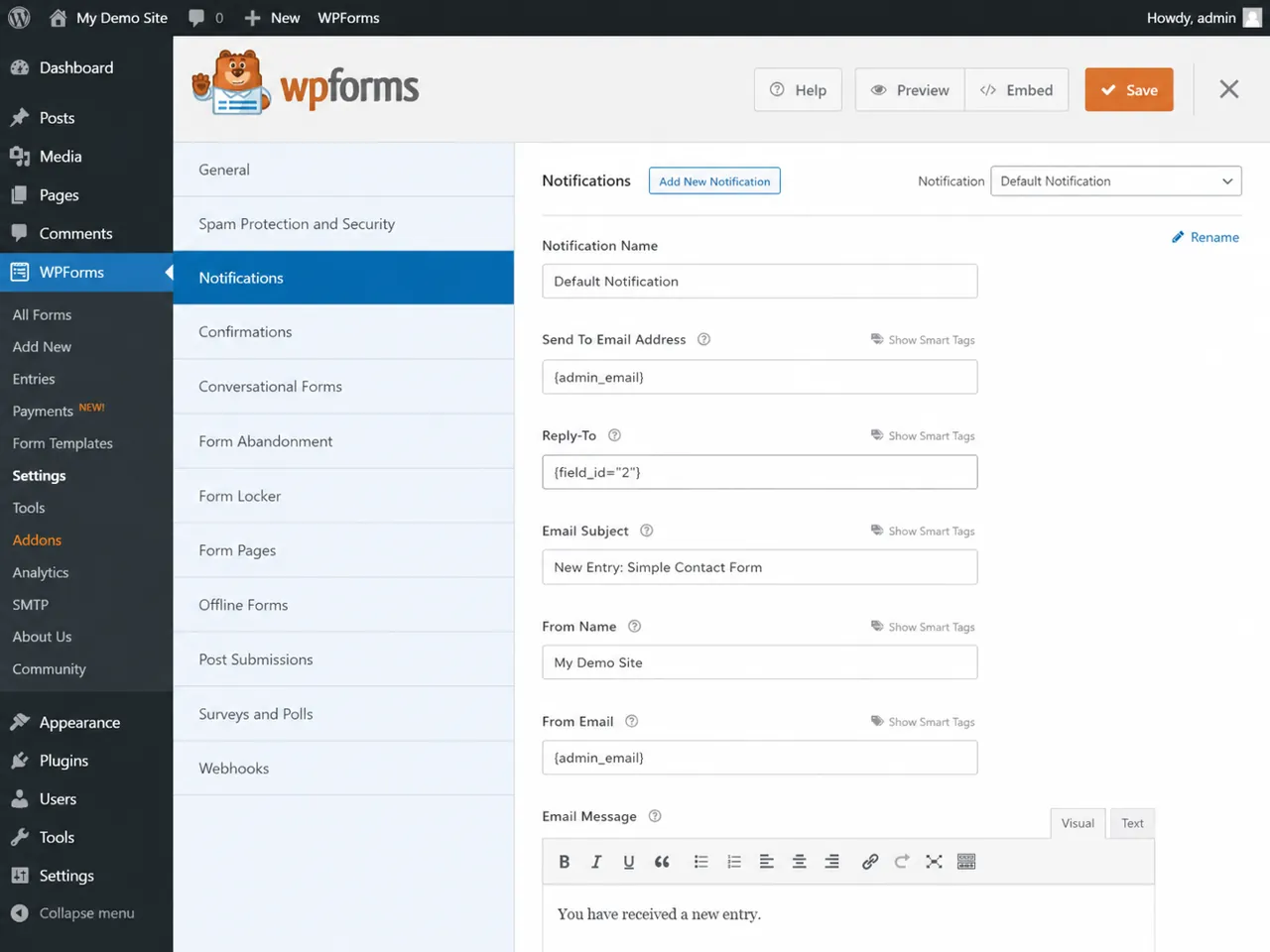
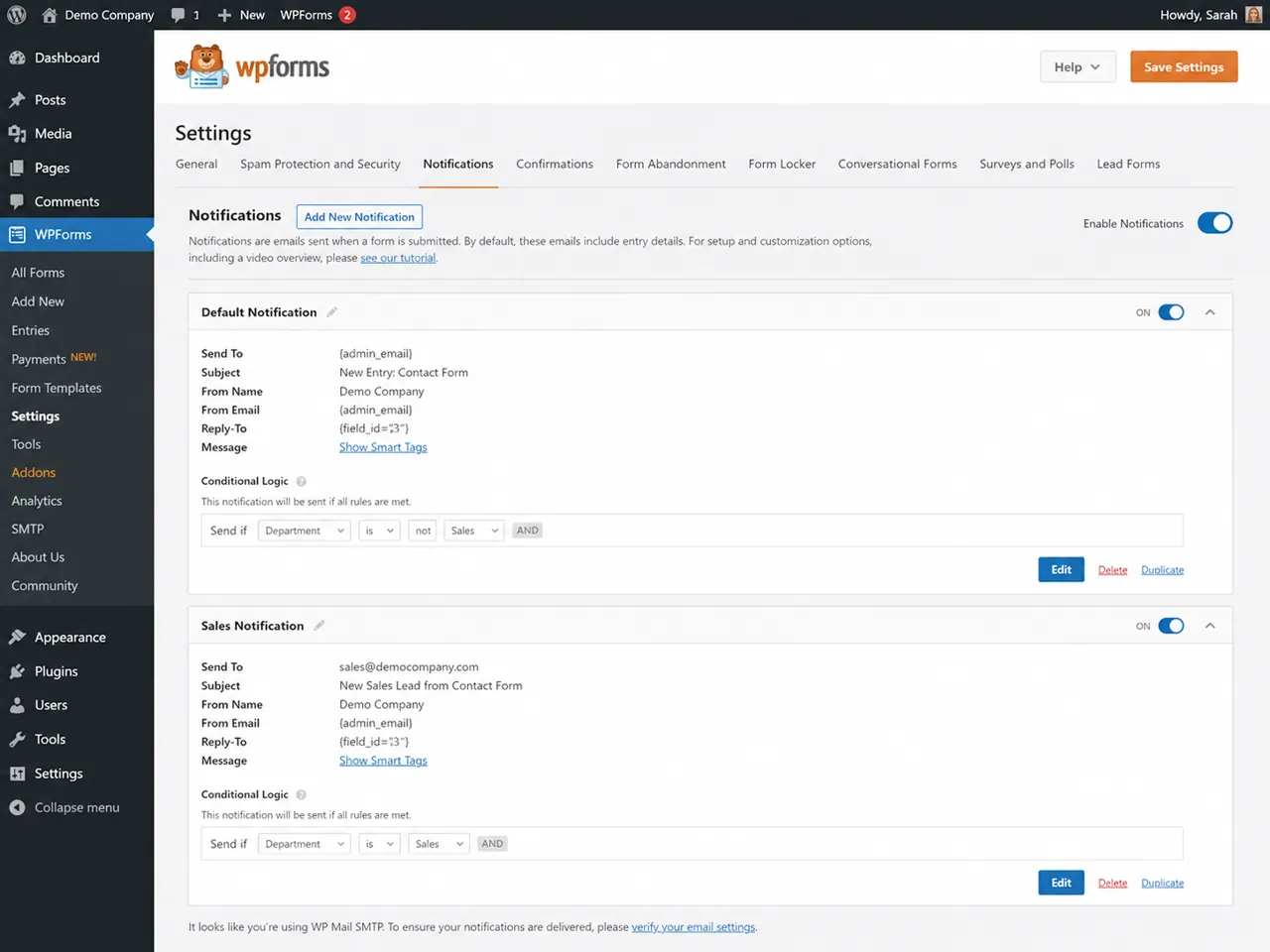
WPForms can send different notifications depending on what the visitor selects. That is useful, but it also creates more places for email to fail. Sales might get emails for one service. Support might get emails for another. One path can be broken while the form still works for a different path.
Test more than one form path
If the form has a dropdown, department selector, location field, service choice, or checkbox, test each important path. Do not only submit the easiest version of the form. The broken path is often the one nobody tests.
Check whether WPForms saved the entry
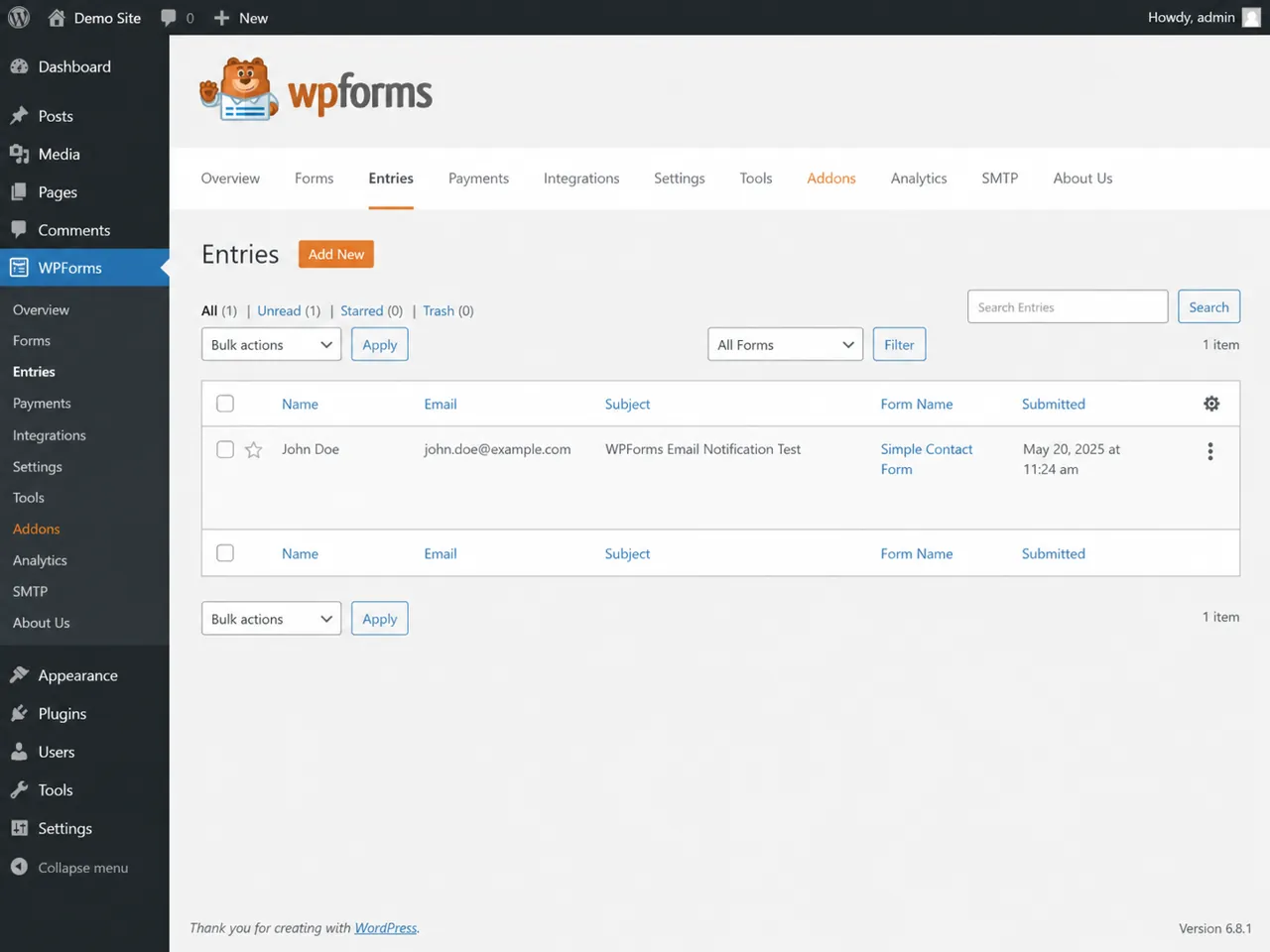
If your WPForms plan or setup stores entries, check the Entries screen after your test. This helps you separate two different problems. If the entry is not there, the form may not be submitting. If the entry is there but no email arrived, the form submitted, but the email notification failed.
If the entry exists, focus on email delivery
A saved entry means WPForms accepted the submission. At that point, look at notification settings, SMTP, spam filtering, inbox rules, or sender authentication instead of rebuilding the form.
Fix WordPress email delivery with SMTP
WPForms passes notification emails through WordPress. If WordPress mail is unreliable, your notification settings can be correct and the email can still fail after submission. This is why SMTP matters. SMTP connects WordPress to a real mail service instead of relying on the server's default mail function. It gives you a cleaner sending path, clearer testing, and fewer silent delivery problems.
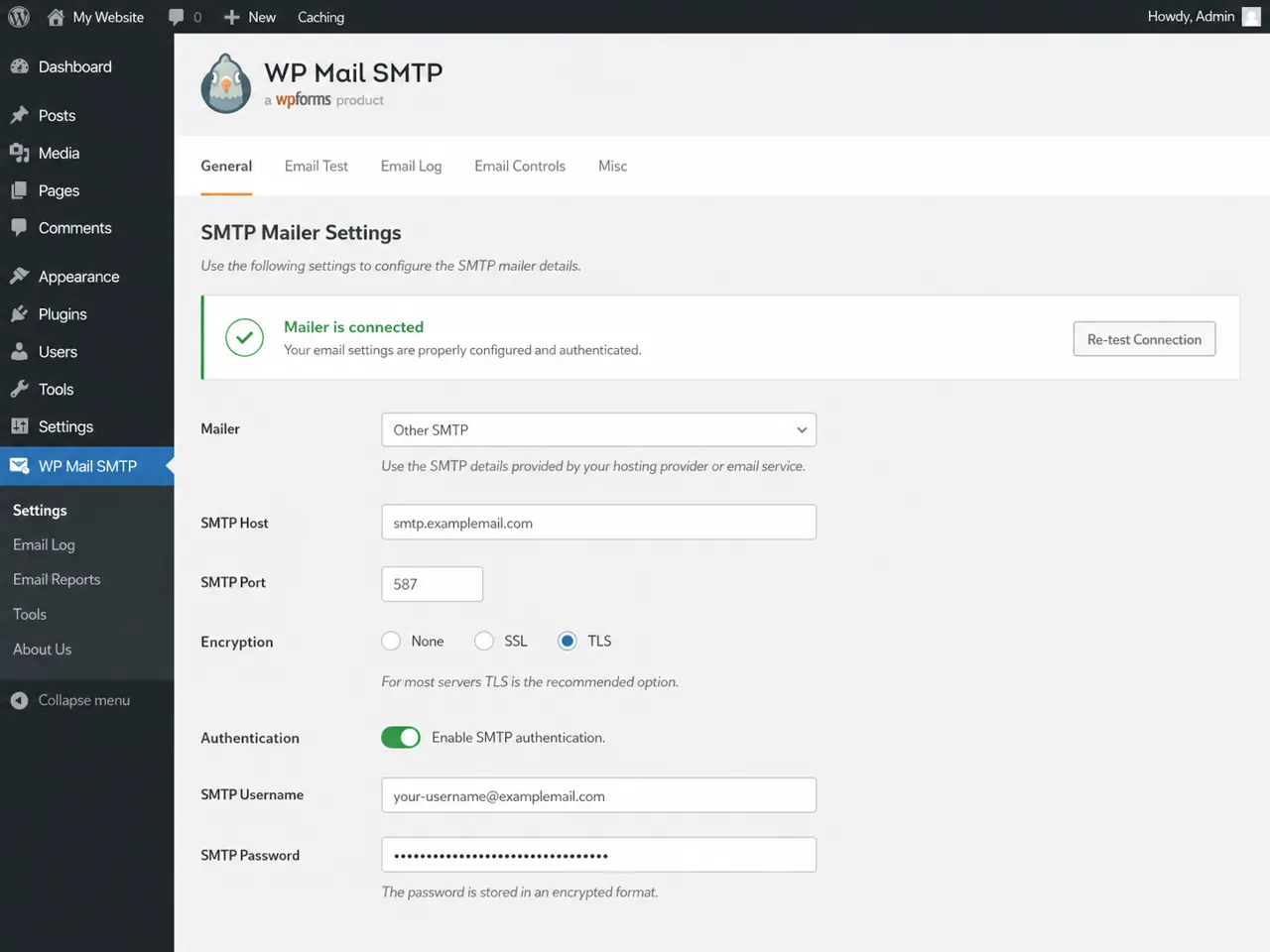
Connect WP Mail SMTP
Install and configure WP Mail SMTP or another SMTP plugin. Match the From Email in the SMTP plugin with the From Email you use in WPForms when possible. If those settings fight each other, delivery gets harder to diagnose.
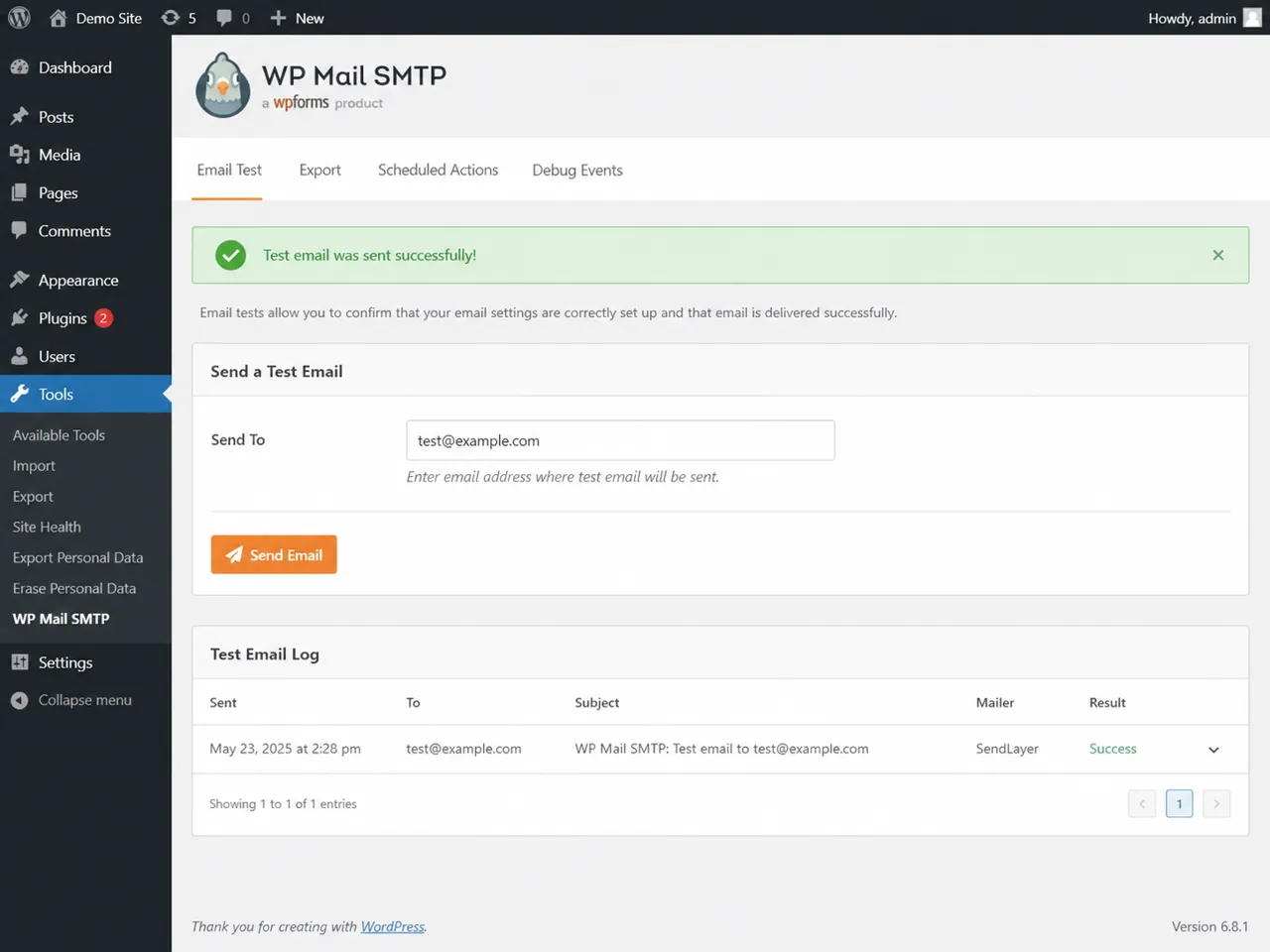
Send a test email from the SMTP plugin
After SMTP is connected, send a test email from the SMTP plugin. If that test fails, fix SMTP before blaming WPForms. A form notification will not be reliable if WordPress cannot send a basic test email.
Search the inbox, spam, and filters
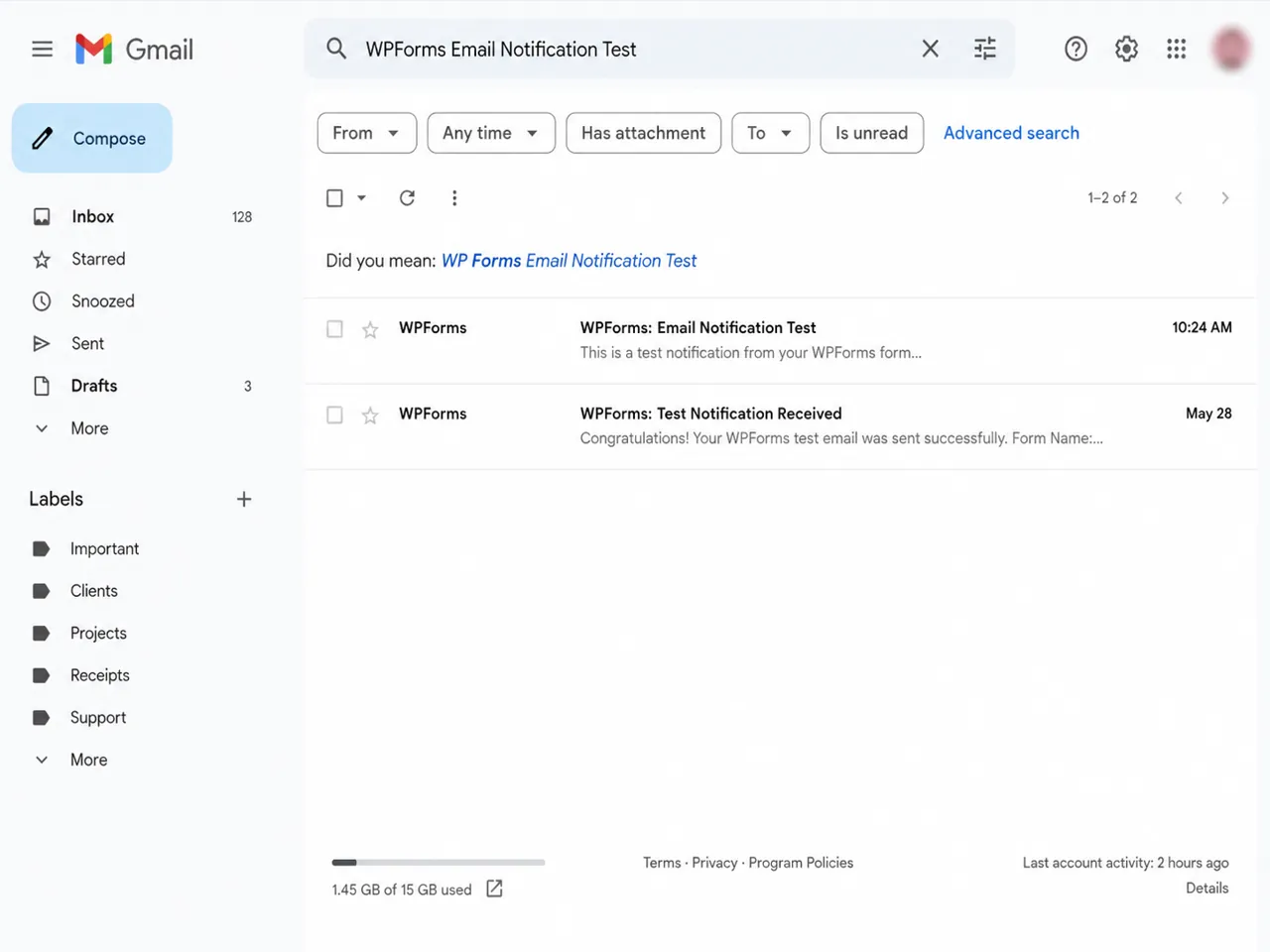
Sometimes WPForms is sending the email, but the inbox is hiding it. Search for the exact test phrase instead of manually scanning. Check inbox, spam, promotions, quarantine, forwarding rules, blocked senders, and shared inbox routing. If the test message lands in spam, the form may be working, but deliverability still needs attention. Check the sender email, SPF, DKIM, SMTP setup, and whether the From Email matches the domain. Those authentication issues are covered in 10 reasons your contact form is silently broken.
Search for the exact subject line
Search for the exact phrase you used in the form, such as WPForms email notification test. If you find it in spam or a filtered folder, you have a delivery problem, not a submission problem.
Run one final end-to-end test
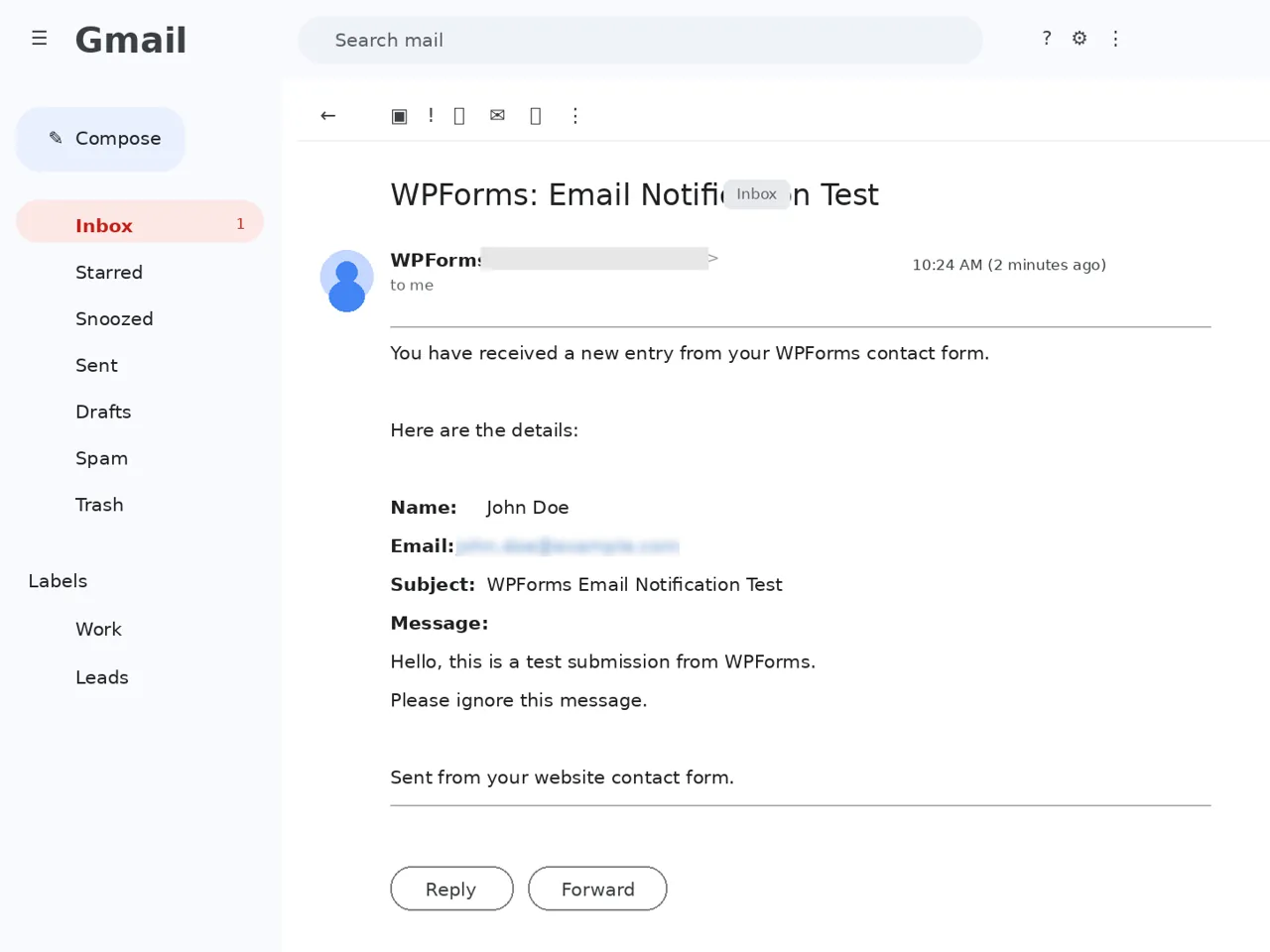
After you change a setting, test the full path again. Submit the live form. Confirm the success message appears. Confirm the email arrives in the correct inbox. Check the sender, reply-to address, subject line, and message body.
A passing test is not just the form saying thank you. A passing test means the lead actually reaches the inbox where someone can see it, understand it, and reply to it.
How to catch WPForms email failures before leads go missing
Once WPForms is fixed, the next problem is knowing when it breaks again. Plugin updates, SMTP password changes, DNS changes, spam rules, and email provider changes can all break notifications later without changing how the form looks on the page.
That is the gap Website Form Checker is built to watch. It sends real test submissions through your form on a schedule and alerts you if they stop arriving. So instead of finding out after a customer says "I filled out your form last week," you catch the failure before more leads disappear.
Quick checklist
- WPForms notifications are enabled.
- Each important notification is active.
- The Send To Email Address points to the right inbox.
- The From Email uses your website domain.
- Reply-To uses the visitor email field.
- The Email Message includes the fields the team needs.
- Conditional notification paths are tested.
- Entries are checked if available.
- SMTP is connected and the test email works.
- Spam, filters, and forwarding rules are checked.
- A final live WPForms test reaches the correct inbox.
Test your form right now, free
Paste your contact form URL. We'll open it in a real browser, find the form, detect spam protection, and tell you whether it's structured to actually deliver submissions. Takes about 20 seconds.
Run a free audit →