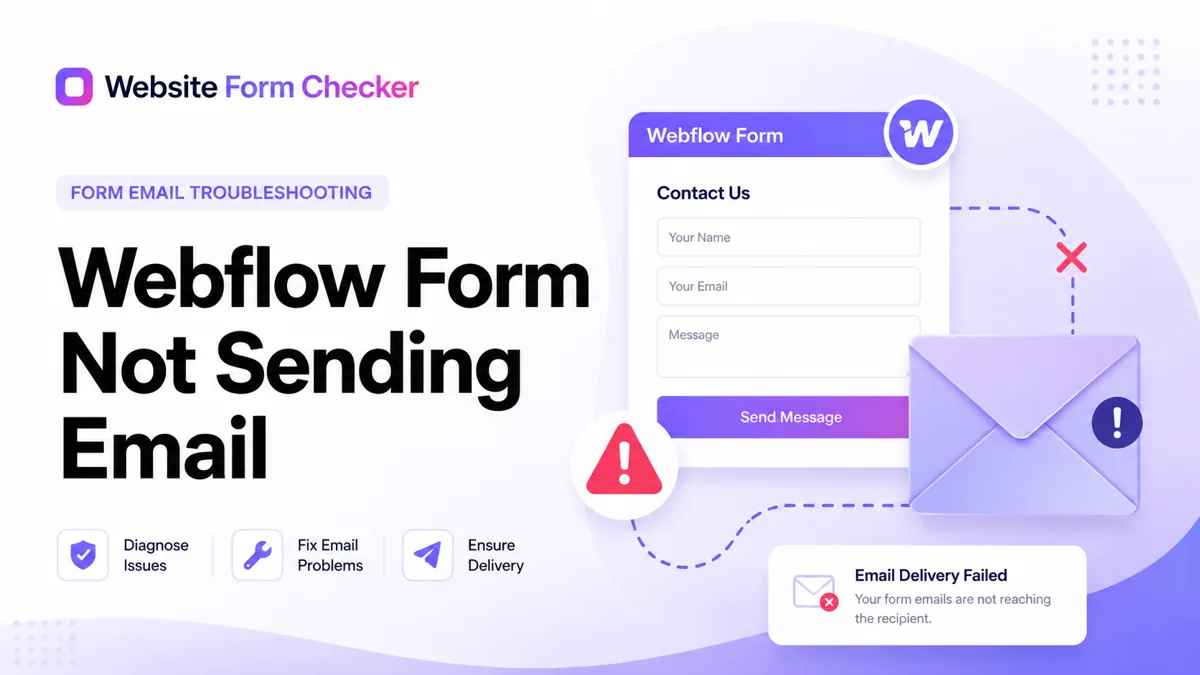
Before changing anything, send one real test submission through the published form from a private browser window. Use an inbox you control, write a phrase you can search for later, and wait a few minutes. If nothing lands in your inbox or spam folder, follow the checks below in order. First prove the form is accepting submissions, then confirm Webflow stored the entry, then chase the notification email. You can also paste your form URL into our free form checker first to see how the form is structured before you start digging.
Run a live Webflow form test first
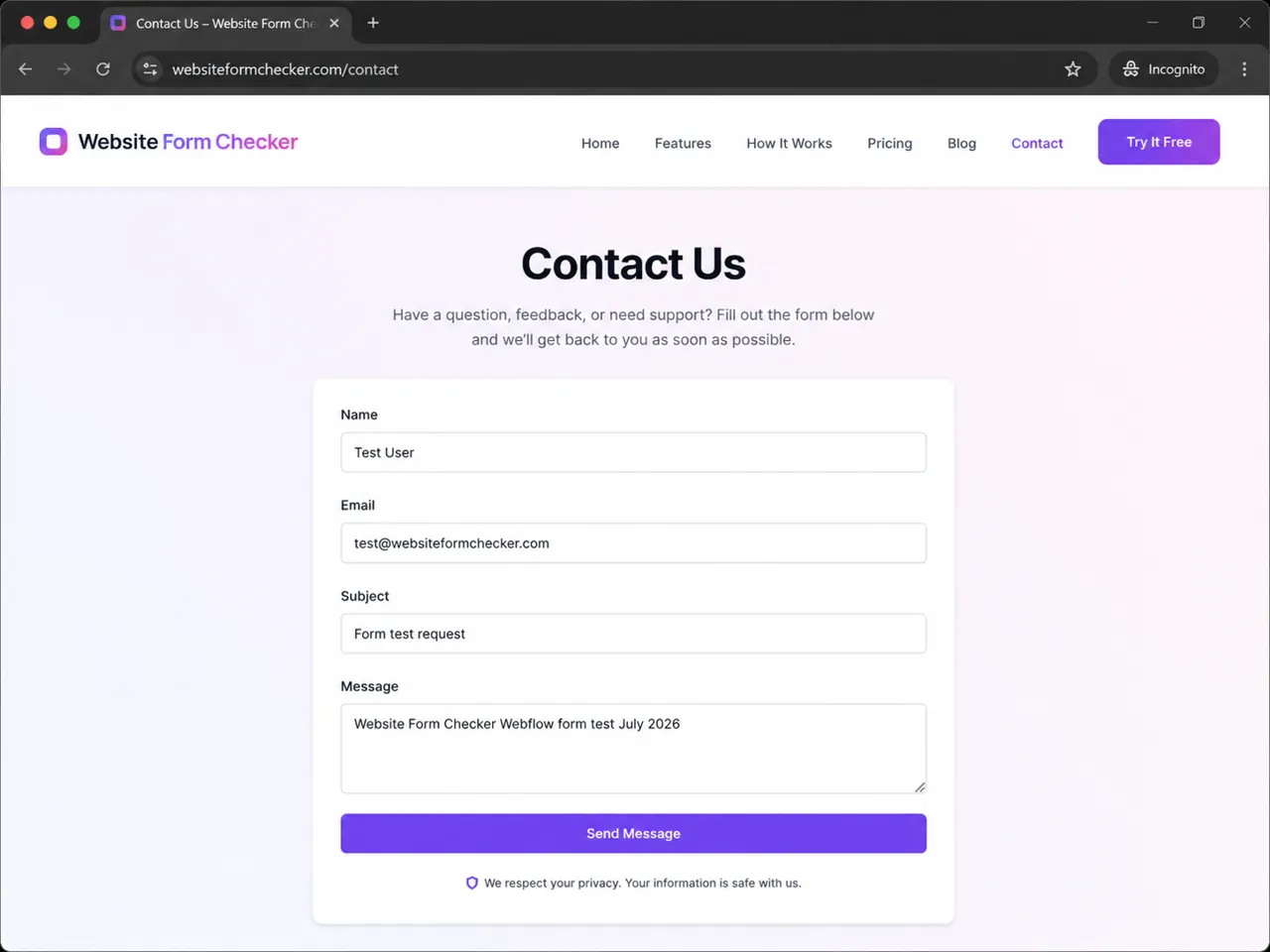
Start on the published page, not only in the Designer. Open the contact page in a private or incognito browser window and submit the form like a visitor would. This avoids cached sessions, admin-only behavior, and old form states that may not match the live page.
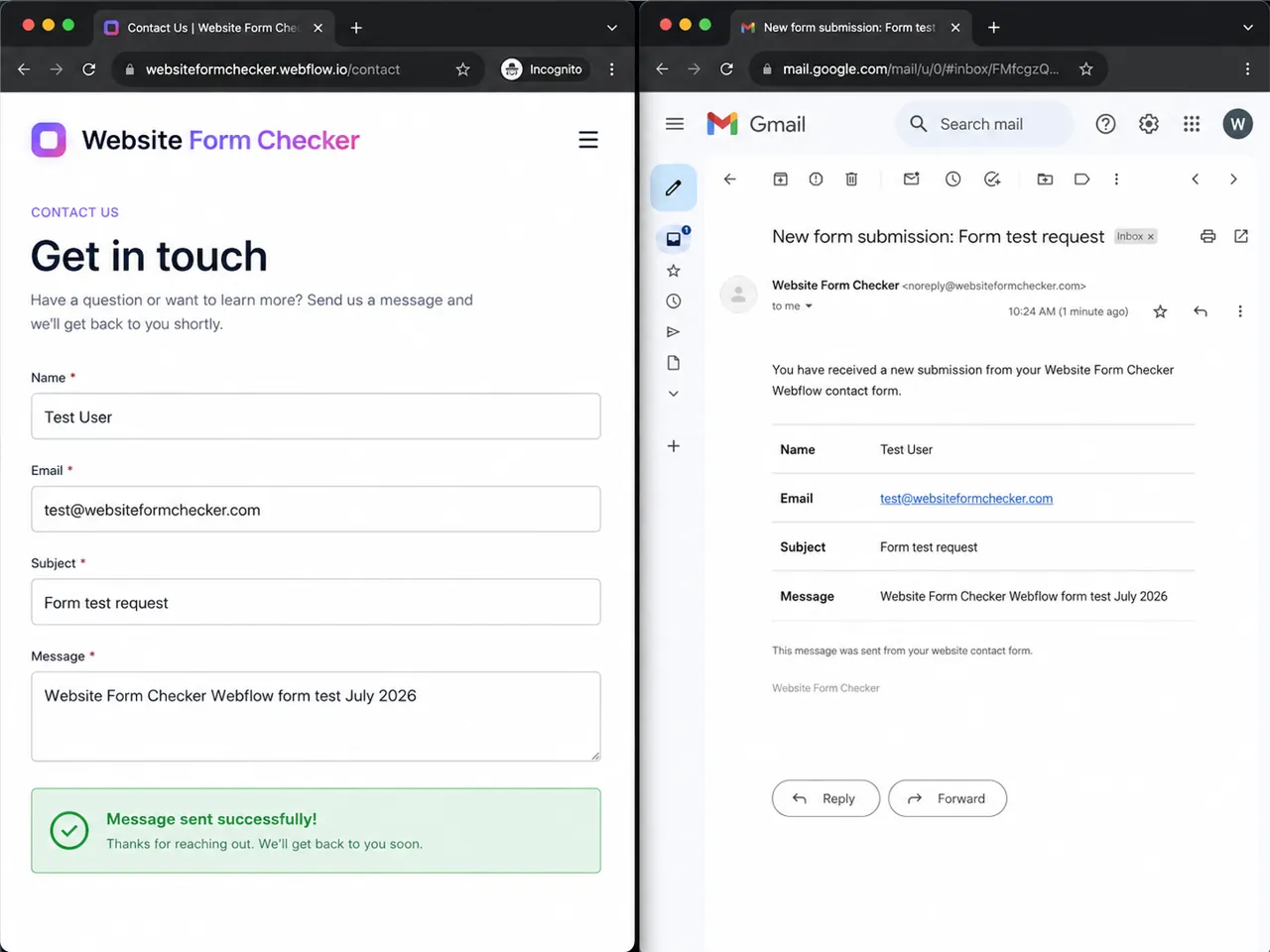
Use a phrase you can search for later, such as Website Form Checker Webflow form test July 2026. Put it in the message field and use a real inbox you control. The goal is to create one traceable submission that can be followed through Webflow and into email.
A success message only proves the page responded
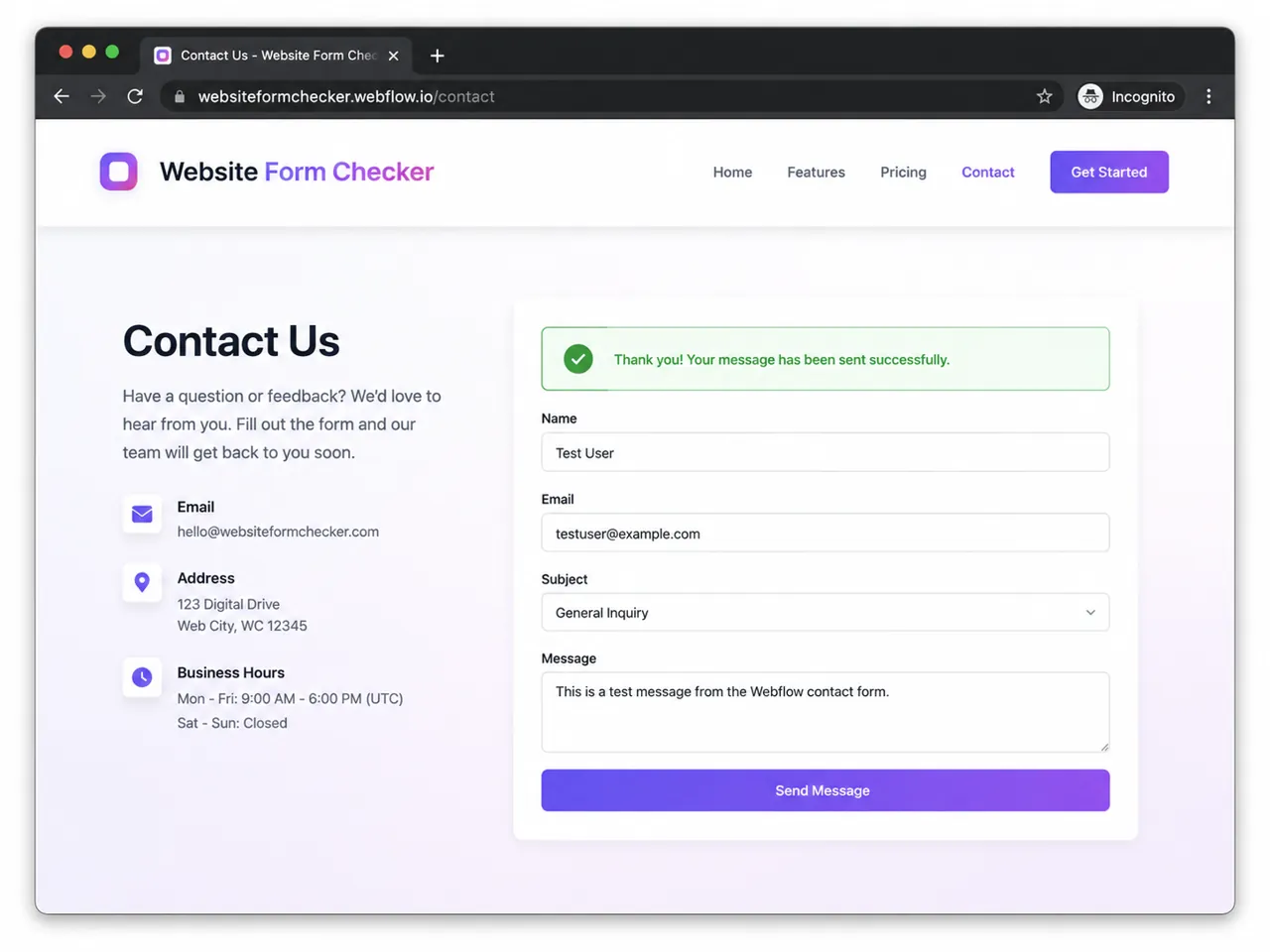
After submitting the form, look at the page response. If Webflow shows a success message, the front end probably accepted the submission. That is good news, but it does not prove the notification was delivered. The email could still be blocked, filtered, sent to the wrong recipient, or missing fields.
If the form shows an error message, test again with required fields completed and no special characters. If the error repeats, inspect the form block, required fields, custom code, embeds, and any third-party scripts before focusing on email delivery.
Check the Webflow form block in Designer
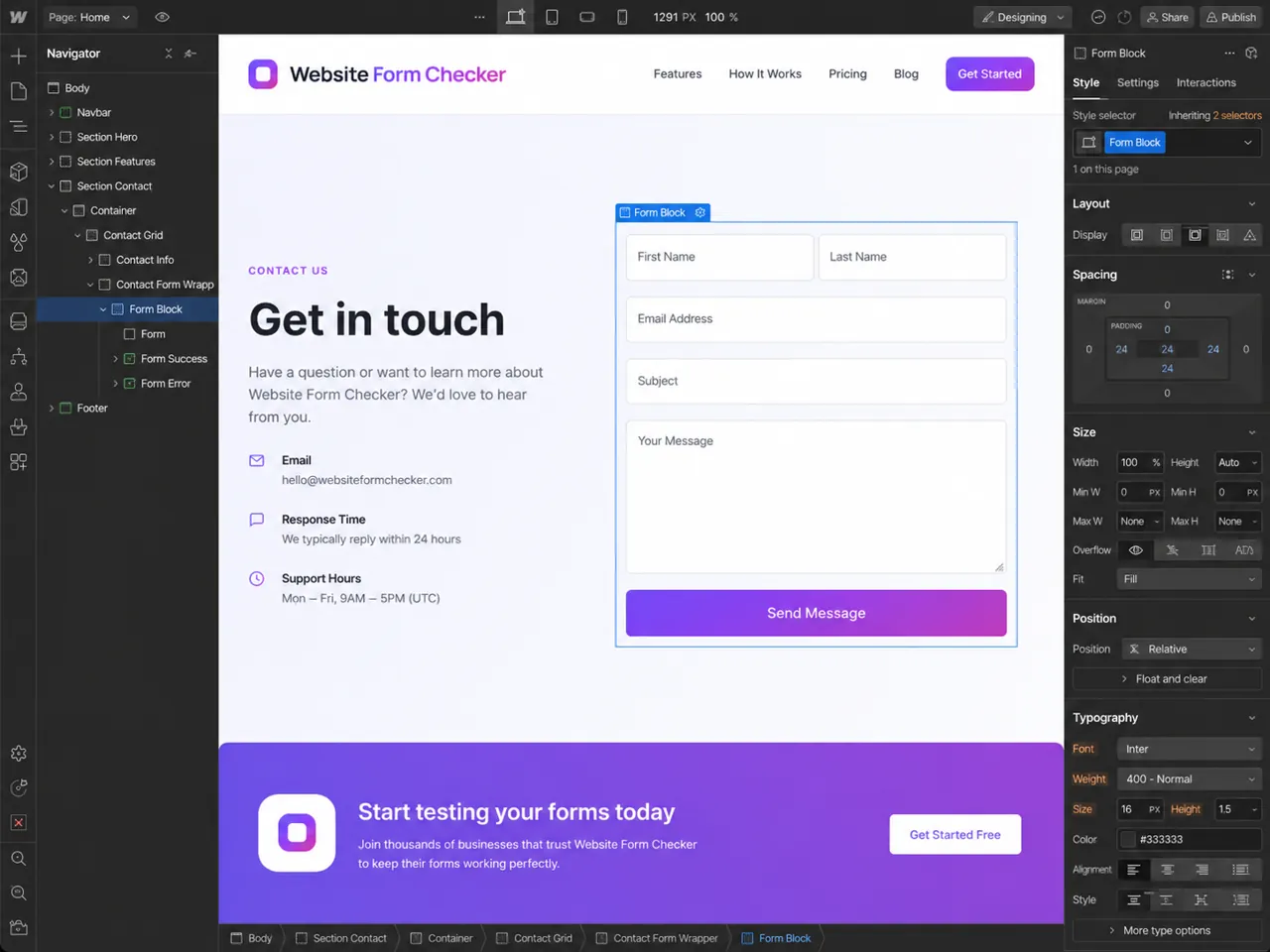
Open the site in Webflow Designer and select the form on the canvas or in the Navigator. Make sure you are selecting the actual form block, not just a wrapper, section, div, or button. This matters because the notification and success behavior is attached to the form element.
Confirm the fields are inside the form block and that the submit button belongs to that form. If a field was accidentally moved outside the form, the page may look right but the submitted data can be incomplete or unreliable.
Review success and error message behavior
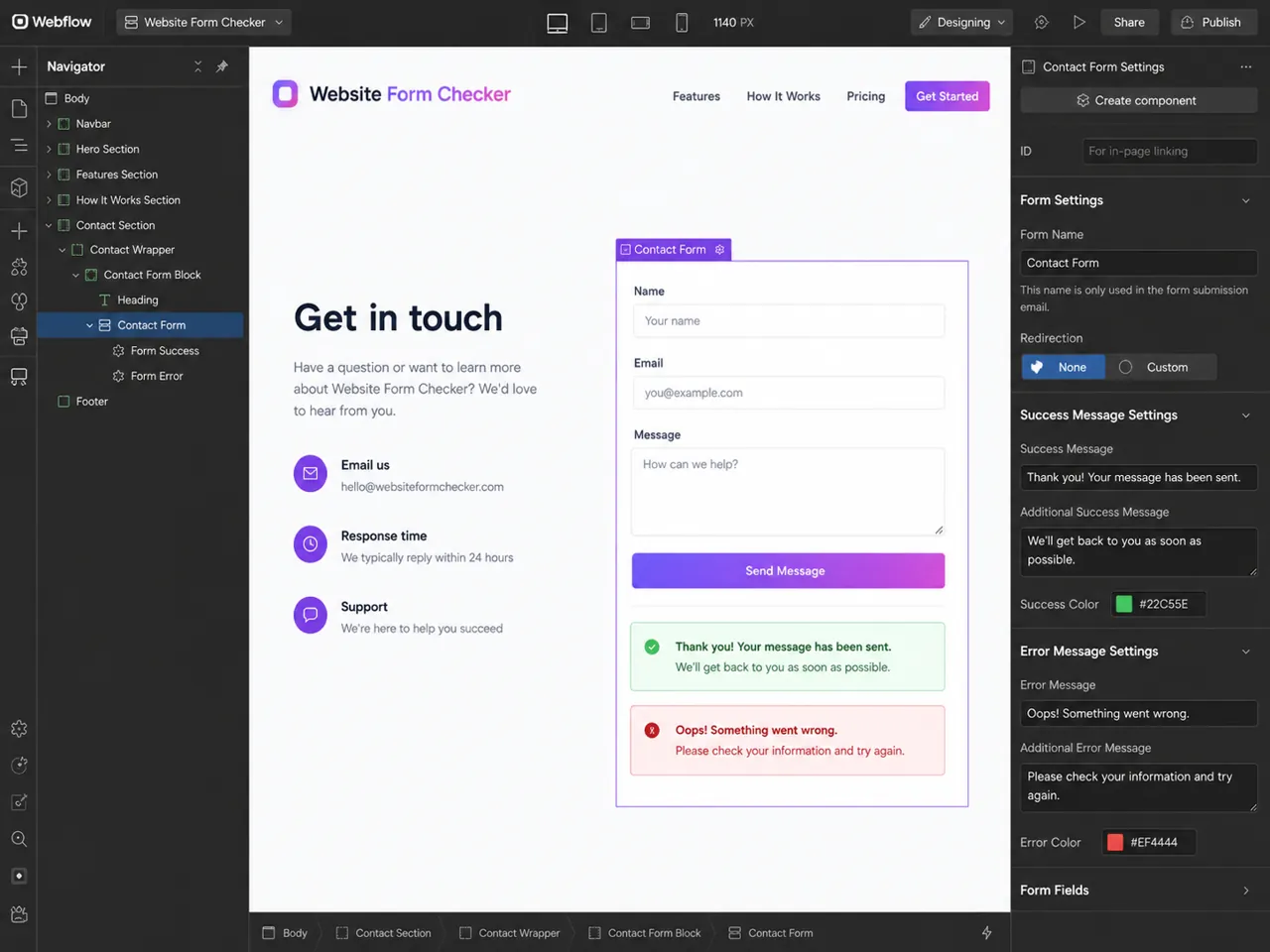
Check the success and error messages attached to the form. These messages help you understand what visitors see after submission, but they also help you test whether the form is behaving consistently.
Use a clear success message that confirms the form was received, not that a staff member has already read it. For example: Thanks, your message has been sent. If the form redirects after success, test the redirect page too, because a broken redirect can make a working form feel broken.
Verify Webflow form notification settings
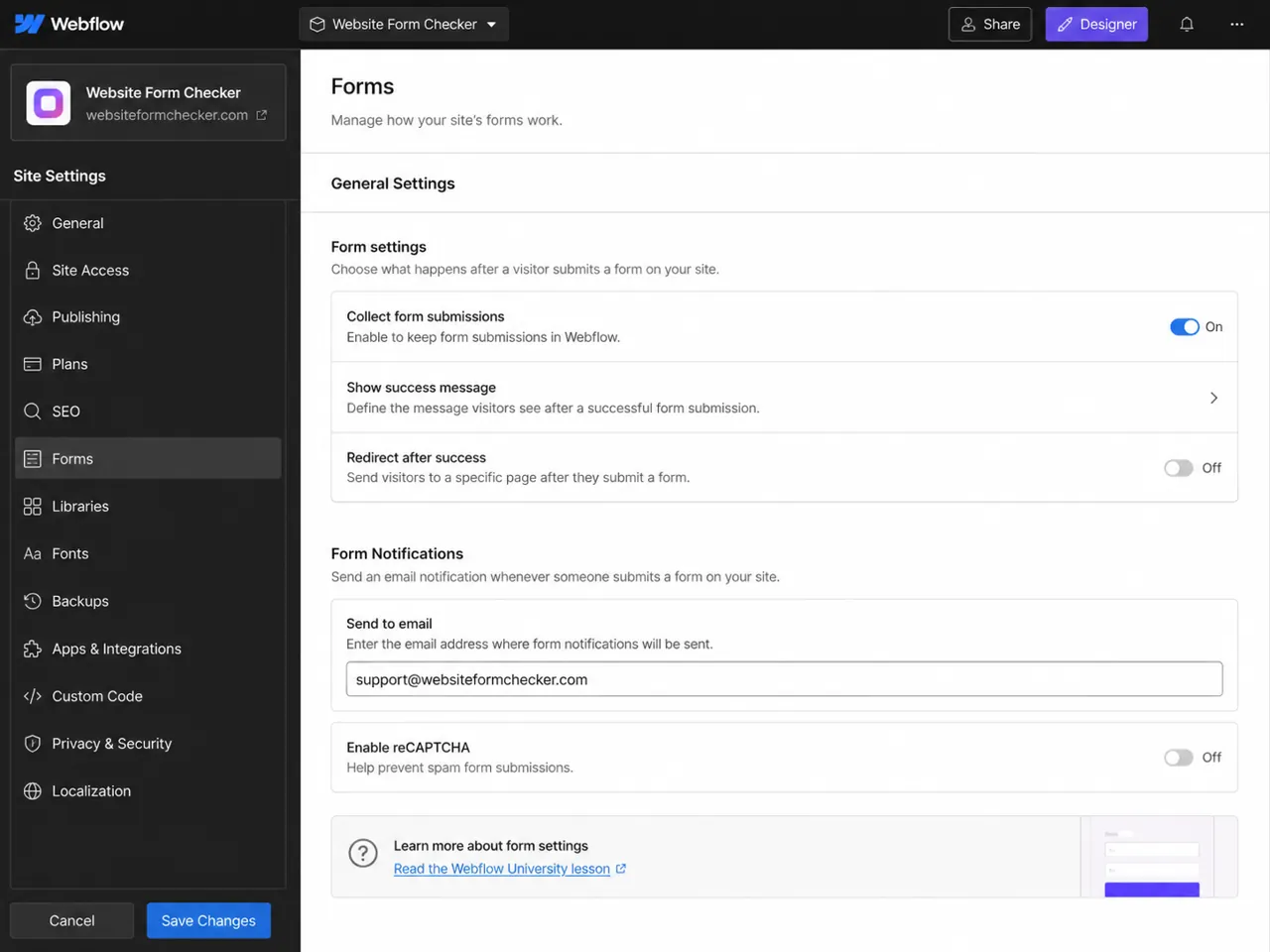
If the form submits but no email arrives, check the notification settings next. In Webflow, form notification emails can be managed from the form settings and from Project Settings > Forms. Look for the recipient email, sender name, reply-to address, subject line, and message body.
Pay special attention to these items:
- The recipient address is spelled correctly.
- The recipient is an inbox someone actually checks.
- The message body includes the submitted fields you need.
- The
reply-toaddress uses the visitor email field when appropriate. - The site has been republished after the settings changed.
Check whether Webflow saved the submission
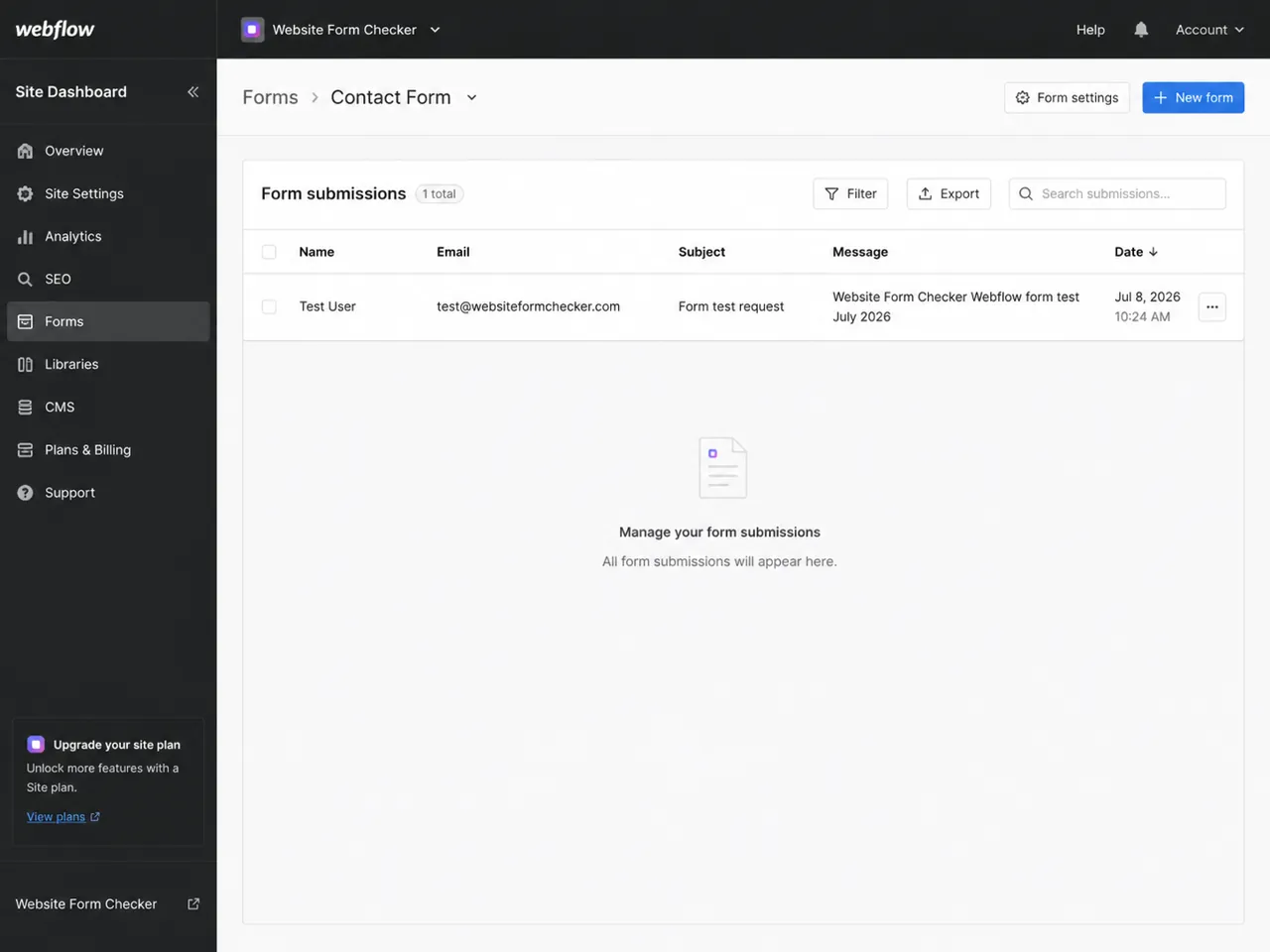
Before assuming email delivery failed, check the Webflow submissions dashboard. If the test entry appears there, the form accepted the submission and the issue is likely in the notification path, recipient inbox, or filtering rules.
If the submission does not appear in Webflow, the problem is earlier in the process. Review the live page, publish status, form block setup, required fields, custom code, and any embed scripts that might interrupt submission.
Search the inbox using the exact test phrase
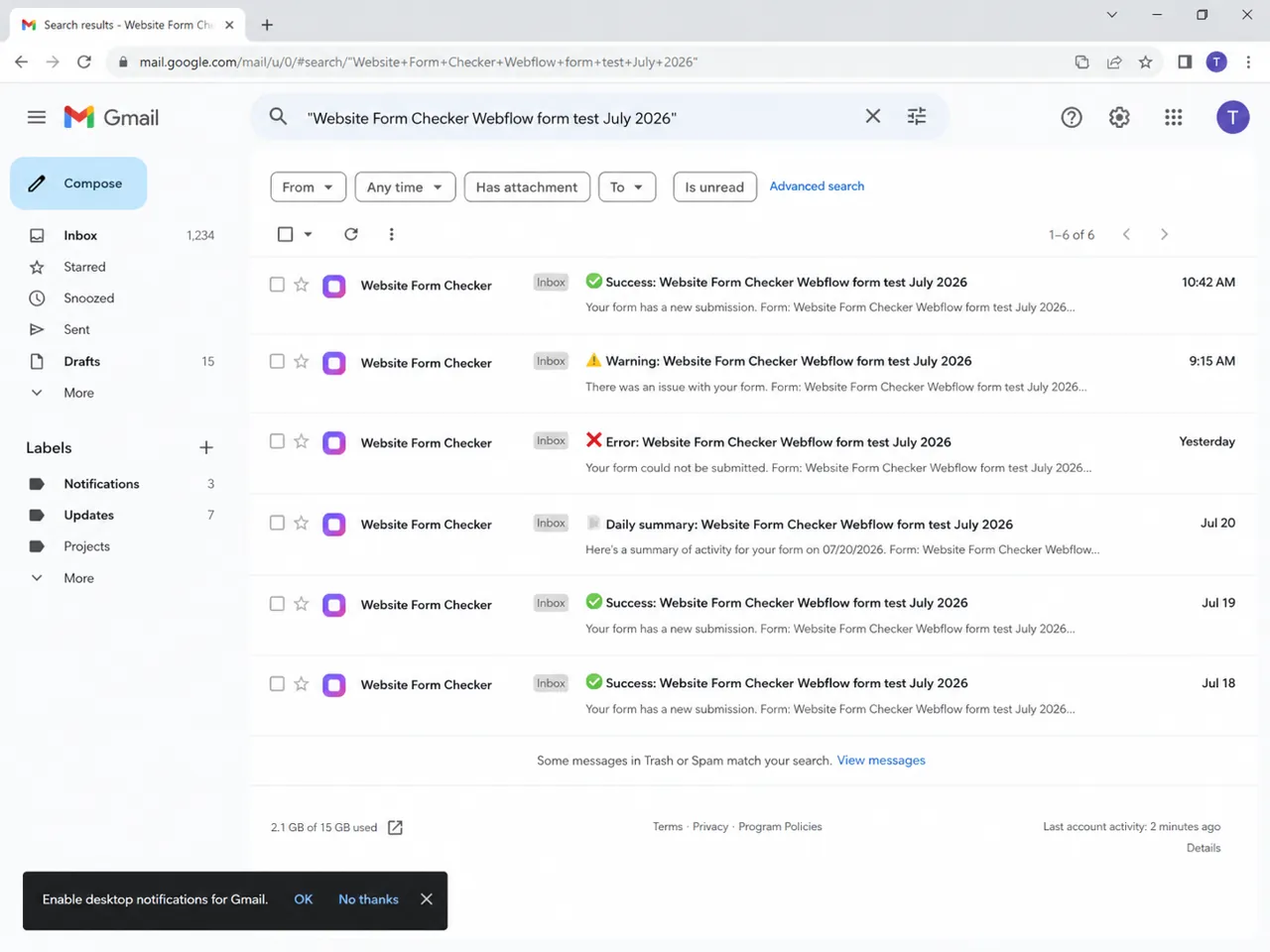
Now go to the receiving inbox and search for the exact phrase you used in the test. Do not only check the newest emails. Search all mail, inbox, updates, promotions, archived mail, and any shared mailbox or group inbox used by the business.
Search for the domain name too, such as websiteformchecker.com, and for subject terms like form submission or contact form. If the notification appears in search but not in the main inbox, the message may be archived, labeled, filtered, or sorted into another category.
Check spam, junk, and mail security filters
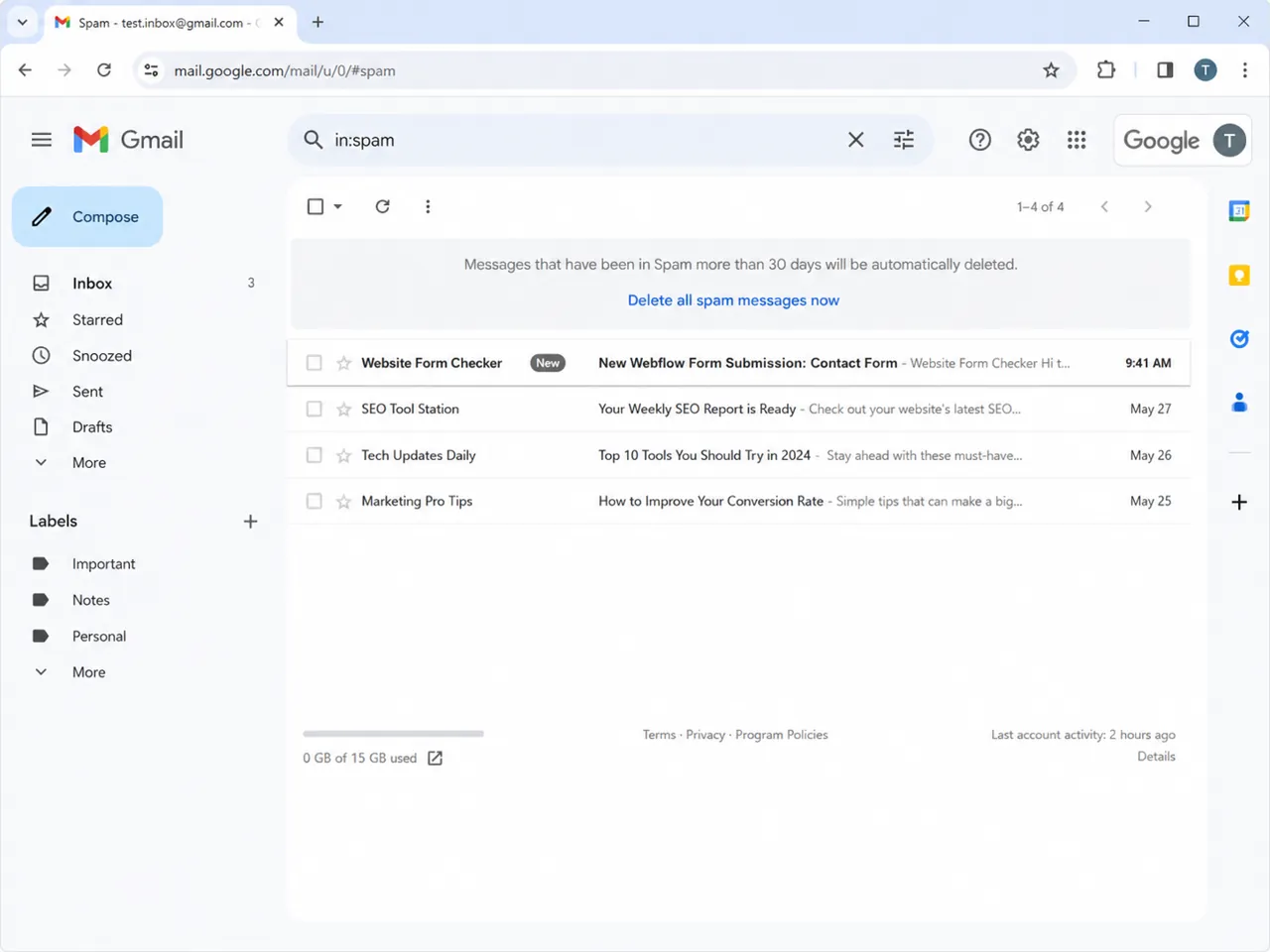
If the inbox search is empty, check spam and junk folders. Business mail systems can also have quarantine dashboards that do not appear in the normal inbox. Ask the mailbox admin to search quarantine if the message is going to Google Workspace, Microsoft 365, or another hosted email system.
If Webflow messages keep landing in spam, add a safer recipient inbox, review the subject and message content, and avoid spam-like wording in the form notification. Also make sure the business is not forwarding the notification through a chain of inboxes, because forwarded mail is easier to lose or filter.
Open the notification and inspect the submitted fields
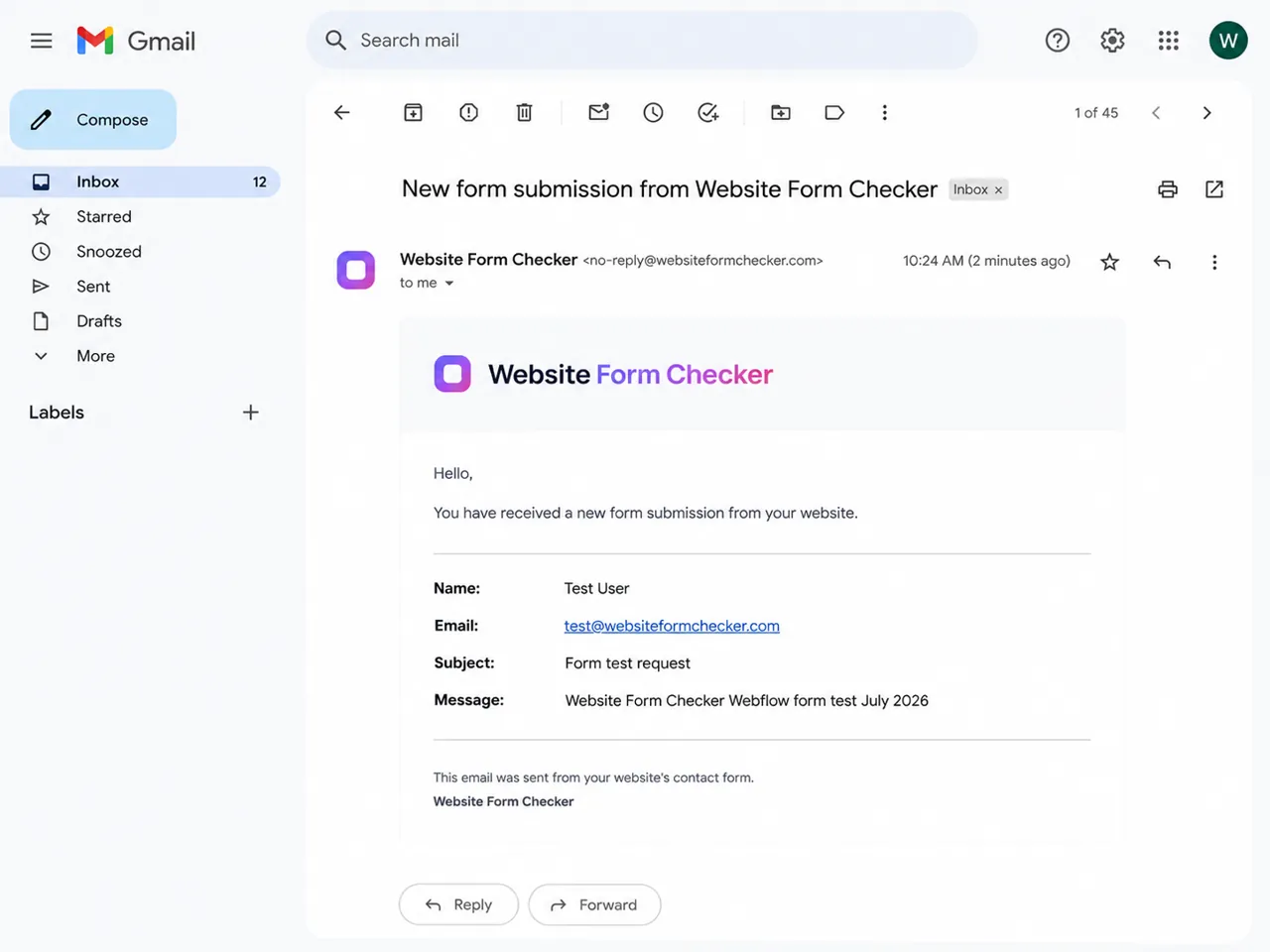
Finding the email is not the last step. Open it and confirm the data is usable. A notification that arrives without the visitor email, message, or subject still needs fixing. Check that the form field names and notification body include the details your team needs to reply.
For a contact form, the notification usually needs at least the visitor name, visitor email, subject, message, and page source if you use the same inbox for multiple forms. If any field is missing, go back to the form settings and adjust the notification content.
Run one final end-to-end proof test
After fixing settings, send one final test from the published page and keep the success message and received email visible at the same time. This gives you proof that the front end, Webflow submission record, and notification email are all working together.
Do not skip republishing. If you changed form settings in Webflow but did not publish the site, the live form may still use the old configuration. Run the final test only after publishing and waiting a minute for the live site to update.
Common reasons Webflow forms stop sending email
When the trail goes cold, one of these is usually the reason the notification never reached you.
- The notification recipient is wrong. A typo, old employee address, or unmonitored group inbox can make the form look broken even when Webflow is sending the message.
- The form was changed but not published. Designer changes do not help the live site until the site is published again.
- The form submits, but the inbox filters it. Spam filters, labels, forwarding rules, and quarantine systems can hide form notifications.
- The submitted fields are not included in the notification. The email may arrive, but the team cannot act on it because the message body does not include the right fields.
- Custom code is interfering with the form. Extra scripts, analytics events, or custom form handlers can interrupt normal Webflow form behavior if they are not tested after changes.
- The issue is temporary platform delivery. If submissions are saved in Webflow but notifications are not arriving across multiple inboxes, check Webflow status and recent incident notes before rebuilding the form.
After you fix it, monitor the form automatically
A manual test is useful when you are troubleshooting today, but it does not protect you next week. A Webflow contact form can fail later because someone changed a form setting, replaced an inbox, added a filter, edited custom code, or published a redesign.
Website Form Checker is built for that quiet failure risk. It submits real test messages through your live form on a schedule and alerts you if the expected message stops coming through. Once your Webflow form is working again, monitoring it helps you catch the next problem before a real customer lead is missed.
Quick checklist
- Submit the published Webflow form from a private browser window.
- Use a unique test phrase in the message field.
- Confirm the success or error message on the page.
- Select the real form block in Webflow Designer.
- Check success and error message settings.
- Verify form notification recipients and message body.
- Republish the site after setting changes.
- Look for the saved submission in Webflow.
- Search the inbox, all mail, spam, junk, and quarantine.
- Open the email and confirm all required fields are included.
- Run a final end-to-end test and keep a record of the result.
- Set up ongoing form monitoring so future failures are caught faster.
Test your form right now, free
Paste your contact form URL. We'll open it in a real browser, find the form, detect spam protection, and tell you whether it's structured to actually deliver submissions. Takes about 20 seconds.
Run a free audit →