The important thing is to separate three different things: the site administration email in Settings > General, the administrator user's profile email, and the actual email delivery path. The confirmation step only works when all three are understood, so use the checklist below before changing random settings or editing the database. You can also run a quick delivery check with our free form checker to see how mail is reaching your site before you start digging.
Start by checking which email address you changed
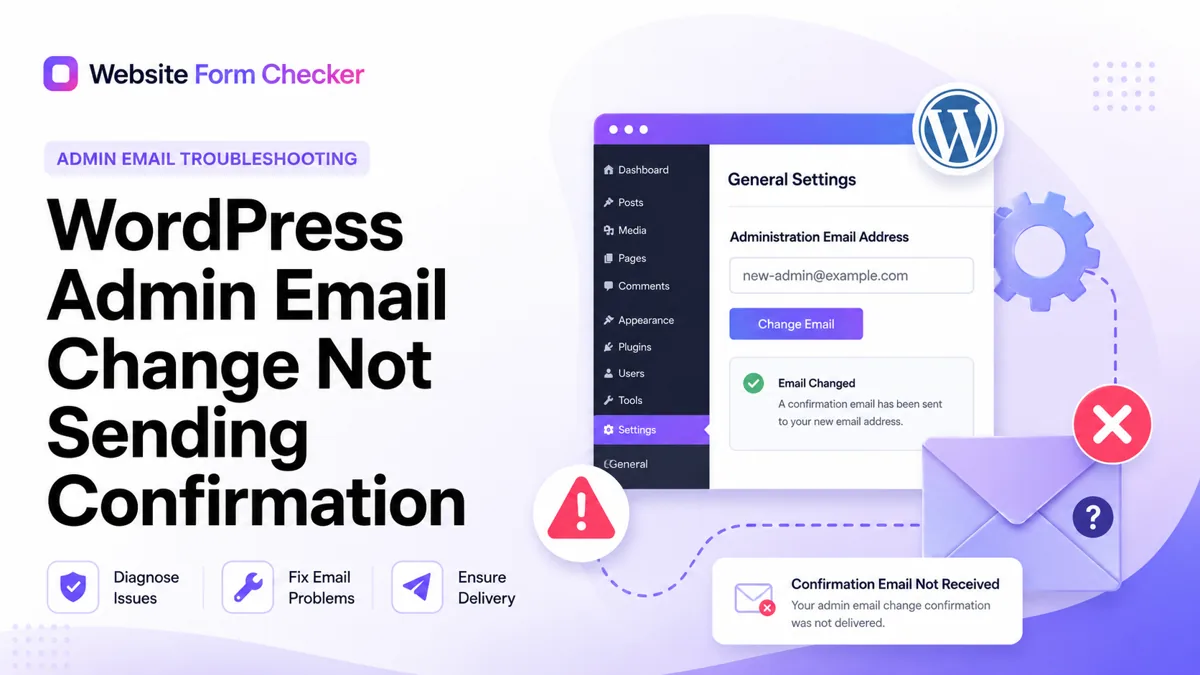
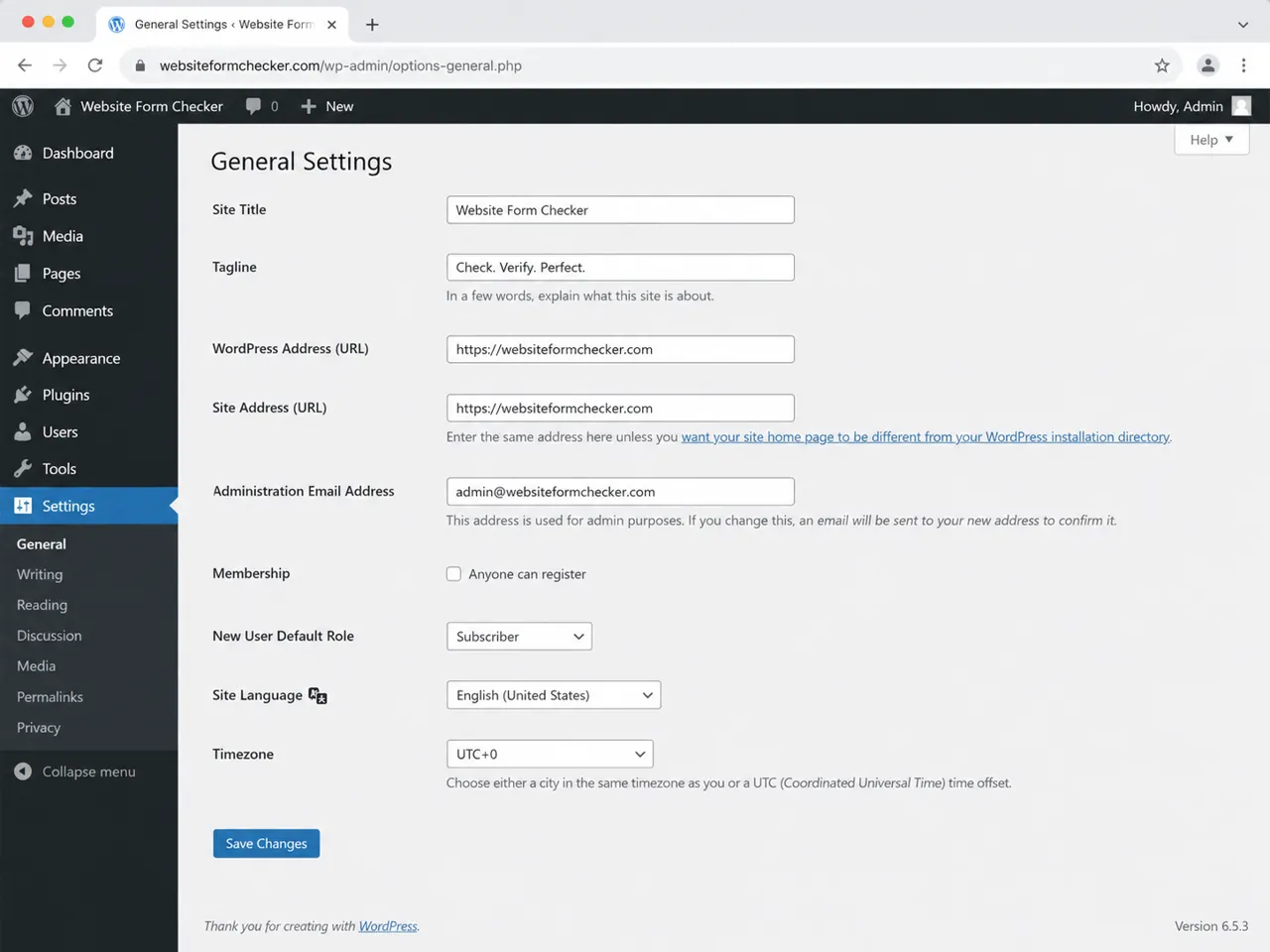
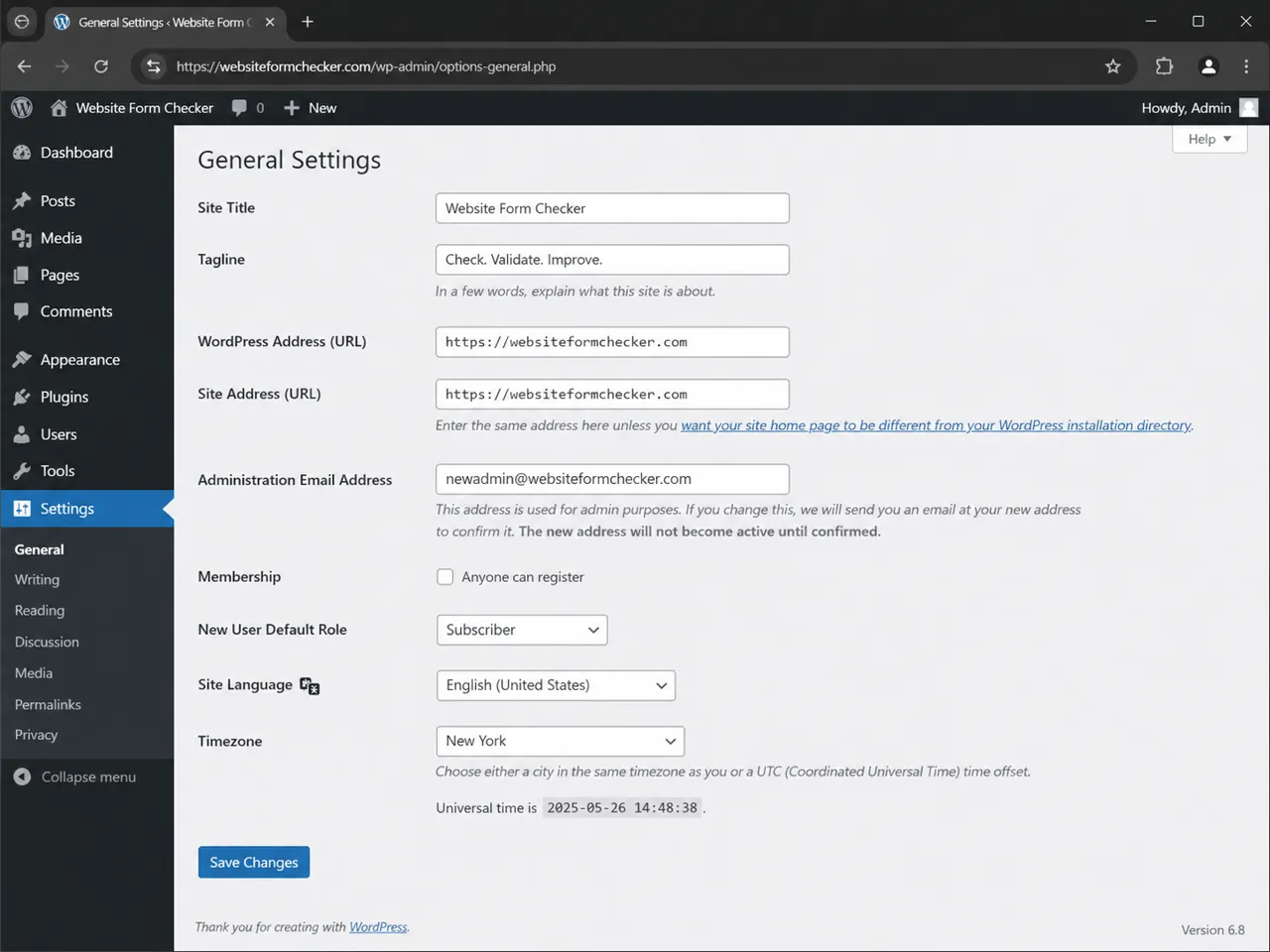
In WordPress, the Administration Email Address lives under Settings > General. This address is used for site administration and maintenance messages. It is not automatically the same thing as the email address on the administrator user account.
That distinction matters when the confirmation is missing. You may be checking the wrong inbox, or you may have changed the site admin email while expecting the administrator user email to change too.
Know which screen controls which email
Settings > General controls the site administration email. Users > Profile controls the email for a specific WordPress user account. The confirmation email for the site admin address goes to the new address you entered.
Look for the pending confirmation message inside WordPress
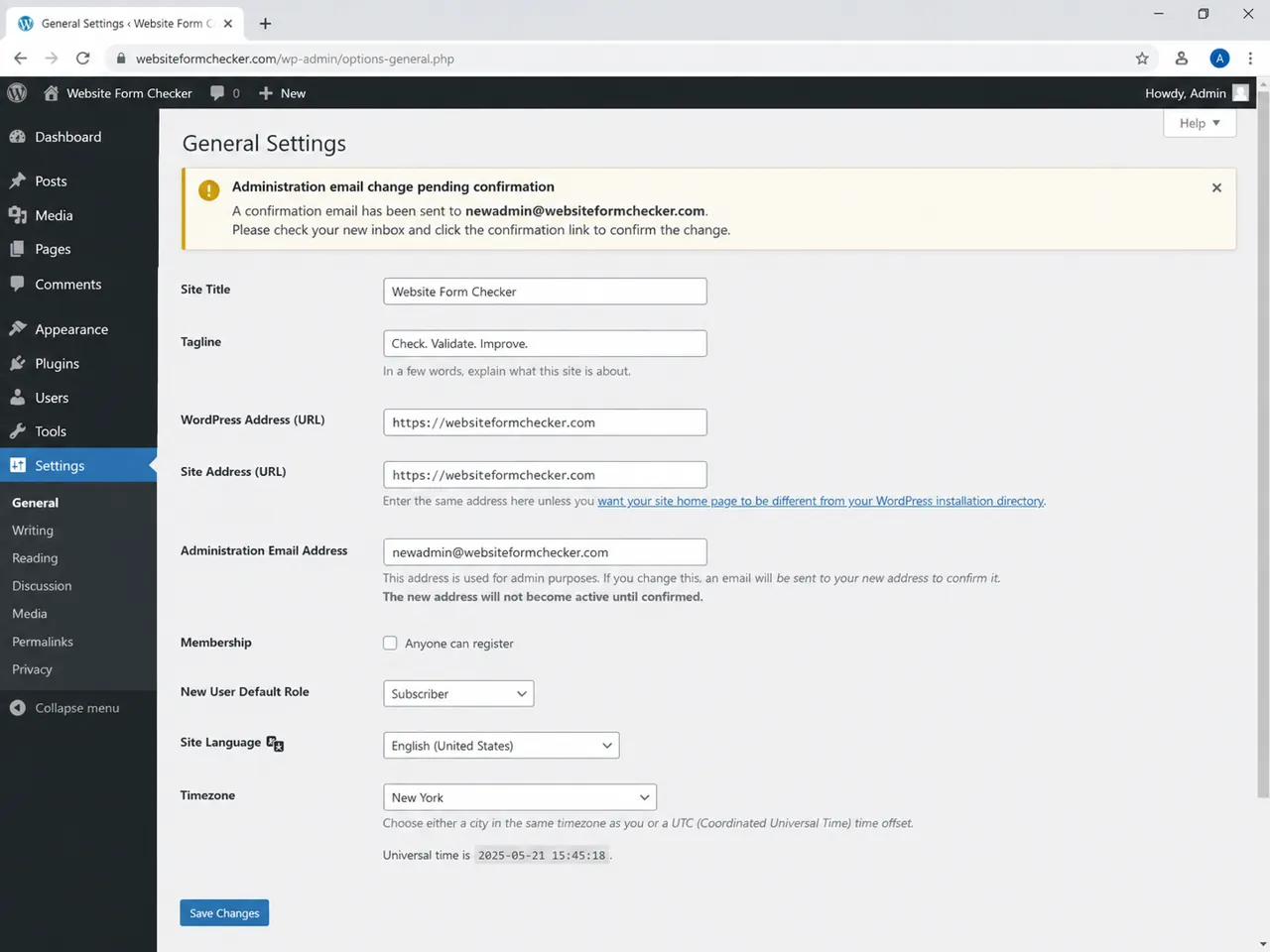
After you save a new administration email address, WordPress should show a pending confirmation notice. The notice usually tells you that the new address will not become active until it is confirmed. If you still see that notice, WordPress has not accepted the new address yet.
Do not keep resaving the address
Do not keep changing the address repeatedly. First copy the pending email address exactly, then search that mailbox. Repeated changes can make it harder to know which confirmation email is current.
Understand what the confirmation email should say
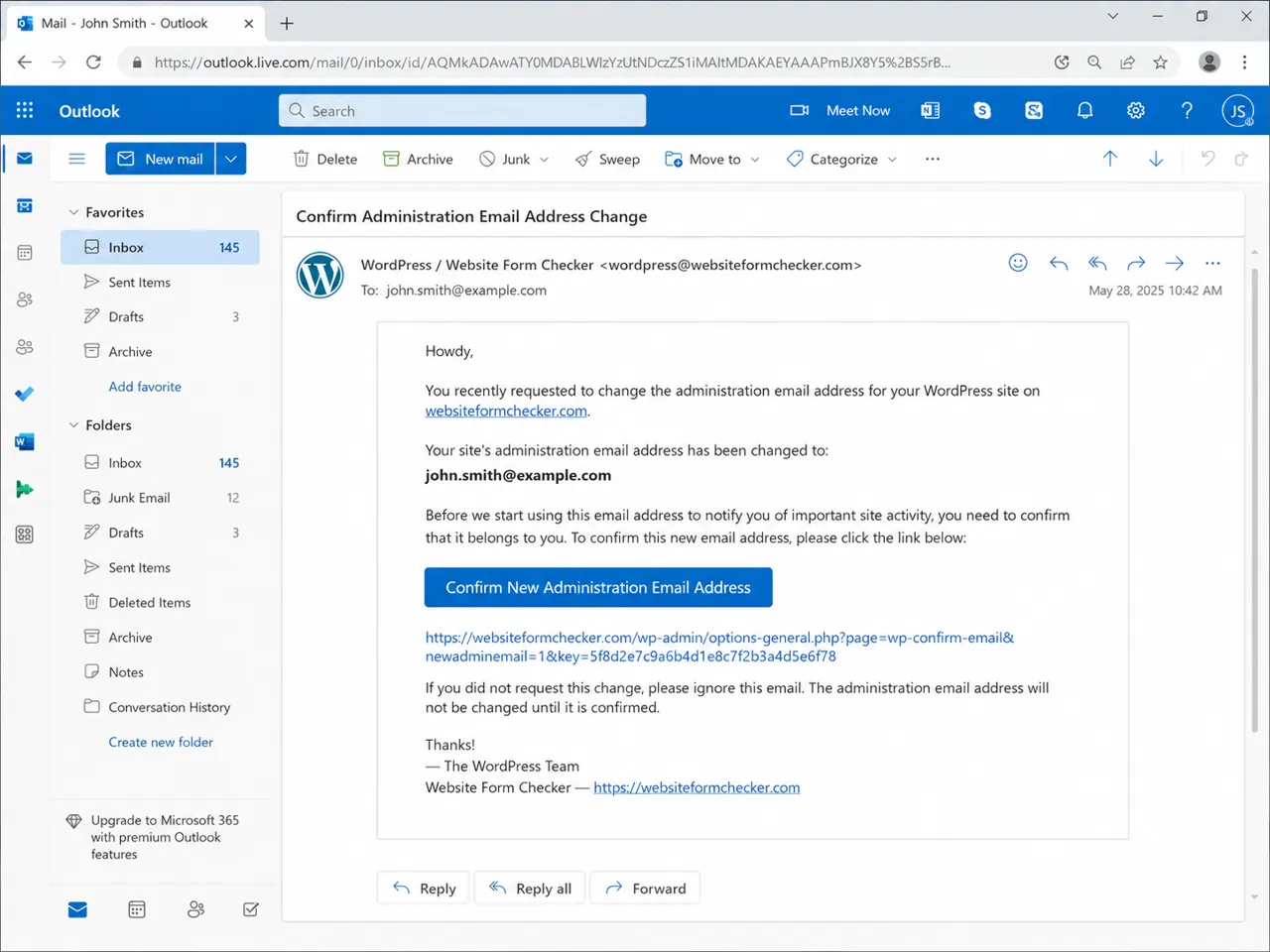
The confirmation message should explain that someone requested to change the administration email address for the WordPress site. It normally includes a confirmation link or button. The new address will not be used for important site activity until that link is clicked.
Verify the message before you click
If the message arrives, open it carefully and confirm that the domain is your site, the new email address is correct, and the link points back to your WordPress admin area. If you did not request the change, do not click the link.
Search the mailbox before changing WordPress again
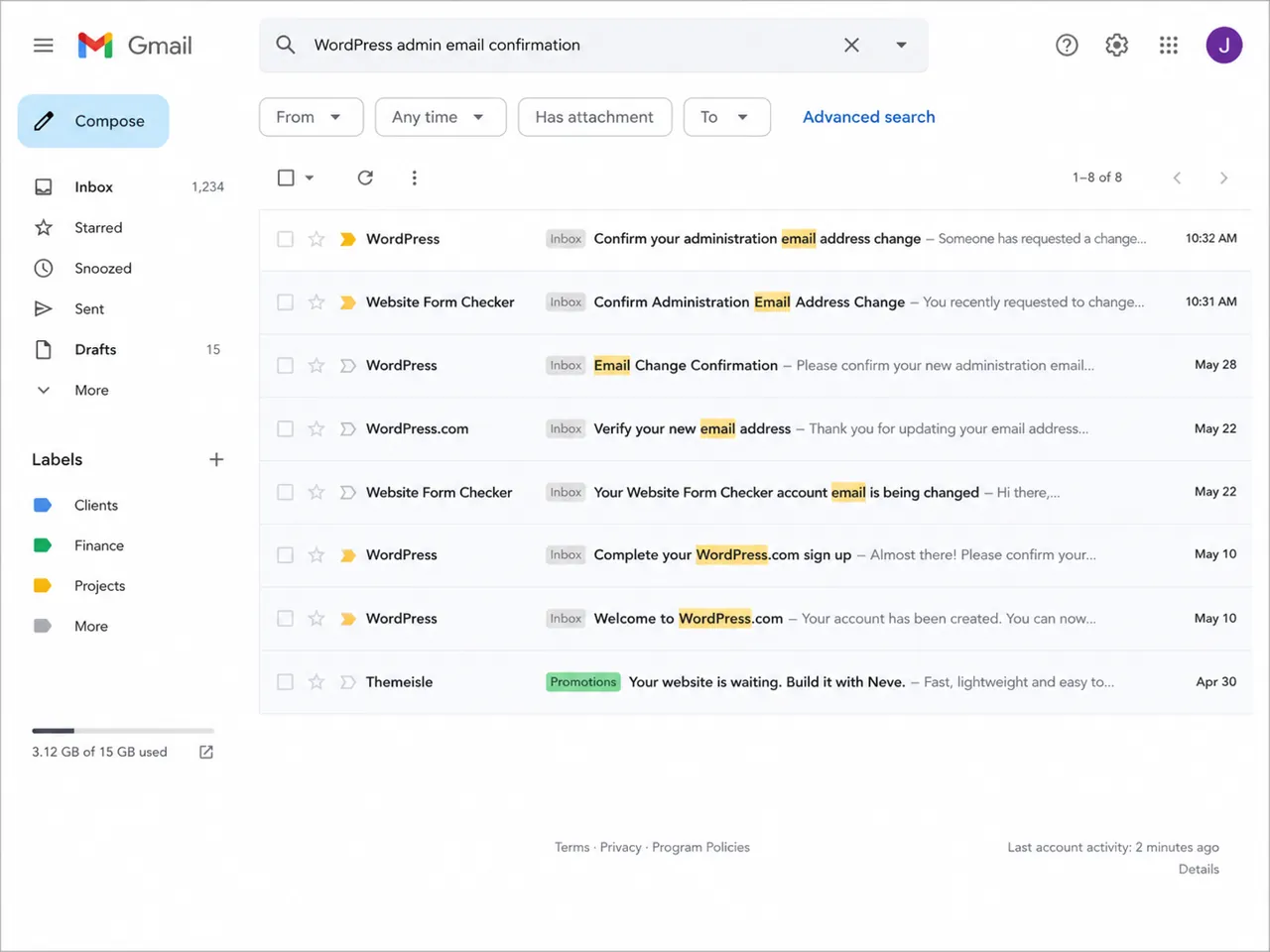
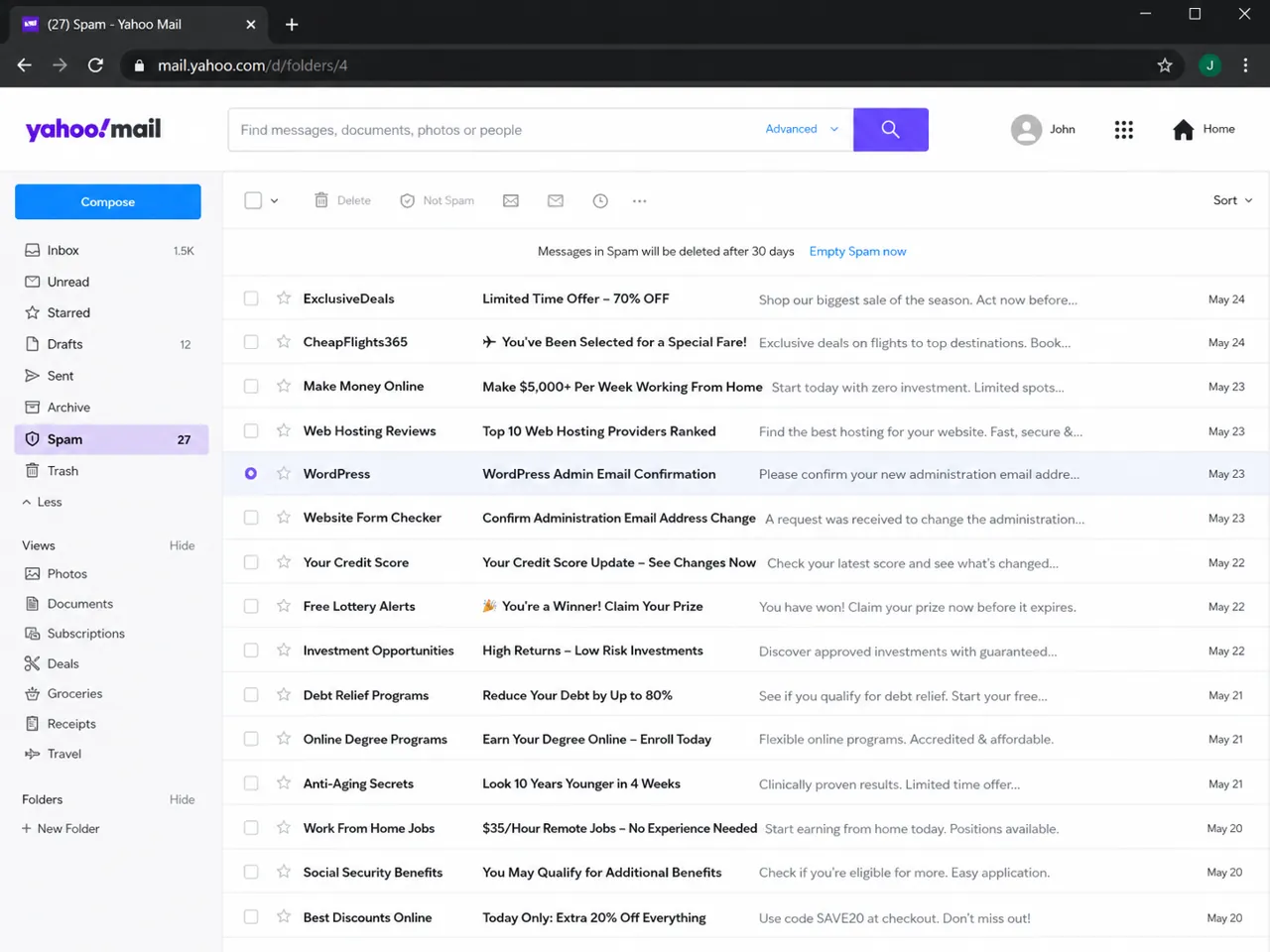
If the confirmation email is not obvious in the inbox, search the mailbox before you touch more WordPress settings. Use several search phrases because the exact subject line can vary by WordPress version, language, plugin, or mailbox display.
Phrases to search for
Try searching for Confirm Administration Email Address Change, administration email address, WordPress admin email confirmation, [email protected], and your own domain name. Also search All Mail, Archive, Trash, Promotions, Updates, shared mailbox folders, and any quarantine area your email provider uses.
Check spam, junk, quarantine, and mailbox rules
The confirmation email may have been generated correctly but filtered before you saw it. Check Spam or Junk, then look for rules that archive, forward, label, mark as read, or delete messages from WordPress.
Why WordPress mail gets filtered
This is especially common when WordPress sends from a generic address, from the wrong domain, or through the hosting server's default mail function. Mailbox providers may treat those messages as low-trust even when the site itself is working.
Test whether WordPress can send any email
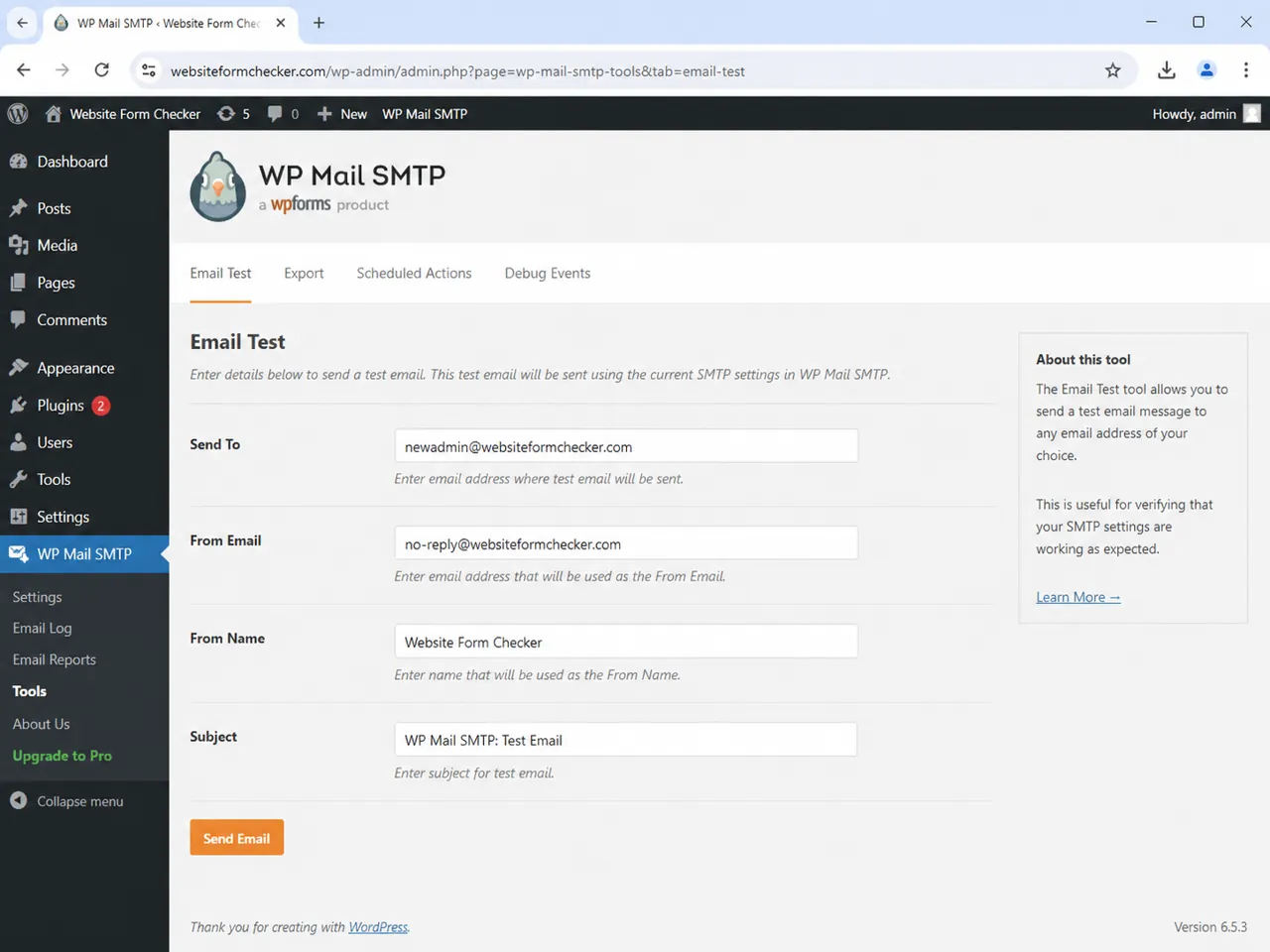
If the confirmation message is nowhere to be found, test WordPress email outside of the admin-email-change flow. Use your SMTP plugin to send a test email to an inbox you control. In WP Mail SMTP, the usual path is WP Mail SMTP > Tools > Email Test.
Send the test to the new address
Send the test to the same new address you used for the admin email change. If that test email does not arrive, the problem is not limited to the admin confirmation step. It is a site email delivery issue.
Read the SMTP result before moving on
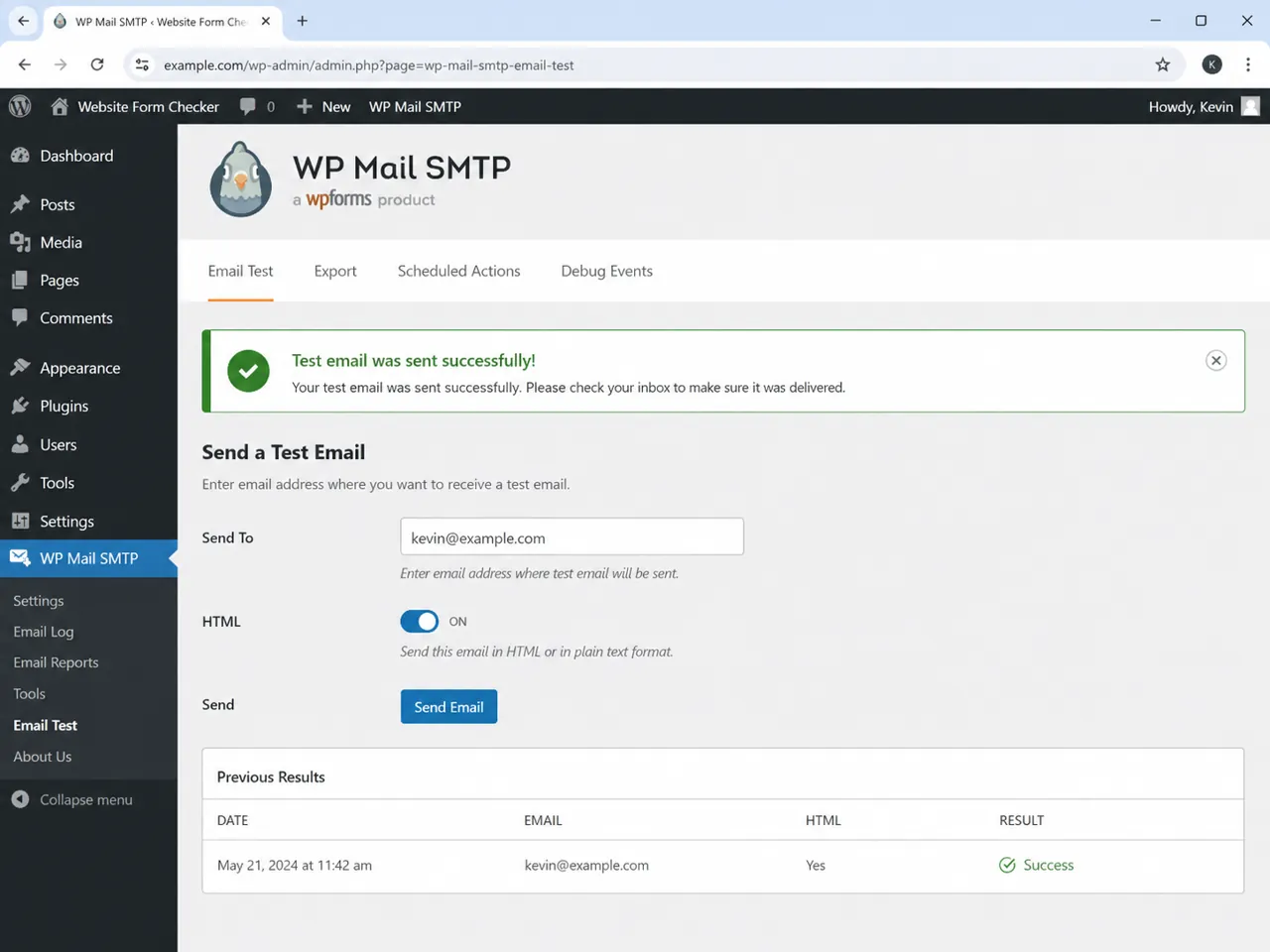
A successful SMTP test does not guarantee that the admin confirmation email will be in the inbox, but it proves that WordPress can send through the configured mailer. A failed SMTP test means you should fix email delivery first.
Common SMTP issues
Common problems include the wrong mailer being selected, an API key, password, or OAuth connection that expired, a From Email that does not match the authenticated domain, missing or incorrect SPF, DKIM, or DMARC records, and a host that is blocking outbound mail or loopback requests.
Confirm the new address and verify the General Settings screen
Once the confirmation email arrives, click the confirmation link while logged in as an administrator. Then return to Settings > General and check the Administration Email Address field again. The new address should now appear without a pending confirmation warning.
If the pending notice stays
If the pending notice remains after clicking the link, the link may have expired, the confirmation may belong to an older address change, or a security plugin may have interfered. Start a fresh change only after you understand which confirmation request is still pending.
Compare the site admin email with the administrator user email
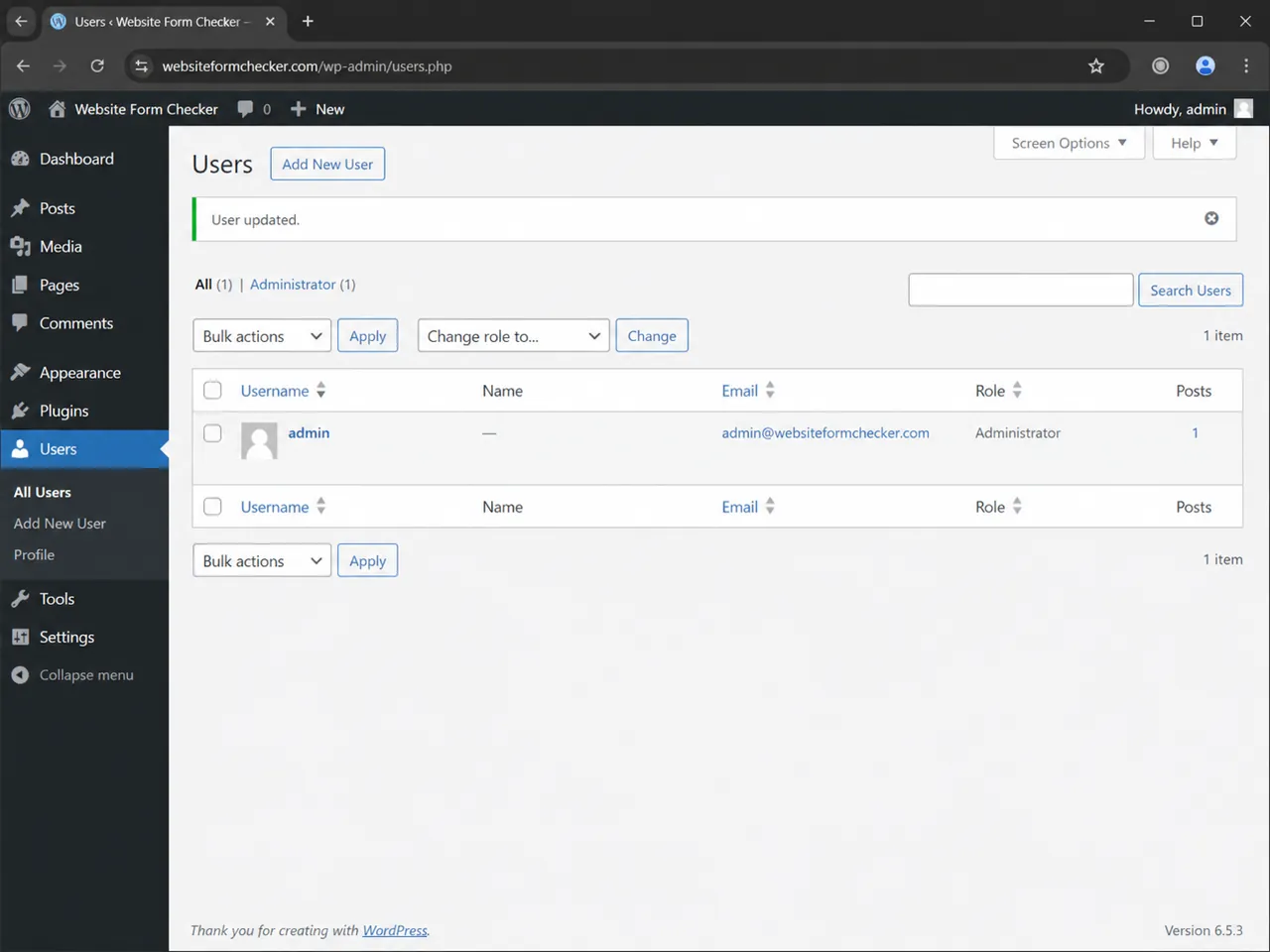
After the site administration email is confirmed, check Users > All Users or your profile screen. The administrator user's email may still be different, and that can confuse future troubleshooting.
Document the difference
For example, the site admin email may be [email protected], while the admin user account still uses [email protected]. That can be fine, but document the difference so the team knows which inbox receives site maintenance messages and which inbox belongs to the user account.
When the confirmation still does not arrive
If the admin email change still does not send a confirmation after the checks above, narrow the issue instead of guessing. Work through one variable at a time.
Narrow it down safely
Send a normal SMTP test to the new address. Try a different address on a mailbox you control. Temporarily disable non-essential email customizer or security plugins on a staging copy. Check the server mail logs or SMTP provider logs, if available. Confirm that the new mailbox is not rejecting, forwarding, or quarantining WordPress messages.
Avoid bypassing the confirmation with database edits unless you have a backup, understand the option being changed, and accept the risk. For most site owners, fixing delivery and completing the confirmation flow is safer than forcing the value manually.
How to prevent this problem from hiding again
The admin email confirmation problem is easy to miss because WordPress may look normal while the new address is stuck in a pending state. The safest habit is to test important WordPress email paths after changing SMTP, DNS, hosting, security plugins, or site ownership details.
Website Form Checker can help after the repair by running scheduled checks and alerting you when expected messages stop arriving. Use that as a monitoring layer, not as a replacement for fixing the site email path first.
Quick recovery checklist
- Confirmed the exact email address entered under Settings > General.
- Checked whether WordPress shows a pending confirmation notice.
- Searched the new inbox for the admin email confirmation message.
- Checked Spam, Junk, Trash, Archive, quarantine, filters, and forwarding rules.
- Sent an SMTP test email to the same new address.
- Fixed SMTP, sender, or DNS issues if the test email failed.
- Clicked the newest valid confirmation link.
- Verified that Settings > General shows the new address without a pending notice.
- Compared the site administration email with the administrator user email.
- Added monitoring or a scheduled email test after the issue was fixed.
Test your form right now, free
Paste your contact form URL. We'll open it in a real browser, find the form, detect spam protection, and tell you whether it's structured to actually deliver submissions. Takes about 20 seconds.
Run a free audit →