This guide walks through a controlled way to fix a failed WP Mail SMTP test without guessing. It also covers the related cases where the test will not send, will not work, or starts failing right after you change mailers or SMTP details. Before you start, paste your form URL into our free form checker to see how the form is put together, then work through the checks below in order.
Start with the test screen, not the whole site
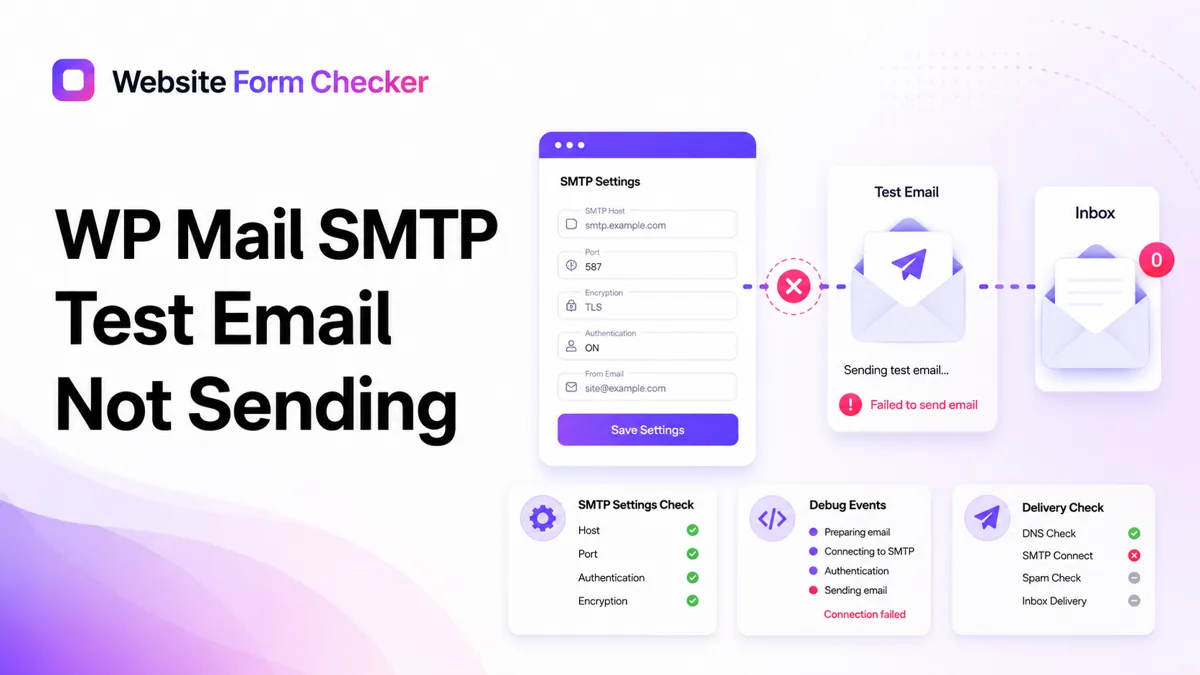
The Email Test tool is the cleanest place to begin because it removes extra variables from contact forms, WooCommerce emails, membership plugins, and custom notifications. Go to WP Mail SMTP > Tools > Email Test, and send the message to an inbox you can actually access.
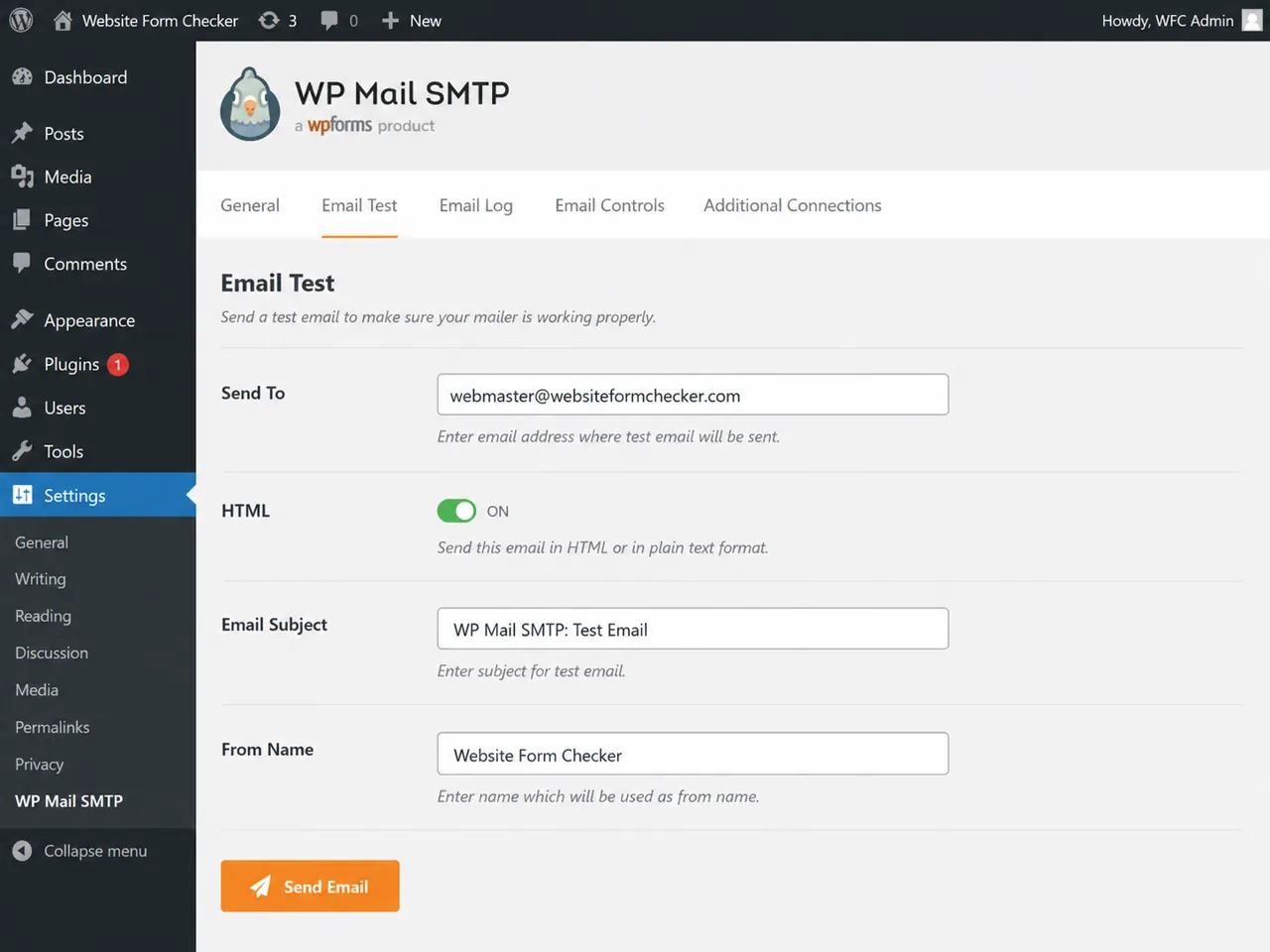
Before pressing Send Email, check three simple things:
- The
Send Toaddress is typed correctly and belongs to an inbox you can open. HTMLis left on unless you are specifically testing plain-text delivery.- The
Email Subjectis easy to search for later, such asWP Mail SMTP: Test Email.
Do not test against a group inbox, forwarding address, or client inbox first. Use a mailbox you control, then repeat the same test with the real recipient after the setup works.
Read the error before changing settings
A failed result does not always mean the plugin is broken. It usually means the plugin tried to send mail and one part of the path rejected or blocked the attempt. The exact wording matters.
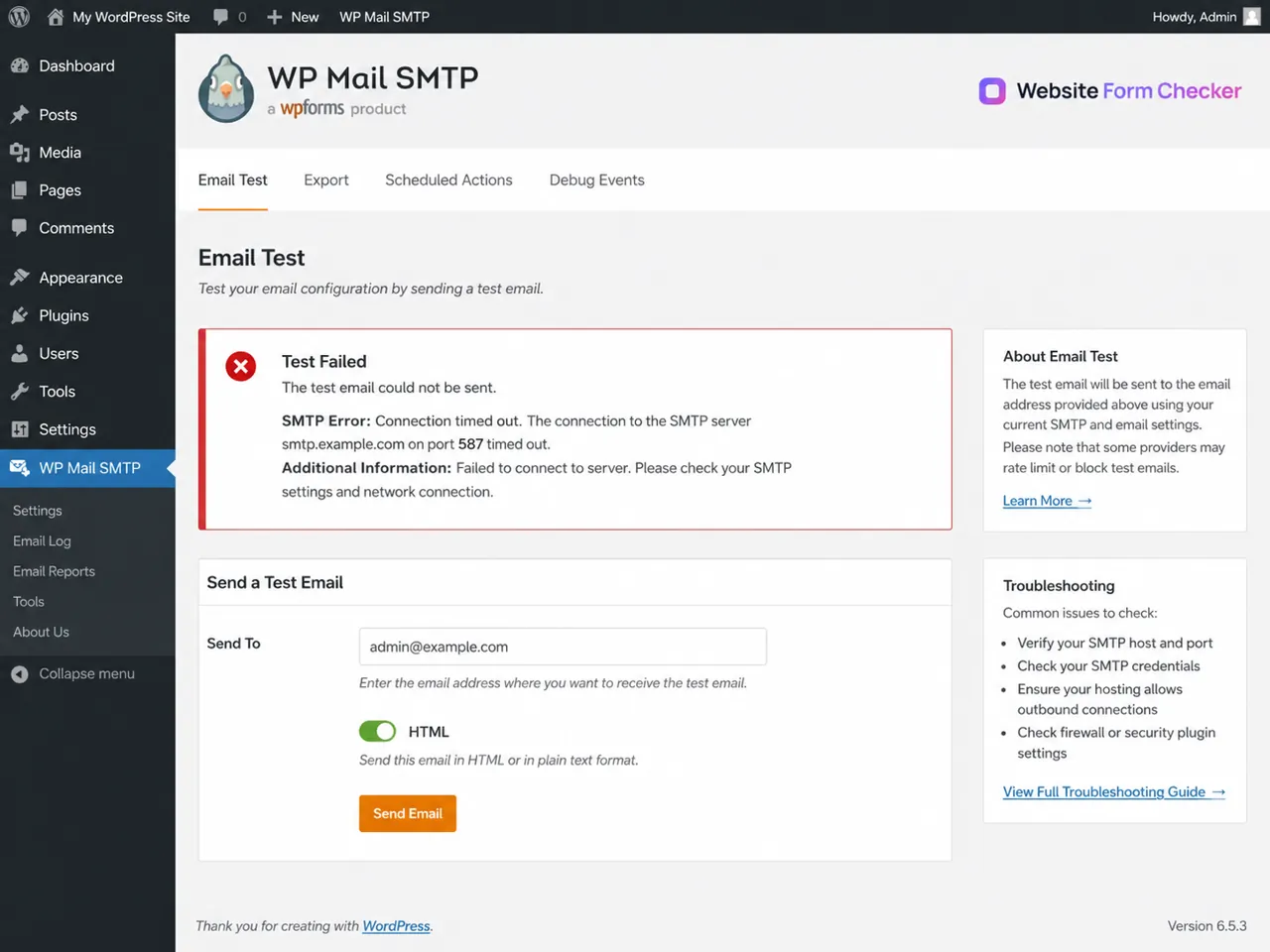
For example, a connection timeout points in a different direction than an authentication error. A timeout usually suggests the server could not reach the mail host or port. An authentication error usually suggests the SMTP Username, password, encryption, or app password is wrong. A relay error often means the From Email or authenticated user does not match what the mail provider allows.
Copy the error message into your notes before you edit anything. If the next test produces a different error, that change is a clue.
Check the mailer and From Email first
Next, open the main WP Mail SMTP Settings. Confirm the selected mailer and the From Email before digging into deeper SMTP details. A wrong From Email can make the rest of the setup look broken even when the SMTP account itself is fine.
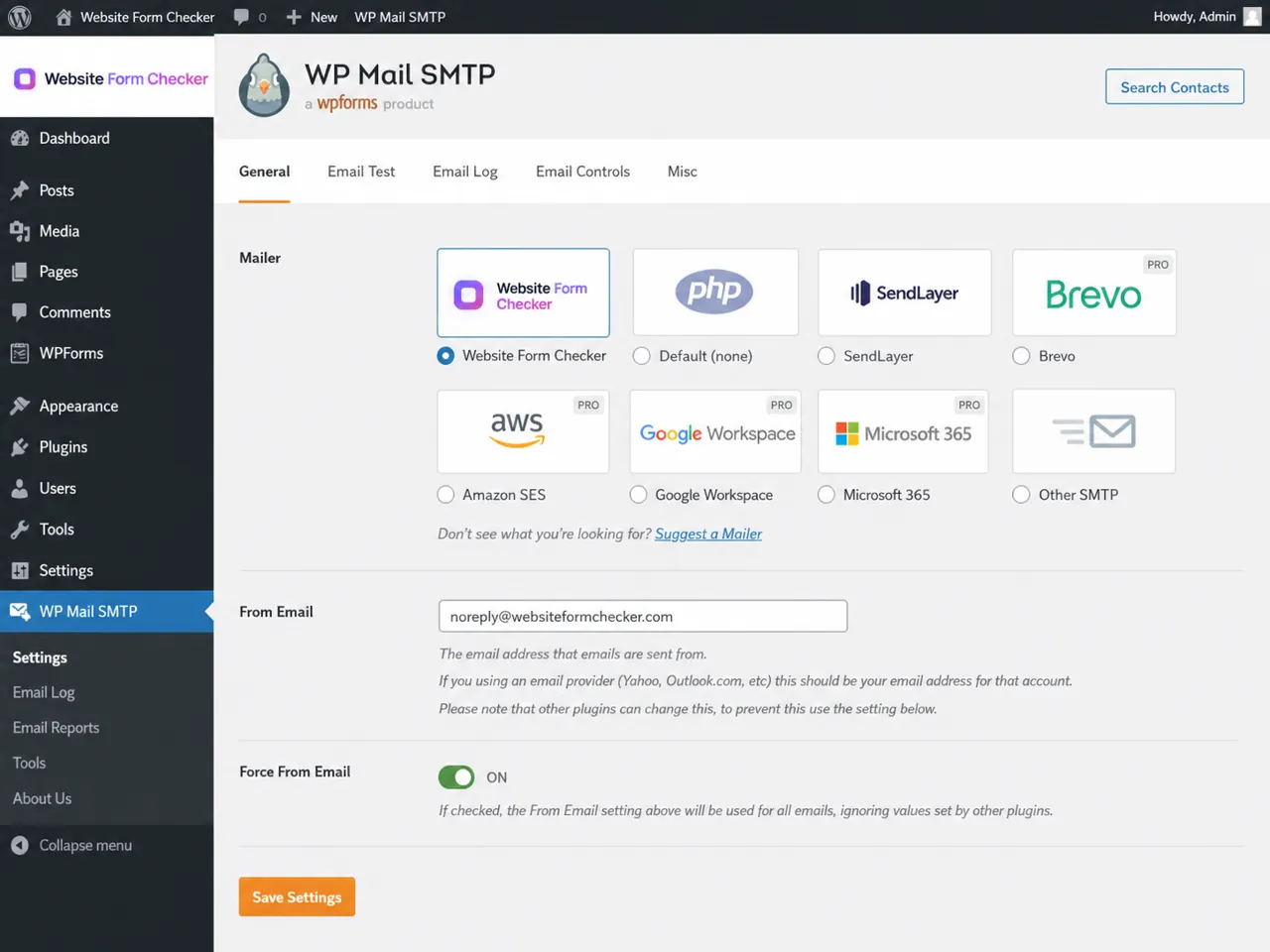
Use this order:
- Confirm that the selected mailer is the one you intend to use.
- Use a
From Emailon the same domain or mailbox that your mailer expects. - Enable
Force From Emailif other plugins are allowed to overwrite the sender address. - Save settings before running the next test.
This is especially important when a WordPress site sends different types of emails from different plugins. A form plugin, ecommerce plugin, or membership plugin can set its own sender address. If that address conflicts with the authenticated SMTP account, the mailer may reject the message.
If you use Other SMTP, verify every field
If the site uses the Other SMTP option, one character can break the entire test. Do not rely on memory. Open the SMTP provider's instructions and compare each field one by one.
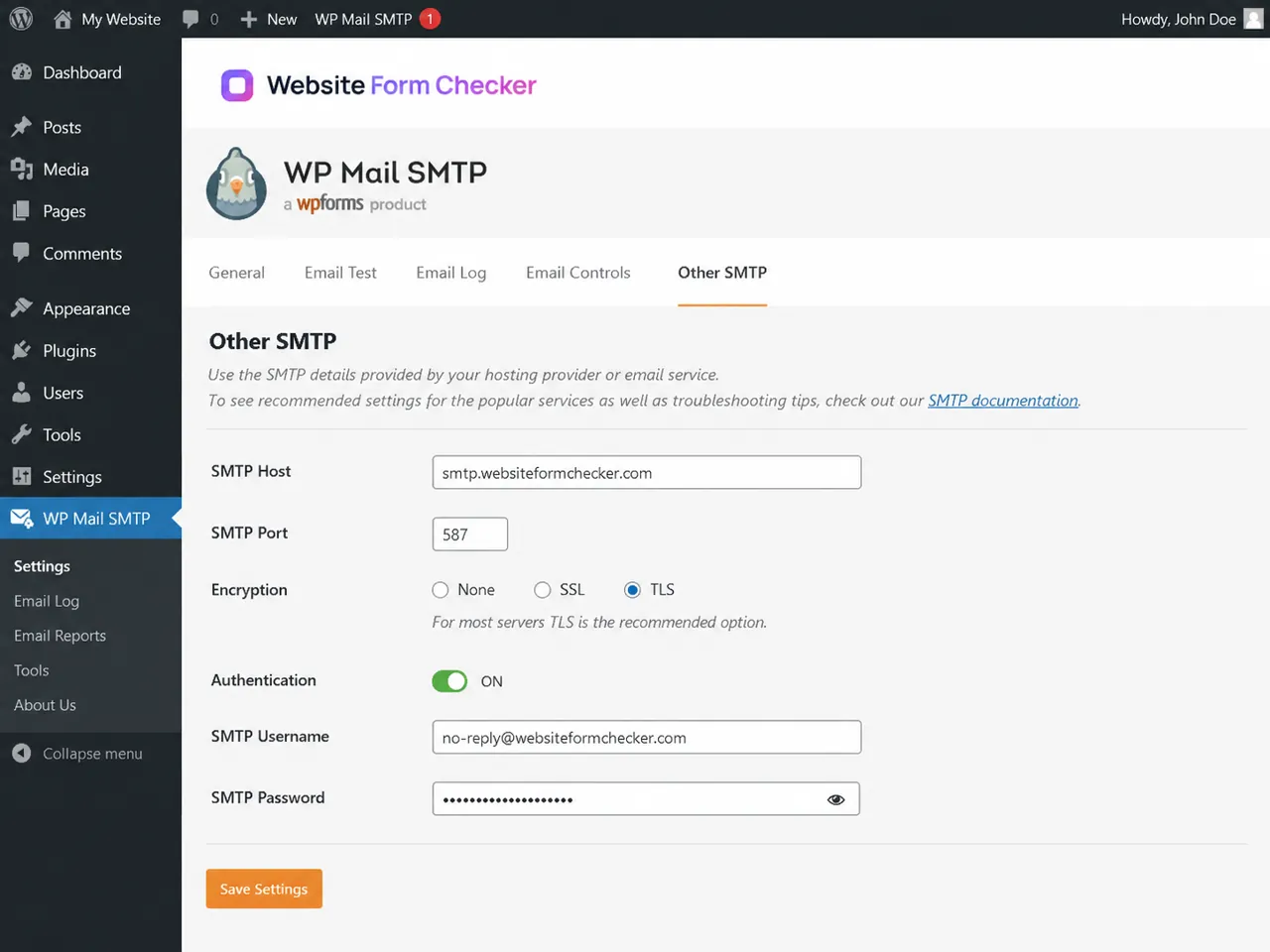
Check these fields carefully:
SMTP Host: use the exact host from the provider, such assmtp.example.comor the host supplied by the mail service.SMTP Port: common ports are587for TLS,465for SSL, and sometimes25or2525depending on the provider.Encryption: match the port. If the provider saysSTARTTLSorTLS, do not chooseSSL.Authentication: leave it enabled when the provider requires a username and password.SMTP Username: this is often the full email address, not just the mailbox name.SMTP Password: use the correct mailbox password or app password, depending on the provider.
After correcting the settings, save them and run only one new test. If you change five things and the test still fails, you will not know which change helped or hurt.
Use Debug Events to see what actually happened
If the visible test result is too short, open Debug Events. This area can show the error in a more technical format, including the host, port, encryption method, and the point where the connection stopped.
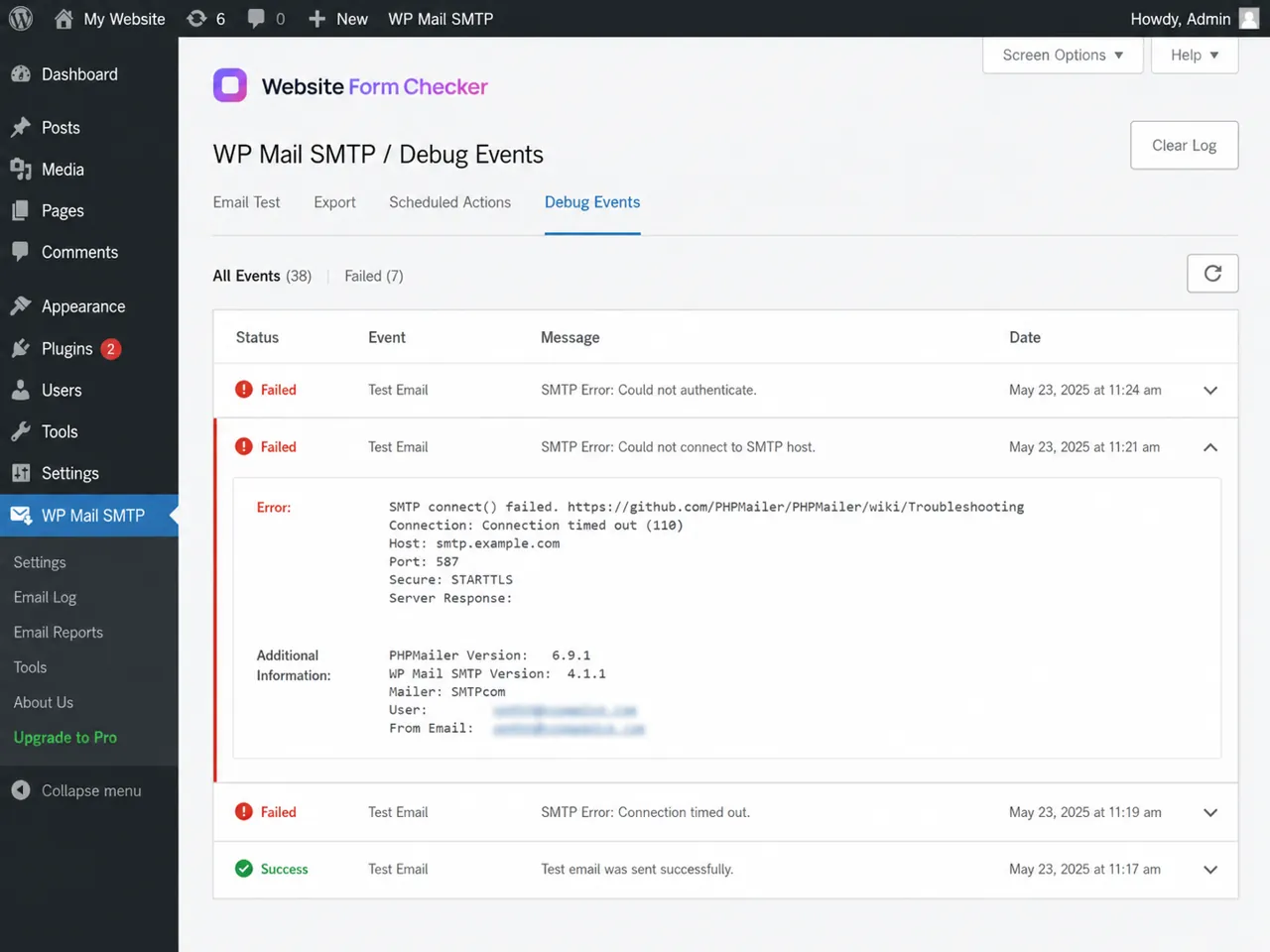
Debug Events are useful when the WP Mail SMTP test email failed message is vague. Look for details such as:
Connection timed outCould not authenticateCould not connect to SMTP hostUnable to relay- Certificate or encryption mismatch
- DNS or domain verification warnings
The goal is not to decode every technical line. The goal is to identify which part of the email path failed so you can avoid random fixes.
Check whether hosting is blocking SMTP
Sometimes the WordPress settings are correct, but the hosting environment blocks outgoing SMTP connections. This is common on shared hosting, locked-down managed hosting, or servers with strict anti-spam policies.
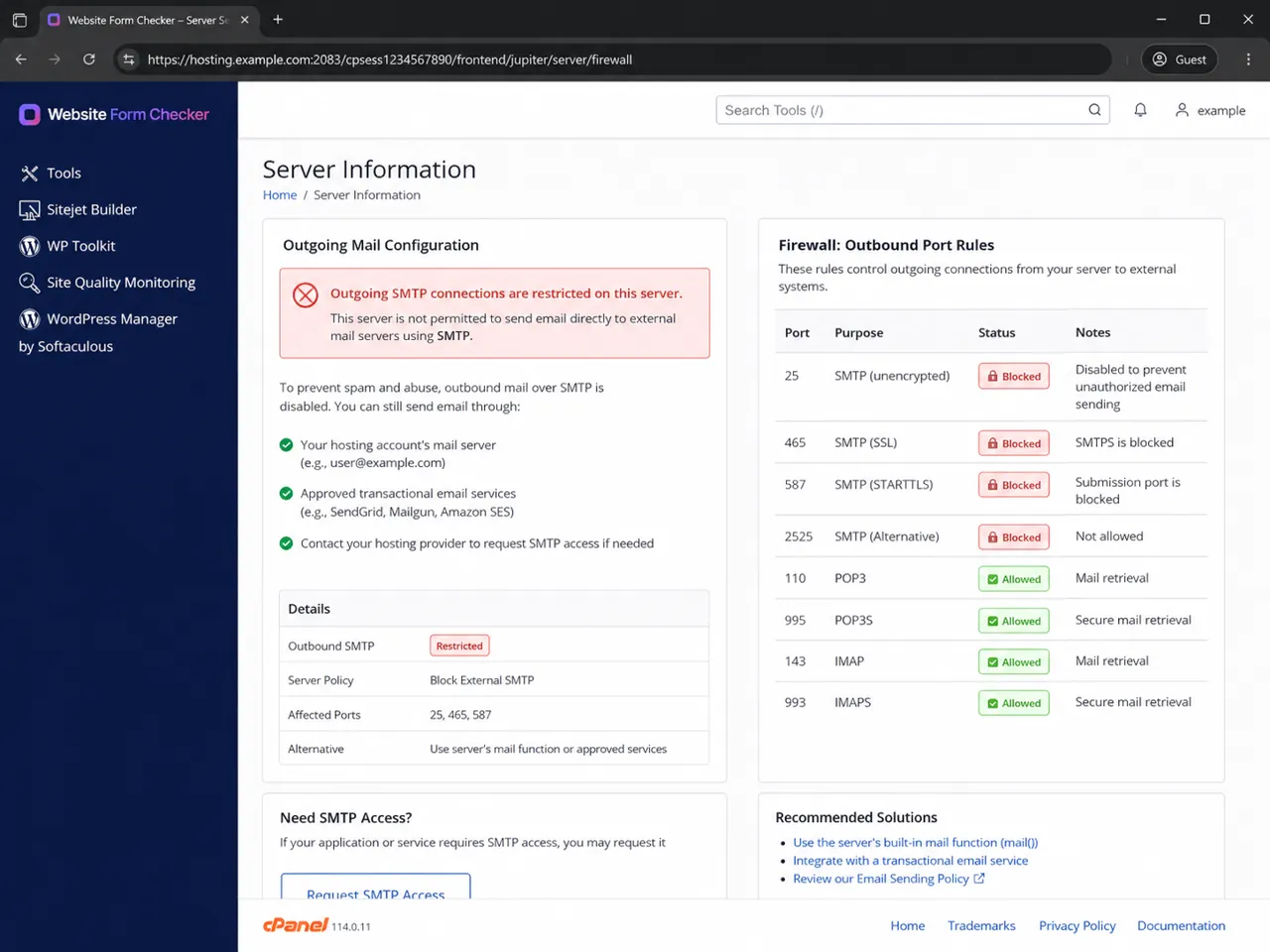
If you see connection timeouts on port 587, 465, 25, or 2525, check your hosting panel or ask the hosting provider whether outbound SMTP is allowed. A host-level restriction can make every plugin test fail until the port is opened or a supported mailer is used.
When hosting blocks direct SMTP, use one of these paths instead:
- Use the host's approved mail relay or built-in email service.
- Switch to a transactional mail provider supported by WP Mail SMTP.
- Ask the host to allow the required outbound port for your account.
- Use an API-based mailer when available instead of a raw SMTP connection.
Confirm SPF, DKIM, and DMARC before calling it fixed
A successful connection is only part of the fix. If the message is accepted by the mailer but lands in spam or disappears after sending, check the domain authentication records. SPF, DKIM, and DMARC help receiving mailboxes decide whether the message is legitimate.
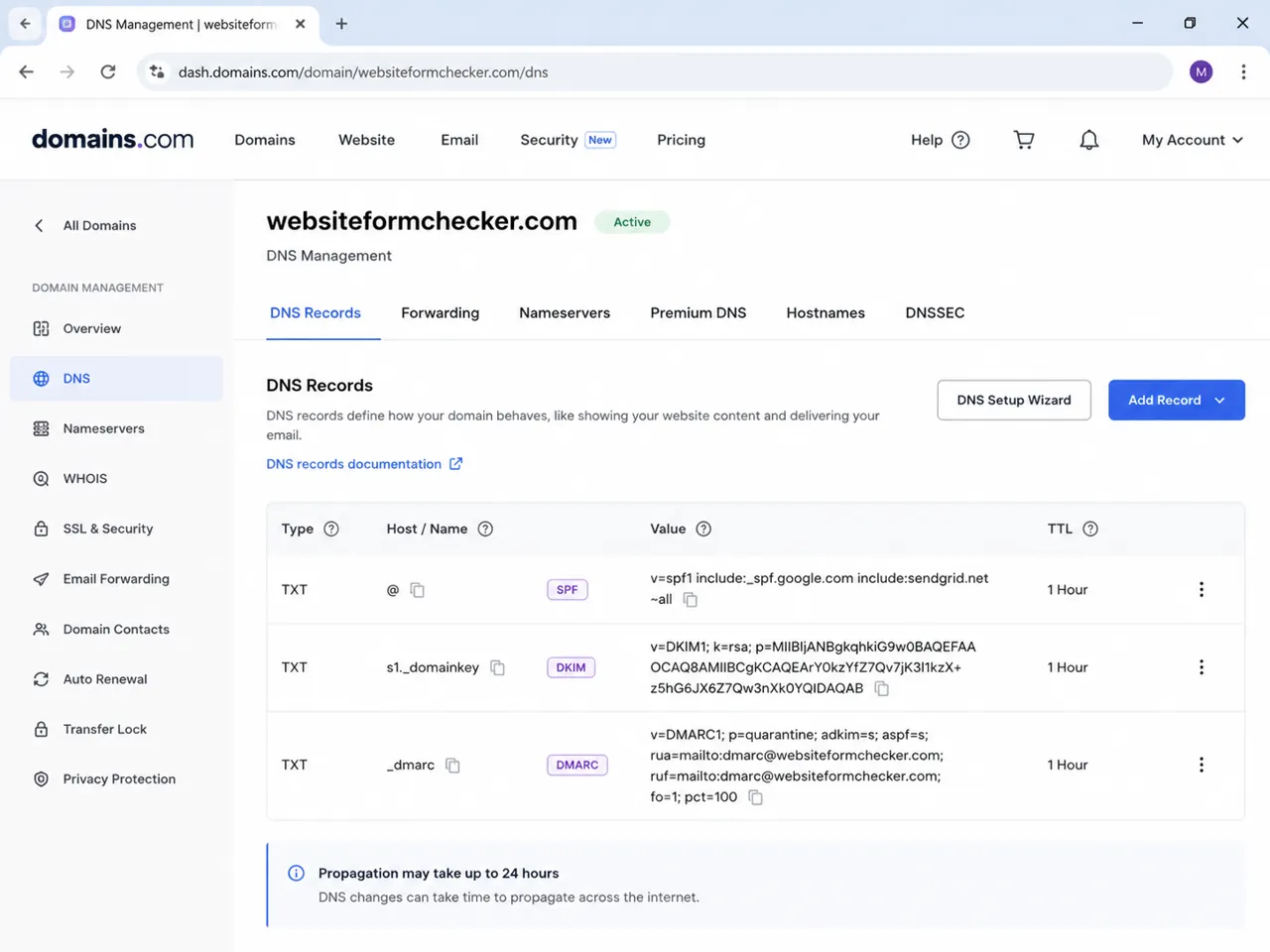
In DNS, verify that the sending domain has the records required by the mailer. Make sure the values are copied exactly, with no missing quotes, extra spaces, or duplicate records that conflict with each other. DNS changes can take time to propagate, so allow time before testing repeatedly.
This step matters most when the From Email uses your own domain, such as [email protected], [email protected], or [email protected]. If the records are wrong, the test may send successfully but still fail the inbox check.
Run a clean success test
Once settings, hosting, and DNS look correct, send another test email. A clean success result confirms that WP Mail SMTP can hand the message to the selected mailer.
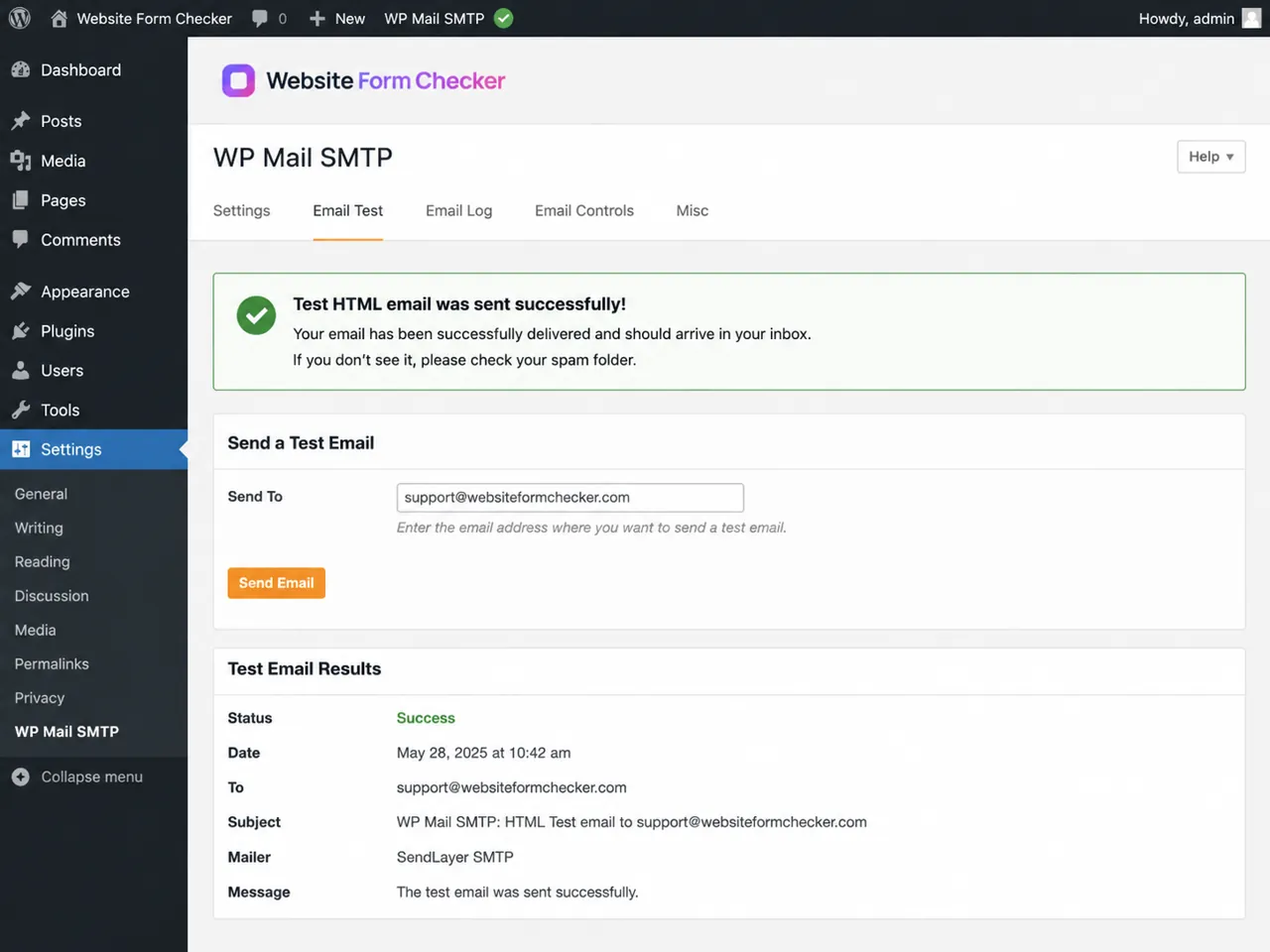
After the success message appears, do not stop there. Open the recipient mailbox and search for the exact subject. This proves that the message did not only leave WordPress; it also reached the receiving inbox.
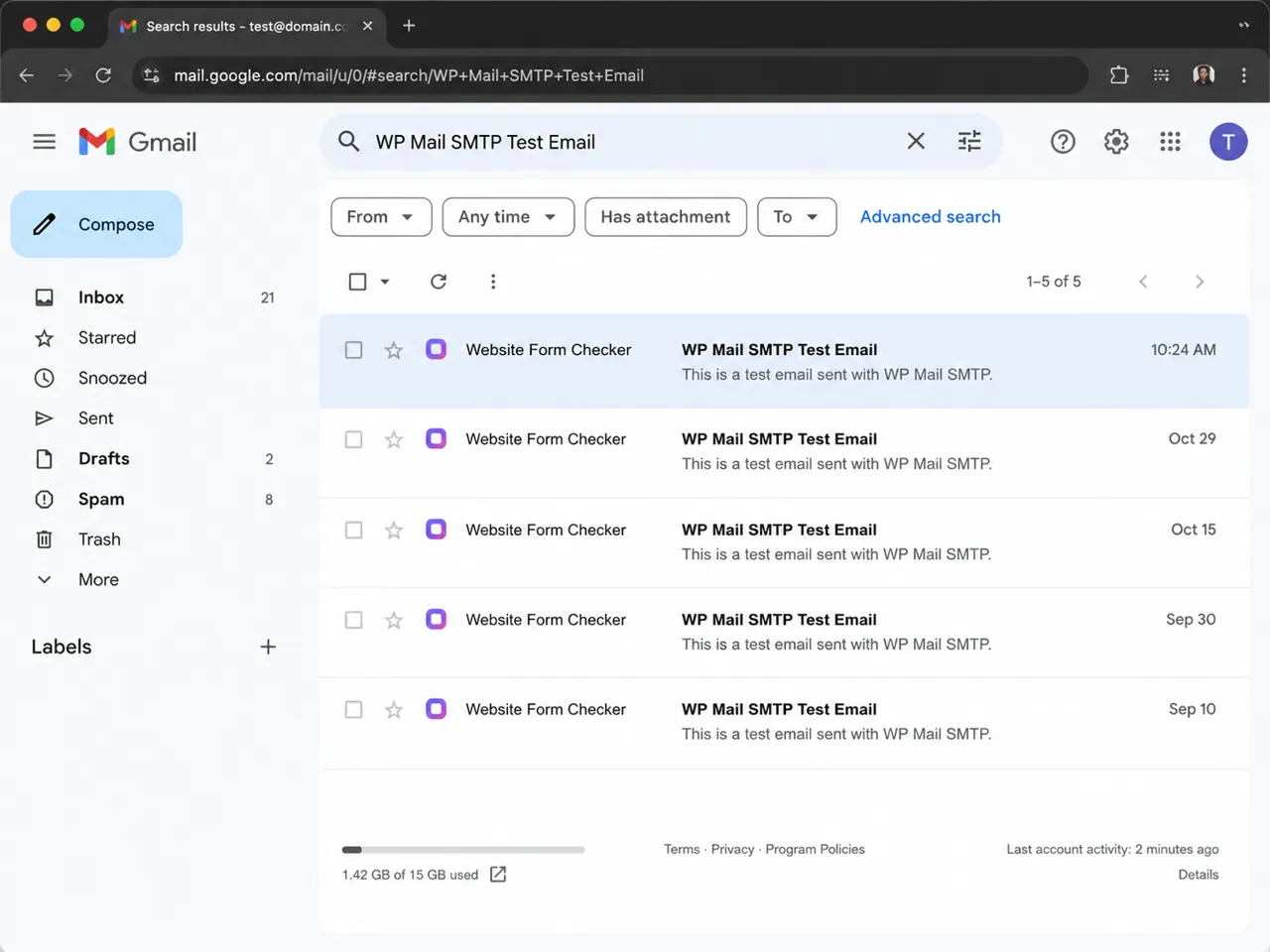
If the inbox search does not show the message, check spam, promotions, quarantine, and any security filters. The plugin can report success when the mailer accepts the message, even if the recipient mailbox later filters it away from the main inbox.
Use the email log to prove the fix held
One successful test is good. A short log history is better. The Email Log helps show whether failures stopped after a specific correction and whether later emails are still being accepted.
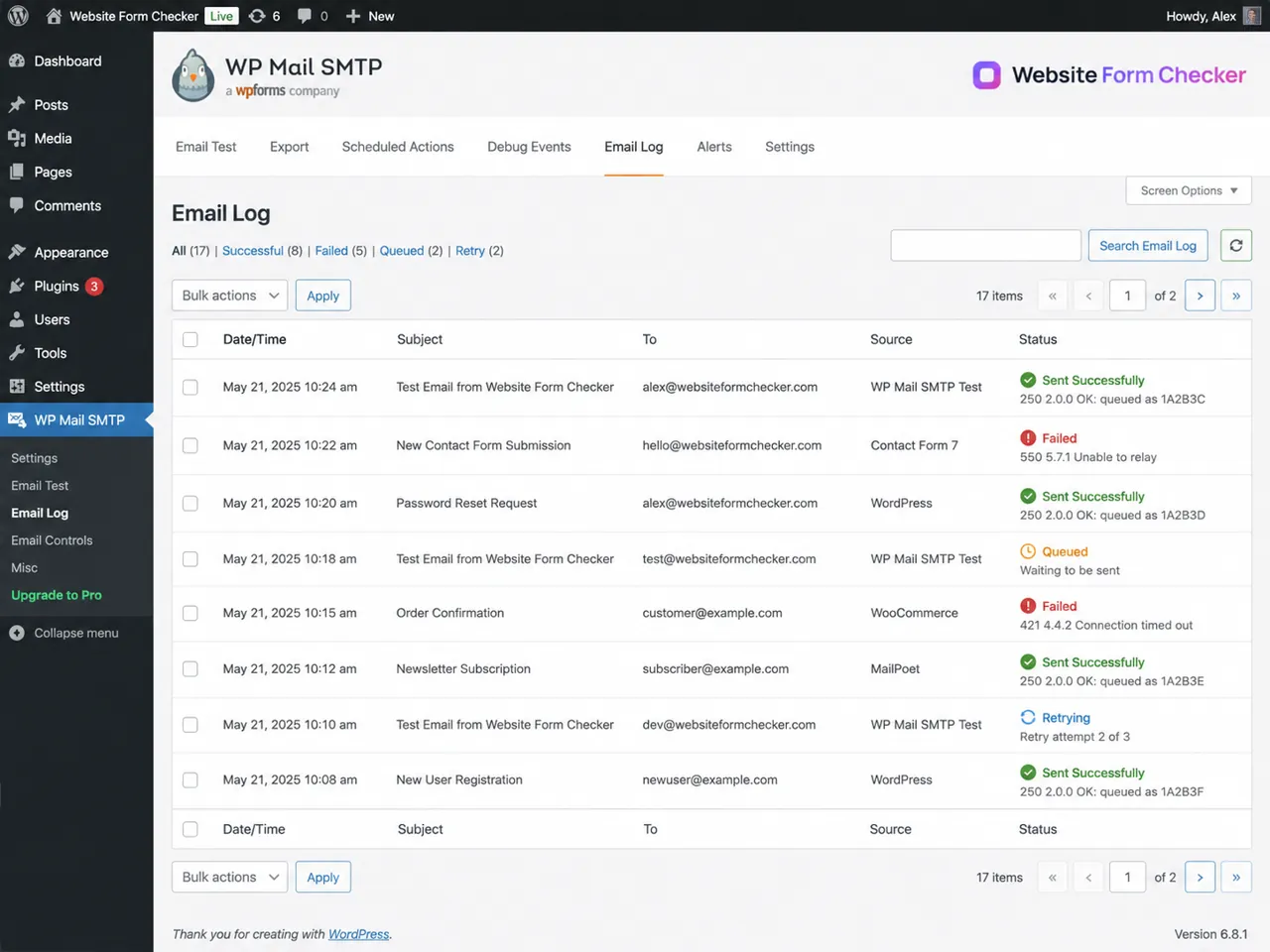
Look for a pattern rather than a single row. For example:
- Repeated failed rows before the SMTP host or port was fixed.
- Queued rows when the mailer accepted the message but delayed delivery.
- Retrying rows when the provider temporarily rejected the send attempt.
- Successful rows after the correct mailer, DNS, or hosting change was applied.
This is also useful when you need to explain the issue to a client. Instead of saying the email problem is fixed, you can show the failed attempt, the corrected test, and the successful delivery status.
Common WP Mail SMTP test failures and what they usually mean
| Error or symptom | Likely cause | What to check next |
|---|---|---|
Connection timed out |
WordPress cannot reach the SMTP server or port. | SMTP host, port, encryption, firewall, hosting restrictions. |
Could not authenticate |
The provider rejected the login. | Username, password, app password, authentication toggle. |
Unable to relay |
The sender address is not allowed for that SMTP account. | From Email, Force From Email, sender domain, mailer rules. |
| Success in plugin, no inbox email | The mailer accepted the message, but the inbox filtered it. | Spam, promotions, quarantine, search by exact subject, DNS authentication. |
| Test works, form emails fail | WP Mail SMTP works, but another plugin is misconfigured. | Form notification recipient, From Email, Reply-To, conditional rules, email log source. |
When the test works but site emails still fail
A working SMTP test does not automatically fix every notification on the site. It confirms the mailer can send. If contact form emails, order emails, password resets, or admin alerts still fail, move from the SMTP layer to the plugin that creates the message.
Check the sending plugin for:
- The recipient address used for notifications.
- A sender address that conflicts with the WP Mail SMTP
From Email. - A
Reply-Tovalue that uses the visitor's email address instead of a safe site address. - Conditional routing rules that send the message to the wrong person.
- Spam protection, CAPTCHA, or security rules that block the submission before email is created.
The easiest way to separate these problems is to send one WP Mail SMTP test email, then submit one real form or trigger one real site email. Compare both entries in the log. If the SMTP test succeeds and the form email fails, troubleshoot the form notification settings next.
Keep a simple testing routine
The best fix is the one you can prove. Do not treat a green test message as the finish line until the inbox search and log entry also match. A clean test routine makes troubleshooting faster the next time a password reset, form notification, or order email stops arriving.
If the WP Mail SMTP test email failed message returns later, start with the last working log entry and compare only the parts that changed: the SMTP password, selected mailer, DNS records, hosting rules, or From Email. That approach keeps the repair focused and prevents unnecessary changes to a setup that may only have one broken link.
That is also where Website Form Checker helps. It sends real test submissions through your form on a schedule and alerts you if they stop arriving, so an expired SMTP password or a broken mailer surfaces before your leads do.
A safe retest checklist
Use this checklist whenever the WP Mail SMTP email test failed message appears again:
- Send one test email to an inbox you control.
- Save the exact error message before editing settings.
- Confirm the selected mailer and From Email.
- Check SMTP host, port, encryption, authentication, username, and password.
- Open Debug Events for the detailed error.
- Confirm the host is not blocking outbound SMTP ports.
- Verify DNS authentication records for the sending domain.
- Run a new test and search the inbox by exact subject.
- Check the email log to confirm the result changed from failed to successful.
- Trigger the real WordPress email that originally caused the problem.
Test your form right now, free
Paste your contact form URL. We'll open it in a real browser, find the form, detect spam protection, and tell you whether it's structured to actually deliver submissions. Takes about 20 seconds.
Run a free audit →