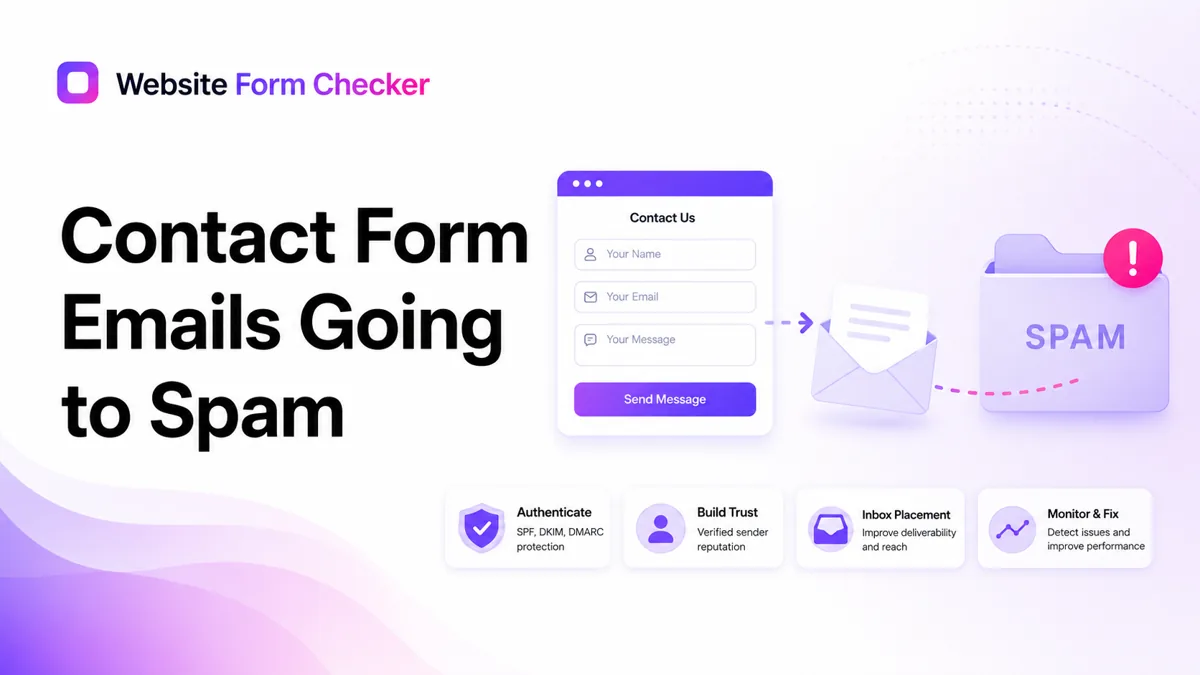
The right fix is to prove where the message goes, then improve the trust signals around the email. That means checking the form configuration, the sender address, DNS authentication, SMTP delivery, and mailbox rules in that order. You can also paste your form URL into our free form checker first to see how the form is structured before you start digging.
Start with a live test phrase you can search for
Do not begin by changing random plugin settings. First, submit the form like a real visitor would. Open the contact page in a private or incognito browser window and send a message with a unique phrase you can search for later. A phrase like "Spam check trail August 2026" works better than a generic "test" message because it is easier to find across Inbox, Spam, Junk, and mail logs.
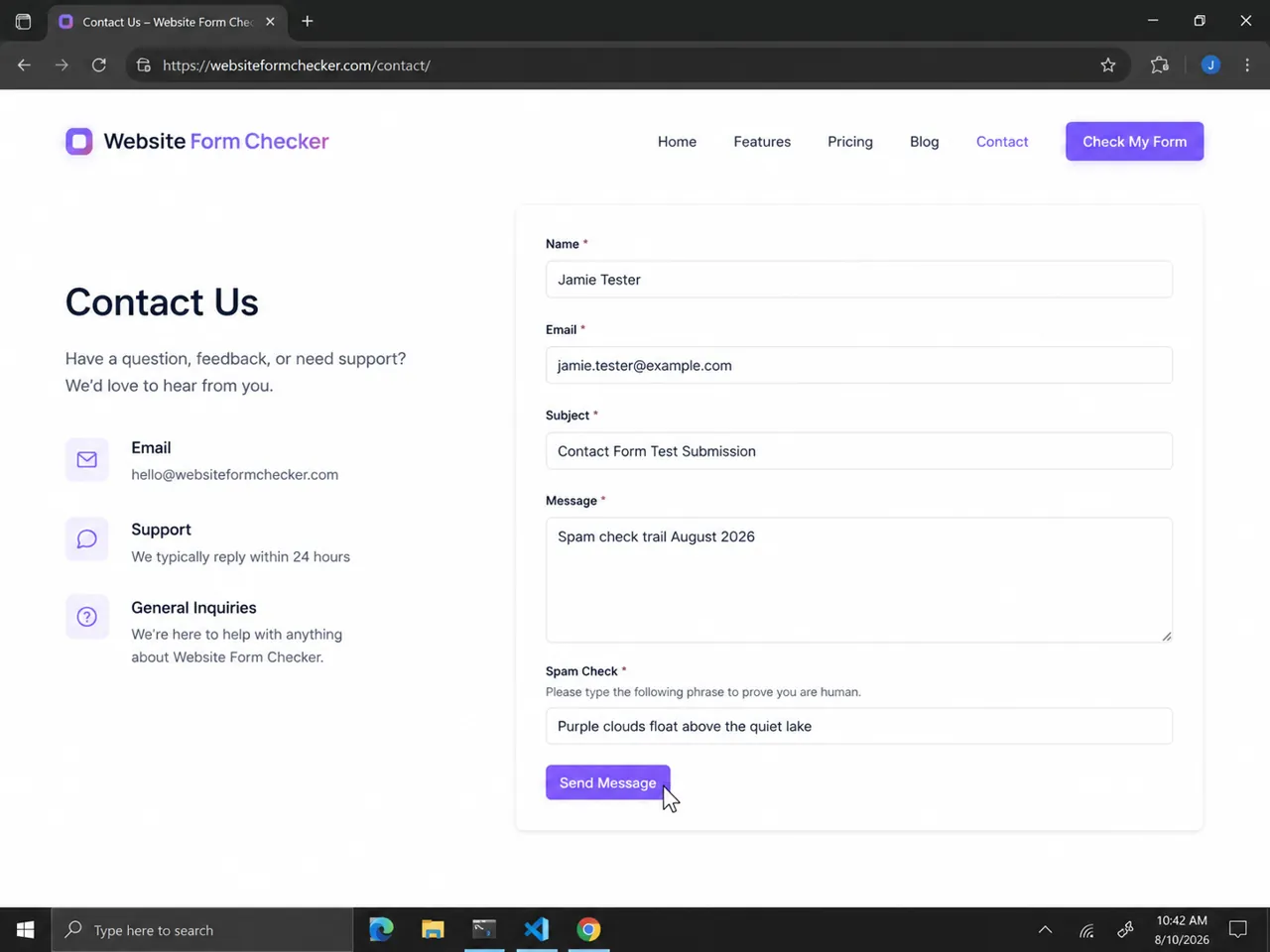
If the form shows a confirmation after submission, the front-end form is probably accepting entries. That does not prove the notification reached the inbox, but it does narrow the problem. Now you can trace the email instead of guessing.
Look in Spam before assuming the email was not sent
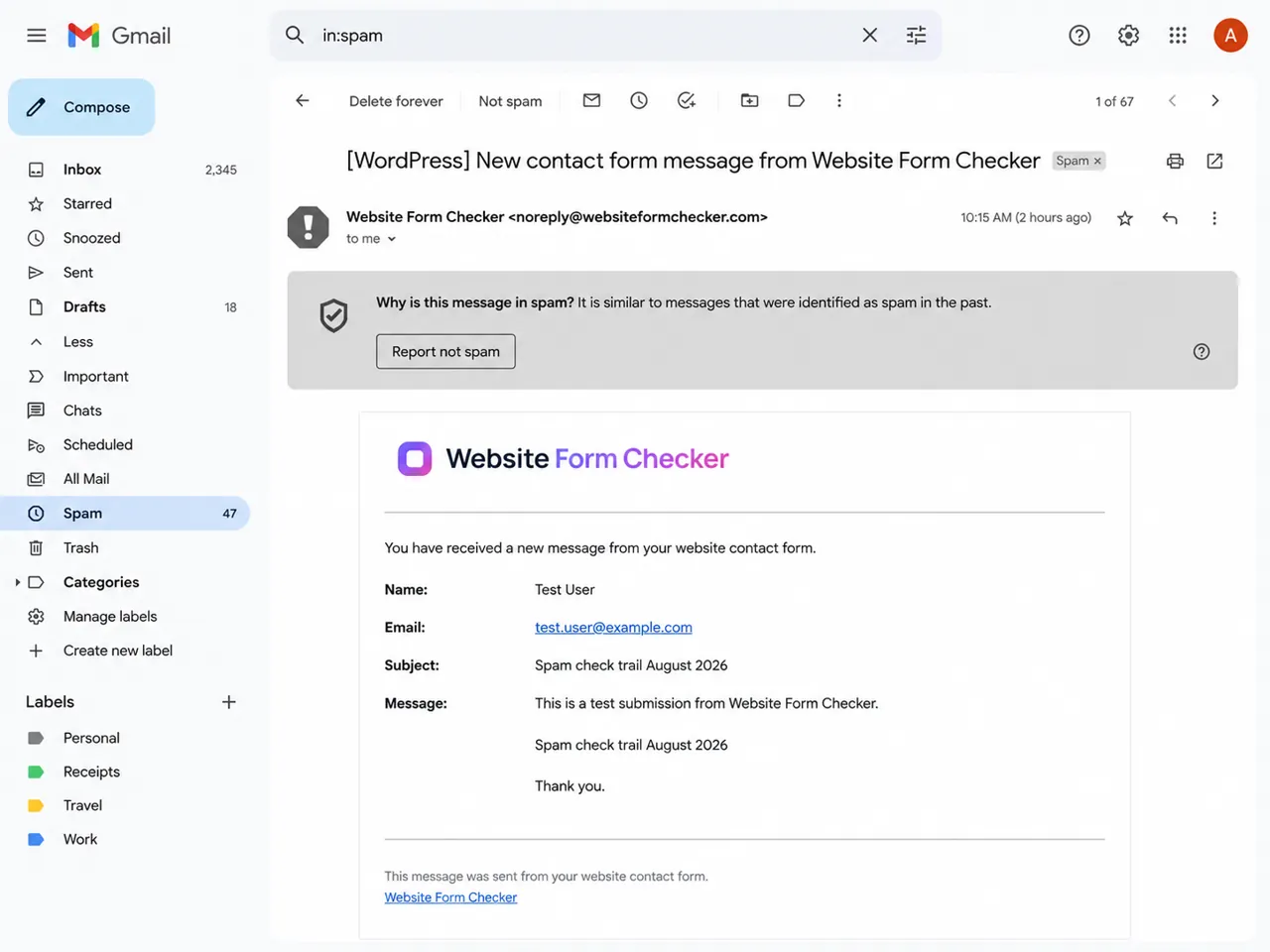
Search the destination mailbox for the exact phrase you submitted. Then check Spam or Junk manually. If the message appears there, the form is sending, but the receiving mailbox does not trust the email enough to place it in the inbox.
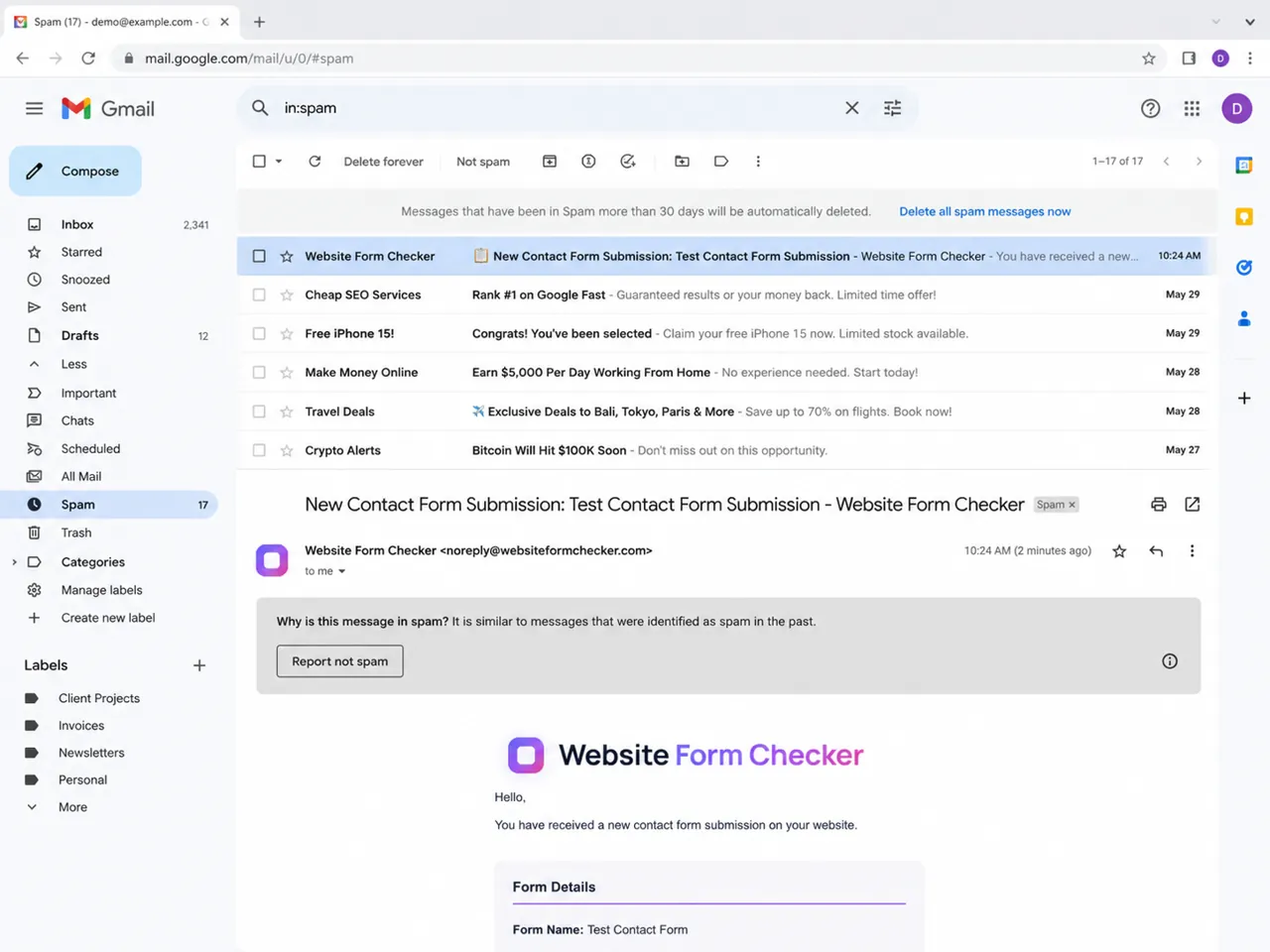
Open the spammed message and look for the warning at the top. Mailboxes often show clues such as "This message seems dangerous," "We could not verify the sender," or "This looks similar to messages that were previously marked as spam." These warnings point to a sender trust or authentication problem, not just a WordPress form problem.
Check the Contact Form 7 Mail tab
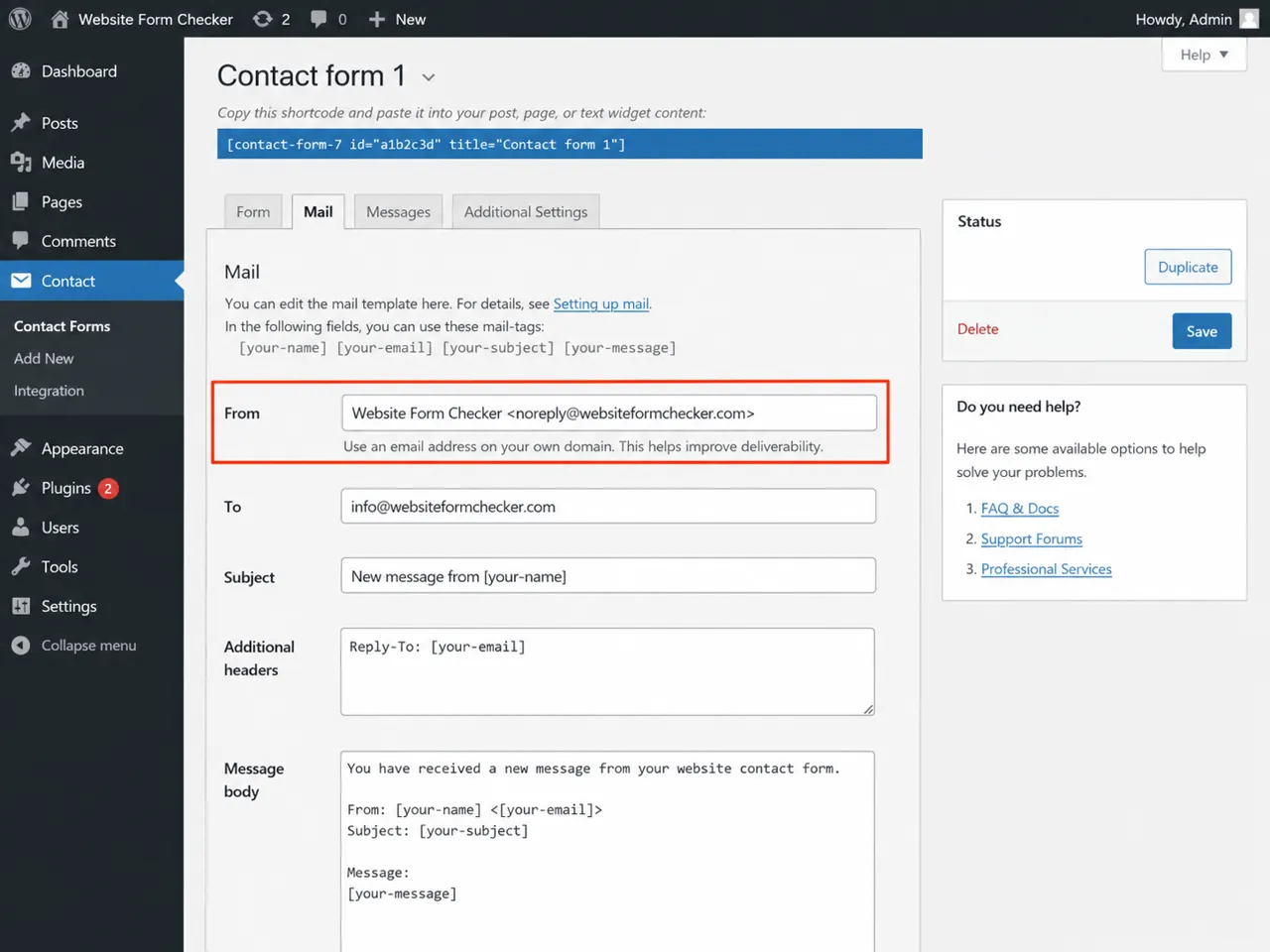
For Contact Form 7, open WordPress Dashboard > Contact > Contact Forms, choose the correct form, and review the Mail tab. Check the To field first so the notification is going to the right mailbox. Then review From, Subject, and Additional Headers. A small mistake here can make a real notification look suspicious.
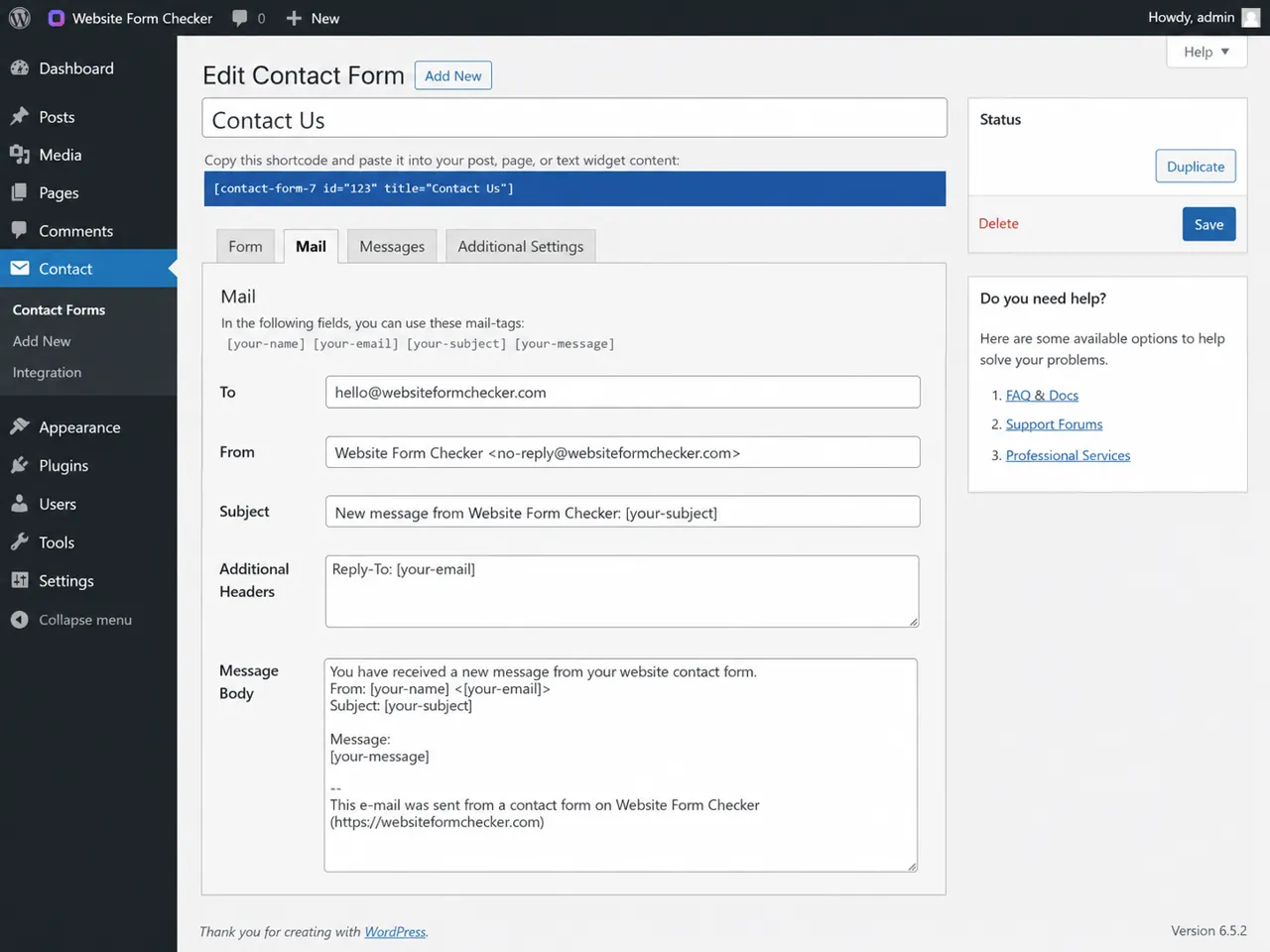
A common mistake is using the visitor's email address or a free mailbox as the From address. For example, sending from a Gmail or Yahoo address through your website can fail authentication checks because your web server is not authorized to send on behalf of that mailbox.
Use a domain-based From address instead, such as [email protected] or [email protected]. Then use Reply-To for the visitor's email address so your team can still reply directly to the person who submitted the form.
Confirm SPF, DKIM, and DMARC are passing
Email providers use authentication records to decide whether a message is legitimate. The three main records to check are SPF, DKIM, and DMARC. If your contact form email is landing in spam, open the message details or original headers and check whether these records pass.
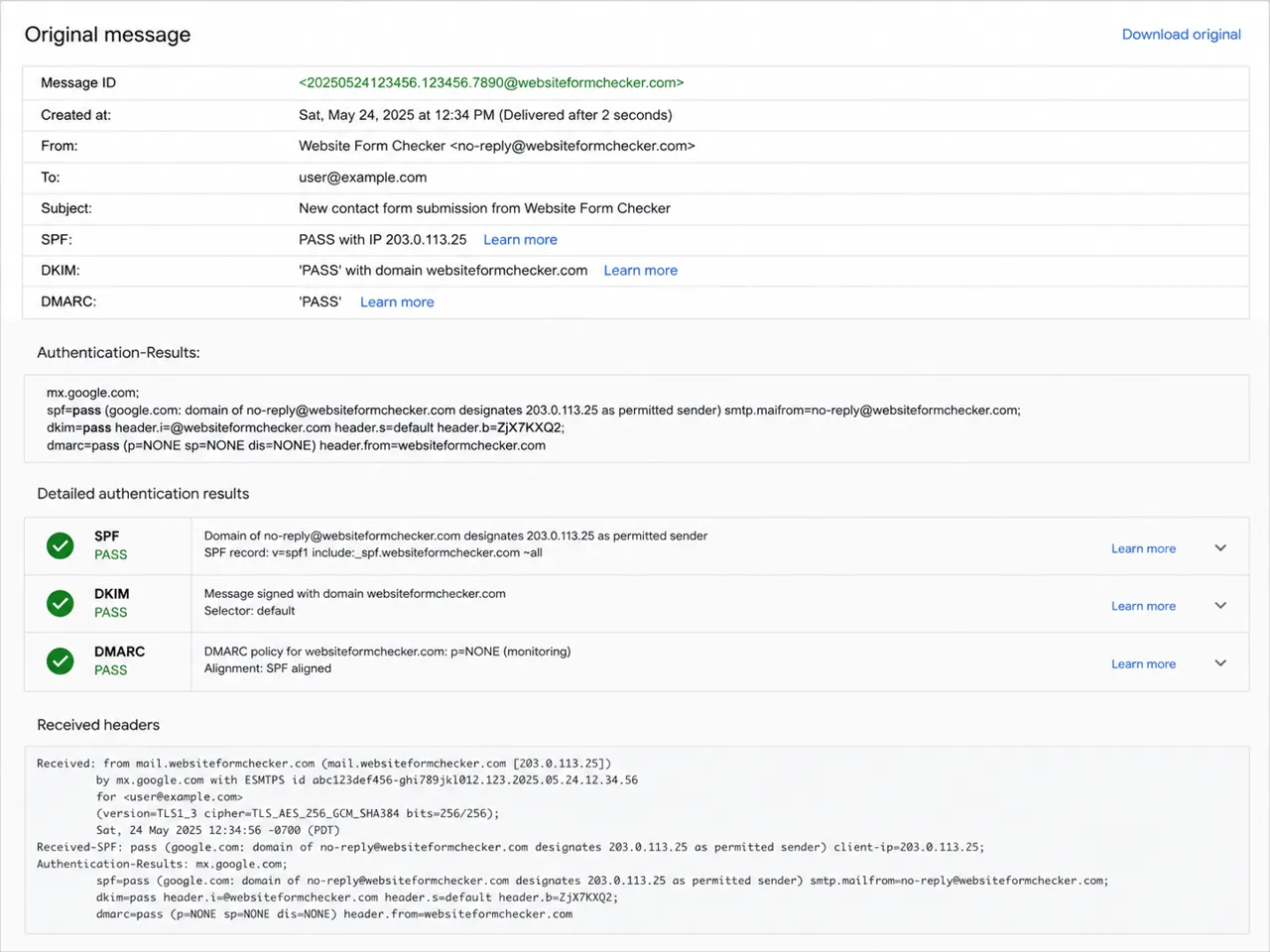
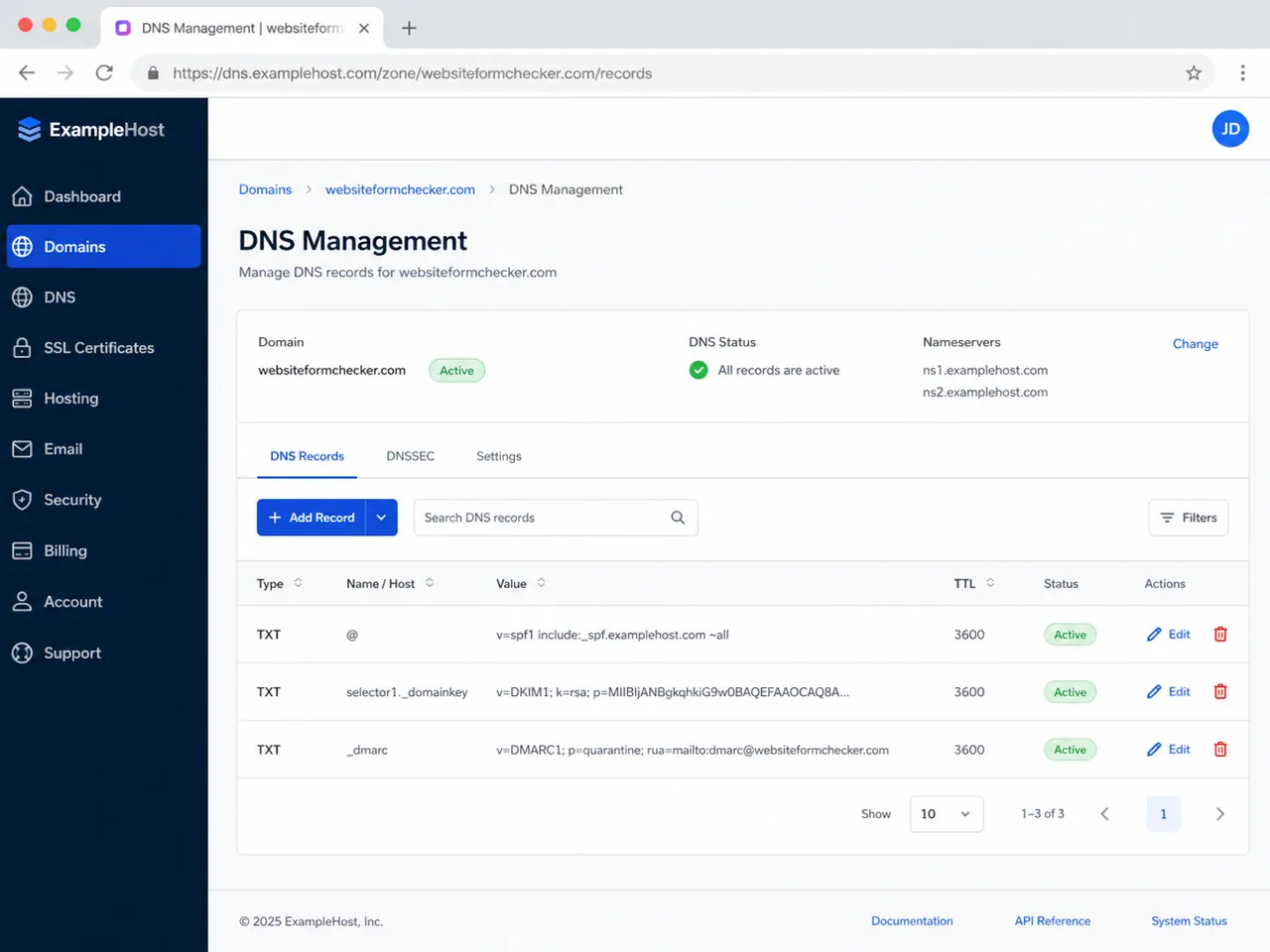
If SPF, DKIM, or DMARC fails, go to the DNS settings for the sending domain. Look for the TXT records that your mail provider gave you. The exact values depend on your SMTP provider, host, or email platform, so do not copy random DNS records from another site. The goal is simple: the domain in your From address should match an authorized and authenticated sending service.
Send mail through authenticated SMTP
WordPress can try to send email using the default PHP mail function, but that route often lacks the authentication and reputation needed for reliable delivery. If wordpress contact form emails going to spam is a recurring issue, an SMTP plugin is usually the cleaner fix.
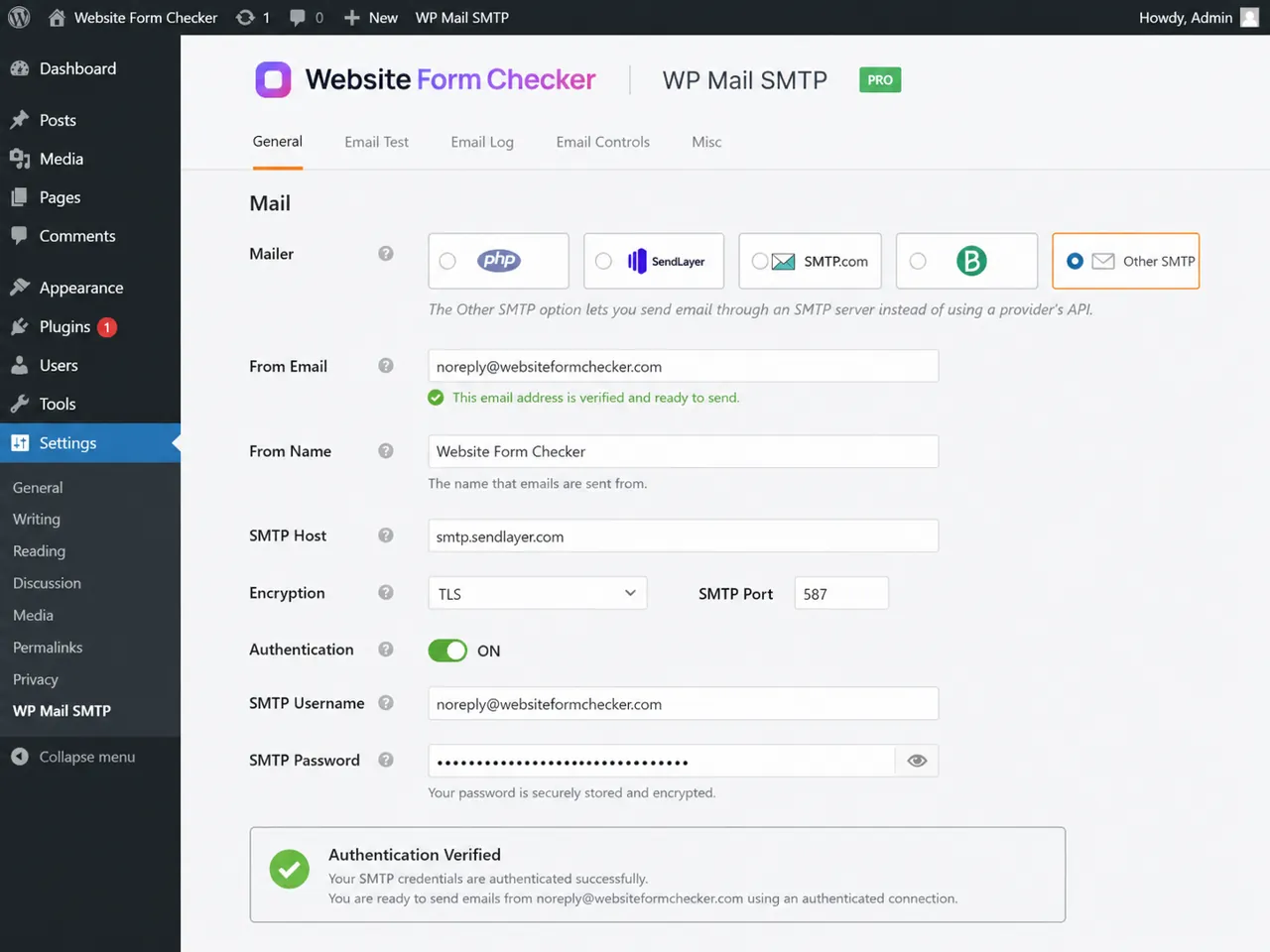
Configure SMTP with a verified domain address, then send a plugin test email. Make sure the From Email matches the authenticated account or approved sending address. Also confirm that encryption, port, username, and password are correct. A working SMTP test does not replace a live form test, but it proves your site can send authenticated email through the chosen route.
Rule out mailbox filters and allowlist issues
Sometimes the website is fixed, but the receiving mailbox keeps filtering the sender because of an old rule or previous spam decision. Check filters, allowlists, blocked senders, and quarantine settings. Marking one message as "Not spam" can help, but a proper safe sender rule is more reliable for business inboxes.
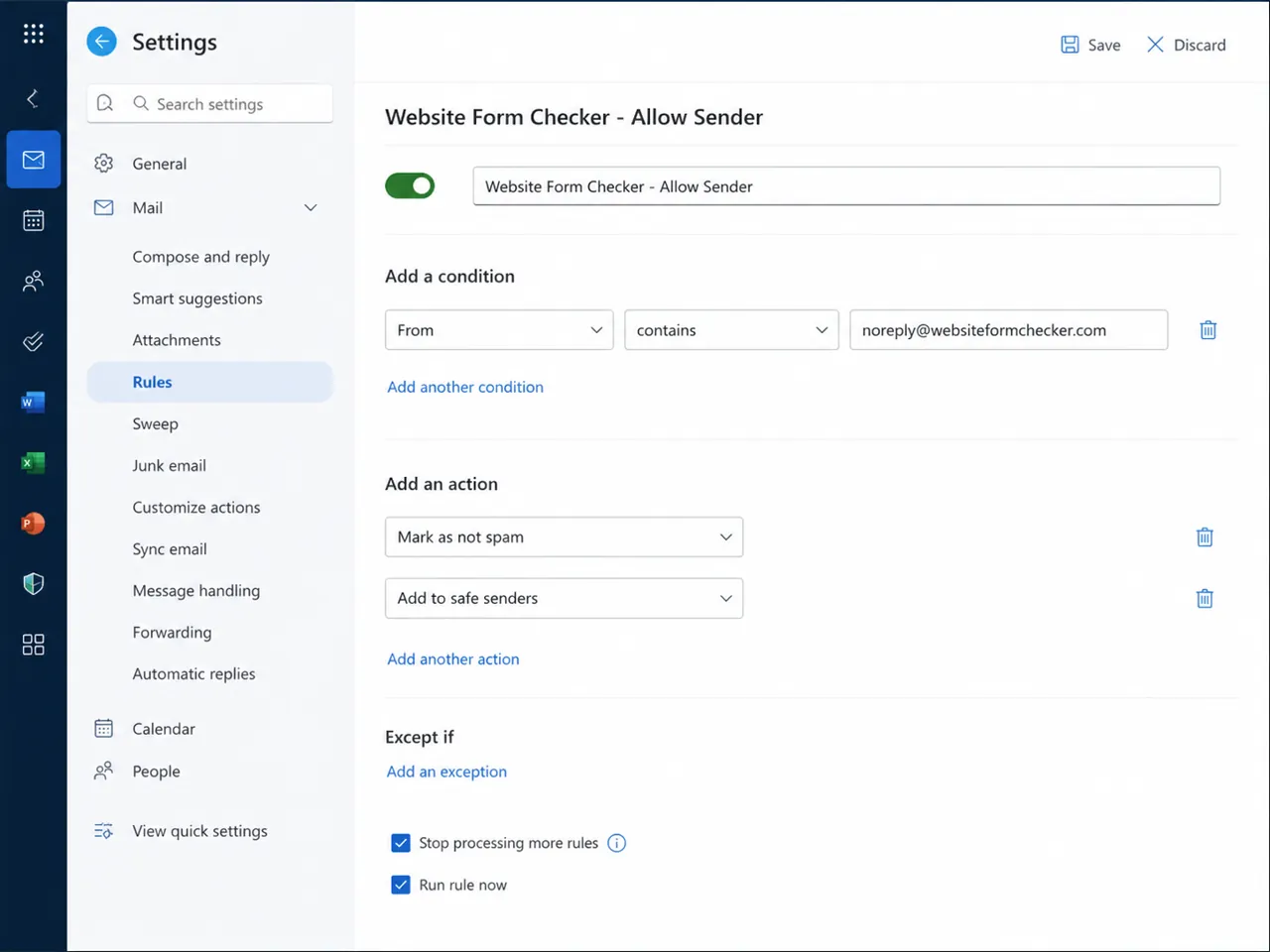
This step matters when several team members receive forwarded contact form notifications. One mailbox might place the message in Inbox while another moves the same message to Junk.
Run the final inbox proof
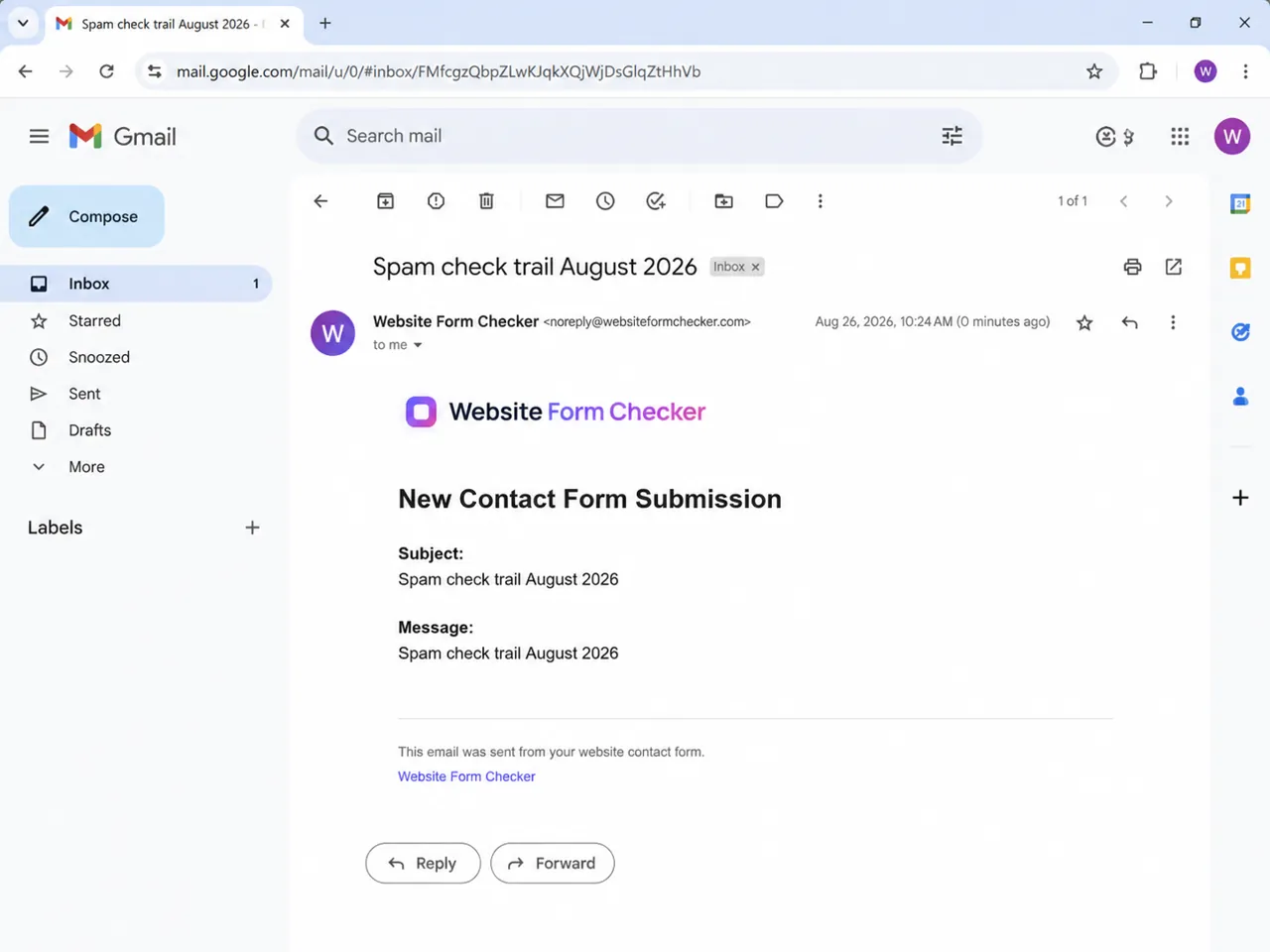
After fixing the form sender, authentication, SMTP, and mailbox filters, submit a new live test. Search for the unique phrase again. The goal is not just to see a green success message on the form. The goal is to see the matching email arrive in the main inbox with the right sender, subject, message content, and reply behavior.
What to do next
If contact form emails go to spam once, they can do it again after a plugin update, DNS change, SMTP password reset, mailbox policy change, or hosting migration. Keep a record of your working sender settings and test the form regularly, not just when someone reports a missing lead.
Website Form Checker is useful here because it can run real form tests and alert you when submissions stop arriving correctly. That gives you a way to catch silent contact form issues before they cost you leads. Once your final test reaches the inbox, save the working settings and repeat the test from time to time. A contact form is only useful when the message reliably reaches the person who needs to answer it.
Quick checklist
- Submit a live form test with a unique phrase you can search for.
- Check Inbox, Spam, Junk, and any quarantine folder before changing settings.
- Confirm Contact Form 7 is using the correct To address.
- Use a domain-based From address instead of the visitor email or a free mailbox.
- Set Reply-To to the visitor email so replies still work.
- Inspect message headers for
SPF,DKIM, andDMARCresults. - Add or correct DNS authentication records for the sending domain.
- Send through an authenticated SMTP plugin rather than unauthenticated PHP mail.
- Review mailbox rules, safe sender settings, and allowlists.
- Run a final live test and confirm the message lands in the main inbox.
Test your form right now, free
Paste your contact form URL. We'll open it in a real browser, find the form, detect spam protection, and tell you whether it's structured to actually deliver submissions. Takes about 20 seconds.
Run a free audit →