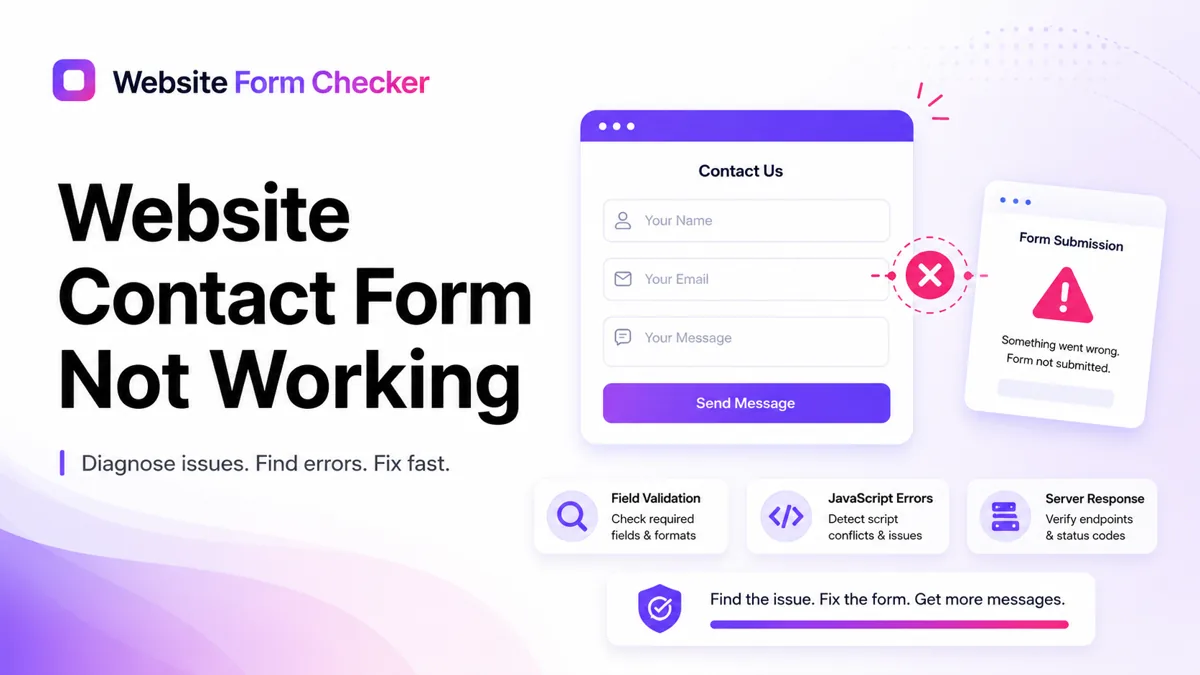
That is why the phrase website contact form not working can describe more than one problem. Sometimes the form refuses to submit. Sometimes the visitor sees a success message, but no one on your team receives the email. Sometimes the message is saved in the website backend but never reaches the inbox. Sometimes a mobile visitor cannot even reach the submit button. The fastest way to fix it is to trace the failure in order, not to reinstall plugins, switch themes, or change every email setting at once. Start with a controlled test, follow the path from the page to the inbox, and paste your form URL into our free form checker first to see how the form is structured before you start digging.
Start with one traceable test submission
Before you change settings, create a test submission that is easy to identify. Use a unique phrase in the subject or message field, such as WFC-contact-test-1047. Write down the exact time you submitted it, the page URL, the email address used in the form, and the expected recipient inbox.
This gives you a single thread to follow across the browser, the site backend, delivery logs, spam tools, and inbox search. Without a traceable test, every later step becomes vague.
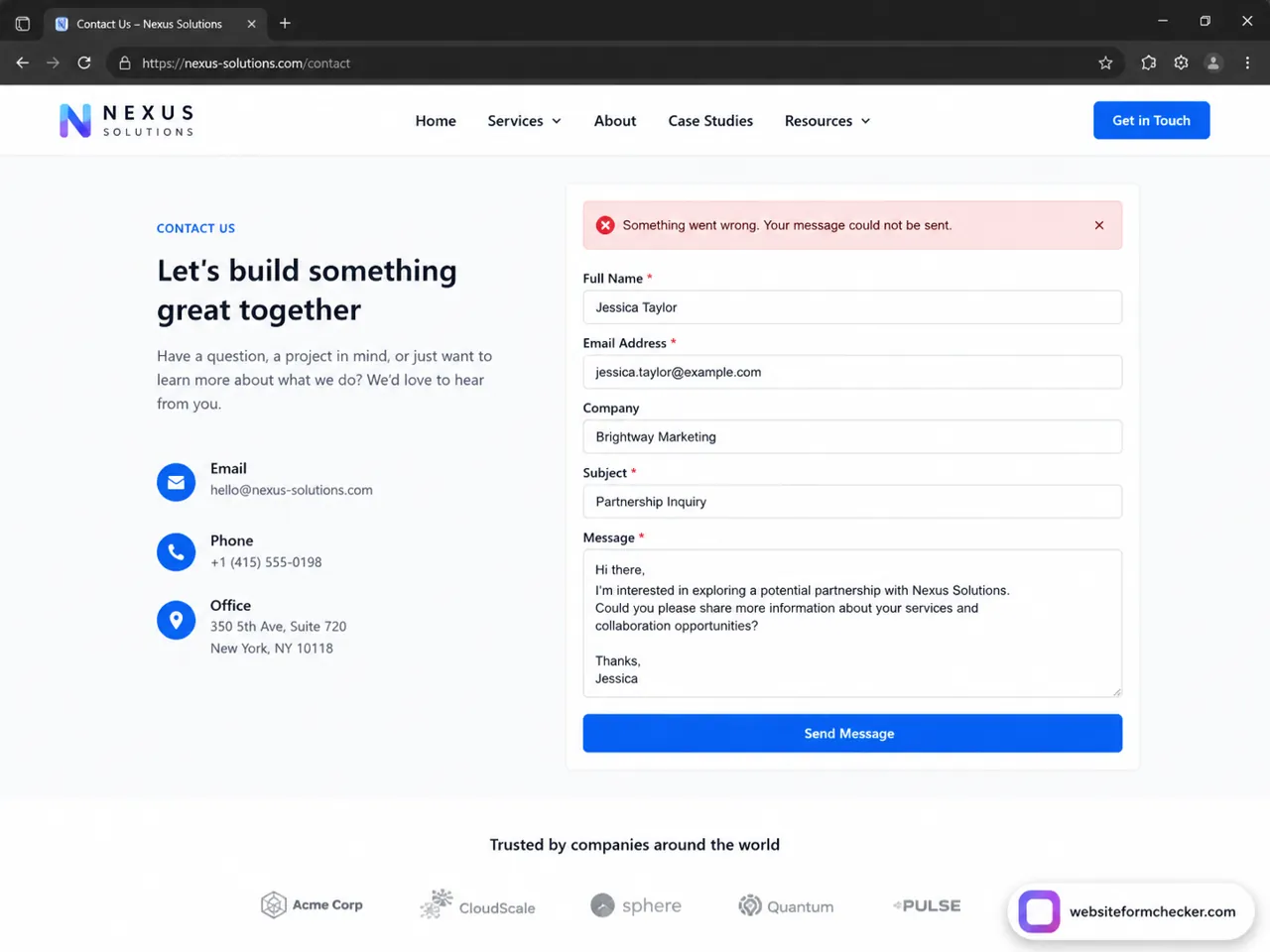
- Submit the test from a private or incognito browser window, so cached scripts and logged-in admin sessions do not hide the problem.
- Use a real email address in the email field, especially if the form validates email syntax or uses the reply-to field.
- Keep the exact test phrase short and unique so you can search for it in your inbox, spam folder, CRM, and mail logs.
- Take screenshots of any error messages before refreshing the page.
If your contact form on my website not working complaint came from a customer, ask whether they were on desktop or mobile, which browser they used, and what happened after they pressed Send. That context can point you toward a front-end issue, a validation issue, or an email delivery issue before you begin digging into settings.
Check whether the form fails before it submits
The first failure point is the page itself. If the user sees required-field warnings, a disabled button, a spinner that never stops, or a red error message immediately after clicking Send, the issue may be happening before the email layer is involved.
Look at what the visitor actually sees. Does the page show an obvious failure message? Are fields highlighted incorrectly? Does the submit button stay disabled even when every field is filled in? Does the form reload the page without confirmation? These symptoms usually belong to the browser, form markup, client-side validation, JavaScript, or the endpoint that accepts the POST request.
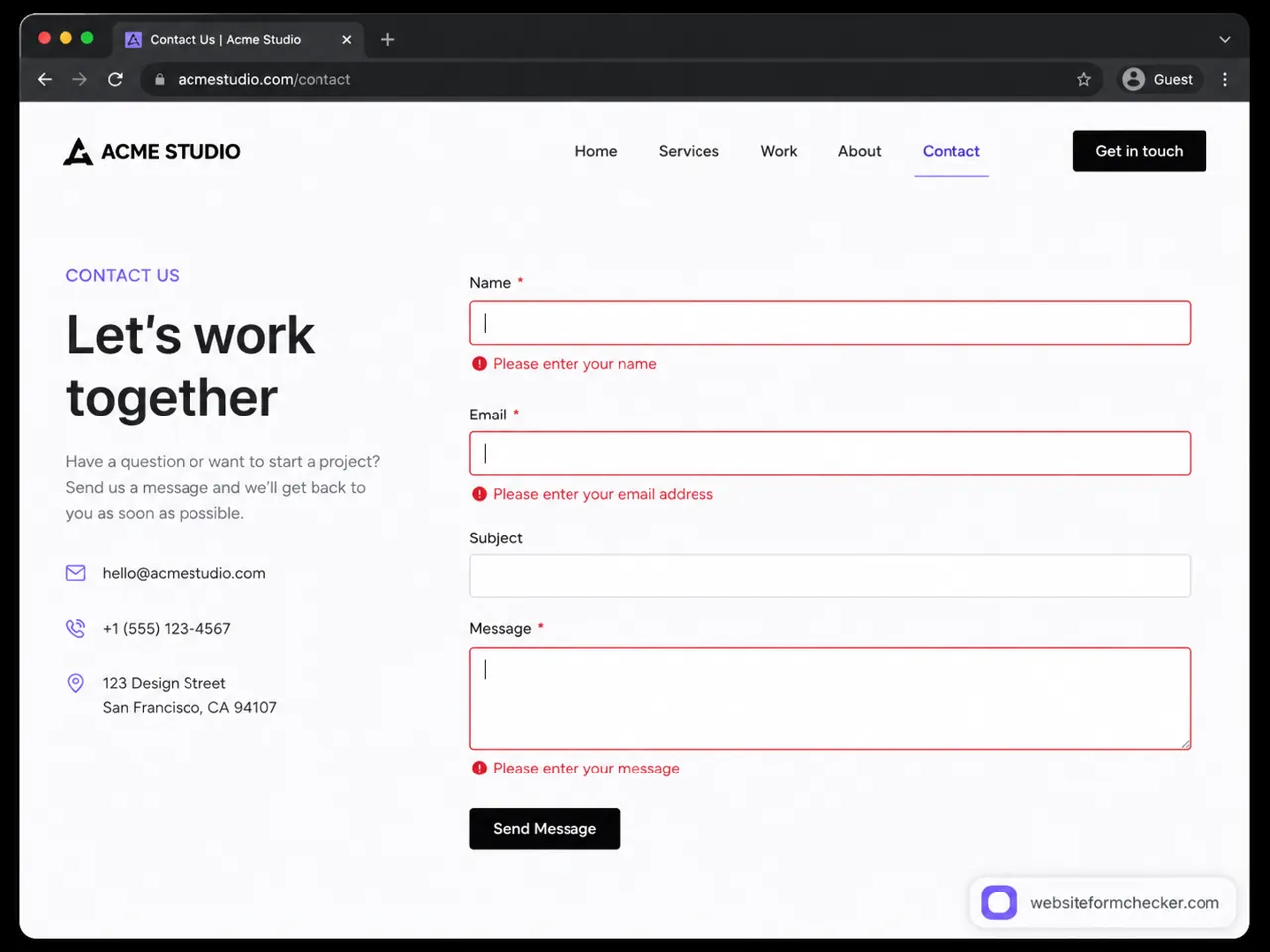
Validation is helpful when it prevents incomplete messages from being submitted, but it can also block legitimate users if the rules are too strict. Common examples include a name field that silently requires a first and last name, a phone field that rejects international formats, or a message field that expects more characters than the helper text says.
- Confirm that required fields are actually marked as required in the form settings and the HTML.
- Test the email field with a normal address and with a plus-address such as
[email protected]. - Check whether hidden fields or conditional fields are required but not visible to the visitor.
- Make sure the form error text explains the exact problem instead of only saying something went wrong.
Use the browser console when the button does nothing
If the form does not react, the submit button does nothing, or the page displays a generic error, open the browser console. A JavaScript error can stop the form handler before the request is ever sent to the server. In that case, changing SMTP settings will not help because no email is being triggered yet.
Open the page in Chrome, right-click the page, choose Inspect, and go to the Console tab. Then submit the form again. Look for red errors mentioning files such as form-handler.js, validation.js, main.js, app.js, theme scripts, analytics scripts, or third-party widgets. A null value error, missing element error, blocked script, or mixed-content error can break the submission flow.
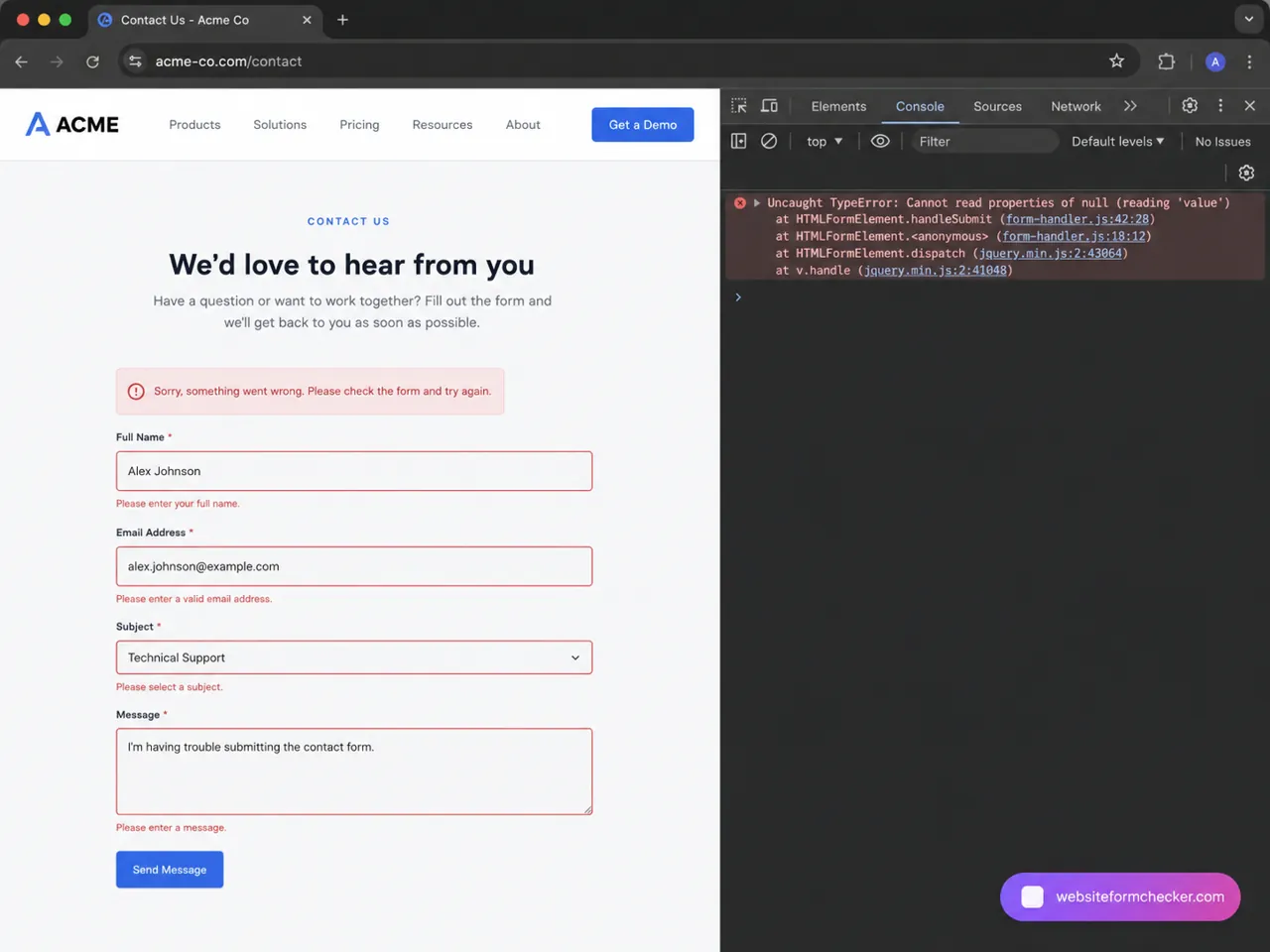
When the console points to a script problem, investigate recent changes first. Did you install a new tracking script? Did a page builder update change the field IDs? Did a cookie banner, chatbot, lazy loader, or optimization plugin defer scripts that the form relies on? The fix might be as small as excluding the form script from minification or restoring a changed field name.
Use the Network tab when the form submits but returns an error
If the button works but the result is an error, the Network tab is usually more useful than the Console. It shows whether the browser sent the request, which URL received it, which status code came back, and what the server response said.
Reload the contact page with developer tools open, filter for Fetch/XHR, submit the form, and select the newest form-related request. A 200 response usually means the server accepted the request, though it still might not have sent an email. A 400 or 422 response often means validation failed. A 403 can point to security, firewall, nonce, CSRF, or permissions issues. A 500 usually points to a server-side error. A blocked or CORS error can mean the request never reached the expected endpoint correctly.
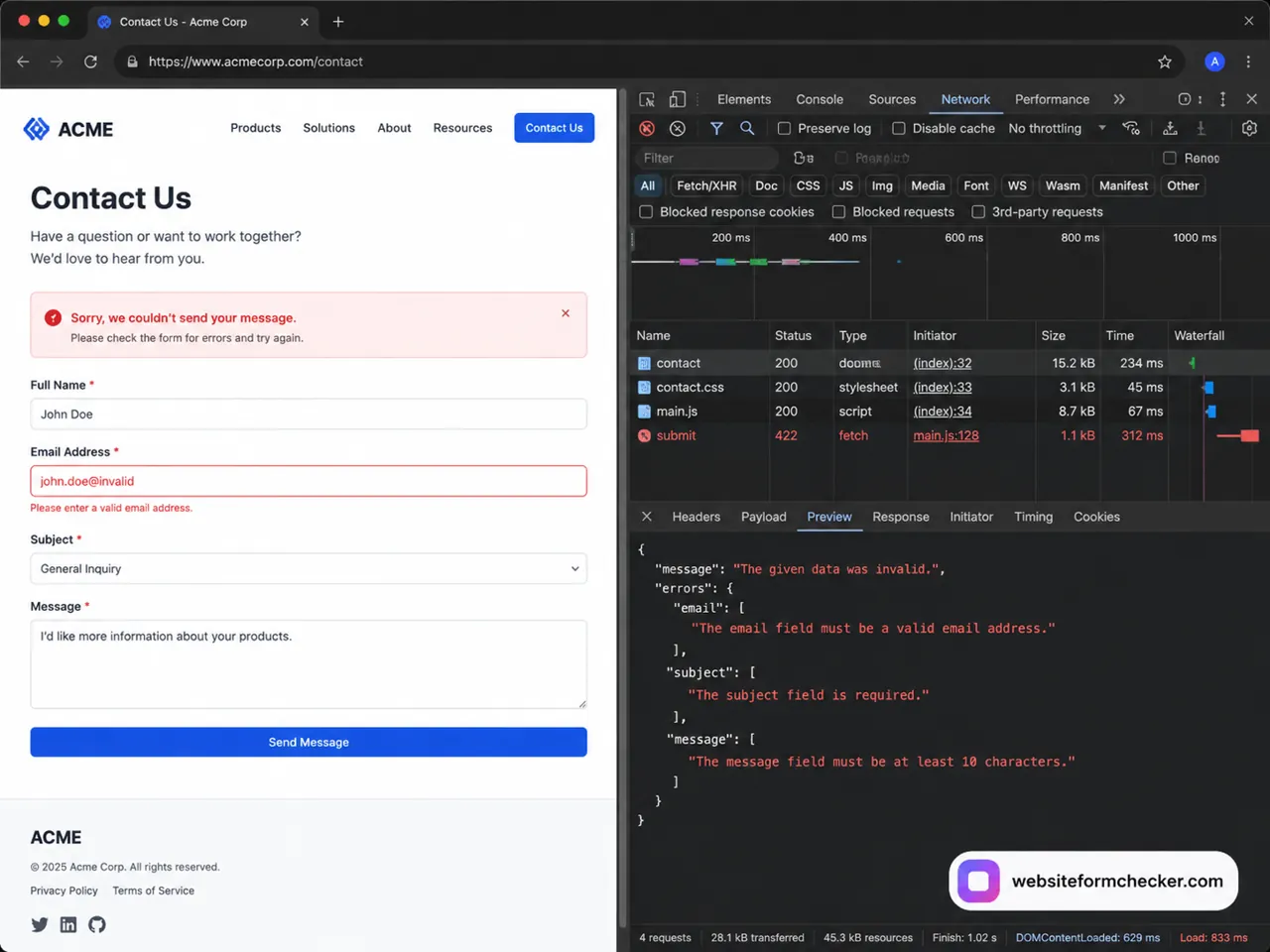
Do not stop at the status code. Open the Response or Preview tab and read the message. It may tell you exactly which field failed, whether the endpoint rejected the request, whether a token expired, or whether the server could not process the submission. This is especially useful on custom websites, headless forms, and forms connected to a separate API endpoint.
Confirm the form settings before blaming email delivery
Many website form not working cases are simply configuration issues. The form may still be active, and it may even save submissions, but the notification destination may be blank, outdated, misspelled, or pointing to an old employee address.
Go into the website backend or CMS and open the form settings. Check the recipient email address, reply-to field, notification subject, confirmation behavior, and whether the form is enabled. If your CMS has separate tabs for General, Notifications, Confirmations, and Integrations, check each one instead of only the first screen.
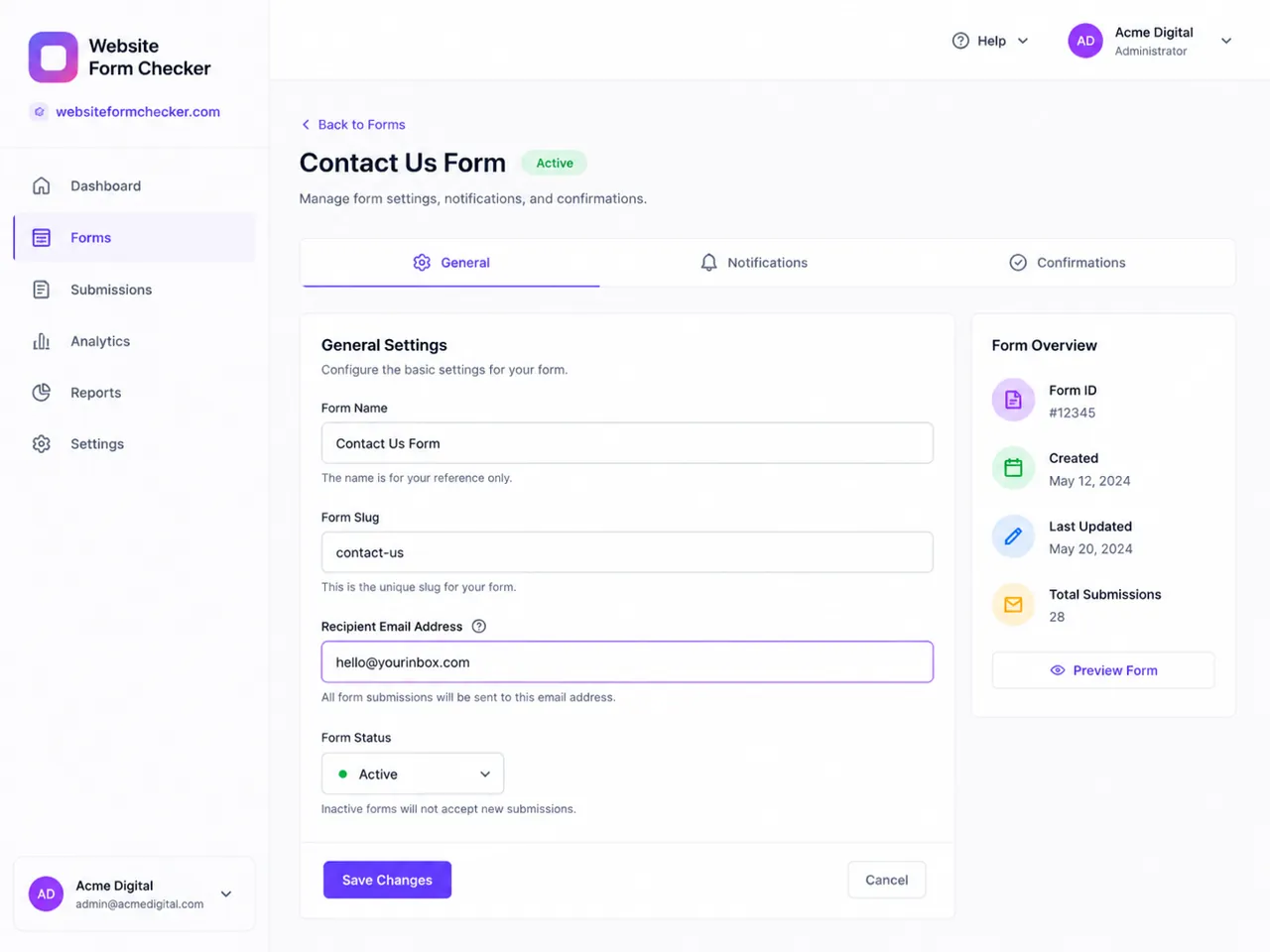
- Make sure the recipient email belongs to a mailbox your team actively monitors.
- Avoid using the visitor's email address as the From address. Use a verified domain sender and put the visitor address in Reply-To.
- Check whether the form has multiple notification rules and whether any rule is disabled.
- If the form has conditional notifications, test the exact field choices that should trigger the admin email.
- Save the settings after every change, then run a new traceable test.
Check integrations and automation destinations
A contact form does not always send only an email. It may create a CRM lead, post to a webhook, send a Slack alert, add a spreadsheet row, or trigger an automation. If the email notification works but the lead never reaches the sales team, the failure may be in one of these destinations.
Open the integrations screen and look for expired authorizations, disconnected webhooks, changed API keys, rate limits, or paused workflows. This is especially important when someone says the contact form not working on website but the form appears to submit successfully. The website may be accepting the entry while the downstream destination is failing.
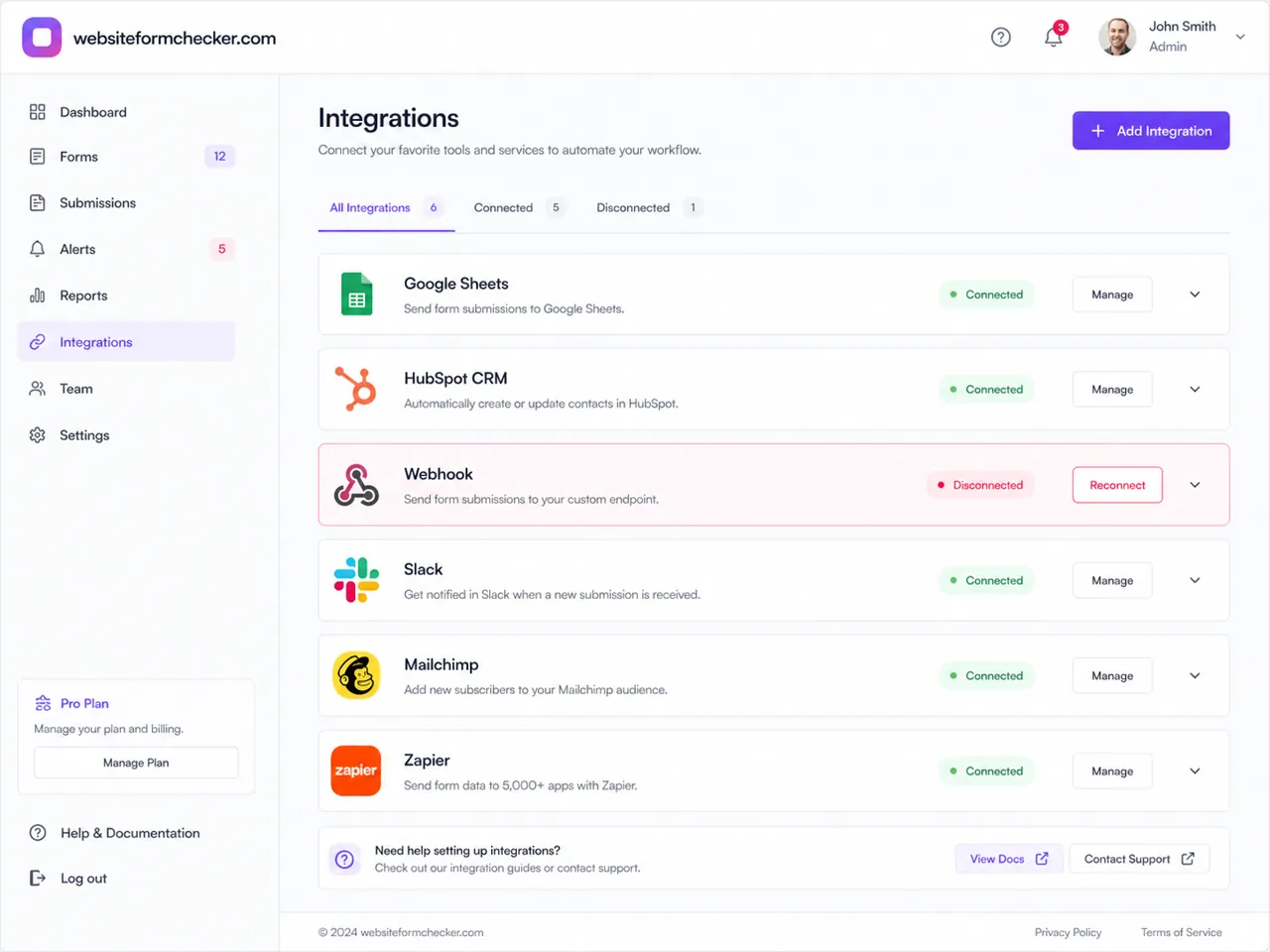
Reconnect the integration, send a test event from inside the integration tool if available, then submit the website form again. Check whether the new test appears in the CRM, spreadsheet, or workflow history. If the integration has a log, read the error message rather than reconnecting blindly.
Search mail logs when the website claims the email was sent
If the form submitted successfully but the email never arrived, move from the website layer to the mail layer. On hosting accounts with a delivery log, search for the recipient address and the exact test time. If no matching delivery event exists, the website probably did not send the message to the mail server. If a delivery event exists but is deferred, failed, rejected, or filtered, the problem is in mail delivery or spam filtering.
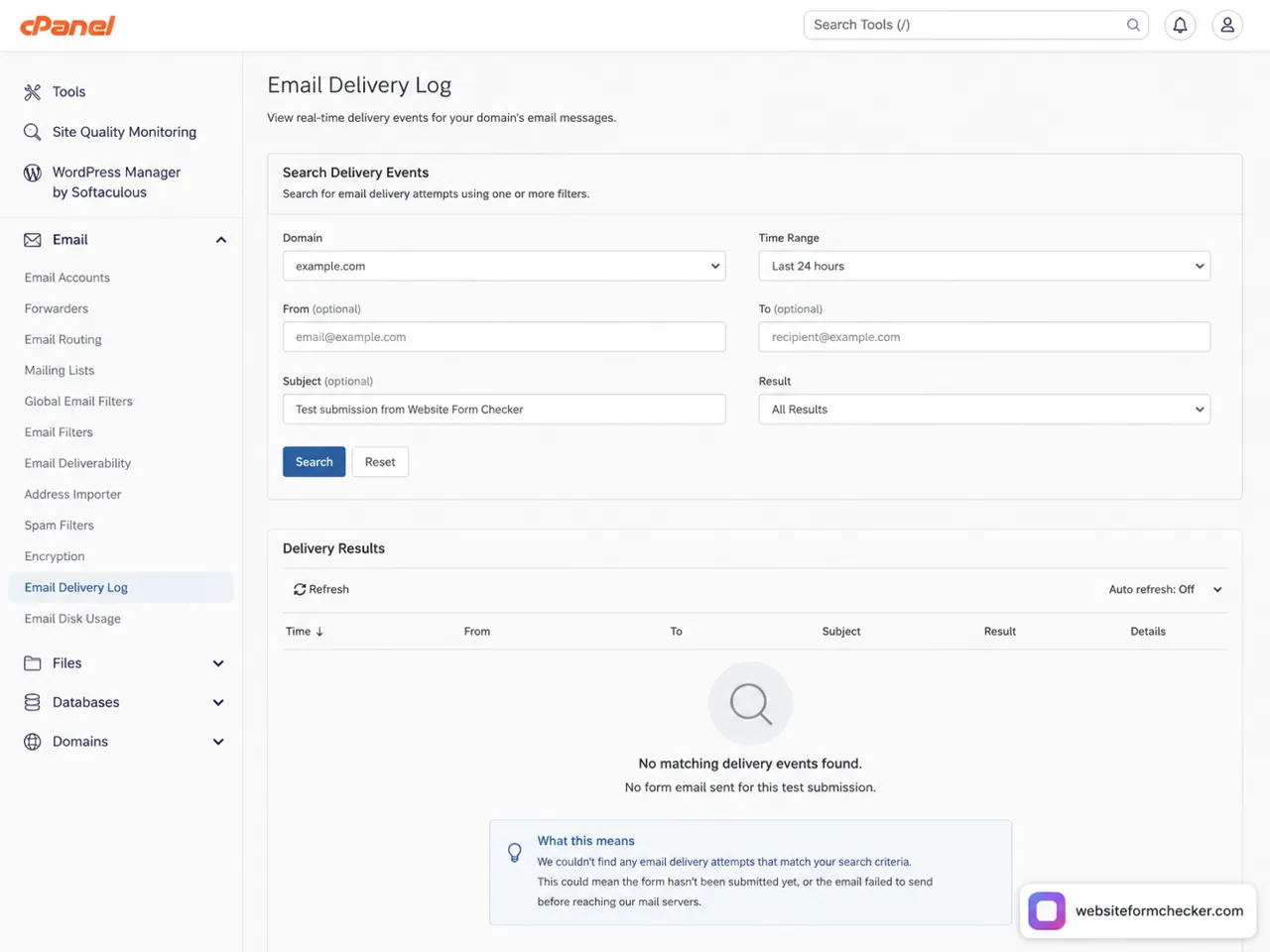
A useful distinction is whether the submission was saved by the website. If there is a saved entry but no email log, the form captured the message but the notification action failed. If there is both a saved entry and a successful mail log, the email may have gone to spam, a quarantine, an alternate inbox, or a forwarding or filter rule. If there is no saved entry and no mail log, the issue is likely before the backend accepted the submission.
Review spam protection without turning it off permanently
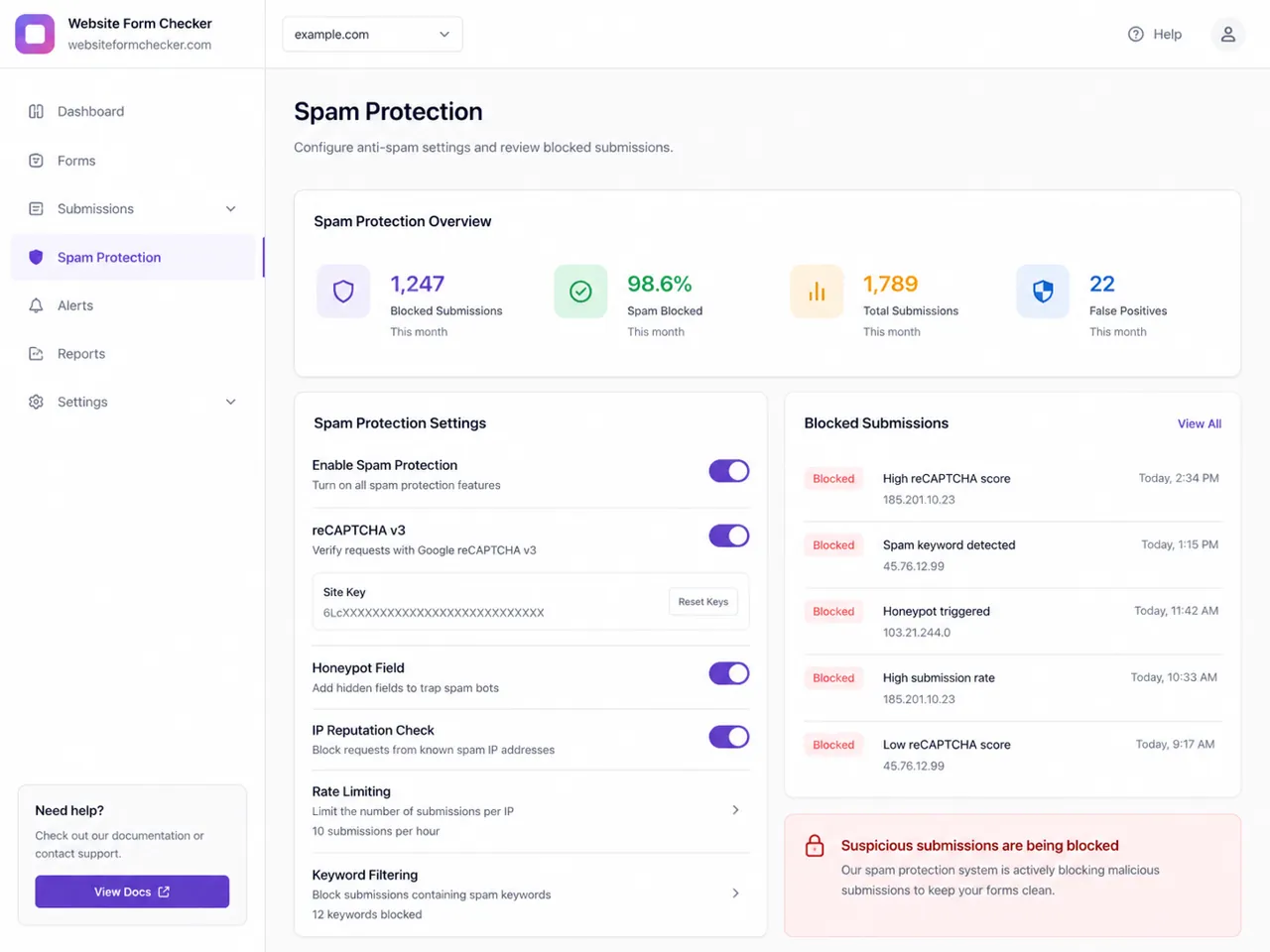
Spam protection can make a form safer, but it can also block real users when settings are too aggressive or tokens are misconfigured. reCAPTCHA, honeypot fields, keyword filters, IP reputation tools, firewalls, and rate limits can all interrupt submissions.
Open your anti-spam settings and look for blocked attempts around the time of your test. If your test appears as blocked, check why. A honeypot trigger may mean the hidden field is visible due to CSS issues. A reCAPTCHA error may mean the site key, secret key, hostname, or token verification is wrong. A rate-limit error may happen if you test repeatedly from the same IP address.
- Do not disable every spam layer and leave the form unprotected. Temporarily test one setting at a time.
- Check whether cached pages are serving an old CAPTCHA token or stale JavaScript.
- Confirm that the form endpoint is not blocked by a firewall rule, bot rule, or country restriction.
- Review recent blocked submissions for false positives before changing thresholds.
Test the form on mobile, not only desktop
A form can pass on desktop and still fail for a large share of visitors. Mobile issues are easy to miss because they often look like design problems rather than technical failures. A sticky footer can cover the submit button. A pop-up can block the last field. The keyboard can hide the confirmation message. A two-column layout can squeeze fields until they are hard to tap.
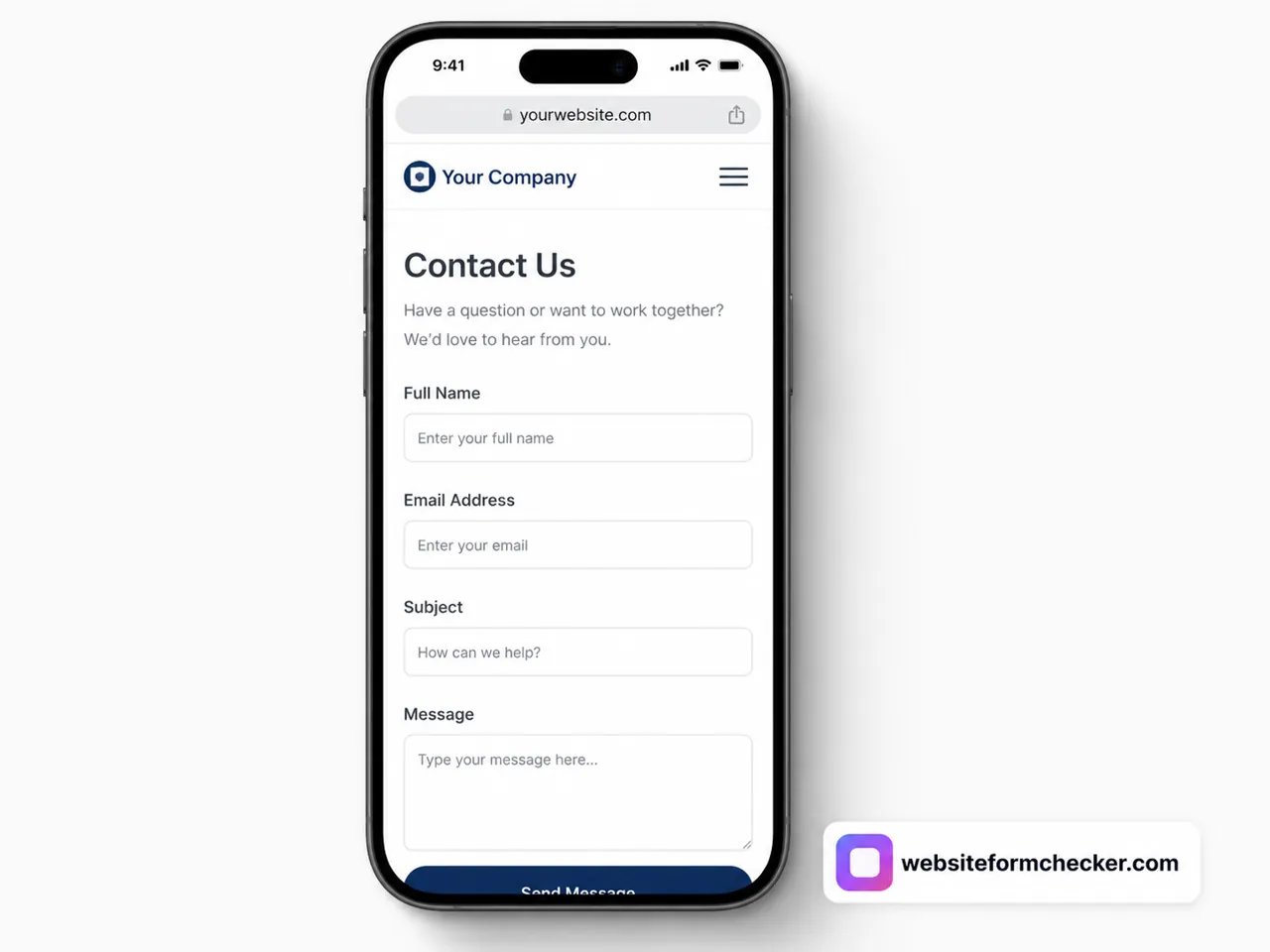
Test the same traceable submission on at least one phone and one tablet-sized viewport. Use the actual published page, not just the builder preview. Rotate the screen, open the keyboard, scroll to the bottom, and confirm that the user can reach the submit button, read validation messages, and see a success or error message after submitting.
Create a simple decision tree for the fix
Once you gather evidence, the cause is usually easier to categorize. Use this decision tree to avoid jumping between unrelated fixes.
- If the form never sends a request, check JavaScript, field IDs, the submit handler, disabled buttons, script optimization, and page builder changes.
- If the request is sent but returns
400or422, inspect validation rules, required hidden fields, tokens, field names, and server-side form handling. - If the request returns
403, check firewall rules, CSRF or nonce validation, CAPTCHA, permissions, and security plugins. - If the request returns
500, check server logs, PHP or application errors, plugin conflicts, API errors, and recent code changes. - If the submission is saved but the email is missing, check notification rules, recipient addresses, SMTP settings, mail logs, and spam filtering.
- If the email is sent but not found in the inbox, check spam, quarantine, forwarding rules, filters, DMARC alignment, and sender authentication.
- If it works on desktop but not mobile, check responsive layout, pop-ups, sticky elements, tap targets, keyboard behavior, and mobile browser errors.
Frequently asked questions
Why is my website contact form not working even though the page loads?
The page loading only proves that the contact page is accessible. The form can still fail because of validation rules, JavaScript errors, a broken endpoint, disabled notifications, disconnected integrations, or email delivery problems.
Why does the form say sent but I never receive the email?
The form may be saving the submission but failing to send the notification, or the email may be sent but filtered by spam, quarantine, forwarding rules, or mailbox settings. Check saved entries and delivery logs to separate those two cases.
Can a contact form fail only on mobile?
Yes. Mobile layout issues can hide fields, cover the submit button, make error messages invisible, or interfere with CAPTCHA challenges. Always test the live form on a phone, not only in the desktop editor.
Should I disable CAPTCHA if the form is not working?
Only temporarily for a controlled test. If CAPTCHA or spam protection is the cause, adjust the configuration, keys, thresholds, or placement instead of leaving the form exposed to spam.
How do I know whether the problem is the form or the inbox?
Check whether the submission appears in the website backend and whether a matching email appears in the hosting or SMTP log. If the entry exists but no email was attempted, the issue is the notification action. If the email was sent but not received, investigate the inbox and delivery filters.
Why scheduled testing matters after the fix
A contact form can work today and fail next week after a theme update, CMS update, expired integration token, DNS change, security rule, or inbox filtering change. The worst part is that a broken form usually fails quietly. Visitors leave, leads disappear, and the site owner may not notice until someone complains.
That is where scheduled monitoring helps. Website Form Checker can run recurring tests against a contact form and alert you when the form stops accepting submissions, stops sending notifications, or stops completing the expected path. Instead of waiting for a customer to report the problem, you can catch the issue shortly after it starts.
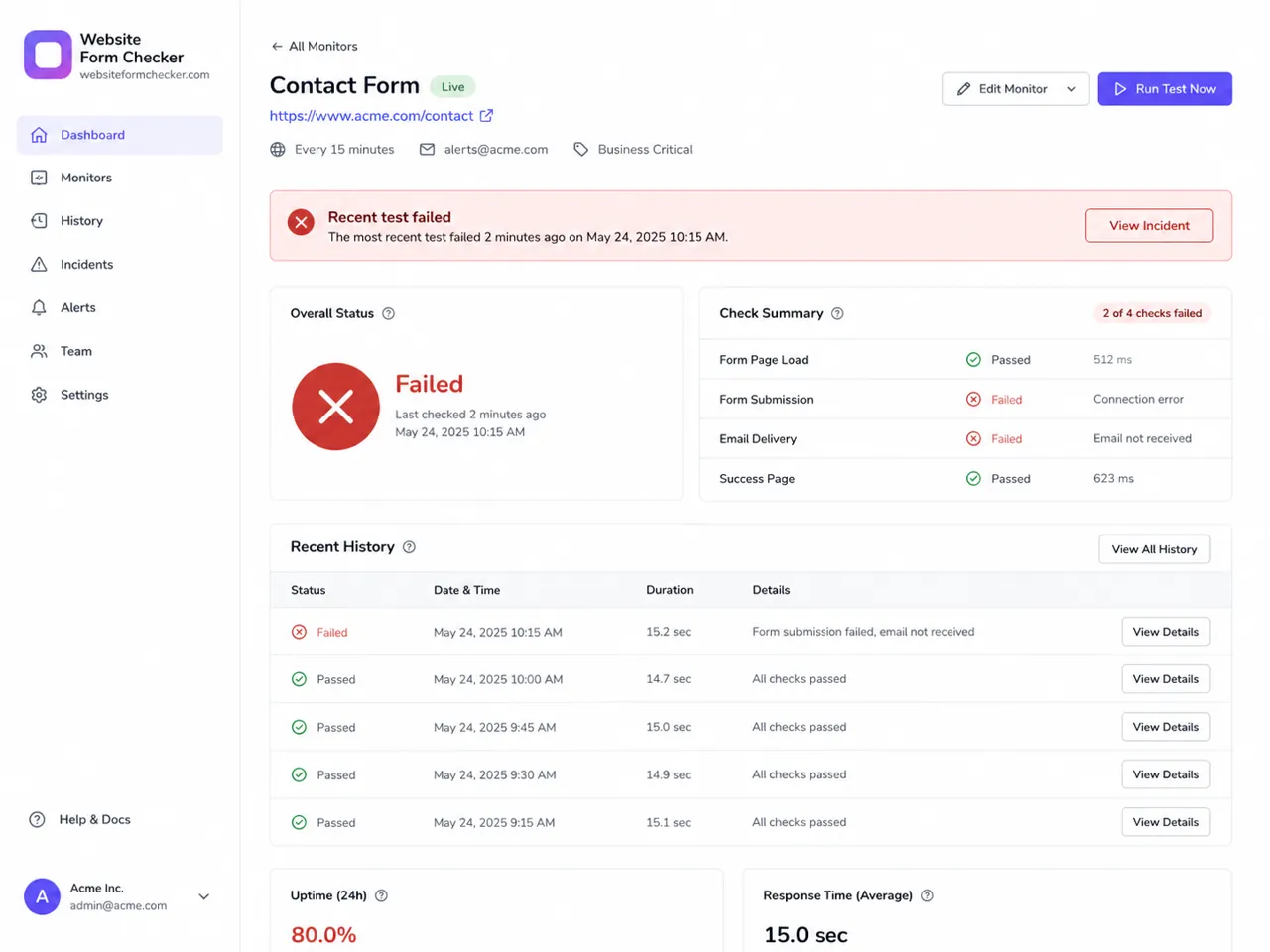
Use monitoring after the form is fixed, not only during troubleshooting. A passing test gives you a baseline. A failed test gives you a timestamp, a location, and a repeatable signal to investigate. The fix is rarely found by changing random settings. Trace one test submission from the visible page to validation, browser errors, the network request, backend settings, integrations, mail logs, spam tools, and the inbox. The point where the test disappears is the point where the repair should begin.
Quick checklist
- Submit one traceable test with a unique phrase.
- Confirm the visitor-facing error or success message.
- Check required-field validation and hidden conditional fields.
- Open the browser Console for JavaScript errors.
- Open the Network tab and inspect the contact form POST request.
- Verify the form recipient email, reply-to field, and notification rules.
- Check whether the submission is stored in the website backend.
- Review CRM, webhook, spreadsheet, or automation integrations.
- Search hosting or SMTP logs for the test recipient and timestamp.
- Check spam protection, CAPTCHA, honeypot, rate limits, and firewall logs.
- Test on mobile and confirm the submit button, validation text, and confirmation message are usable.
- Run scheduled tests so future failures do not stay hidden.
Test your form right now, free
Paste your contact form URL. We'll open it in a real browser, find the form, detect spam protection, and tell you whether it's structured to actually deliver submissions. Takes about 20 seconds.
Run a free audit →