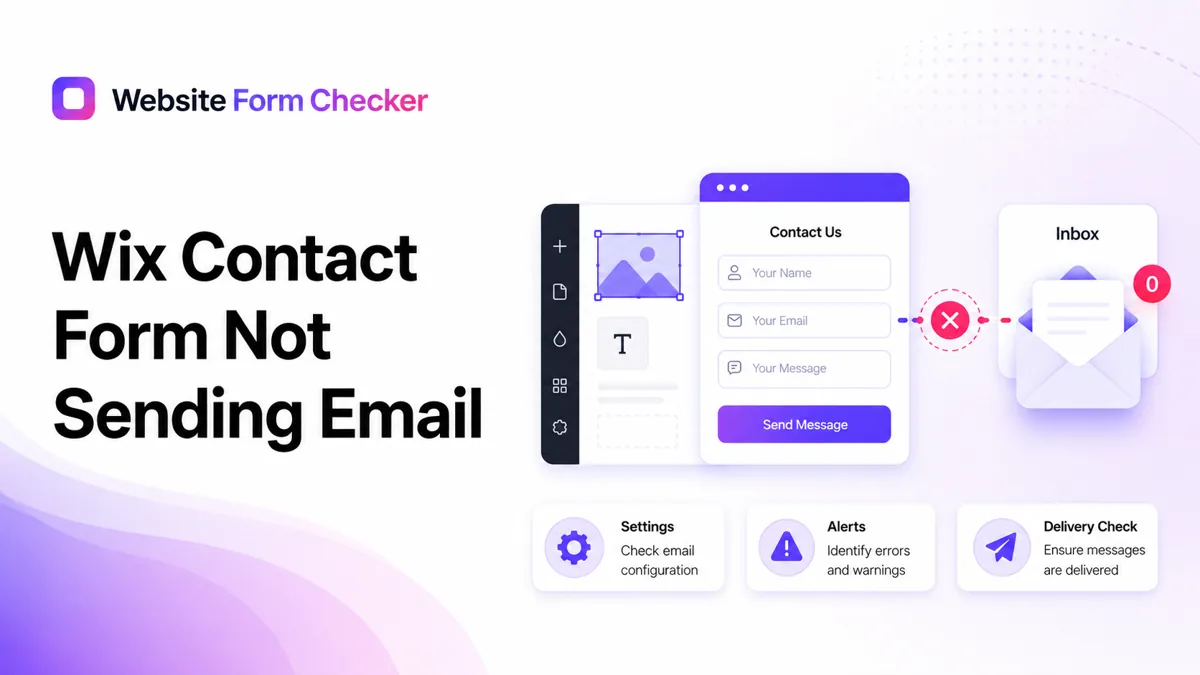
The fix is to separate the problem into two parts. First, prove whether Wix saved the submission. Then check the notification settings, automation, recipients, and inbox routing. That keeps you from changing random settings when the real issue is a muted alert, a wrong recipient, or a spam rule. You can also paste your form URL into our free form checker first to see how the form is structured before you start digging.
Start with the live Wix page, not just the editor
Open the published contact page in a private browser window. Do not rely only on the Wix editor preview, because a preview can make the form look correct while the published page still needs to be tested like a visitor would use it.
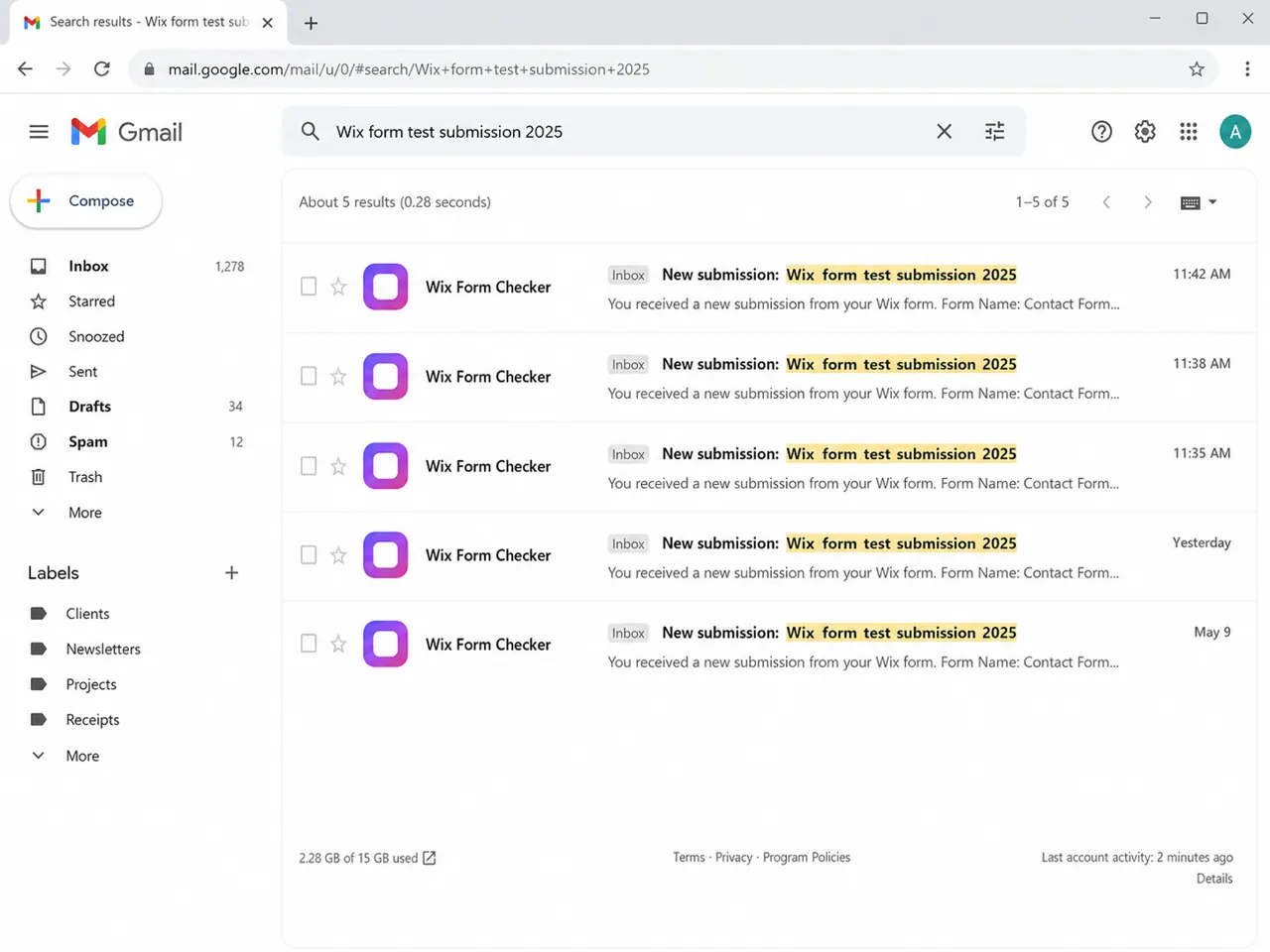
Submit a test with a phrase you can search for later, such as Wix form test submission 2025. Use an email address you can access, and write down the exact time of the submission. Keep the browser open long enough to confirm that the success message appears.
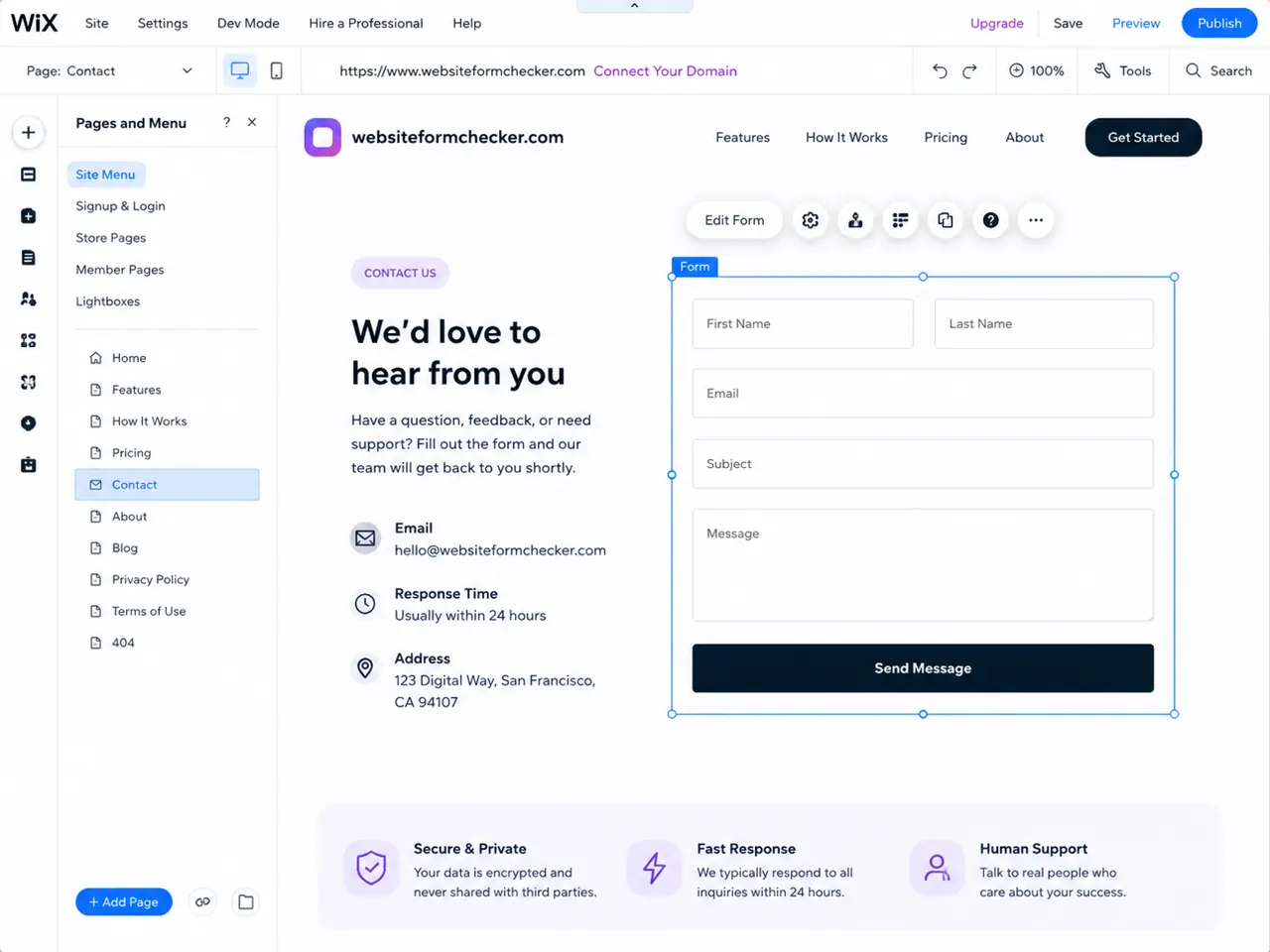
Open the Wix form settings and confirm you are editing the right form
In the Wix editor, open the Contact page and select the form block. Use the form toolbar or settings panel to confirm the form name. This matters when the site has more than one form, because an automation or notification can be connected to the wrong form.
Check the main settings before changing delivery options:
- The selected form is the live
Contact Form, not an older duplicate or hidden section. - The submit button text and success behavior are configured.
- The form is published after every settings change.
- The form is not covered by another element on desktop or mobile.
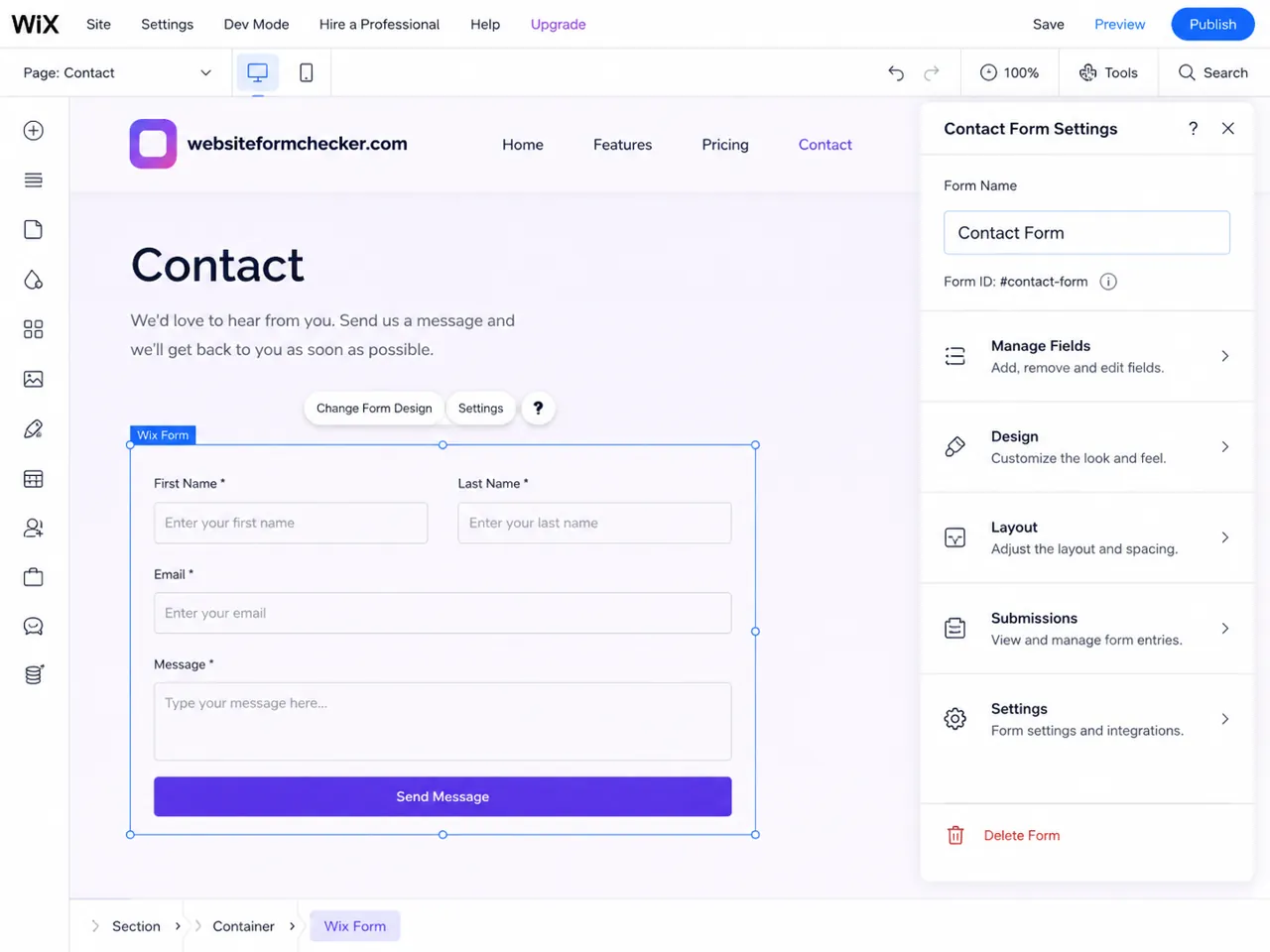
Check the field setup
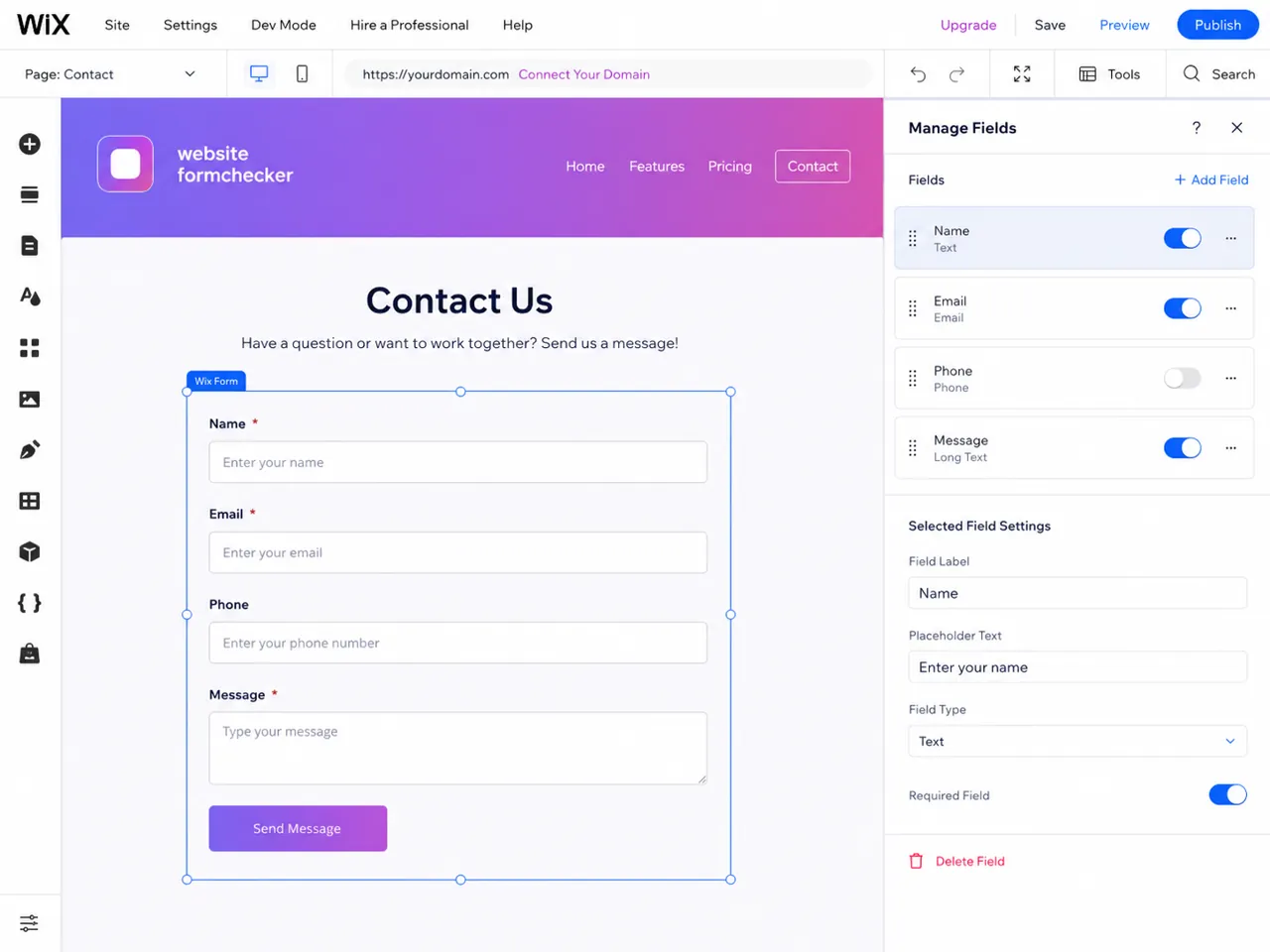
Next, review the fields. Name, Email, Phone, and Message should be using the right field types. The email field should be an email field, not a plain text field with the label "Email." If you want every lead to include a contact address, mark the email field as required.
If the field setup is wrong, Wix may still save the submission, but your notification can be less useful or the reply-to behavior may not work the way you expect.
Check whether Wix saved the submission
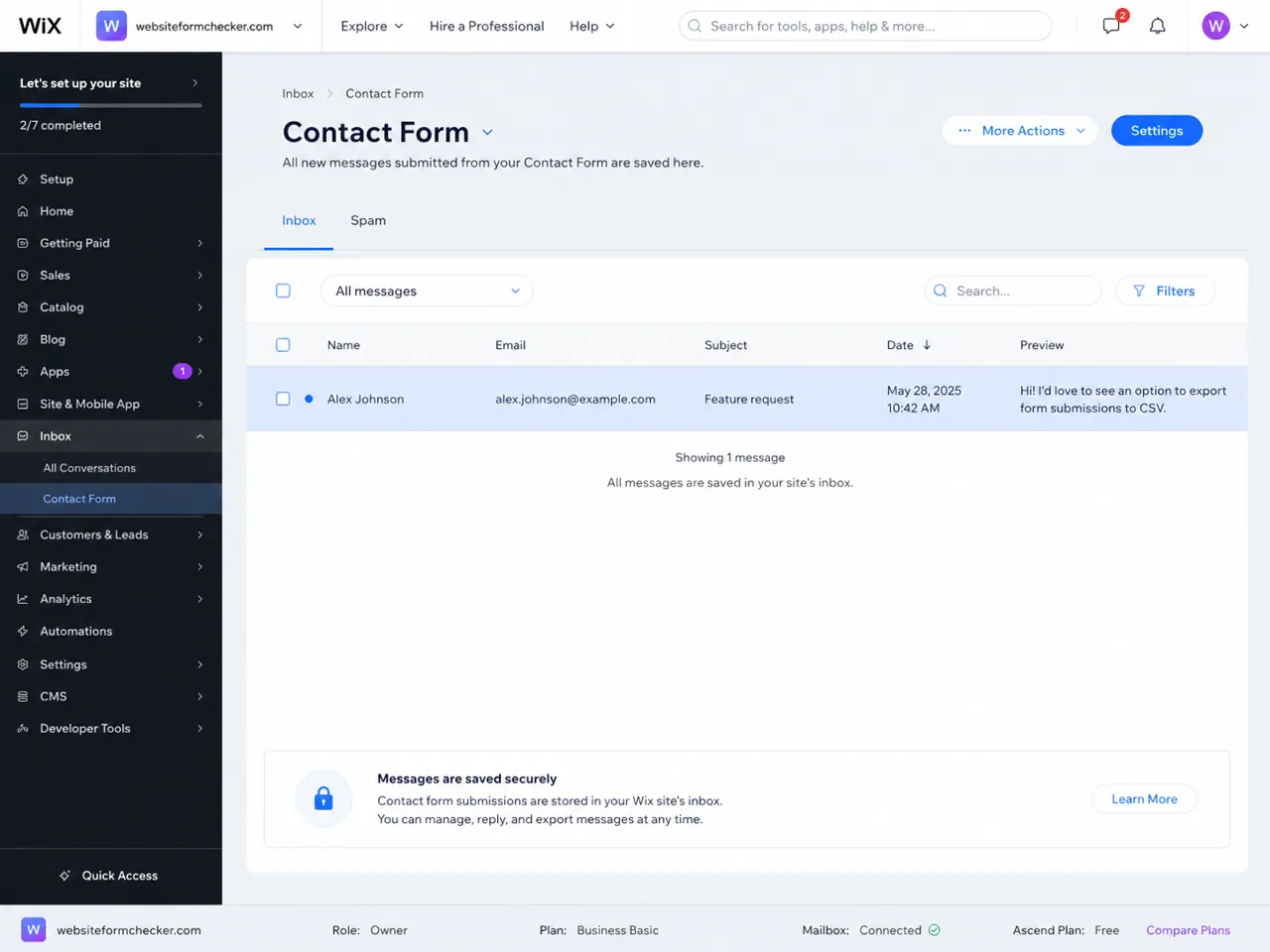
Before chasing email delivery, check whether the test submission exists in Wix. Wix says published form submission data appears in the Forms & Submissions dashboard, and form submissions can also be managed from the site dashboard. If your test is saved there, the form accepted the submission and the problem is probably the alert or inbox delivery path.
If the test is not saved, focus on the form itself: required fields, spam protection, mobile layout, overlapping elements, and whether the latest version of the page was published. Wix also notes that mobile issues can come from overlapping elements, so test the form on both desktop and mobile if visitors report device-specific failures.
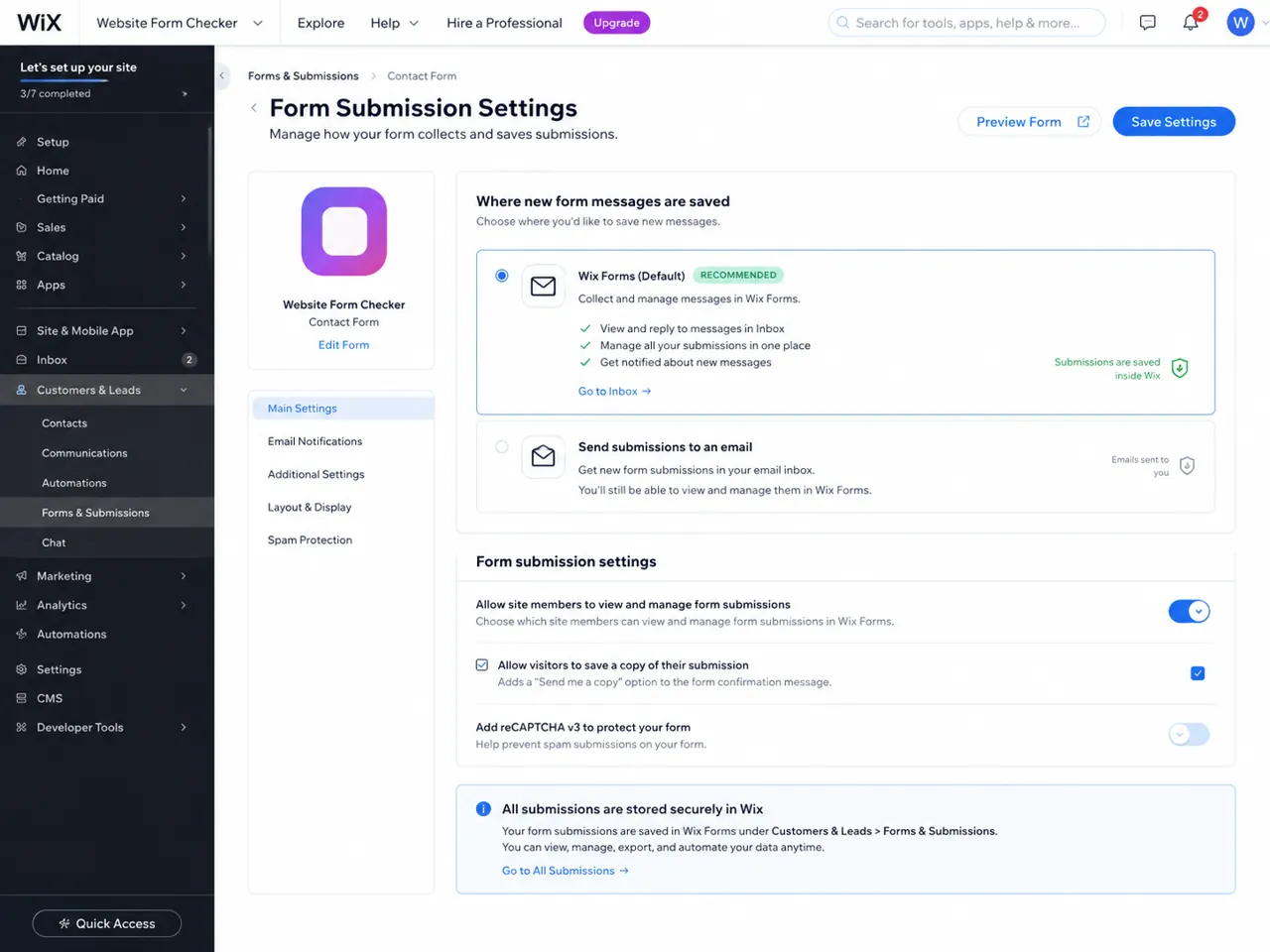
Open the Wix Inbox or the relevant form submissions view and look for the exact test name, email, subject, and timestamp. A saved row proves that the lead exists inside Wix even if nobody received the email alert.
Turn on Wix form email notifications
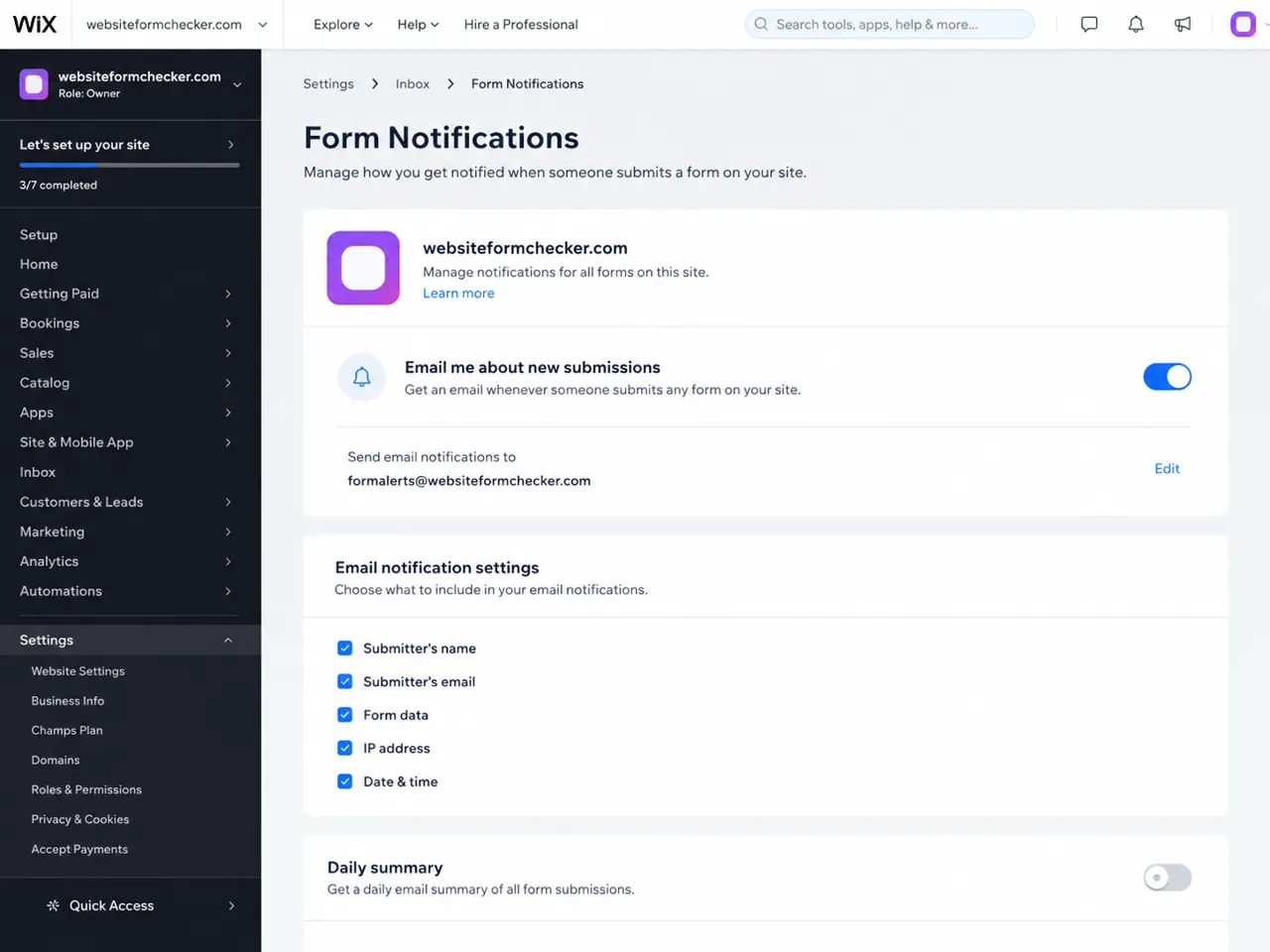
If the submission is saved but no email arrived, open the notification settings for the form. Wix forms can notify the site owner by default, and Wix documentation explains that form submission email notifications are built with Wix Automations. That means the visible form and the notification workflow are connected but not the same thing.
Check these settings carefully:
- Email notifications for new submissions are enabled.
- The notification applies to the correct
Contact Form. - The alert includes the fields your team needs, such as submitter name, email, message, IP address, and date.
- The daily summary option is not being confused with immediate alerts.
Check who receives the alert
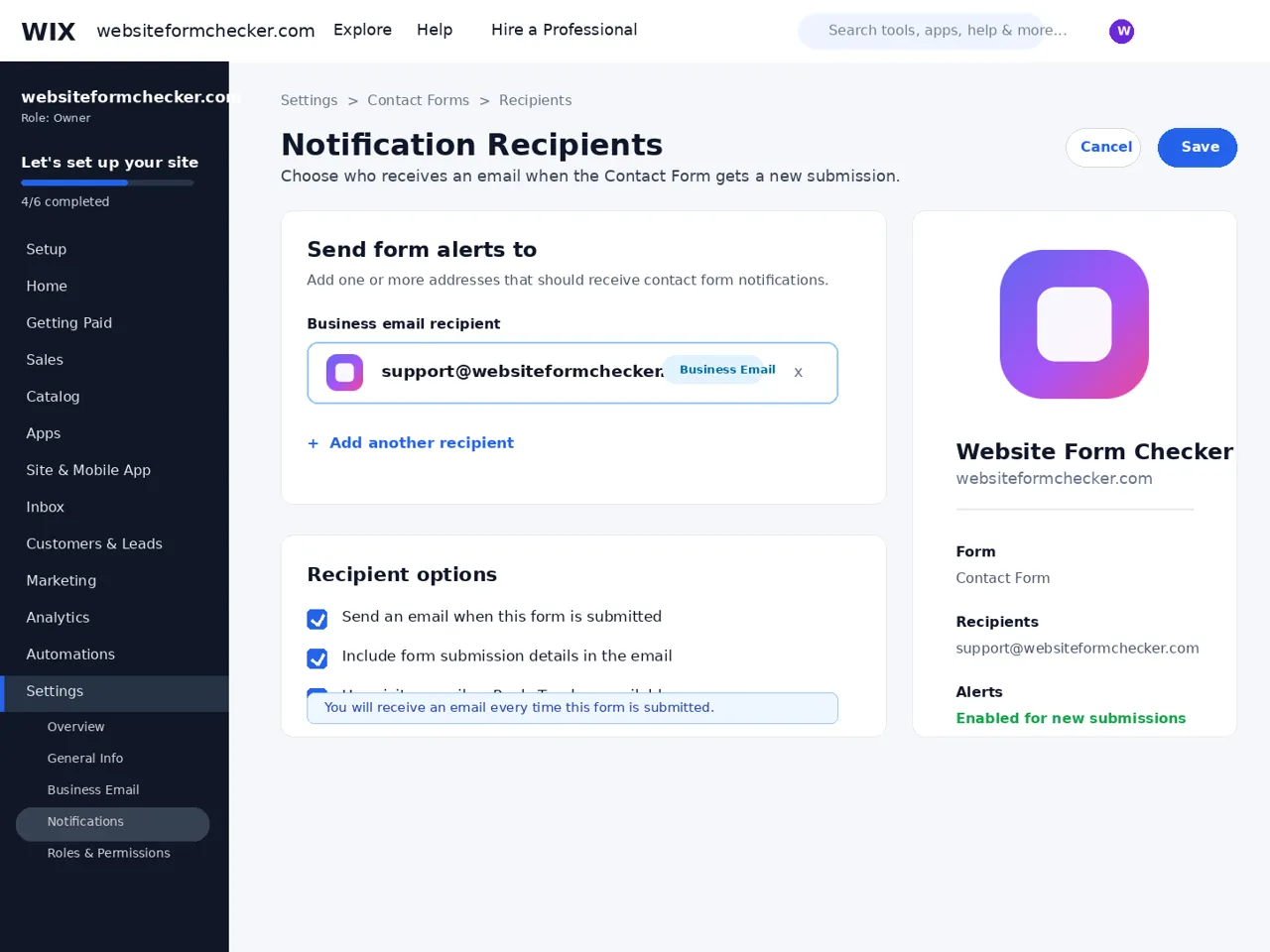
A common cause of Wix form notification problems is a recipient mismatch. The email may still be going to the site owner account, a former employee, a collaborator role, or an external contact that was never added correctly. In the recipient settings, confirm the exact business email that should receive the alert.
For external recipients, Wix documentation says you may need to add people as contacts before sending automated emails to them. If the alert should go to a shared mailbox, use a stable address such as [email protected] instead of a personal address that might change later.
Inspect the Wix automation behind the notification
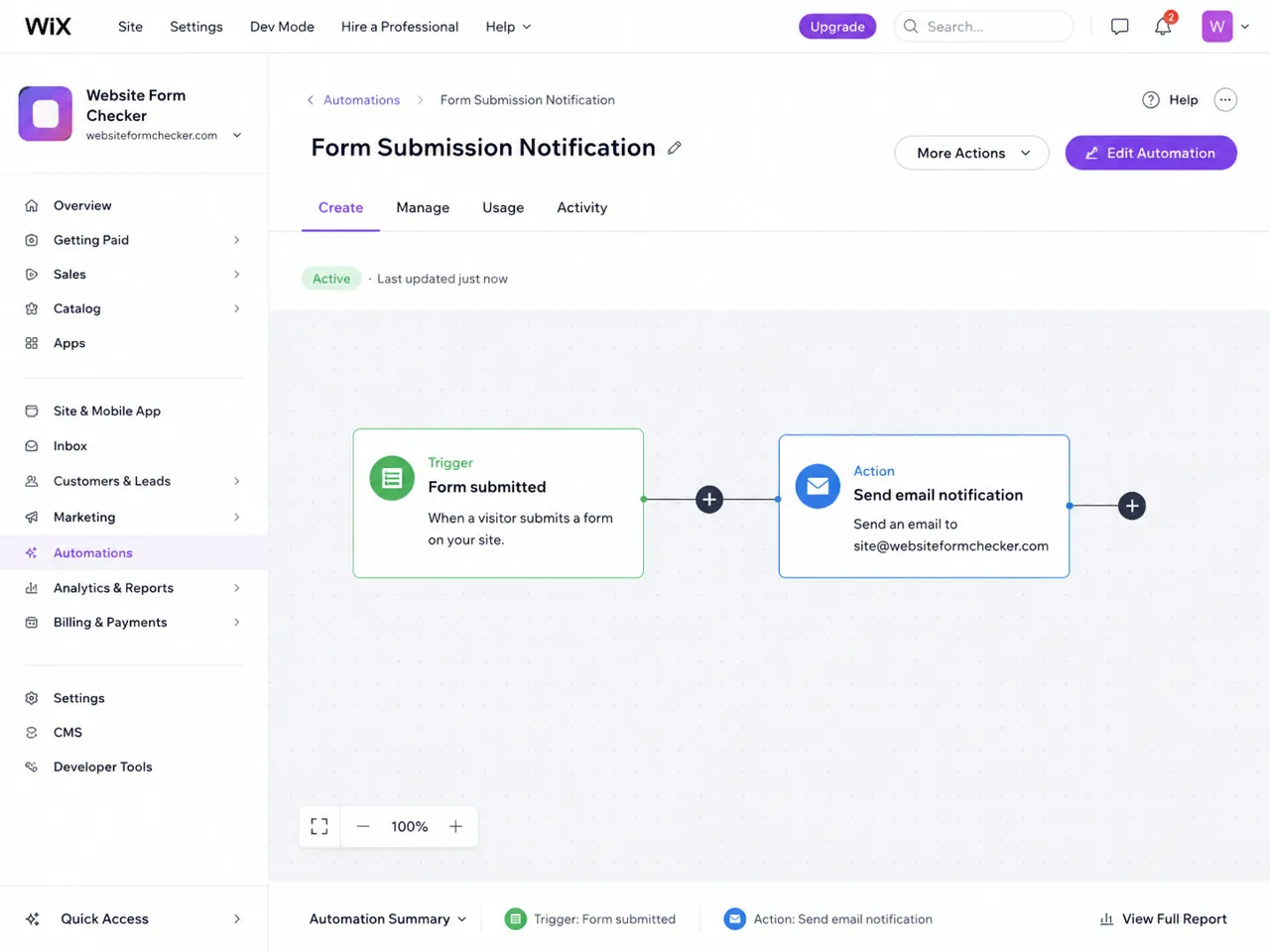
Because Wix form alerts can be powered by Automations, the automation itself needs to be active. Open Wix Automations and find the workflow connected to form submissions. It should have a clear trigger and action:
- Trigger:
Form submitted. - Form: the correct
Contact Formis selected. - Action:
Send email notification. - Recipient: the correct owner, collaborator, or business email is selected.
- Status: the automation is active, not paused or draft.
If the automation was edited recently, make one change at a time, save it, publish if required, and run another live test. Avoid rebuilding the entire form until you know whether the automation is the failed link.
Search the inbox, spam, and filters with the exact test phrase
Once the settings look right, search the receiving inbox for the exact test phrase. Search all mail, not just the inbox. Include spam, junk, archived mail, labels, forwarding destinations, and shared mailbox quarantine if your company uses one.
Wix troubleshooting guidance specifically recommends checking spam or junk for Wix-related sender addresses and whitelisting Wix notification domains if notifications are not arriving. After whitelisting, republish the site and run another live test. This step is easy to skip, but it is often the difference between "Wix is not sending" and "the mailbox is hiding the alert."
Run one final end-to-end test
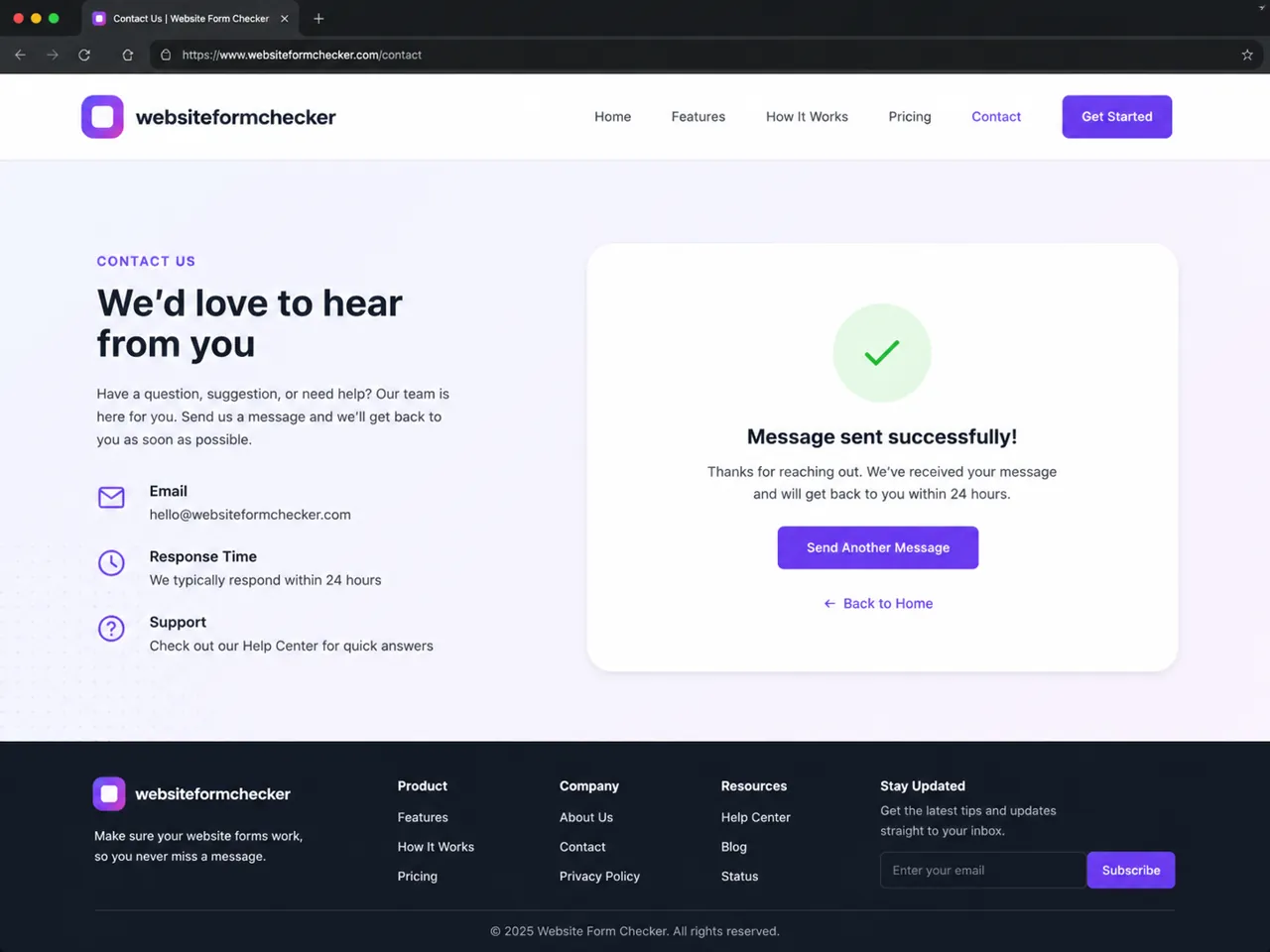
After the form, storage, recipients, automation, and inbox rules have been checked, run one more test from the published page. A proper passing test means all of these are true:
- The live form accepts the submission.
- The visitor sees the success message.
- The submission appears inside Wix.
- The notification email reaches the correct inbox.
- The subject and body include enough information to handle the lead.
- Replying to the notification goes to the visitor or to the expected address.
How to catch the problem before leads go missing again
Once the Wix contact form is fixed, the next problem is knowing when it breaks again. A form can stop sending alerts after an automation edit, a mailbox rule change, a spam filter update, a collaborator change, or a site publish. The front-end form can still look normal while the business silently misses messages.
That is the gap Website Form Checker is built to watch. It sends real test submissions through your form on a schedule and alerts you if they stop arriving, so you catch the issue before more leads disappear.
Monitoring does not replace fixing the Wix settings. It gives you a safety net after the form is working again.
Checklist for fixing Wix form email notifications
- Test the published Wix contact page with a unique phrase.
- Confirm the success message appears after submission.
- Open the form settings and verify you are editing the correct Contact Form.
- Check that Name, Email, Phone, and Message fields use the right field types.
- Confirm the submission is saved in Wix Forms, Wix Inbox, or Forms & Submissions.
- Turn on email notifications for new form submissions.
- Verify the recipient email and remove old team addresses.
- Check the Wix Automation trigger and email notification action.
- Search inbox, spam, archive, filters, and forwarding rules for the exact test phrase.
- Republish after important settings or whitelist changes, then run one final live test.
Test your form right now, free
Paste your contact form URL. We'll open it in a real browser, find the form, detect spam protection, and tell you whether it's structured to actually deliver submissions. Takes about 20 seconds.
Run a free audit →