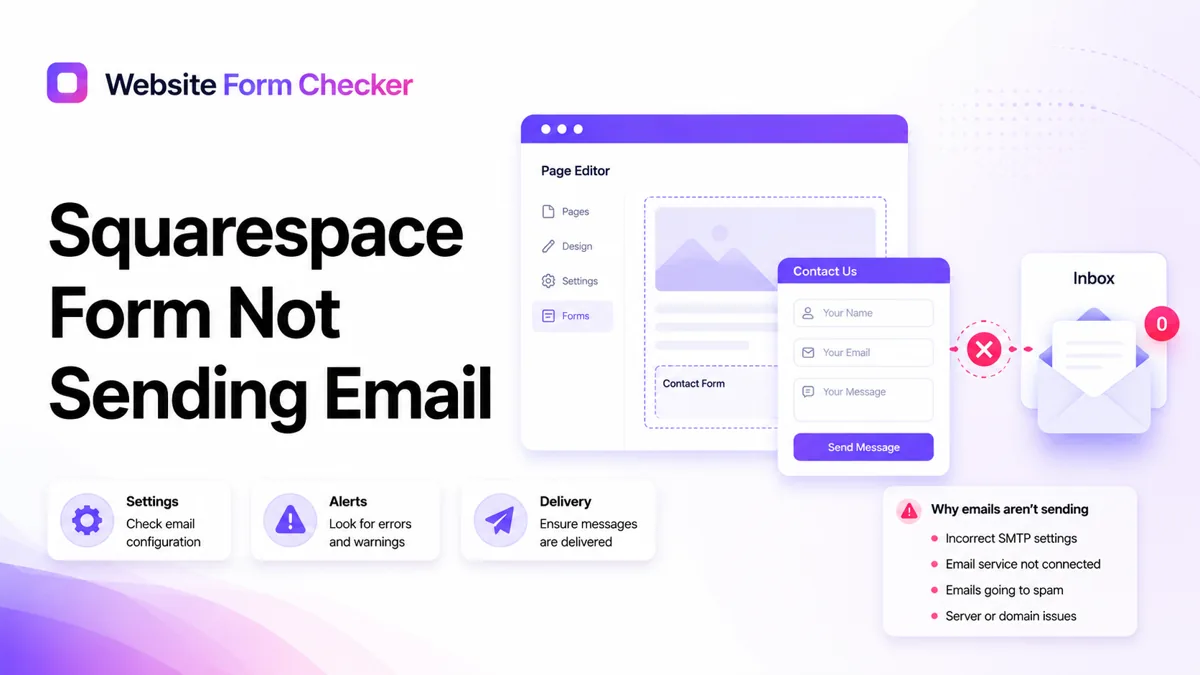
The safest way to fix it is to follow one test submission from the live form to storage, then from storage to the inbox. Do not only test the form design in the editor. You can also paste your form URL into our free form checker first to see how the form is structured before you start digging.
Start with a traceable live test
Open the published contact page in a private browser window. Submit the form as a normal visitor would, not from inside the editor.
Use a phrase you can search for later. For example: Squarespace test submission 2025.
Put that exact phrase in the subject or message field. After you submit, write down the time, the page URL, and the email address you used.
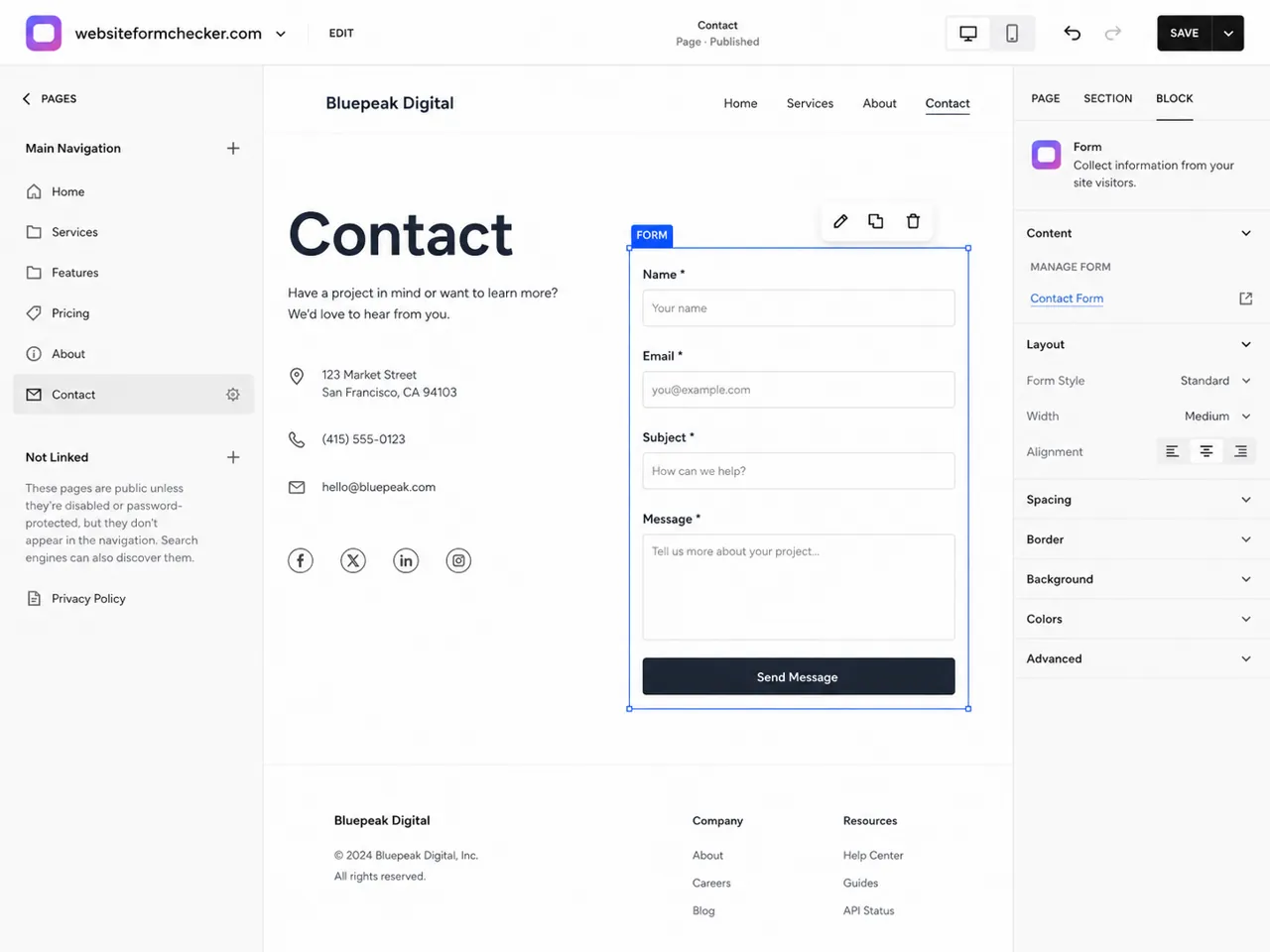
Before changing settings, confirm what the visitor sees:
- The form loads on the public page.
- All required fields can be completed.
- The submit button works.
- A confirmation message appears after submission.
- No browser error or page reload issue appears.
A success message does not prove the notification email arrived. It only proves the form responded on the page.
Open the form block settings, not only the page settings
In Squarespace, the important settings live inside the form block. Open the page editor, select the form block, and open the form settings panel.
Make sure you are editing the same form that appears on the live contact page. This matters on sites with duplicated pages, old hidden forms, or more than one contact page.
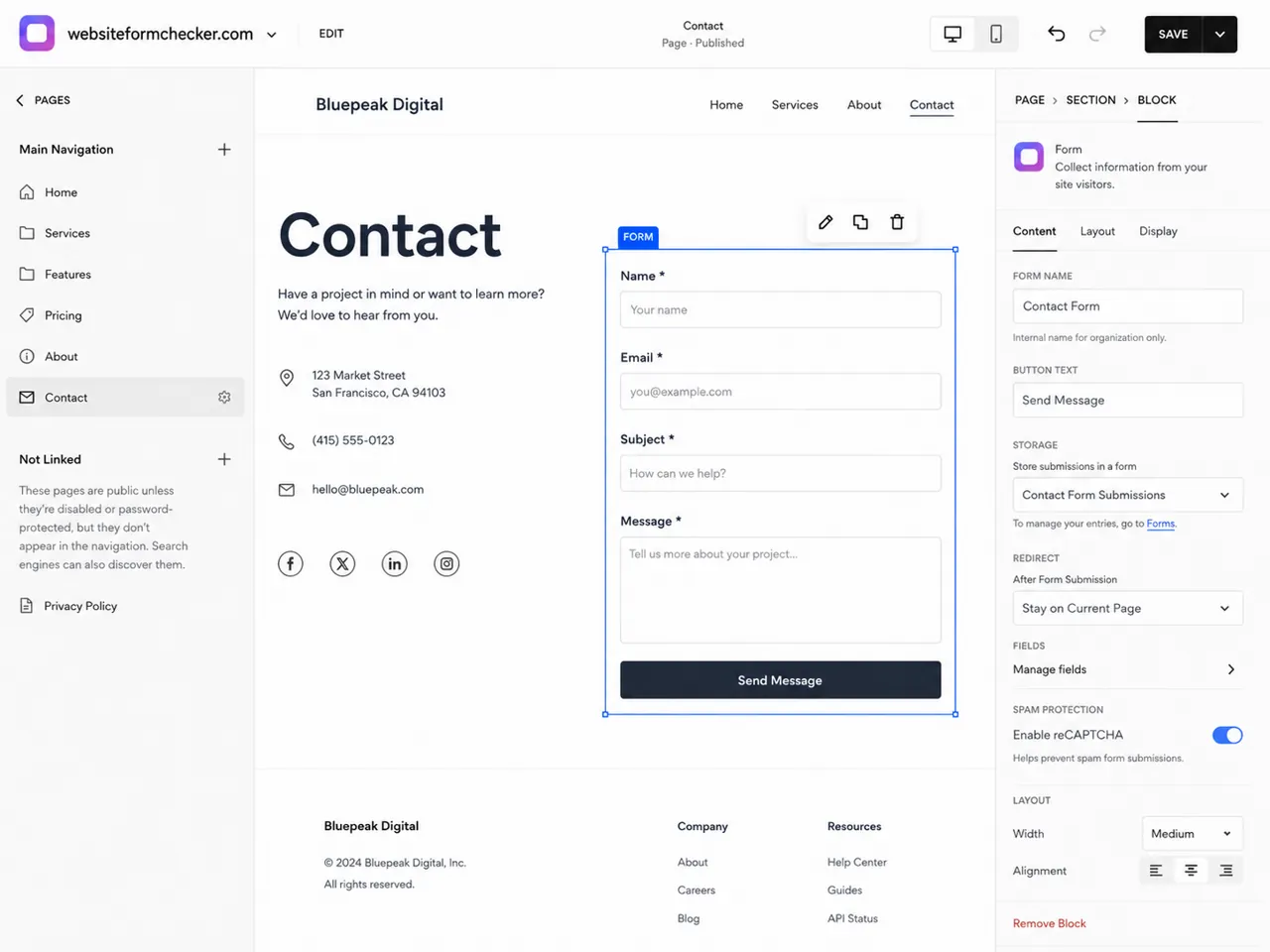
Check the form name and button text while you are there. A clear form name makes it easier to recognize the notification later, especially if the site has several forms.
Use a name like Contact Form, Consultation Request, or Support Form. Avoid vague names like Form 1 if the business receives leads from more than one page.
Check the form fields before blaming email
Now check the fields on the form itself. A broken or missing field can make the submission hard to read even if the email sends correctly.
For a normal contact form, you usually want Name, Email, Subject, and Message. The visitor email field should be an email field, not a plain text field, when Squarespace offers that choice.
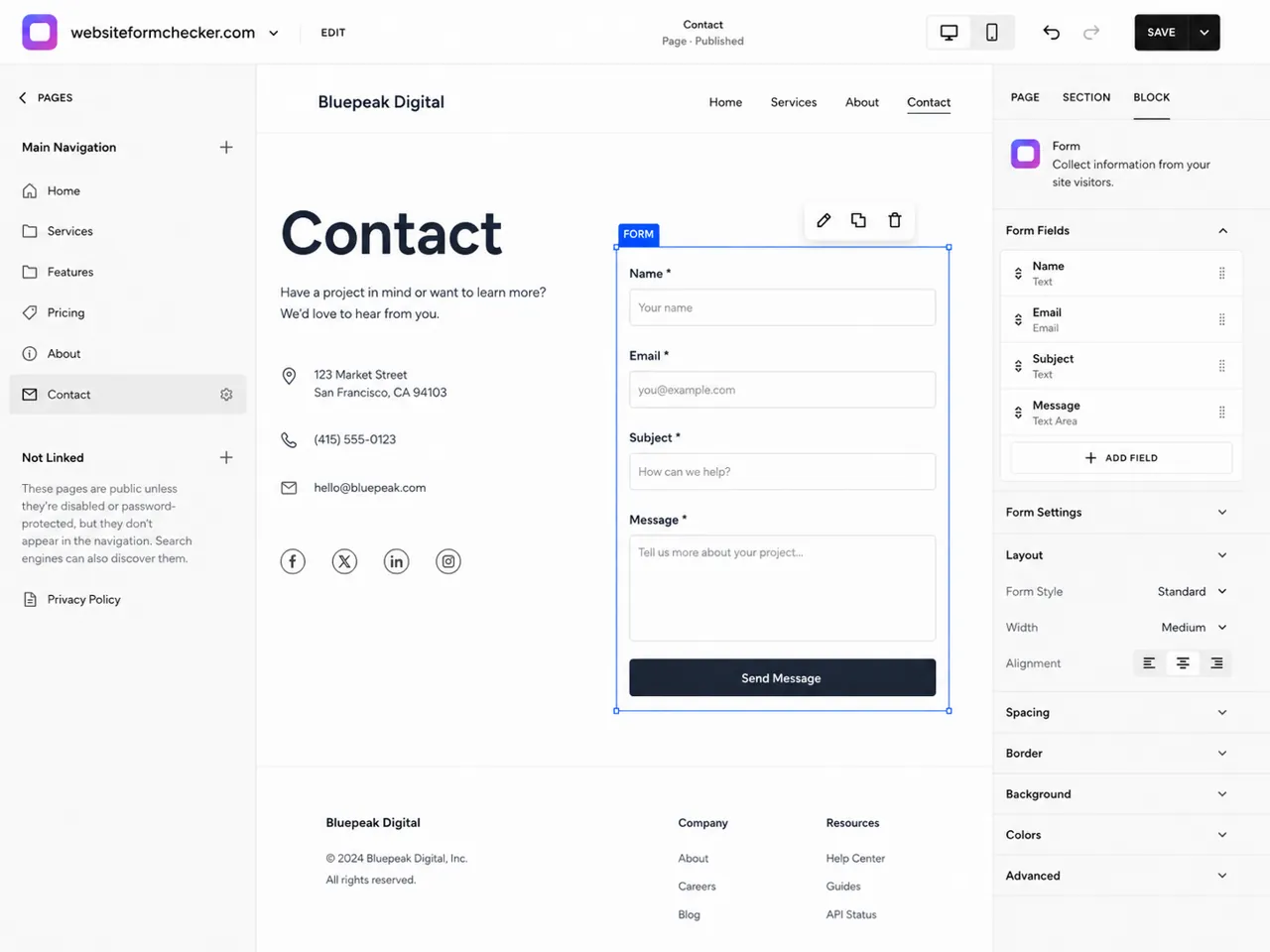
Look for these field problems:
- The email field is missing or optional when it should be required.
- The message field is too vague or not required.
- The form asks for information, but the notification does not include it.
- The form was copied from another page and still has old settings.
- Spam protection or hidden fields are blocking normal visitors.
If the visitor can submit the form but the business cannot understand the message, the form is still not fixed.
Check where Squarespace sends the submission
Next, open the form Storage and Email notification settings. This is the most important place to check when a Squarespace form email is not received.
The form needs somewhere to send or save submissions. If the email destination is missing, old, or mistyped, the form can appear to work while the lead goes nowhere useful.
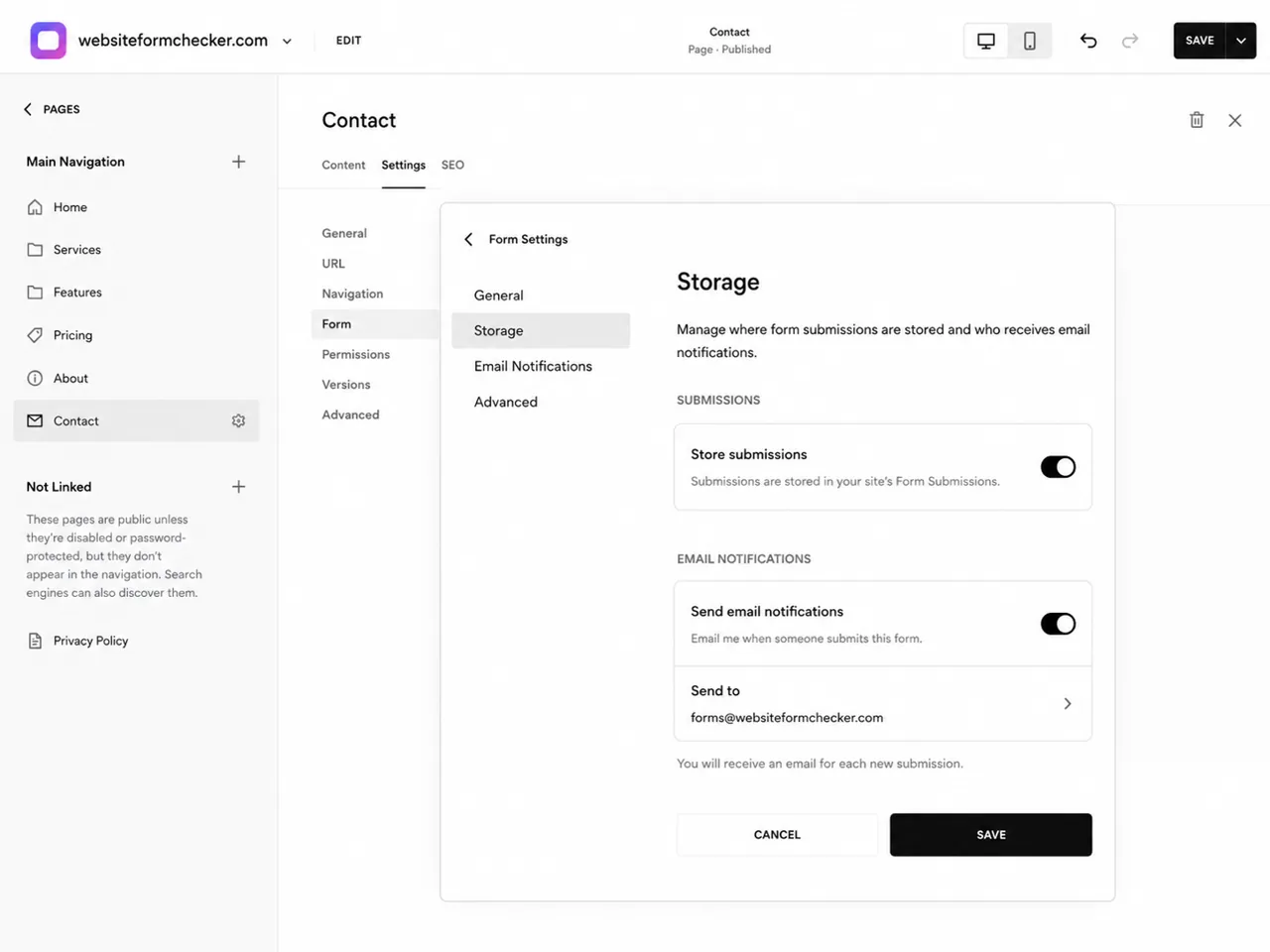
Check these settings carefully:
- Send email notifications: Make sure email notifications are turned on.
- Recipient email: Confirm the exact address that should receive the form.
- Form storage: Confirm submissions are saved somewhere, not only emailed.
- Subject line: Use a subject that makes the form easy to search for.
- Form data: Make sure submitted fields are included in the email.
If the recipient is a personal inbox, a former employee, or a misspelled address, fix that first. Use an address the business actually checks.
Correct the recipient and save the form
Update the recipient email address, then save the form settings and the page. Do not close the editor until the saved state is clear.
A domain-based address such as [email protected], [email protected], or [email protected] is often easier to manage than one person's personal inbox. It also makes future routing and monitoring cleaner.
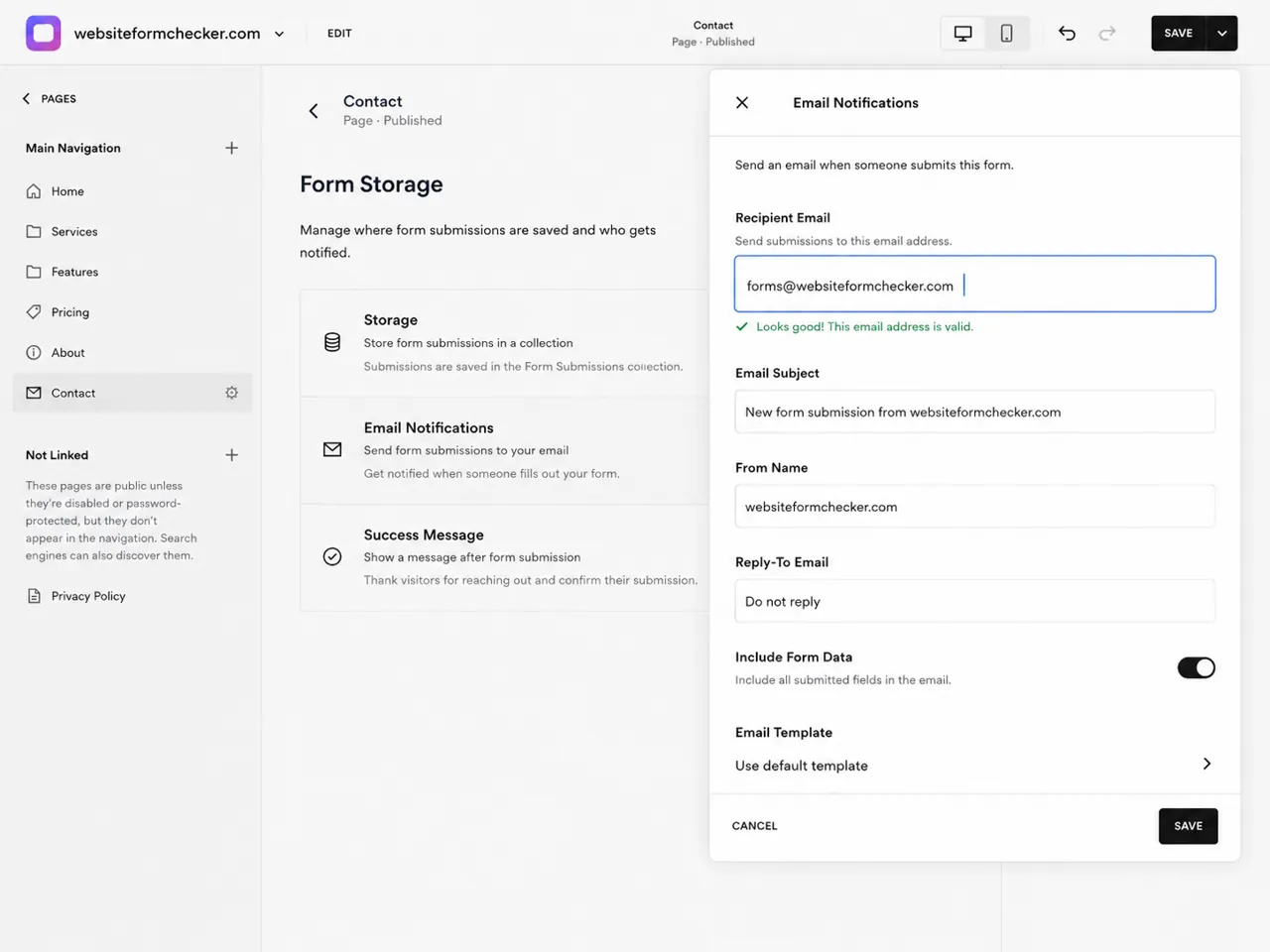
After saving, run another live test with a new phrase. Do not rely on the old submission, because that test used the old settings.
Confirm the form accepted the submission
Submit the form again from the public page. If the success message appears, the front-end form probably accepted the submission.
This does not mean the email was delivered. It only tells you the visitor-facing part did not fail immediately.
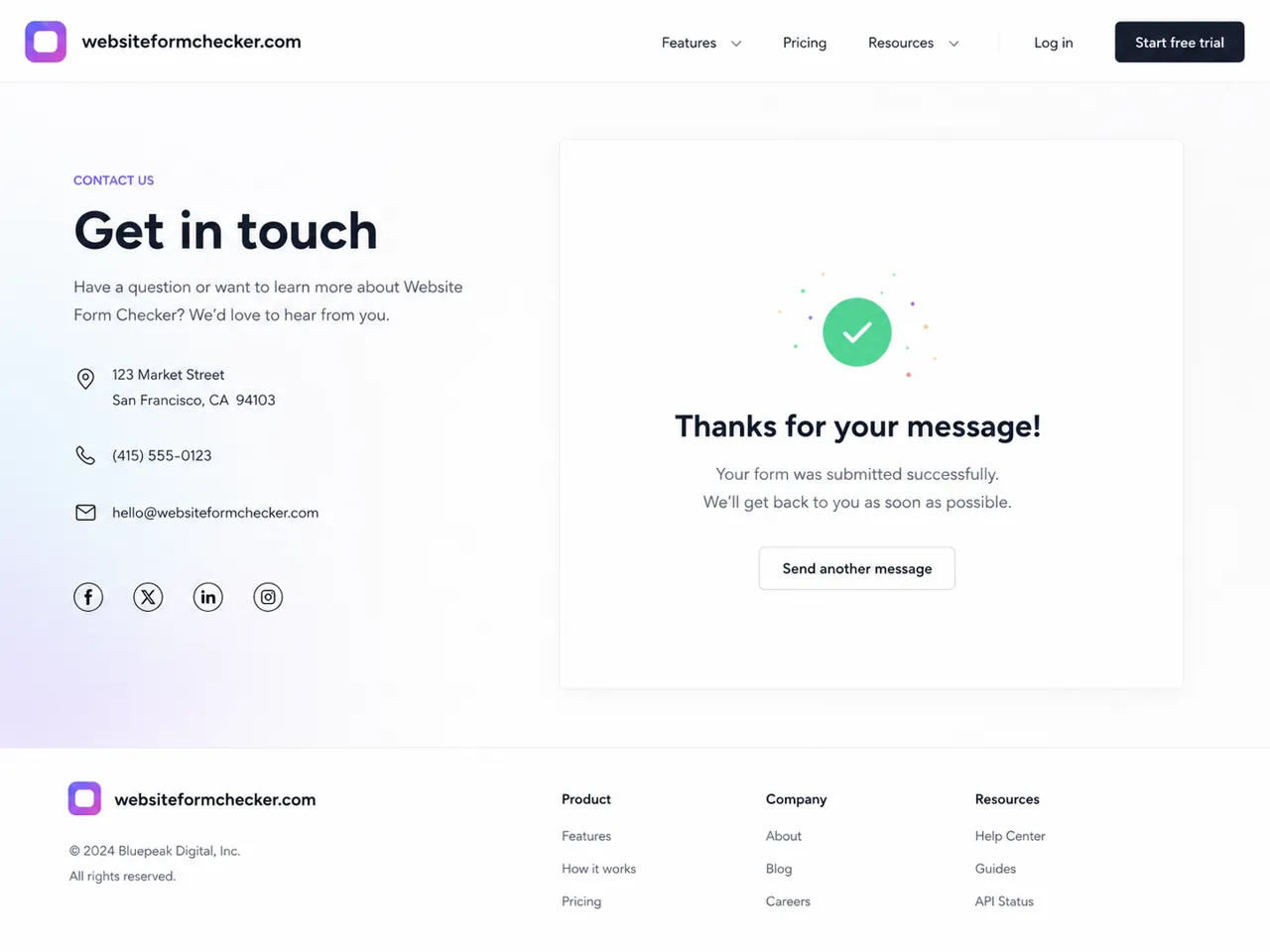
If no success message appears, the problem may be on the page itself. Check whether the form block is broken, the submit button is hidden, custom code is interfering, or spam protection is blocking the submission.
If the success message appears but no email arrives, move to inbox testing.
Search the inbox by the exact test phrase
Open the recipient inbox and search for the exact phrase you used in the test message. Do not only look at the newest emails.
Search the phrase, the form name, the subject line, and the sender address. Squarespace form submission emails may come from a Squarespace sending address, so also search for Squarespace-related senders if your inbox supports it.
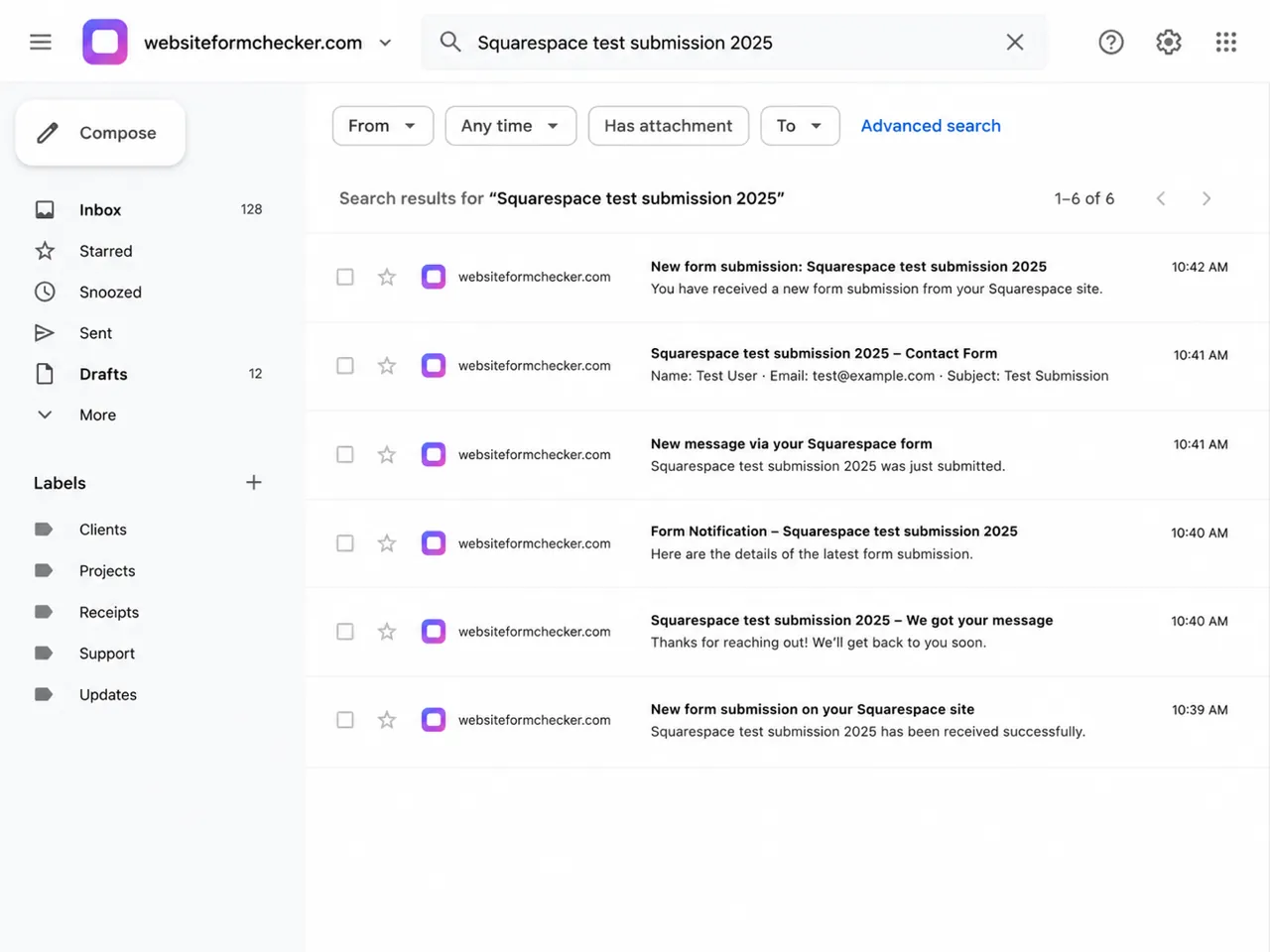
If the message appears in search results, the form is sending. The issue may be that messages are being grouped, labeled, hidden, or sent to an unexpected folder.
Open the email and confirm it contains the data the business needs. A delivered email is not enough if the lead information is missing or unreadable.
Check spam, junk, quarantine, and security filtering
If the inbox search does not find the test, check spam and junk next. Also check any admin quarantine if the business uses Google Workspace, Microsoft 365, or another managed email system.
Search the spam folder for the exact test phrase. Also search for the recipient address, the site name, and the word Squarespace.
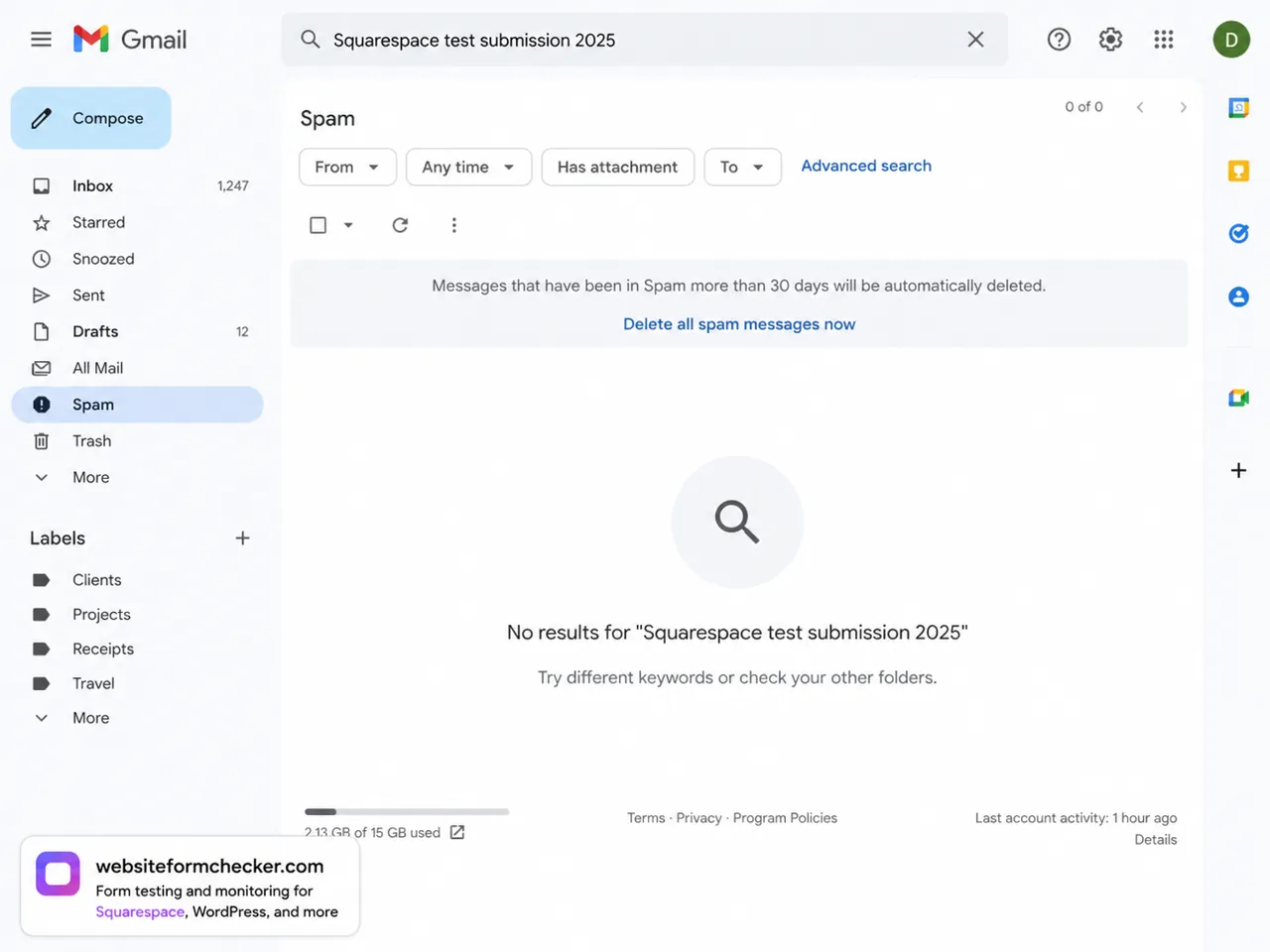
If the form email is in spam, mark it as not spam and add the sender to the safe sender list or allow rule. If the business uses managed email, the fix may need to happen in the admin console, not only in one person's mailbox.
Look for filters and forwarding rules
A form email can be delivered and still never appear in the main inbox. Inbox rules can archive it, label it, forward it, delete it, or move it to a folder automatically.
Check filters, rules, forwarding, aliases, shared inbox routing, and any help desk or CRM connection that receives website leads.
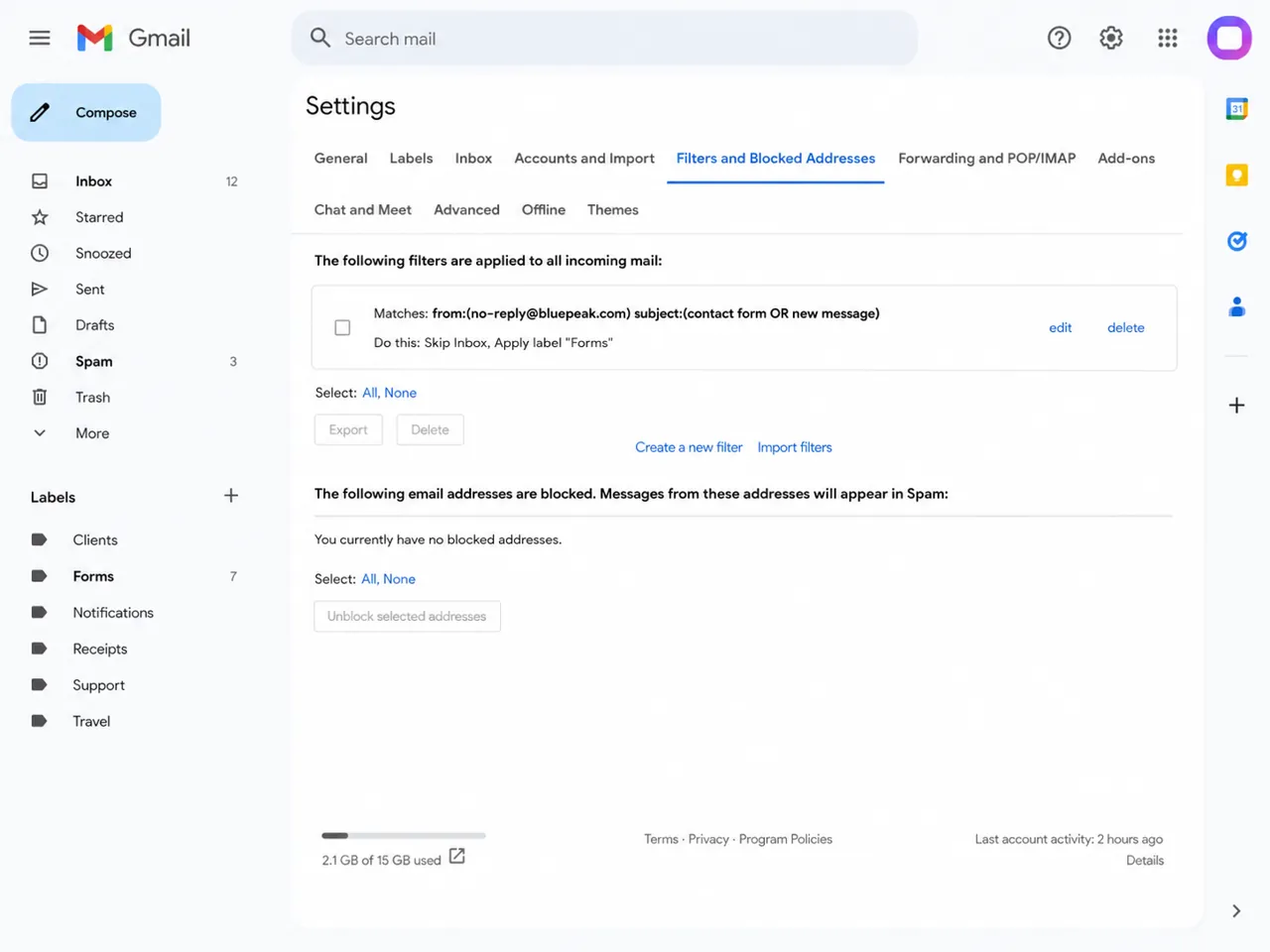
Common routing problems include:
- A rule that skips the inbox for contact form messages.
- A forwarding rule that sends leads to an old address.
- A label that hides form emails from the main inbox view.
- A blocked sender or domain.
- A shared mailbox where only one user can see the message.
- A CRM integration that captures the lead but does not alert anyone.
Remove or update the rule, then run another live test. The final test should land in the inbox where the business expects to see it.
Check the site status and plan limits
If the form still does not send, check whether the site is published, connected to a valid domain, and not still in a setup state where email behavior may be limited.
Also review any connected storage options. If the form was connected to a spreadsheet, mailing list, or third-party automation, make sure that connection still works.
Disconnecting or changing a connected account can break the submission path. A form can still sit on the page while the storage connection behind it no longer works.
Run the final end-to-end test
When you think the issue is fixed, run one final test from start to finish.
- Open the live page in a private browser window.
- Submit a fresh test phrase.
- Confirm the success message appears.
- Confirm the submission is saved or stored if that option is enabled.
- Confirm the notification arrives in the correct inbox.
- Reply to the notification if the workflow requires a reply.
- Confirm the email contains the visitor name, email, subject, and message.
The form is not fixed until the live page, storage, notification, inbox, and reply workflow all pass.
Catch the next failure before leads disappear
Once the form is fixed, the next problem is knowing when it breaks again. Squarespace changes, email provider filtering, inbox rules, storage changes, and spam systems can all change later without changing how the form looks on the page.
That is the gap Website Form Checker is built to watch. It sends real test submissions through your form on a schedule and alerts you if they stop arriving, so you catch the issue before a real customer gets ignored.
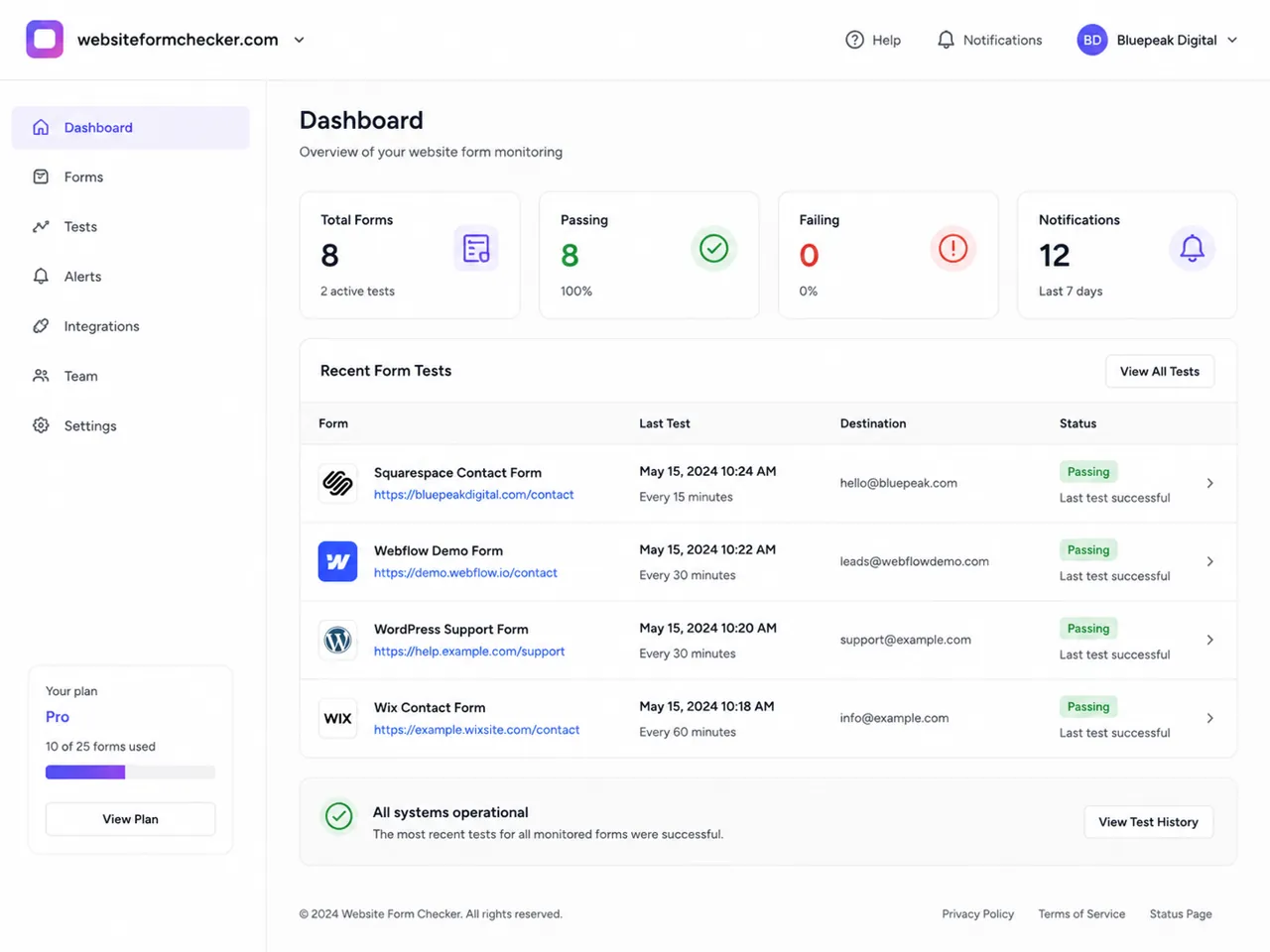
For a Squarespace contact form, this is especially useful because the form can keep showing a normal success message even when the notification path is broken.
Final checklist
- The live Squarespace form was tested from a private browser window.
- The test used a unique phrase that can be searched later.
- The correct form block was selected in the page editor.
- The form fields are complete and readable.
- The email notification destination is correct.
- The form settings were saved after changes.
- The success message appeared after submission.
- Inbox search found the test message, or spam and filters were checked.
- Rules, forwarding, aliases, and shared inbox routing were reviewed.
- A final live test reached the correct inbox with all lead details included.
- Website Form Checker is set up to monitor the form after the fix.
Test your form right now, free
Paste your contact form URL. We'll open it in a real browser, find the form, detect spam protection, and tell you whether it's structured to actually deliver submissions. Takes about 20 seconds.
Run a free audit →