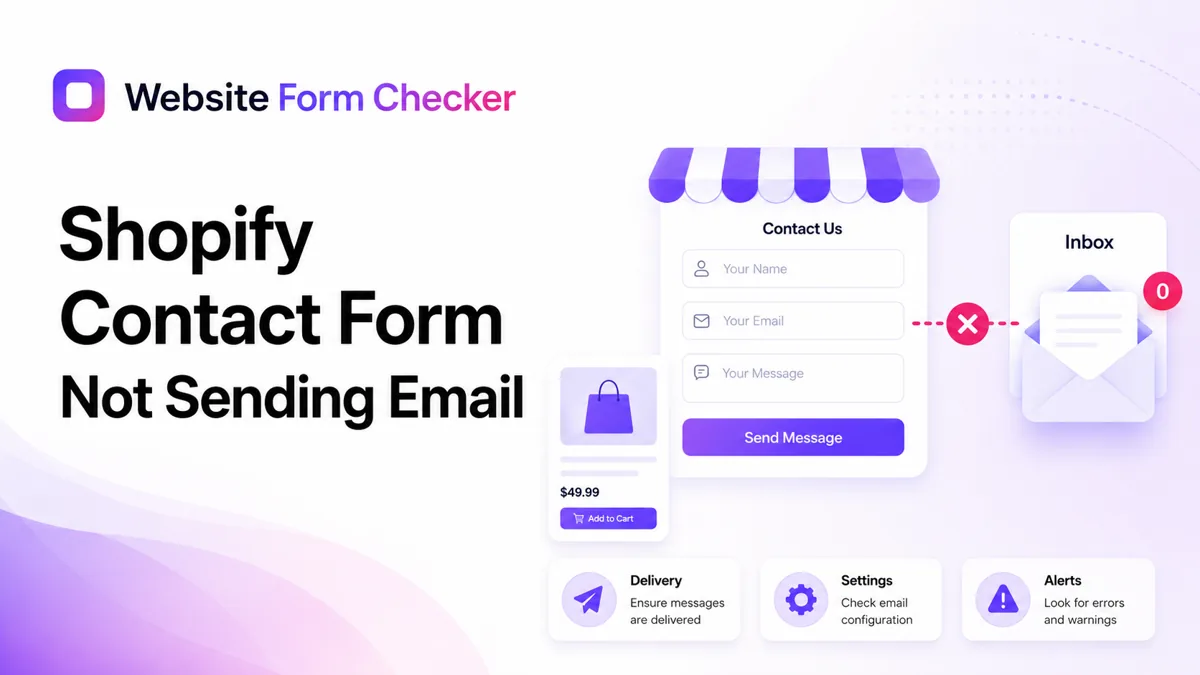
The safest way to troubleshoot this is to follow the submission path in order. Start on the live storefront, confirm the page is using the right Shopify contact form, verify the sender email, then search the inbox for a unique test phrase. That gives you evidence instead of guessing. You can also paste your contact page URL into our free form checker first to see how the form is structured before you start digging.
Start with a storefront test you can search for later
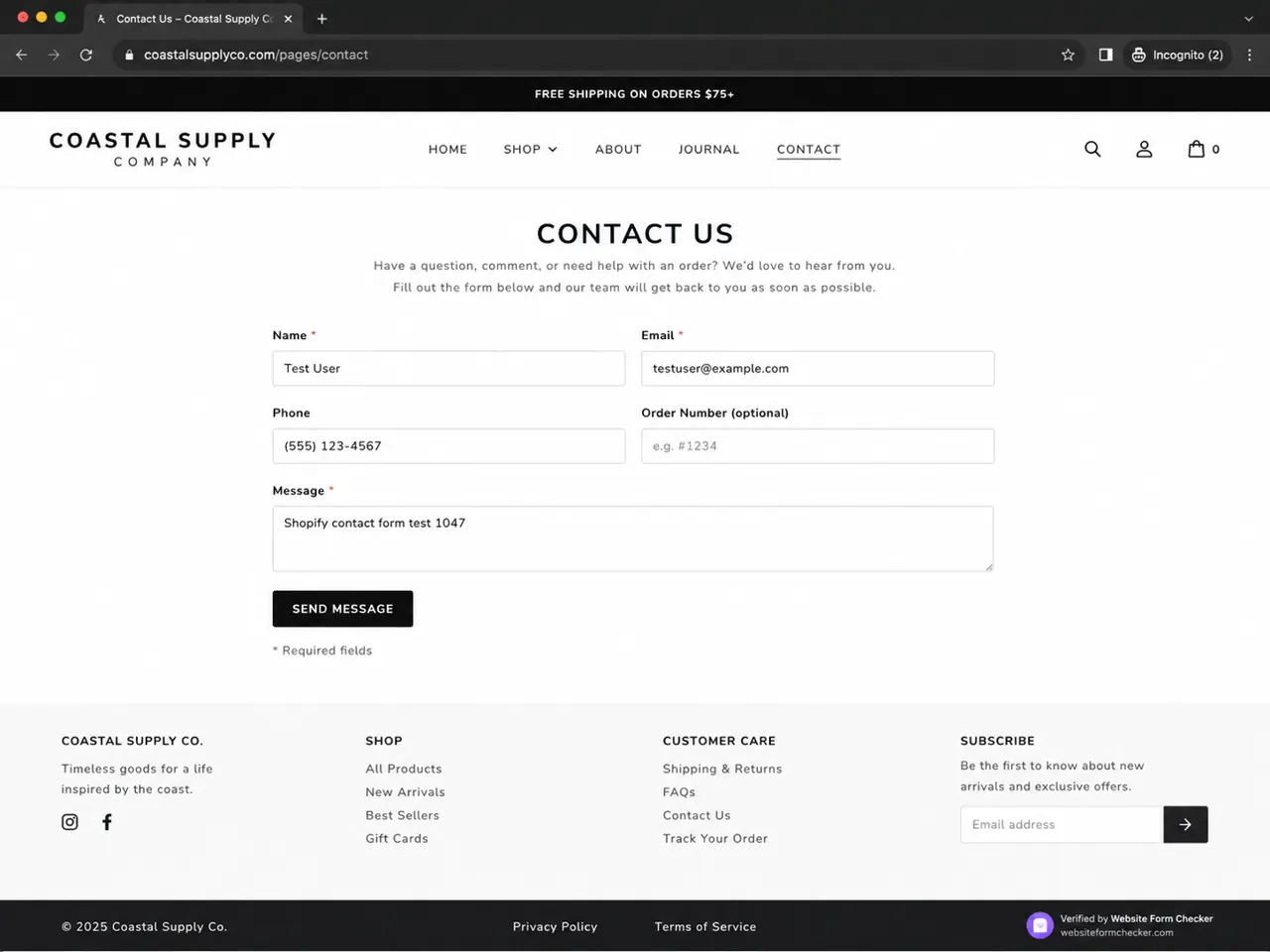
Open the published contact page in a private or incognito browser window. Do not test only inside the Shopify theme editor, because the live page is what customers use.
Submit the form with a phrase that will be easy to search later, for example Shopify contact form test 1047. Use a real email address you can access and include enough information to tell this test apart from older messages. After submitting, write down the exact time of the test.
- If the form does not submit, focus on the page template, theme code, apps, JavaScript, or validation errors.
- If the form submits but no email arrives, focus on the sender email, authentication, spam filtering, and inbox rules.
- If the email arrives with missing fields, check the form field names in the theme code or contact form section.
Make sure the Contact page is using the right Shopify template
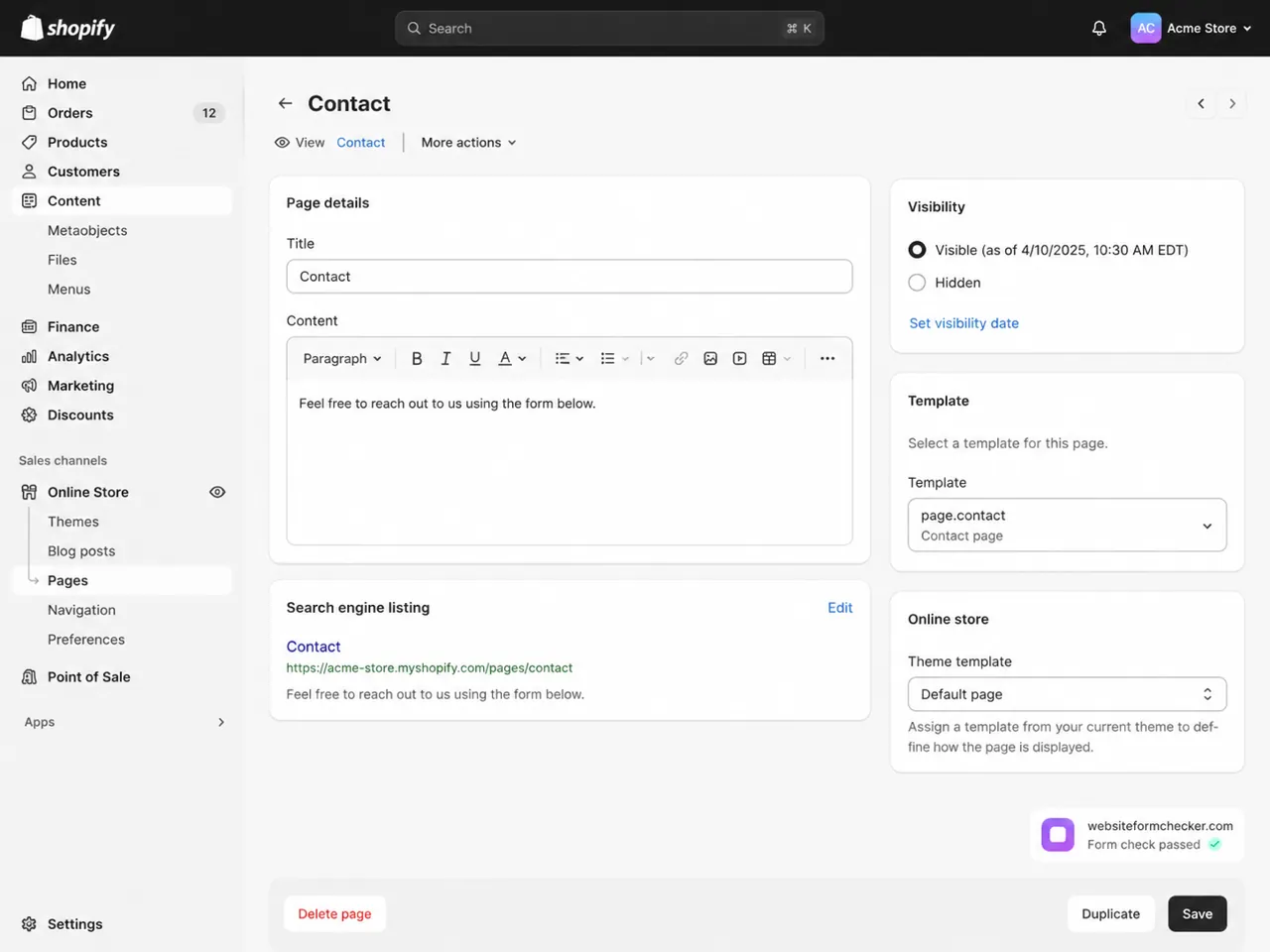
Shopify built-in contact forms are tied to the contact page template or a Contact form section in the theme editor. If a normal page template is assigned by mistake, the page might look like a contact page but not use the built-in contact form behavior.
Go to Shopify admin > Online Store > Pages > Contact. Check the Online store or Theme template setting and make sure the page uses the contact template, often shown as page.contact or Contact page depending on the theme.
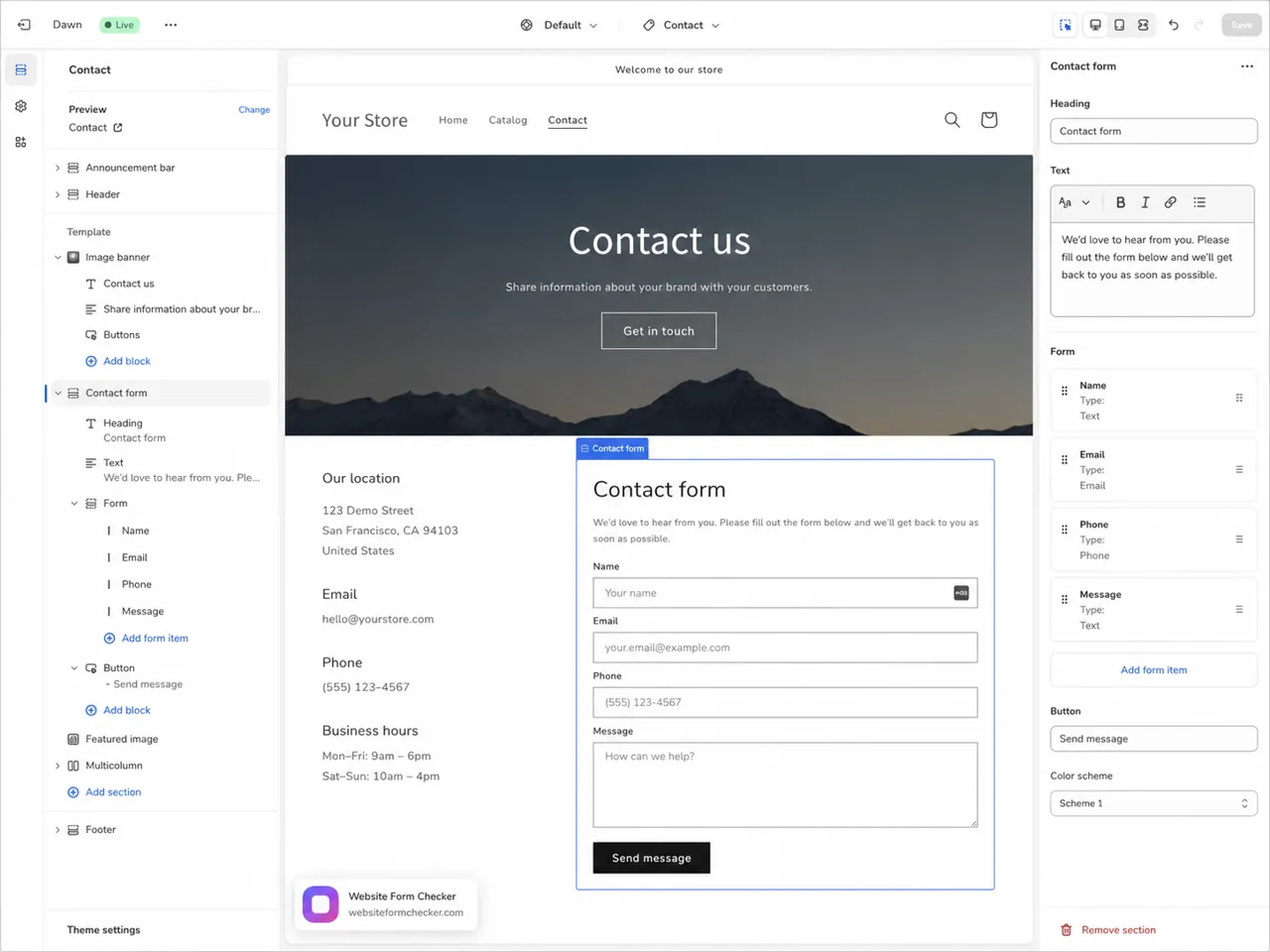
Then open Online Store > Themes > Customize. From the page dropdown, open Pages > Contact. Select the contact form section and confirm the section is present, visible, and not hidden behind another template block.
Check the sender email that receives Shopify contact form messages
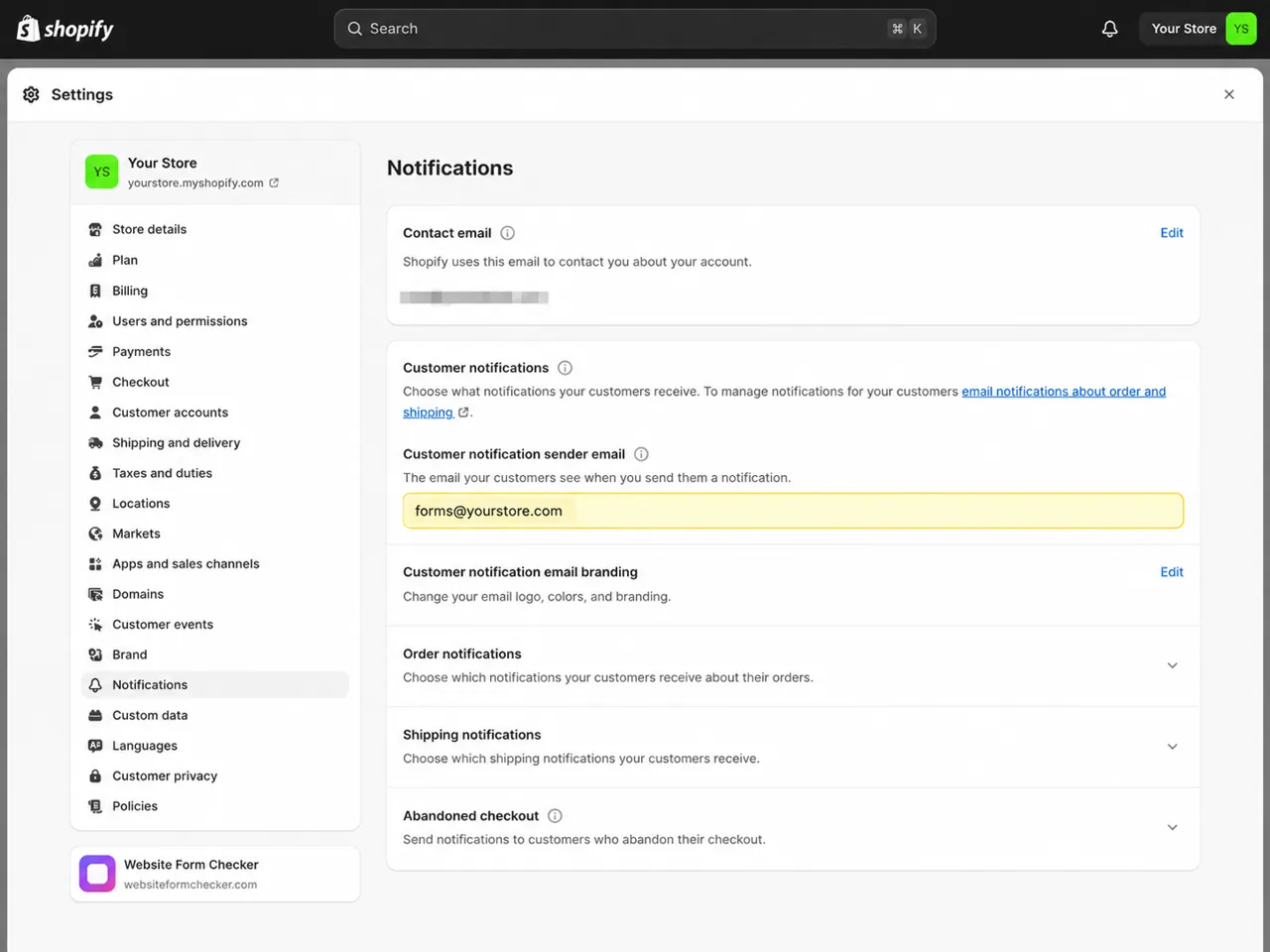
For Shopify built-in contact pages, the message is not sent to a random address from the page. Shopify says contact form submissions are delivered to the store sender email address. That setting lives in the Shopify admin under Settings > Notifications, and it is also connected to how the store sends customer-facing email.
Check these details carefully:
- The sender email is an inbox the business actually monitors.
- The address is typed correctly and still active.
- The mailbox is not full, disabled, or forwarding to a closed account.
- The person checking for the form email has access to that mailbox, not just the store owner account.
- The domain behind the email address is still connected and properly authenticated.
Authenticate the sender email before blaming the form
If the sender email uses a third-party domain, authentication matters. A form notification can be generated but still filtered or treated as suspicious if the sender domain is not set up correctly.
In Shopify, review the Sender email verification or authentication status. If the status is pending, failed, or recently changed, fix that before running more tests. You may need to confirm ownership of the email address or add the required DNS records for the domain.
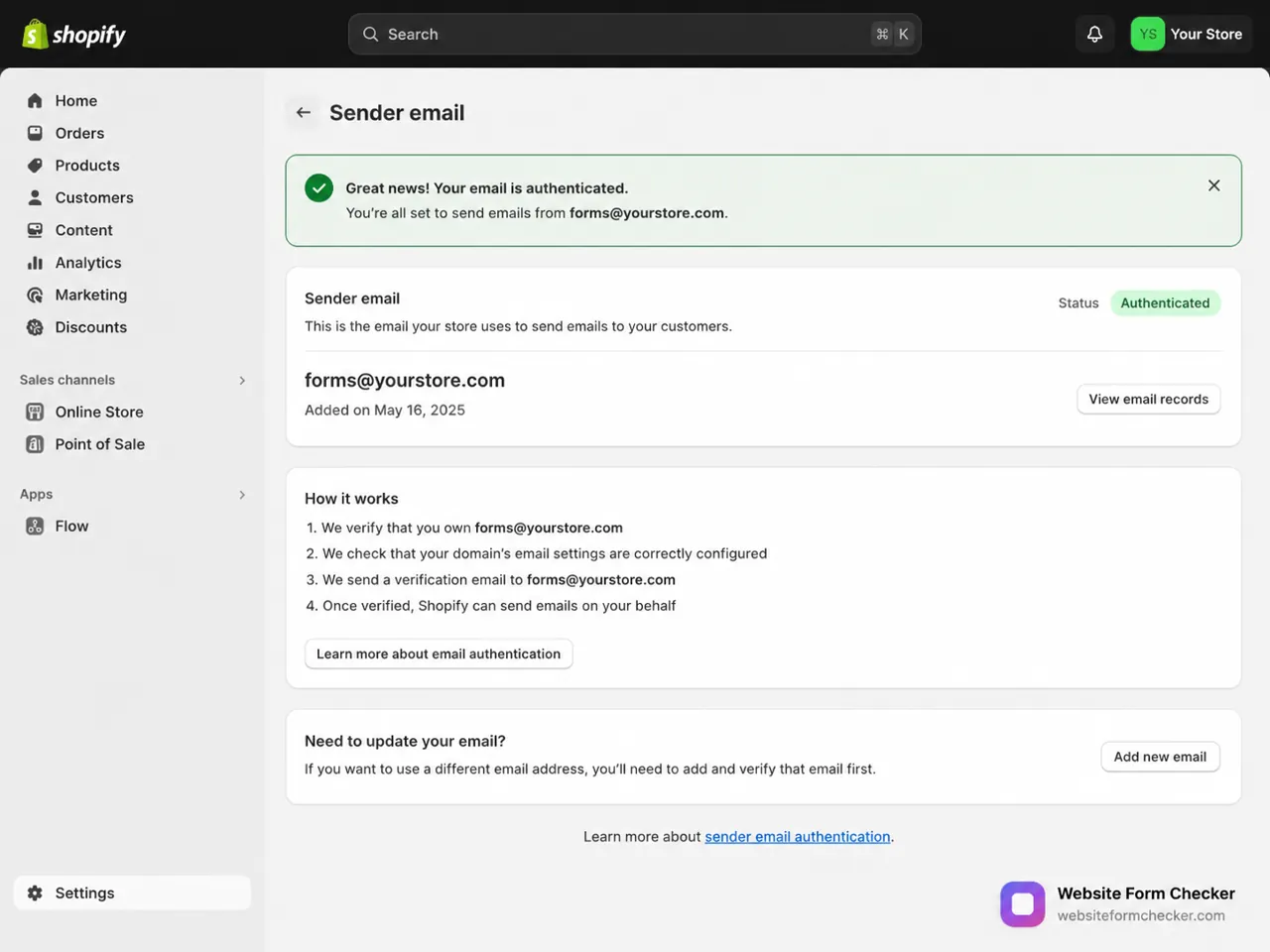
This is also a good time to check SPF, DKIM, and DMARC with the domain provider. You do not need to become a DNS expert. You only need to confirm that Shopify is allowed to send mail for the sender domain and that the domain is not failing authentication checks.
Inspect the theme code if the form is custom or heavily edited
Many Shopify stores use a customized theme. A developer, app, or theme update can change the contact form markup. If the contact form has been edited, check the code before assuming Shopify email is broken.
In Online Store > Themes > Edit code, look for the contact template or contact form section. The form should use the Shopify contact form tag and the email field should use the correct contact email name. A broken field name can cause missing customer email data or reply-to issues.
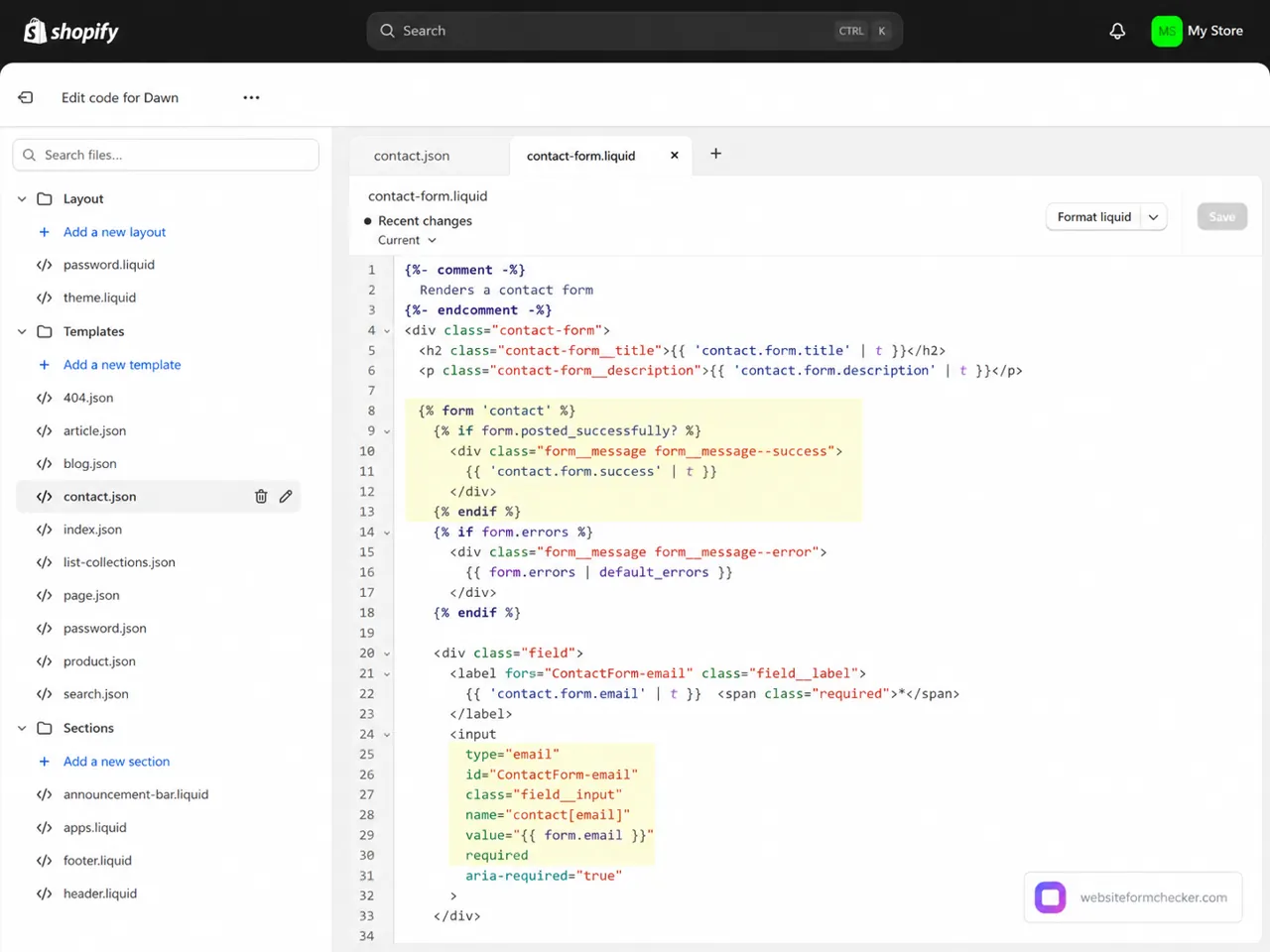
Be especially careful if the form was replaced with a third-party app, custom AJAX script, or embedded form. In that case, the notification settings may not be controlled by Shopify built-in contact form settings at all.
Use the browser to confirm Shopify accepted the submission
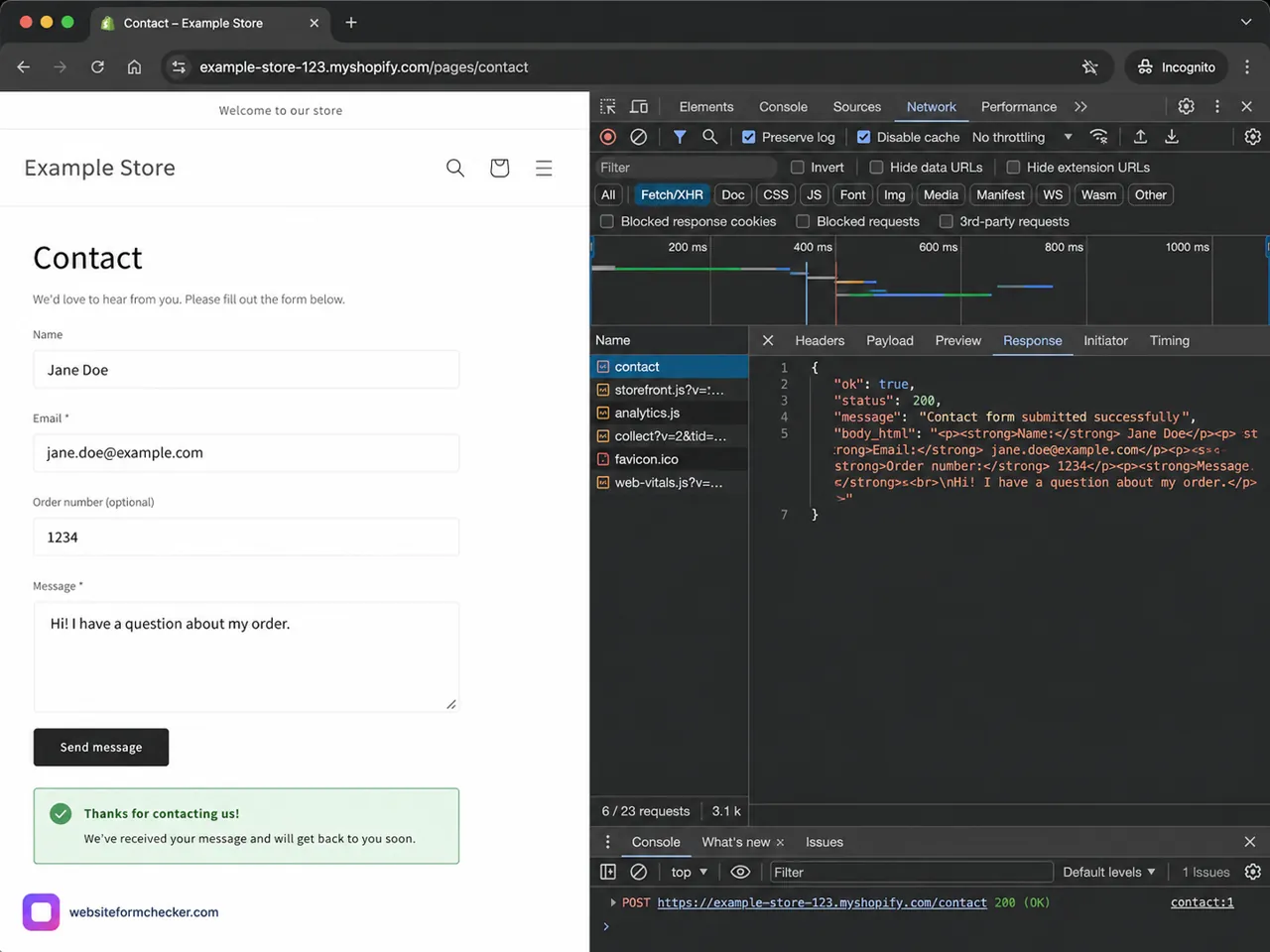
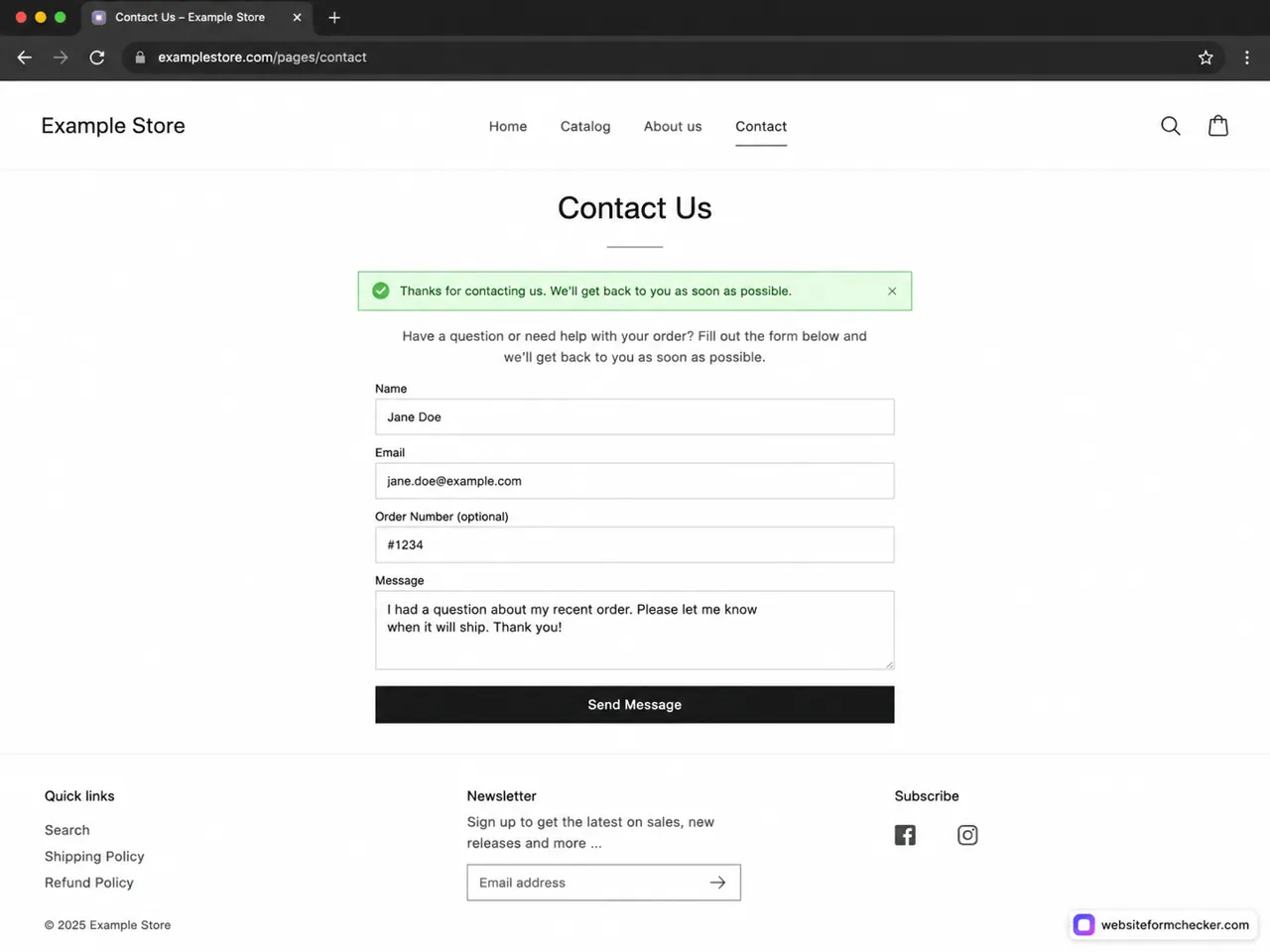
A success message is useful, but it is not the whole test. If you are comfortable using browser developer tools, open the Network tab before submitting the form. Submit the same traceable phrase again and look for the contact form request.
A successful request shows that the page accepted the submission. If the request fails, returns an error, or never appears, the issue is likely in the theme, JavaScript, app conflicts, spam protection, or validation rather than the inbox.
Search the inbox the right way
Now search the exact phrase from the test submission in the sender email inbox. Search all mail, not only the primary inbox. Include spam, junk, promotions, quarantine, archived mail, and forwarded mailboxes.
- Search for the exact test phrase, such as
Shopify contact form test 1047. - Search by the test email address you used in the form.
- Search around the exact timestamp of the submission.
- Check filters that archive, forward, label, delete, or mark messages as read.
- Look for subjects with a spam label or
[SPAM]prefix if the message content was flagged.
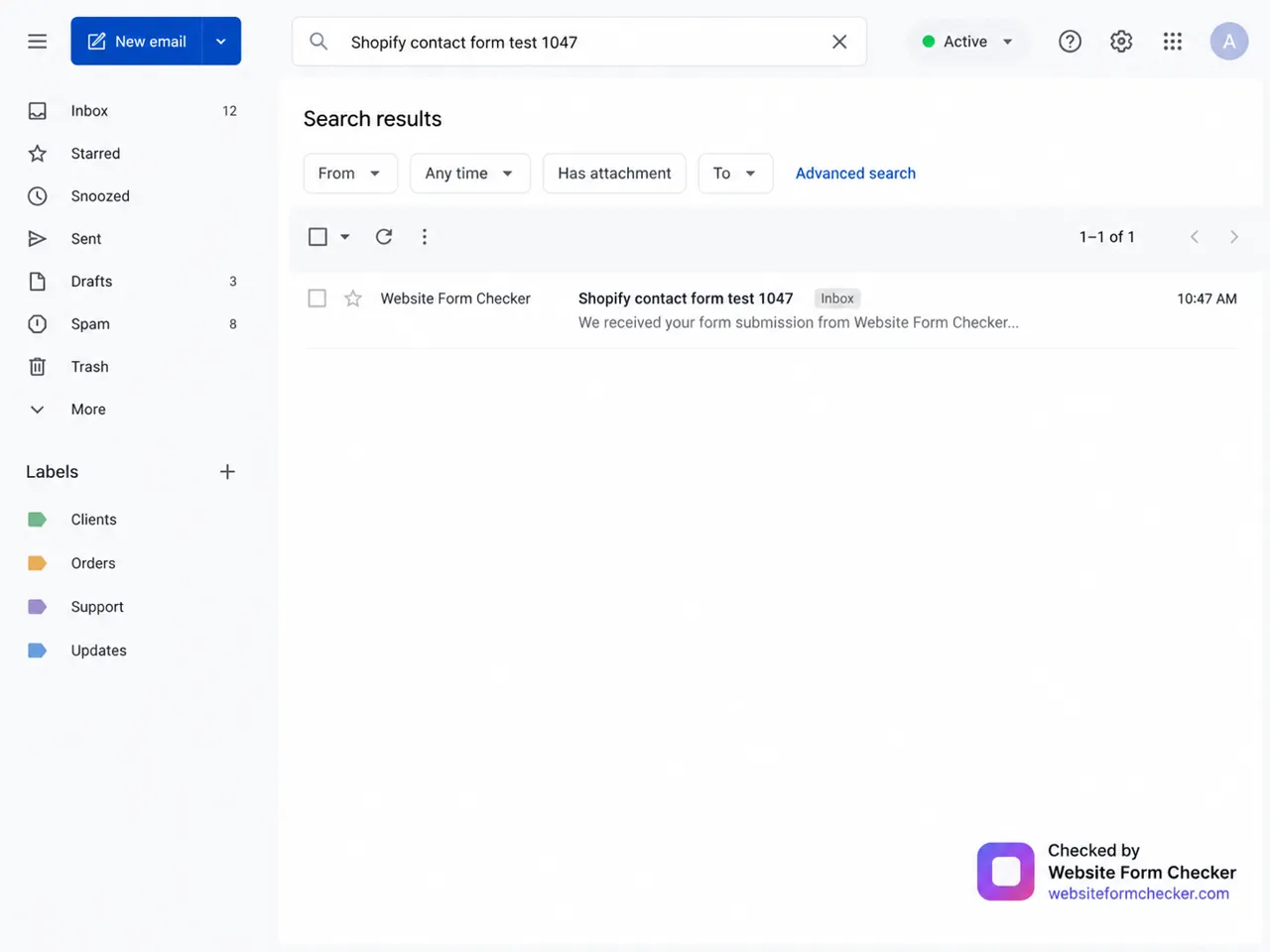
If the email appears in spam or an archive, the form is probably working. The problem is inbox routing or deliverability. If the email is nowhere to be found, go back through sender email authentication, theme code, and any third-party form apps.
Watch for Shopify Forms app confusion
Some stores use the Shopify Forms app instead of the theme contact form. The troubleshooting path is different. Shopify Forms can have its own submission list and notification settings. If the form was created in Apps > Forms, check that form directly and make sure email notifications are enabled for the specific form.
If the store uses Shopify Flow to send internal emails after a form submission, check the workflow trigger, recipient, and run history. A disabled workflow can make the form look broken even when submissions are still being captured.
Run a final end-to-end test
After making changes, test once from the live storefront again. Do not rely on the admin preview.
- The contact page loads on the public store.
- The right contact template or form section is active.
- The form accepts the message and shows a success confirmation.
- The exact test phrase appears in the correct business inbox.
- The reply-to address lets the business respond to the customer.
- The message contains the customer name, email, order number, and body text.
- No inbox filter, forwarding rule, or spam rule hides the email.
After the fix, monitor the form so it does not fail quietly again
Once the Shopify contact form is fixed, the next risk is silence. A theme update, sender email change, DNS change, spam rule, app conflict, or mailbox setting can break the path later without changing how the page looks to customers.
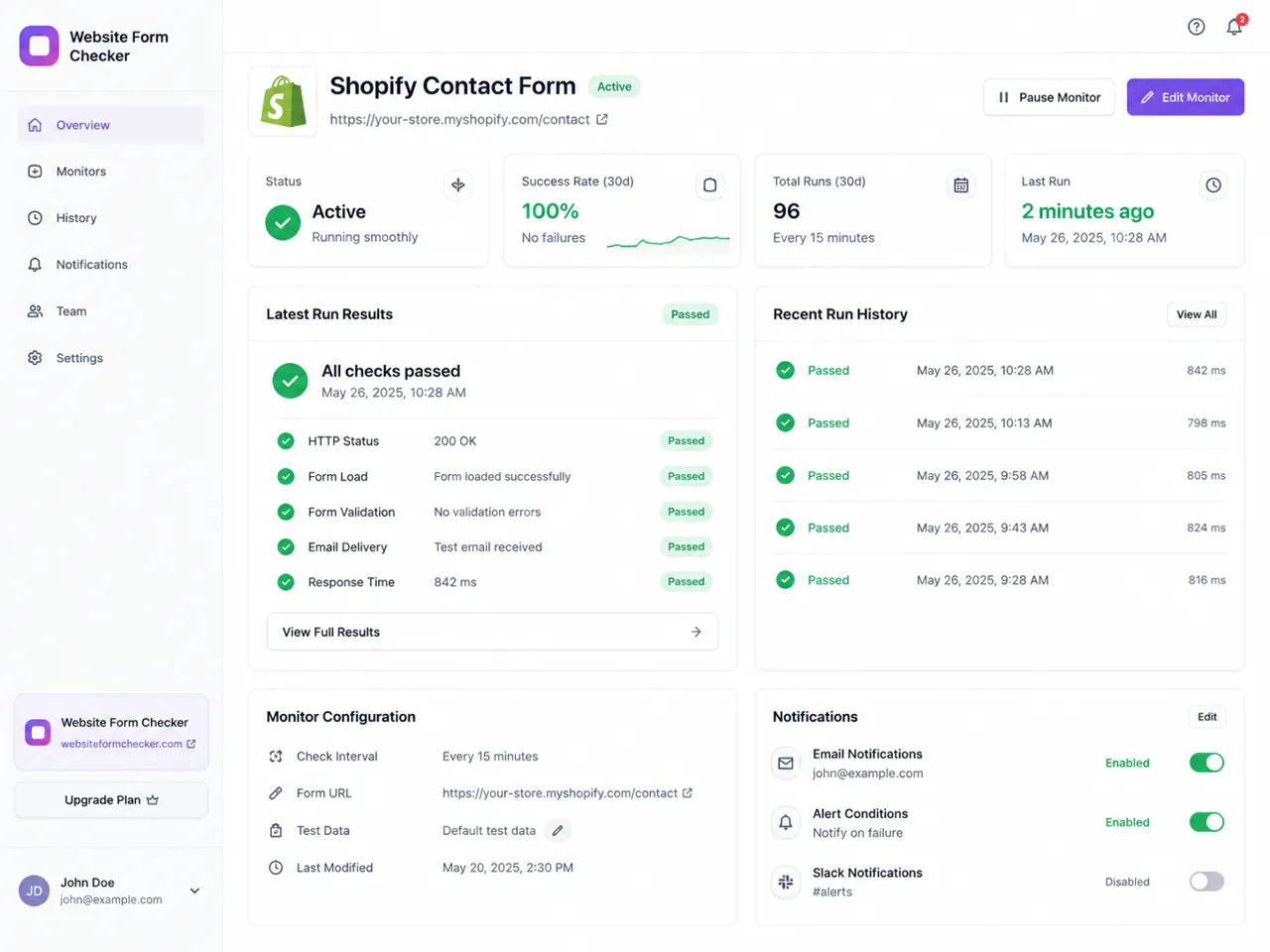
That is where Website Form Checker fits after the repair is done. It sends real scheduled test submissions through the live form and alerts you if the submission or email delivery stops working. The goal is simple: catch the problem before a real customer message disappears.
Final Shopify contact form checklist
- The live Shopify contact page was tested in a private browser window.
- A unique phrase was used so the test message can be searched later.
- The Contact page is assigned to the correct contact template.
- The contact form section is present in the theme editor.
- The store sender email in Settings > Notifications is correct.
- The sender email is verified or authenticated if required.
- The theme code still uses the Shopify contact form tag and correct email field.
- The form request succeeds in the browser if developer tools are checked.
- Spam, filters, forwarding rules, and archived folders were searched.
- A final live test reached the right inbox with usable customer details.
Test your form right now, free
Paste your contact form URL. We'll open it in a real browser, find the form, detect spam protection, and tell you whether it's structured to actually deliver submissions. Takes about 20 seconds.
Run a free audit →