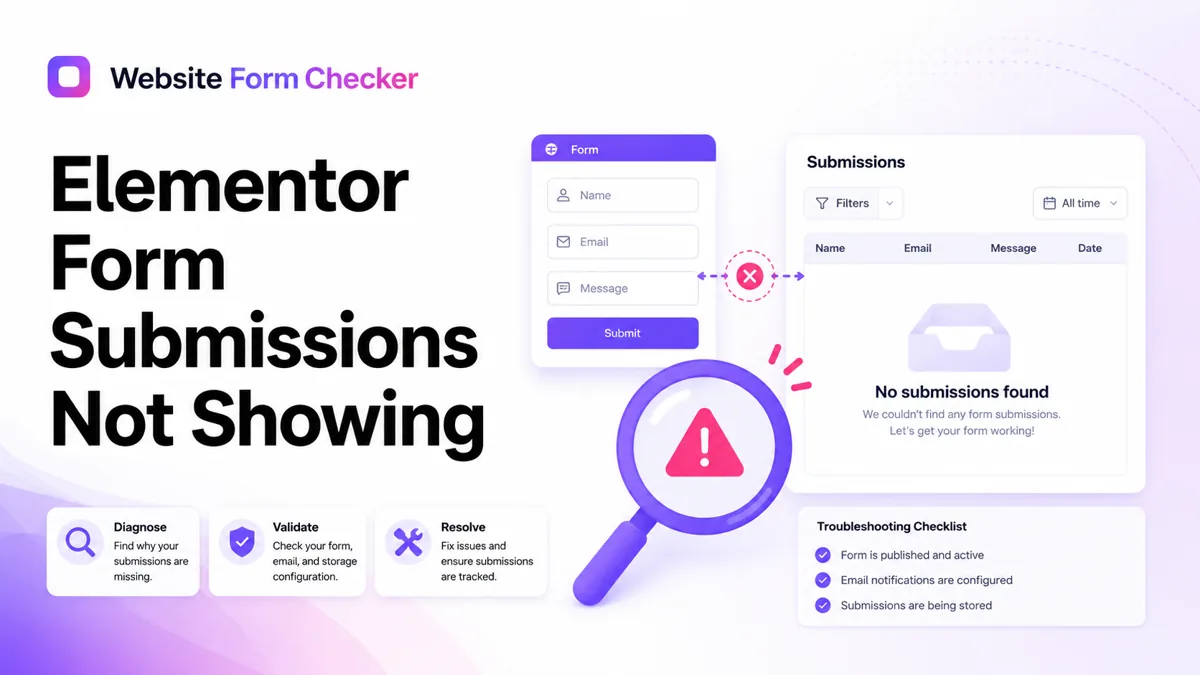
This guide focuses on the Submissions screen, not just email delivery. You will test the live form, confirm the right Elementor form is being checked, and verify that the saved entry exists before you move on to email or CRM problems. You can also paste your form URL into our free form checker first to see how the form is structured before you start digging.
Start with a live Elementor form test
Open the public contact page in a private browser window and send a real test submission. Use a phrase you can search for later, such as Entry tracking test 2048. Put that phrase in the message field and submit the form like a visitor would.
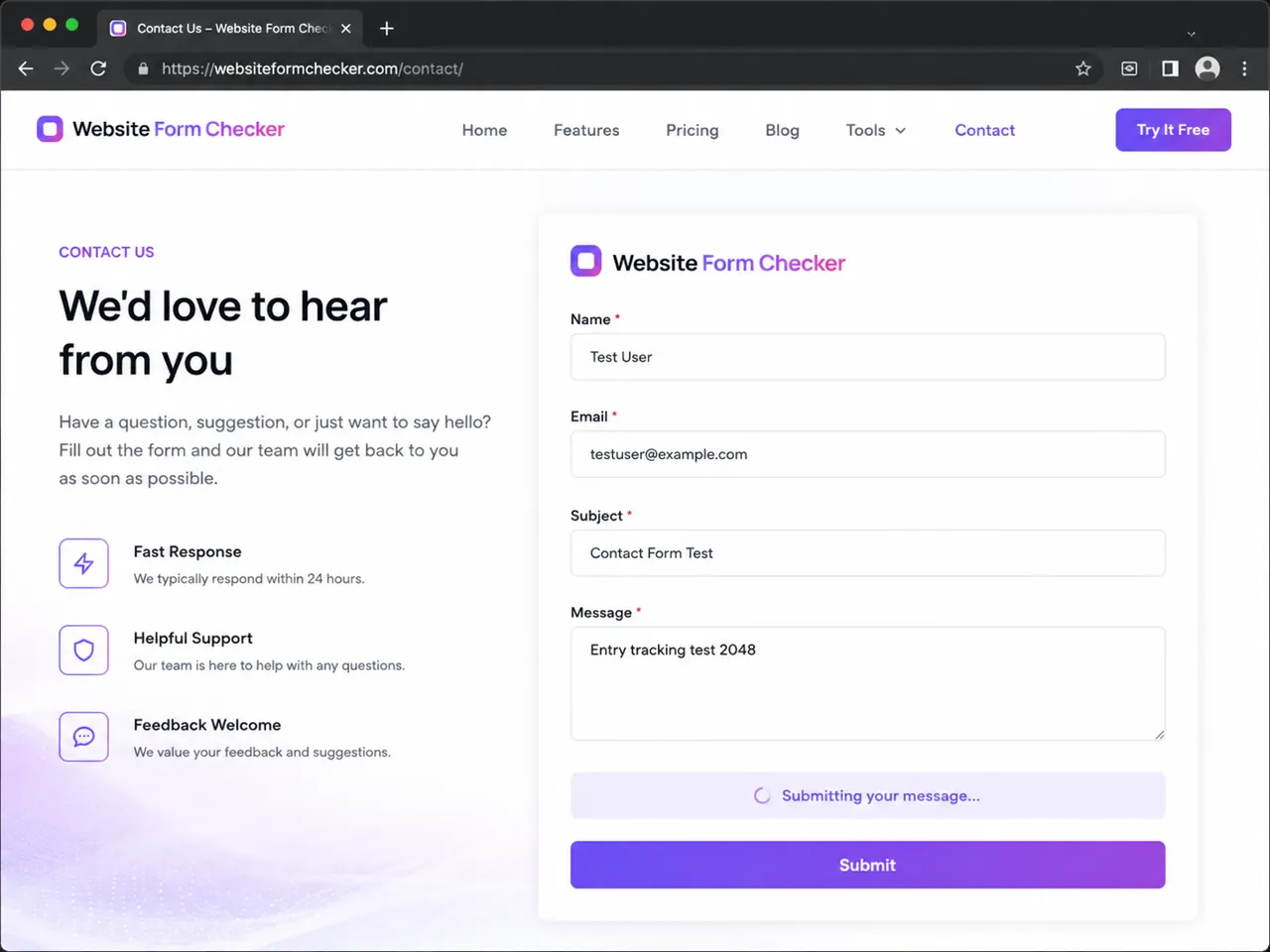
Do not test only inside the editor. The live page is what customers use, and it is where caching, scripts, spam protection, and theme conflicts usually appear.
Confirm you are checking the correct form
If your site has several Elementor forms, it is easy to look at the wrong submission list. Open the page in Elementor, select the Form widget, and check the Form Name field. Use a clear name such as Contact Form, Quote Request, or Support Request.
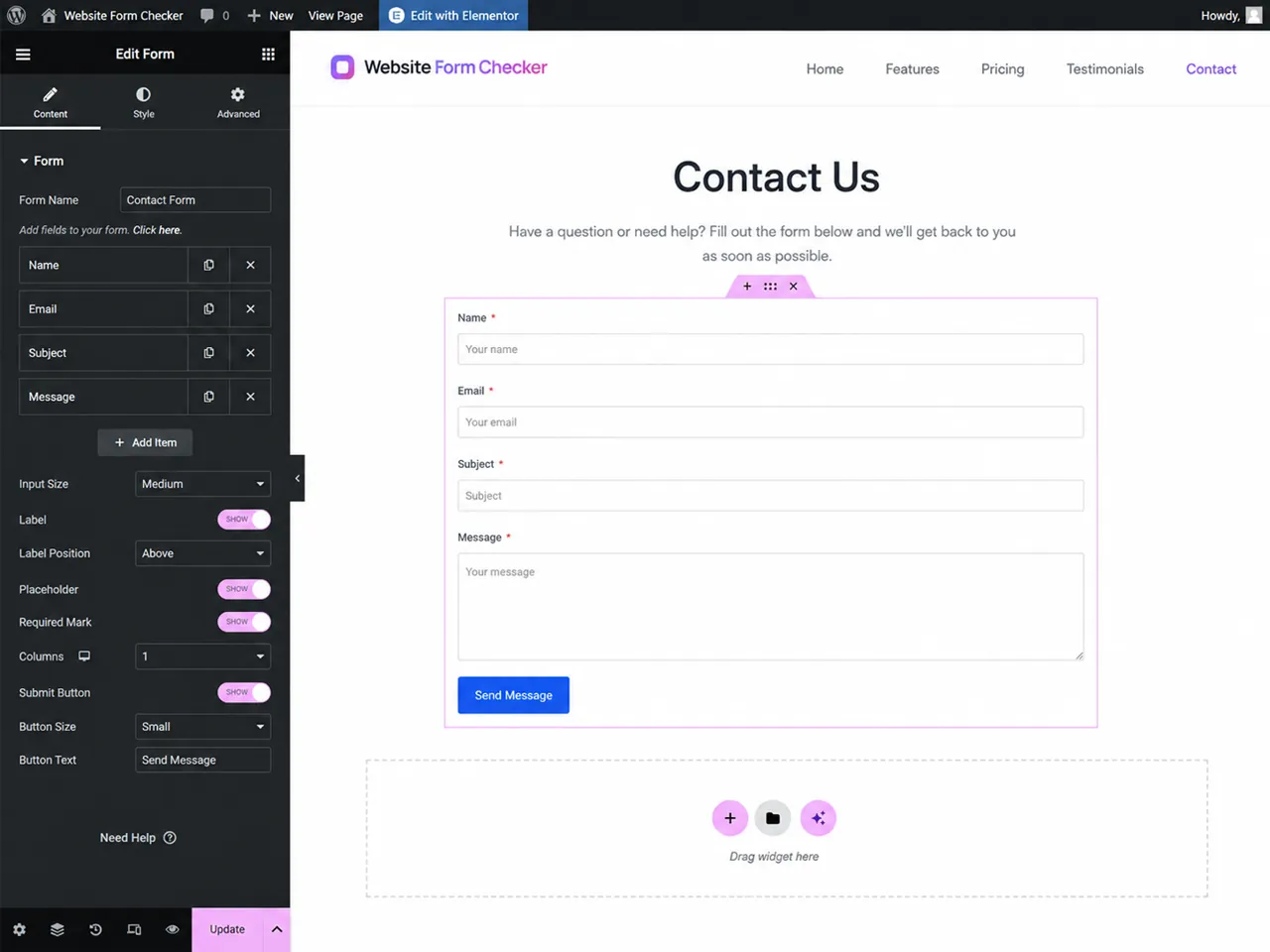
This matters because Elementor submissions are tied to the form that collected them. If the form name is vague or duplicated across pages, you may think Elementor form entries are not showing when you are really filtering the wrong form.
Make sure Collect Submissions is active
In the Elementor editor, select the form and open Content > Actions After Submit. If you want entries stored in WordPress, Collect Submissions needs to be active. Email can send notifications, but Collect Submissions is the action that stores the entry in the admin area.
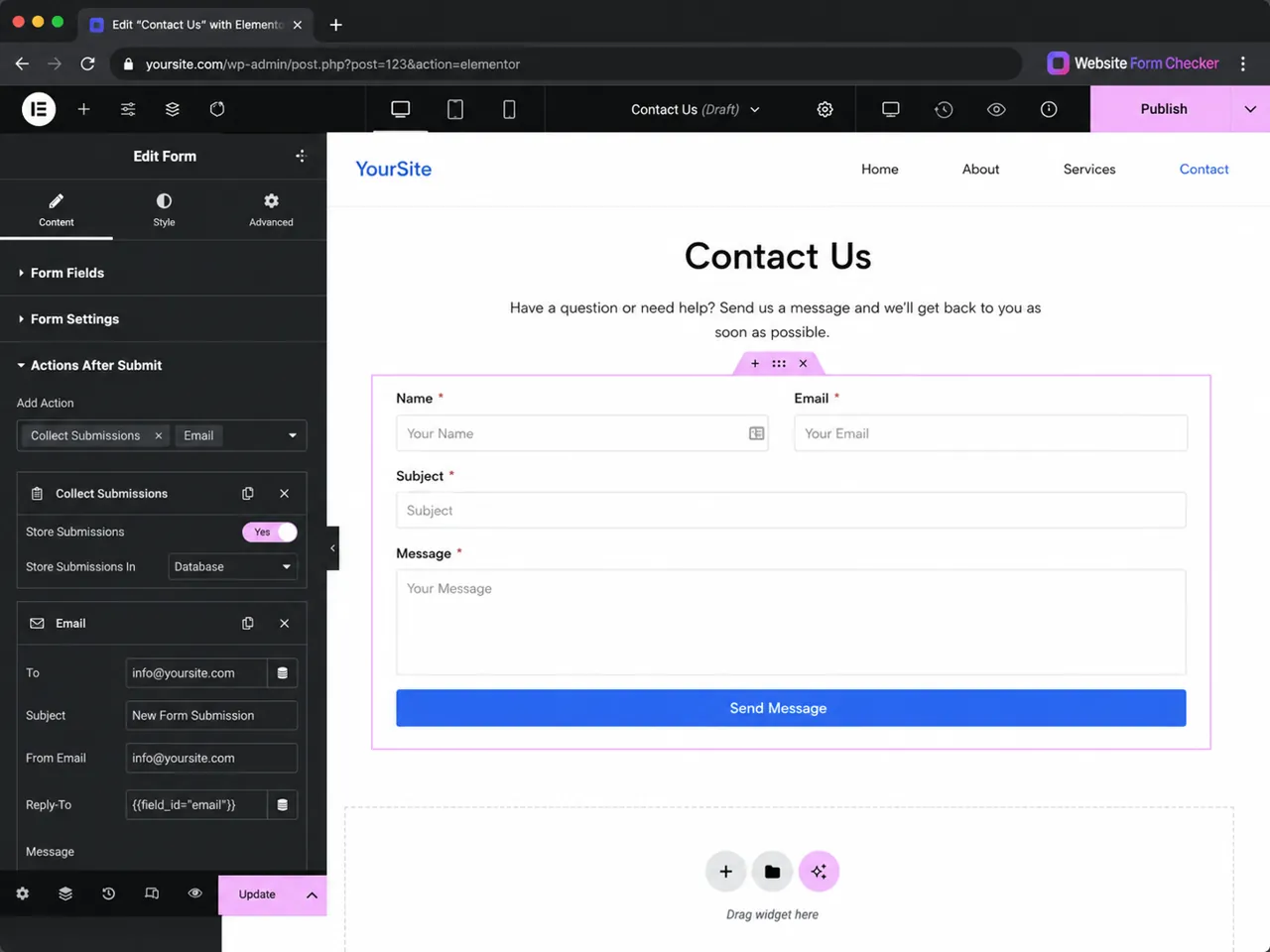
If Collect Submissions was missing, add it, update the page, clear any cache, and run the live test again. This is one of the most common reasons for Elementor form not saving submissions.
Use the Elementor Submissions filters carefully
Go to WordPress Dashboard > Elementor > Submissions. Before assuming the entry is missing, reset the filters. Check All Forms, widen the date range, and switch between unread and read statuses.
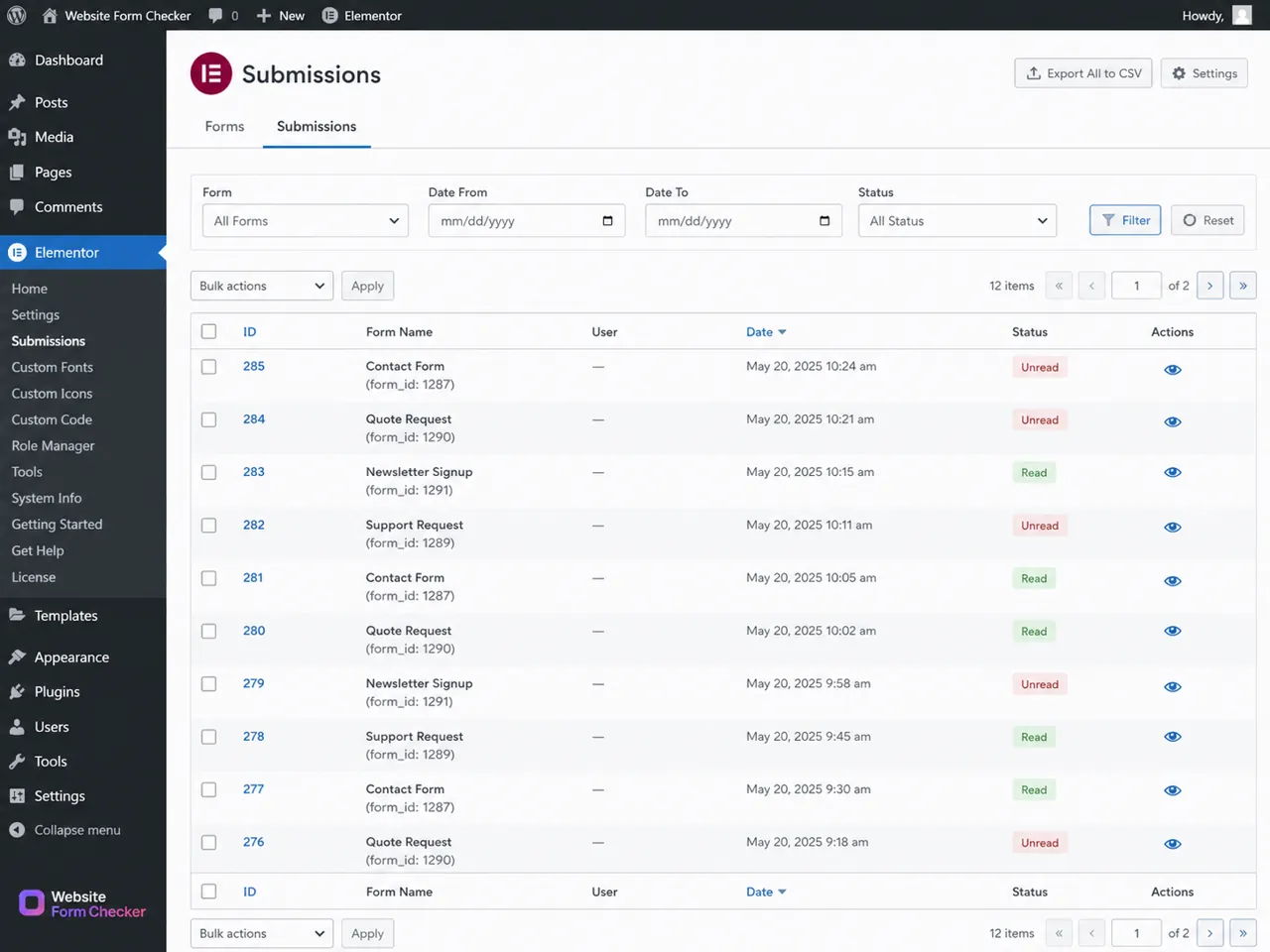
A narrow date range, the wrong form, or a read/unread filter can hide a valid entry. This creates the same symptom as a broken form, but the data is still there.
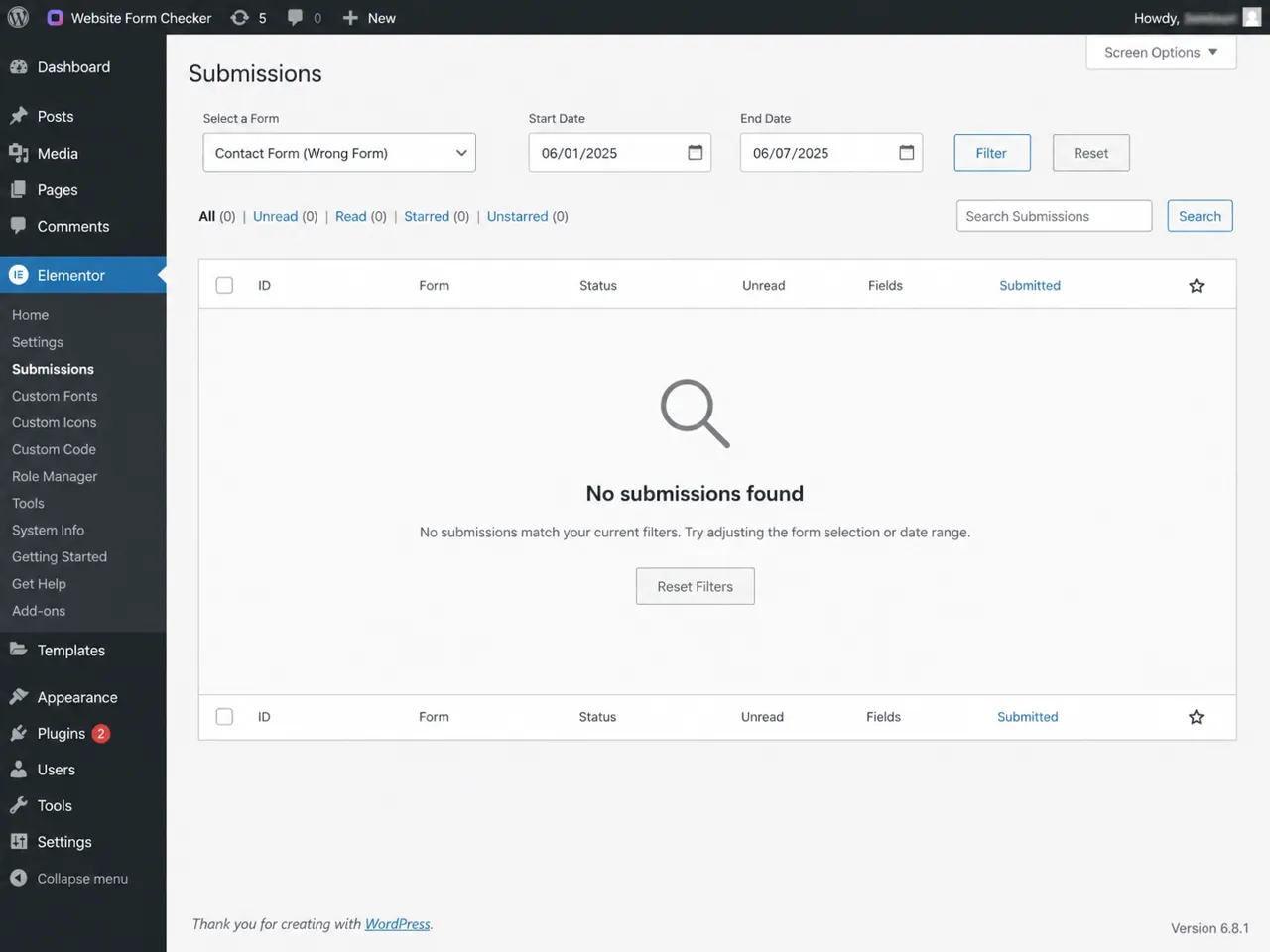
Open a saved submission and compare the fields
If the test entry appears, open it and compare the saved field values with the message you submitted. You should see the name, email, subject, message, submission date, and any tracking details your form collects.
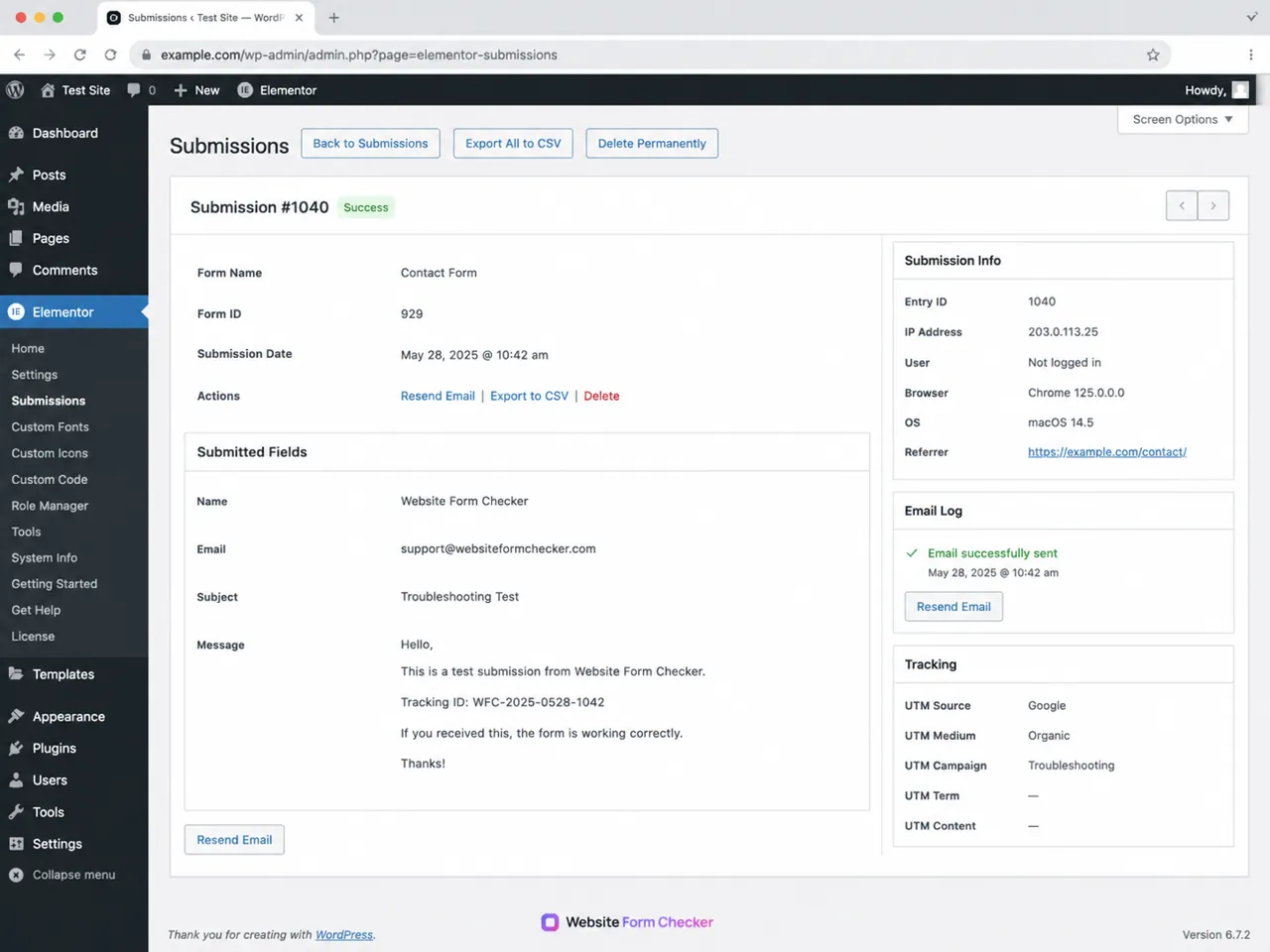
If the saved entry is correct but your team did not receive an email, the problem is probably the email action, SMTP, spam filtering, or inbox routing. If no entry exists, keep troubleshooting the form submission path.
Check the global Form Submissions setting
Next, open Elementor > Settings > Advanced. Look for the Form Submissions setting and confirm it is enabled. If this is disabled, Elementor may not store entries even if the form appears to submit.
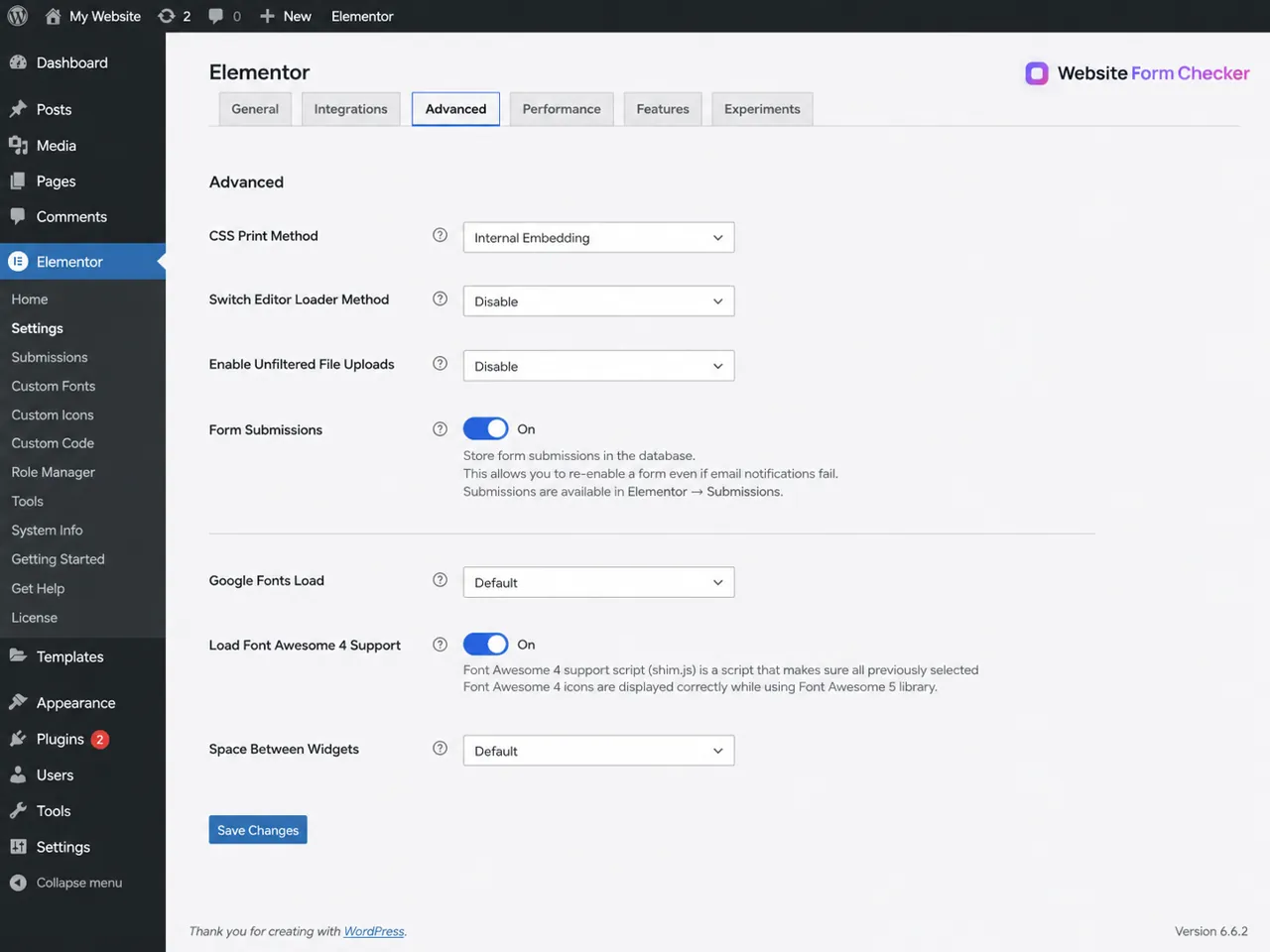
After changing this setting, save changes and run a fresh live test. Old submissions will not magically appear if they were never stored, so you need a new test entry to confirm the fix.
Review spam protection and hidden validation fields
Spam protection can stop submissions before they are saved. In the Form widget, check reCAPTCHA, honeypot fields, and any validation settings. A wrong site key, broken secret key, or visible honeypot field can block real visitors.
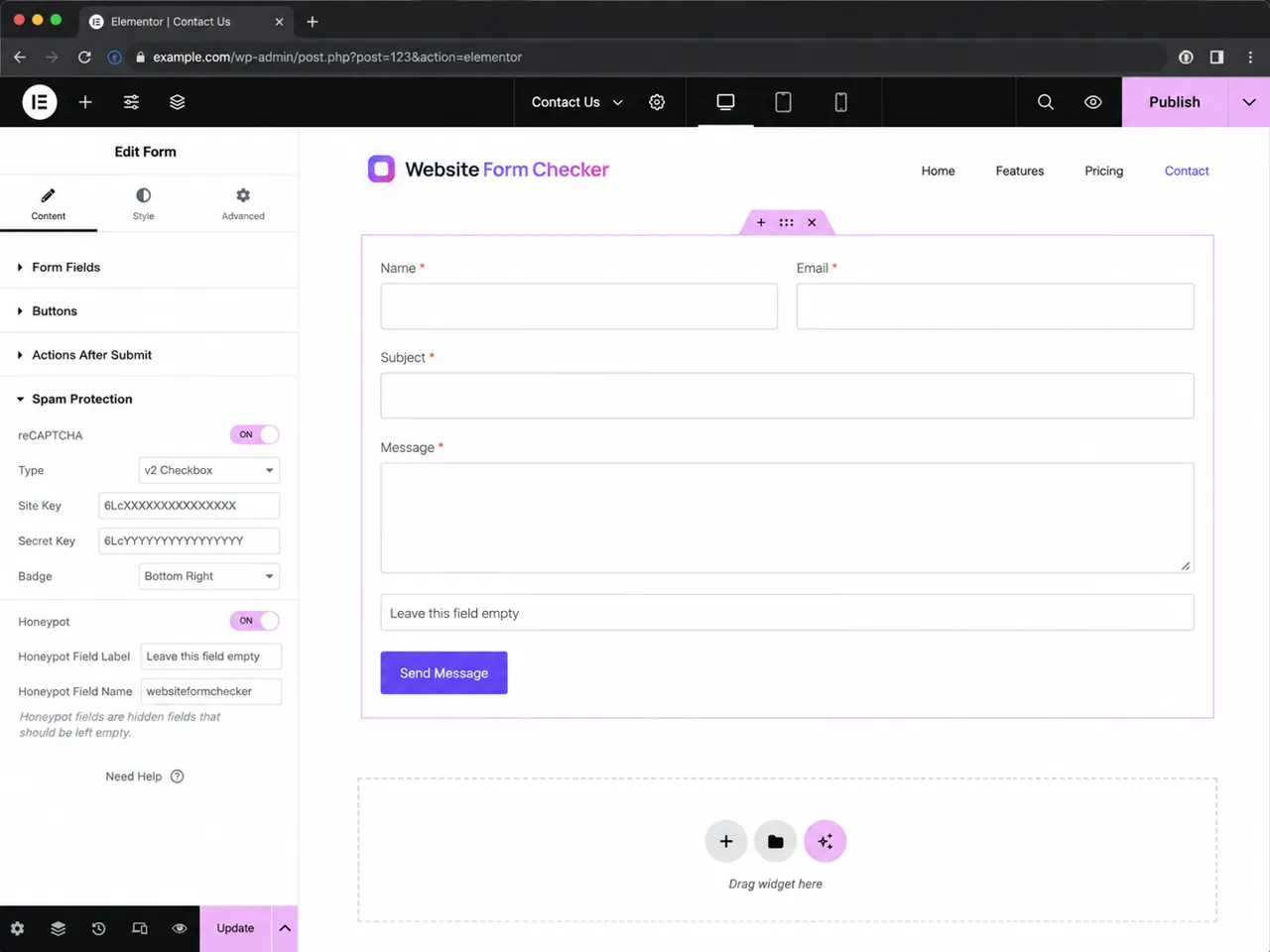
If the form stopped saving entries after a security plugin, reCAPTCHA change, or anti-spam update, temporarily simplify the protection and test again. Re-enable protection only after you know which setting caused the block.
Look for JavaScript or AJAX errors on the live page
If Elementor shows an error after submit, or the button spins forever, open the browser developer console and submit another test. Look for AJAX errors, 500 server responses, blocked scripts, or invalid JSON responses.
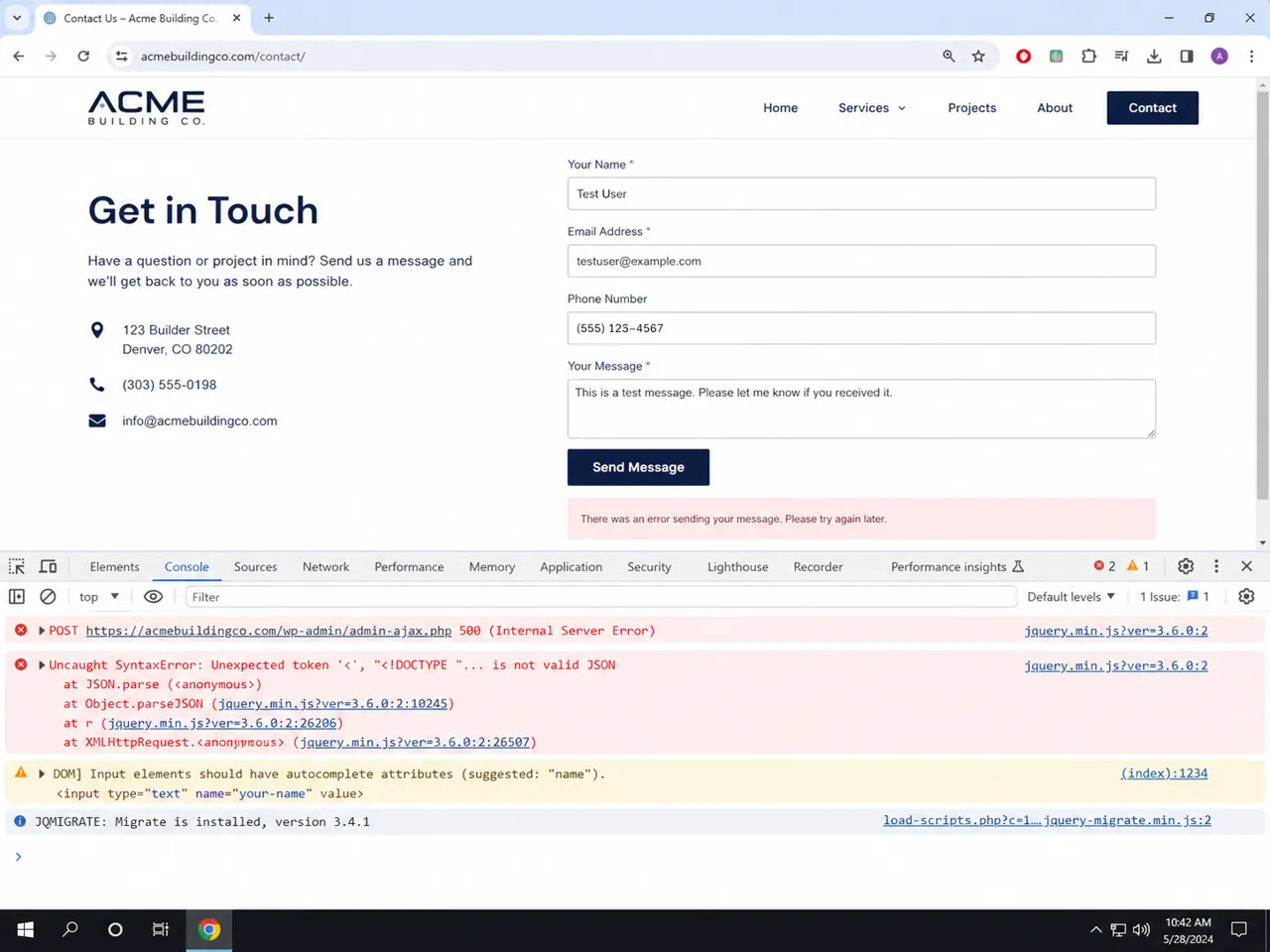
These errors usually point to a conflict with caching, optimization plugins, security rules, server limits, or custom JavaScript. Fix that page-level error before chasing email notifications.
Run one final live-to-admin verification
After fixing the setting, filter, spam protection, or script problem, submit the form again from the live page. Then open Elementor > Submissions and confirm the saved record matches the exact test phrase.
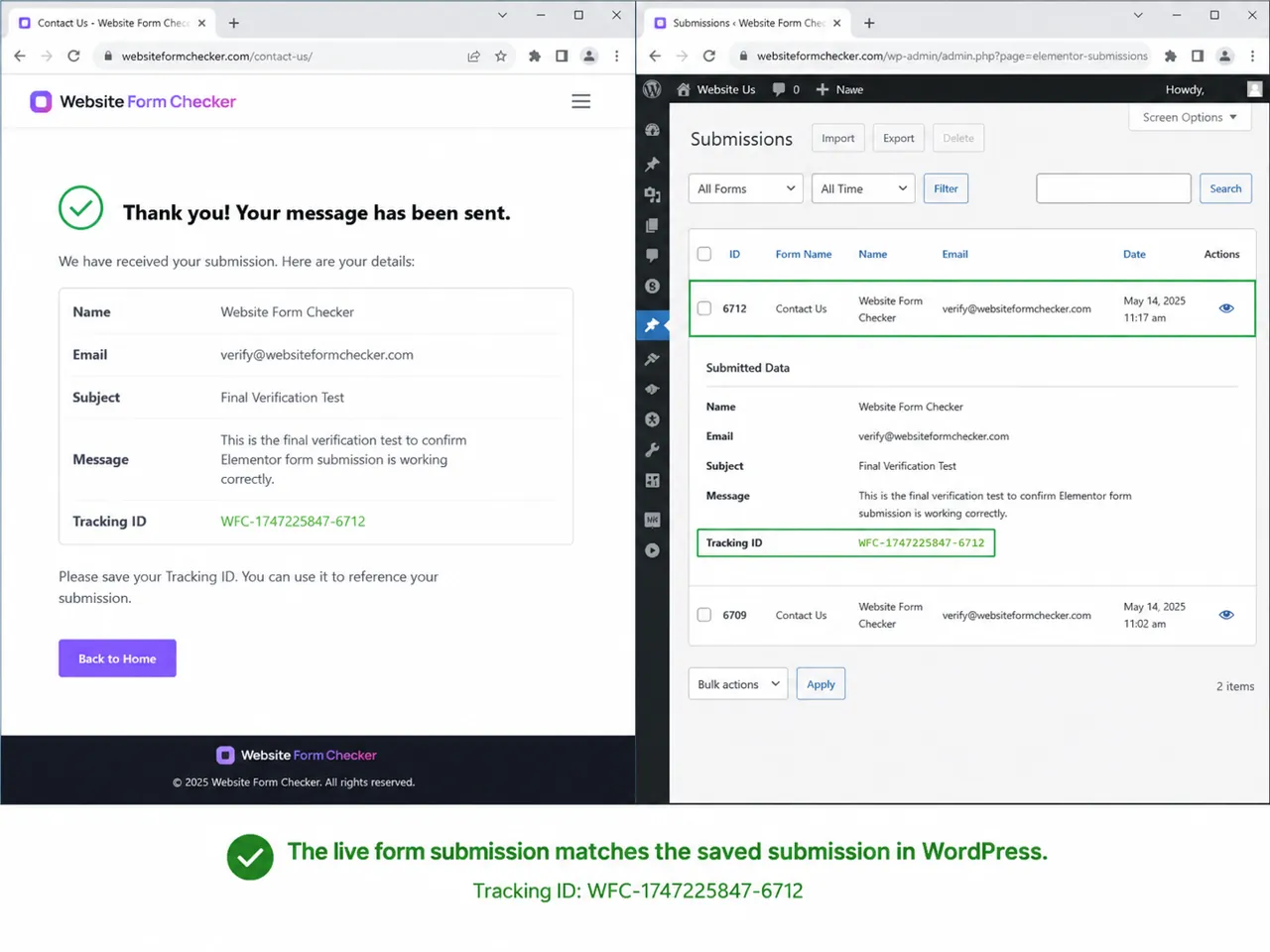
A passing test means the live page accepted the submission, Elementor stored the entry, and the saved record contains the information your team needs. Only after that should you troubleshoot email delivery or CRM integrations.
How to catch missing submissions before leads disappear
Once Elementor submissions are working again, the risk is that they break later without anyone noticing. Plugin updates, cache changes, reCAPTCHA keys, SMTP changes, and security rules can interrupt the path while the form still looks normal on the page.
Website Form Checker helps watch that gap by sending real test submissions through your form on a schedule and alerting you if they stop arriving. After you repair the issue, monitoring helps you catch the next silent failure before a real lead gets ignored.
Troubleshooting checklist
- Submit a live test with a unique tracking phrase.
- Confirm the correct Elementor Form widget name.
- Make sure
Collect Submissionsis active under Actions After Submit. - Reset Submissions filters before assuming entries are missing.
- Check the wrong form and wrong date range as possible causes.
- Open a saved submission and compare the field values.
- Confirm
Form Submissionsis enabled in Elementor settings. - Review
reCAPTCHA,honeypot, and spam protection settings. - Check the browser console for AJAX or JavaScript errors.
- Run a final live test and match it to the saved Elementor submission.
Test your form right now, free
Paste your contact form URL. We'll open it in a real browser, find the form, detect spam protection, and tell you whether it's structured to actually deliver submissions. Takes about 20 seconds.
Run a free audit →